Logging in to the Clew Mobile App
How to sign in to the Clew Mobile App using the QR code from the web application
Contents
- 1. Introduction & Context
- 2. Key Features & Functions
- 3. Requirements
- 4. Step-by-Step Guide
- 5. Common Issues & Troubleshooting
- 6. Related Articles
1. Introduction & Context
This article explains how to log in to the Clew Mobile App by scanning a QR code generated in the Clew web application, so you can access your account on a mobile device. You sign in once on the web, scan the code with the app, and enter the confirmation code to authenticate.
Who is it for? Any Clew user who wants to use the Clew Mobile App on a phone or tablet.
What does it impact? Signing in links the app on your device to your Clew account. It does not change your web login or your account settings.
2. Key Features & Functions
- QR code sign-in: the web application generates a QR code that the app scans to begin authentication.
- Confirmation code: after scanning, the app displays a code that you enter back in the web application to complete the link.
- Device authentication: once the code is verified, your device is authenticated and logged in to your account.
3. Requirements
- Mobile functionality must be enabled for your application. If it is not enabled, please speak to your System Administrator or Clew Support.
- A mobile device (phone or tablet) on which to download the Clew Mobile App.
- Access to the Clew web application to generate the QR code.
4. Step-by-Step Guide
Log in to the Clew Mobile App
- Download the Clew Mobile App from the Google Play Store or the Apple App Store, depending on your device.
- Log in to the Clew web application.
- Select your name in the top-right corner, then select Clew Mobile App Log In.
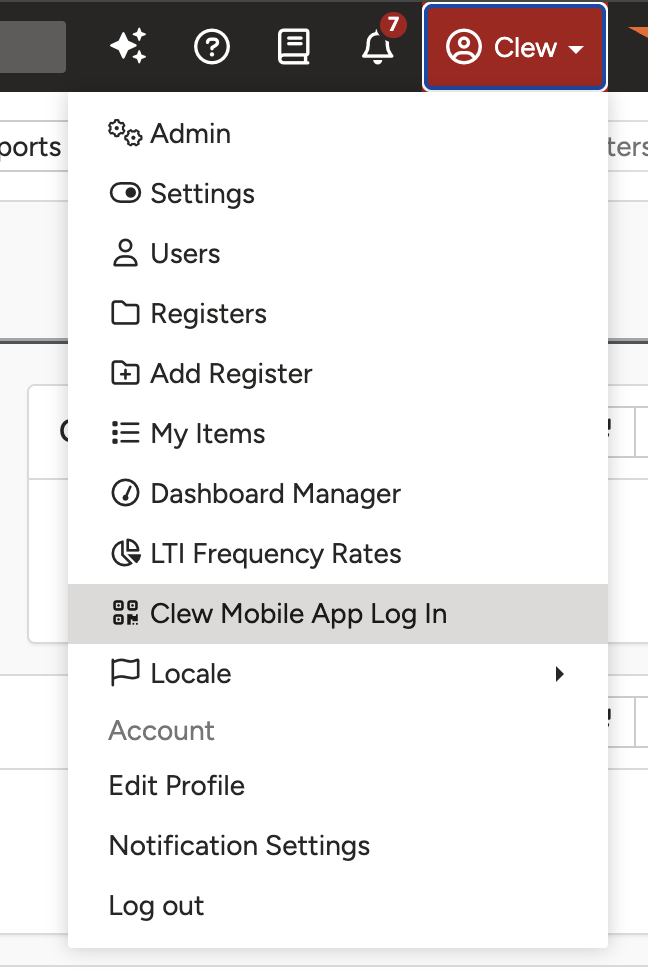
Selecting Clew Mobile App Log In from the user menu.
- A QR code is displayed. You will scan this shortly, and then enter a code into the field highlighted in red.
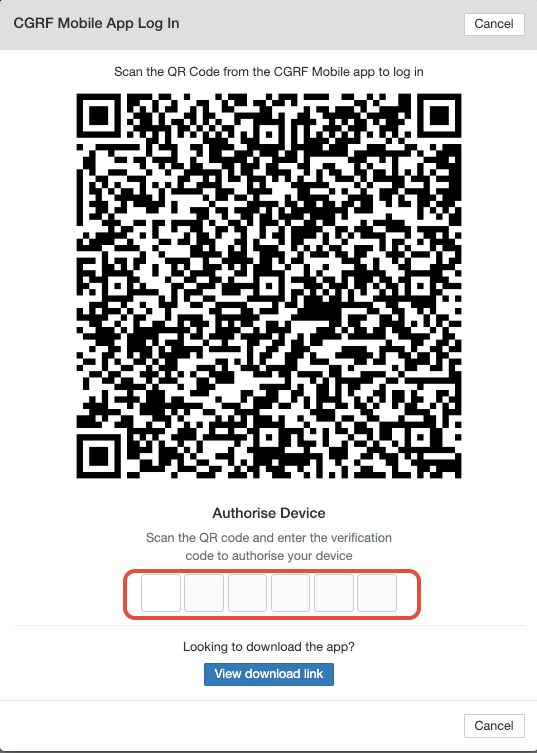
The QR code and the field where you enter the confirmation code.
- Open the Clew Mobile App on your phone, then select Scan QR Code to Sign In.
- Point the scanner that opens on your phone at the QR code shown in the web application from step 4.
- Once the scan completes, a code is displayed on your mobile device. Enter this code into the field from step 4.
- Your device authenticates and you are logged in to your account, ready to start using the mobile app.
5. Common Issues & Troubleshooting
| Issue | Likely Cause | Solution |
| The Clew Mobile App Log In option does not appear in the user menu | Mobile functionality is not enabled for your application. | Speak to your System Administrator or Clew Support to have mobile functionality enabled. |
| The app will not scan the QR code | The camera does not have a clear view of the code, or the app lacks camera permission. | Make sure the full QR code is visible on screen and well lit, and confirm the app has permission to use your device camera. |
| The confirmation code is not accepted | The code was mistyped, or too much time passed and the QR code expired. | Re-enter the code carefully. If it still fails, refresh the page to generate a new QR code and repeat the scan. |
Best practices:
- Keep the web application open on the QR code screen while you scan, so the code remains valid.
- Download the Clew Mobile App from the official Google Play Store or Apple App Store only.
- Enter the confirmation code exactly as displayed on your device.
Click a title to preview it here. Use the Open full article button to read the full version in a new tab.
▾AI Meter Open full article »
Related article
Explains the AI Meter and how it tracks your usage of AI features across the Clew Platform.
▾API v2 Authentication Open full article »
Related article
Covers how to authenticate against the Clew Platform API v2, including the flows used to authorise access.
Was this article helpful?
That’s Great!
Thank you for your feedback
Sorry! We couldn't be helpful
Thank you for your feedback
Feedback sent
We appreciate your effort and will try to fix the article