Core Fields: Library Control
The fields available for the Library Control module, and what each one is for
Contents
- 1. Introduction & Context
- 2. Key Features & Functions
- 3. Requirements
- 4. Step-by-Step Guide
- 5. Common Issues & Troubleshooting
- 6. Related Articles
1. Introduction & Context
This article lists the fields available for the Library Control module and what each one is for, and shows how to choose which fields appear as columns in the Library Control list view.
Who is it for? This is configured by Clew Admins in Admin Settings, under Custom Types > Library Control.
What does it impact? These settings control what your team sees and can enter on Library Control records, not the underlying data itself.
2. Key Features & Functions
- Field coverage: covering ownership, control description & classification, effectiveness & assurance, cost & impact, dates & scheduling, and record & system fields, listed in full in Section 4.
- Default list view columns: out of the box, the Library Control list view shows Type, ID #, Title, Register, Critical Control?, Implemented?, Failed?, and Control Effectiveness.
3. Requirements
- Clew Admin access, to open Admin Settings and Custom Types > Library Control.
- The Library Control module must already be enabled in Clew.
4. Step-by-Step Guide
Library Control: Core Field Visibility
- Go to Admin Settings and open Custom Types.
- Select Control.
- Scroll to Core Field Settings. Use the search box to find a specific field if the list is long.
- Update fields individually using the eye icons, or select several rows and use Mass Edit. See Core Fields: Overview for how these controls work.
By default, the Library Control list view's Selected Fields include Type, ID #, Title, Register, Critical Control?, Implemented?, Failed?, and Control Effectiveness.
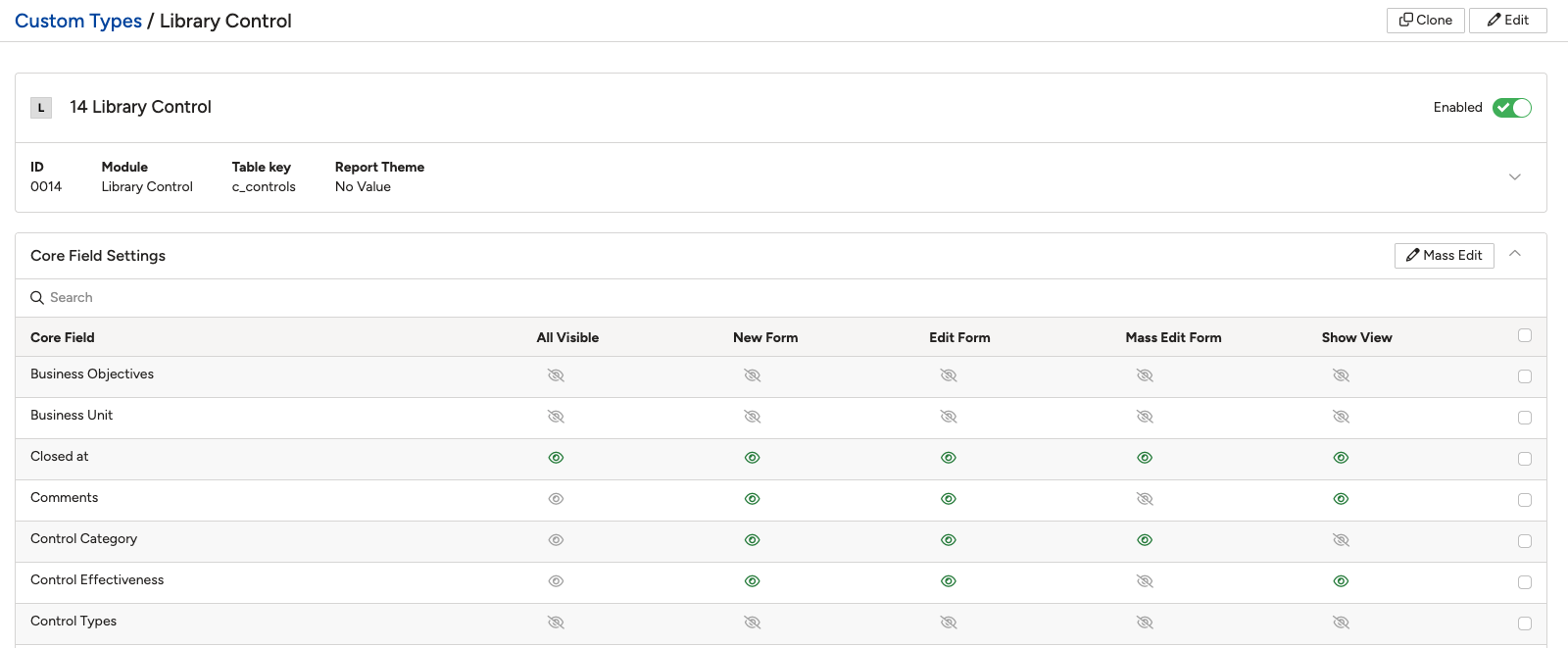
Library Control: Field Reference
The fields available for the Library Control module, grouped by what they're used for. For how to control where each one appears (New Form, Edit Form, Mass Edit Form, Show View), see Core Fields: Overview.
Ownership
| Field | What it's for |
| Owner | The person who owns the library control. |
| Owner Role | The role the Owner holds. |
Control Description & Classification
| Field | What it's for |
| Control Category | The category this control belongs to. |
| Control Types | The type(s) this control is classified as. |
| Library Control | A reference back to the library control definition this record is drawn from. |
| Objectives | The objective(s) this control is intended to achieve. |
| Business Objectives | The organisational objective(s) this control relates to or supports. |
| Comments | Free-text comments recorded against the control. |
| Cross Reference / Supporting Documents | Links or references to supporting documentation for this control. |
| Latest Survey Result | The most recent survey or assessment result recorded for this control. |
| Linked To | The record(s) this control is linked to. |
Effectiveness & Assurance
| Field | What it's for |
| Critical Control? | Flags whether this is a critical control. |
| Implemented? | Flags whether the control has been implemented. |
| Failed? | Flags whether the control has failed. |
| Control Effectiveness | The assessed effectiveness of the control. |
Cost & Impact
| Field | What it's for |
| Cost ($) | The cost associated with the control. |
| Impact Window Start | The start of the period during which the control's impact applies. |
| Impact Window End | The end of the period during which the control's impact applies. |
| Frequency | How often the control is performed or reviewed. |
Dates & Scheduling
| Field | What it's for |
| Due Date | The date the control (or its review) is due. |
| Original Due Date | The due date originally set, before any extension. |
| Closed at | The date and time the record was closed. |
Record & System Fields
| Field | What it's for |
| Type | The record type classification, distinguishing this custom type (Library Control) within its module. |
| ID # | The unique identifier number automatically assigned to the record. |
| Title | The short name or title given to the control. |
| Status | The record's current position in its workflow, for example Draft, Open, or Closed. |
| Register | The register the control belongs to. |
| Location | The physical or organisational location the control relates to. |
| Created at | The date and time the record was first created. |
| Updated at | The date and time the record was last updated. |
| Created by | The user who created the record. |
| UUID | A unique identifier automatically generated for the record, in addition to the sequential ID #. |
5. Common Issues & Troubleshooting
These issues apply to Library Control the same way they do to every module. See Core Fields: Overview for the general troubleshooting table and best practices.
| Issue | Likely Cause | Solution |
| A Library Control field doesn't appear on a form or Show View | That specific column is switched off for the field in Library Control's Core Field Settings | Open Custom Types > Library Control > Core Field Settings and switch on the relevant column for that field |
| A field isn't listed under Library Control's Available Fields or Core Field Settings at all | The field has not been enabled for your organisation | Raise a request with Clew support to have the field enabled for Library Control |
- Core Fields: Overview
- Core Fields: Risk
- Core Fields: Incidents
- Core Fields: Hazards
- Core Fields: Action
- Core Fields: Assurance (Audit Report)
- Core Fields: Audit
- Core Fields: Business Objective
- Core Fields: Change Request (Feedback)
- Core Fields: Control
- Core Fields: Learning (Declaration)
- Core Fields: Standard
- Core Fields: Performance Standard
- Core Fields: Measurement
Was this article helpful?
That’s Great!
Thank you for your feedback
Sorry! We couldn't be helpful
Thank you for your feedback
Feedback sent
We appreciate your effort and will try to fix the article