Key Indicators
What indicators are for, how to create one, how thresholds decide the outcome, and how responses are recorded
Contents
- 1. Introduction & Context
- 2. Key Features & Functions
- 3. Requirements
- 4. Step-by-Step Guide
- 5. Common Issues & Troubleshooting
- 6. Related Articles
1. Introduction & Context
Indicators are statistics used to measure current conditions and to forecast trends. In Clew they can track something outside the system, or measure something inside it, such as the number of overdue actions.
A key risk indicator, or KRI, measures the likelihood that the combined probability of an event and its consequences will exceed your organisation's risk appetite and seriously damage its ability to succeed. KRIs give you:
- Advance notice of potential risks that could damage the organisation.
- Insight into possible weaknesses in your monitoring and control tools.
- Ongoing risk monitoring between risk assessments.
A worked example. A retailer might use the number of customer complaints as a key risk indicator. A rise in that number is an early sign that an operational problem needs attention, well before it shows up anywhere else.
Typical KRIs group into three areas:
| Area | Examples |
| People | Loss of staff. Employee dissatisfaction. |
| Process | Production of an important product cannot keep up with demand. Existing designs are increasingly outdated and could lead to declining sales. |
| Technology | Disruption to IT systems from cyber attack. Inability to recover systems, data files and databases after a disaster, because backups have failed. |
Who is it for? Every business unit should be identifying its own KRIs. The risk management team's job is to make sure every stakeholder is trained and understands the process.
What does it impact? The harder part is not picking indicators but agreeing which ones are genuinely key, and communicating the warning so everyone understands what it means and can act on it. An indicator nobody reads is not monitoring.
2. Key Features & Functions
User Input and Automated
Every indicator has a Mode, set under Reporting Details on the form. It decides where the numbers come from.
| Mode | How it works |
| User Input | The user set as Reporter (Assignee) receives an email prompt from Clew asking them to respond, and enters the value themselves. |
| Automated | The indicator reads data already in Clew and returns a count, max, min, sum or average. A user with the metric permission sets it using filters and a target module. |
How often a response is expected comes from Response Interval and Response Interval Unit, for example every 1 day, alongside Reporting Days and the Next Report Date.
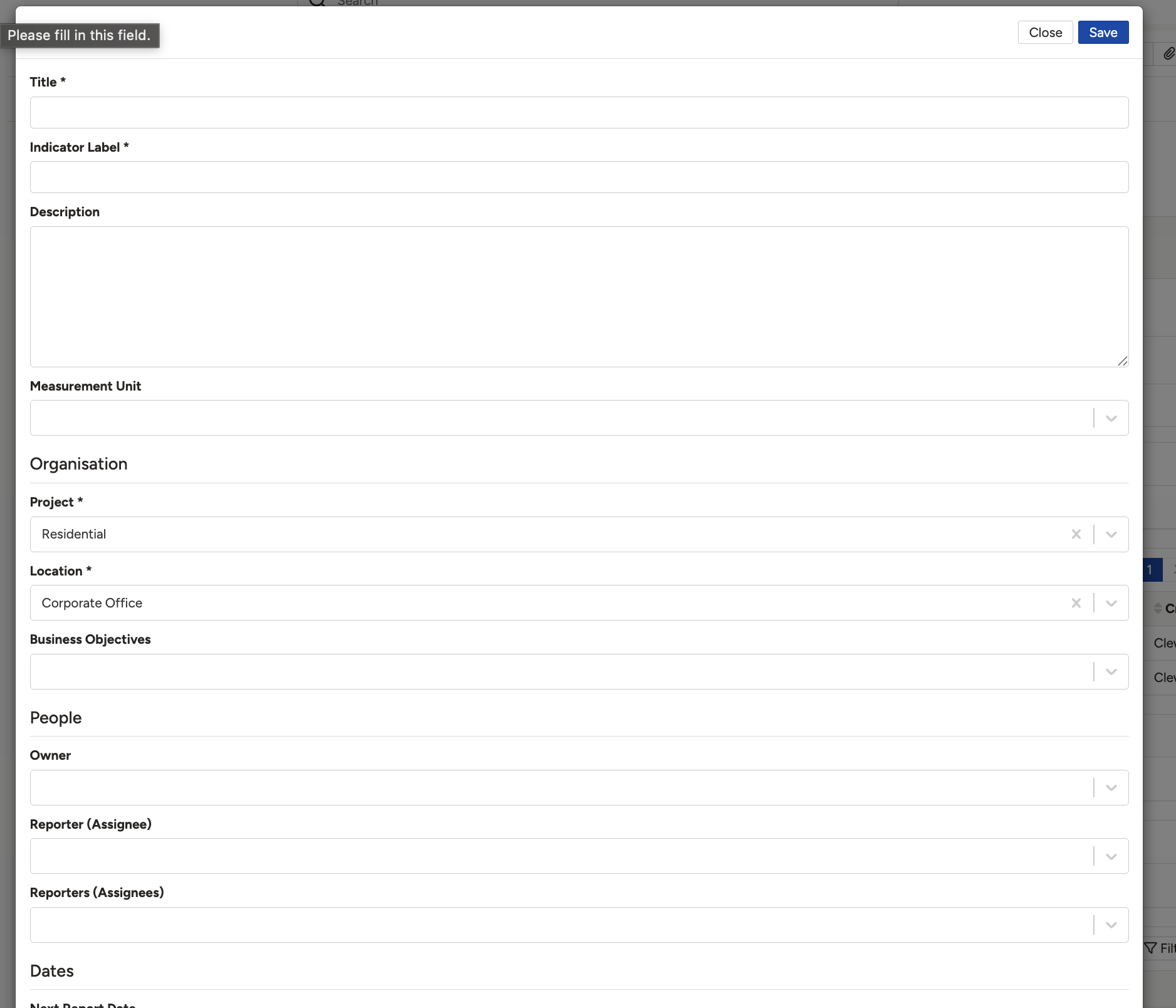
Reporting Details, with the response interval and the Mode dropdown open.
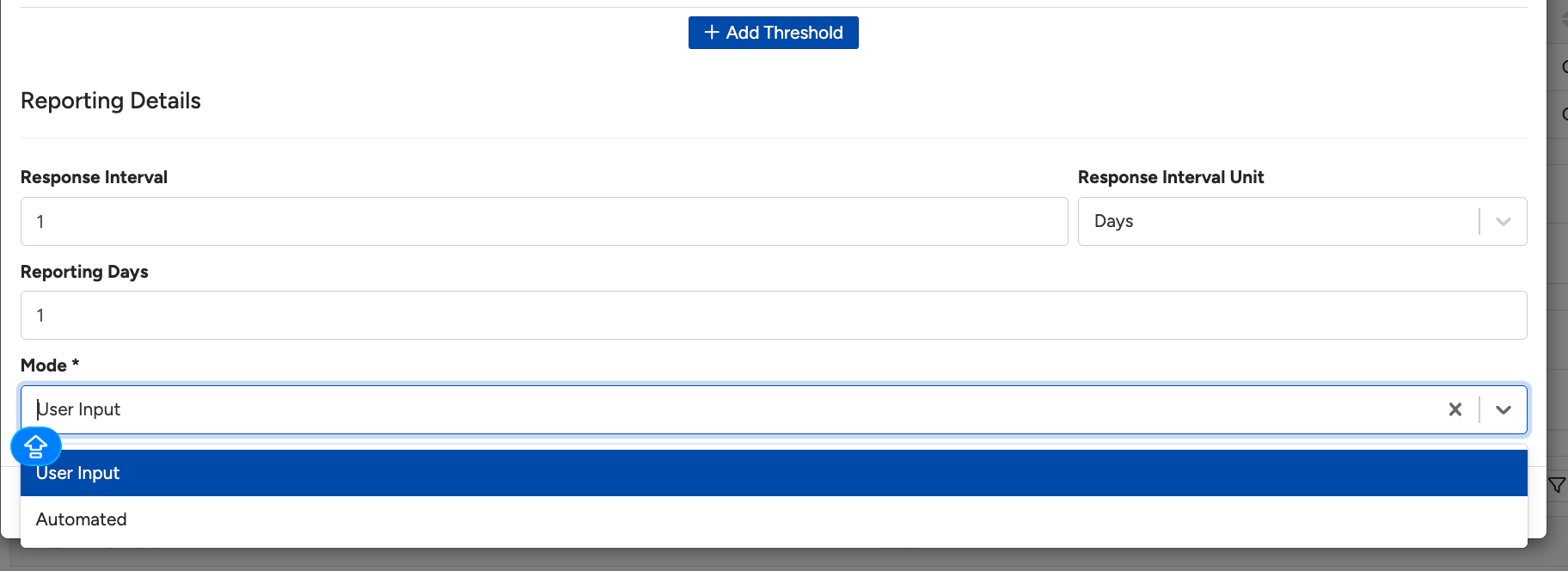
The same panel with Mode set to Automated, ready to save.
Thresholds and outcomes
An outcome is not typed in with the response. It is worked out from the thresholds you set on the indicator. Each threshold has a Lower bound, an Upper bound and the Outcome that applies to values in that band. Use Add Threshold to create one.
That is also the answer to changing the outcome options. Edit the indicator's thresholds, and the outcomes available change with them. An indicator with no thresholds records every response as No Outcome, which is why a value can look recorded but unrated.
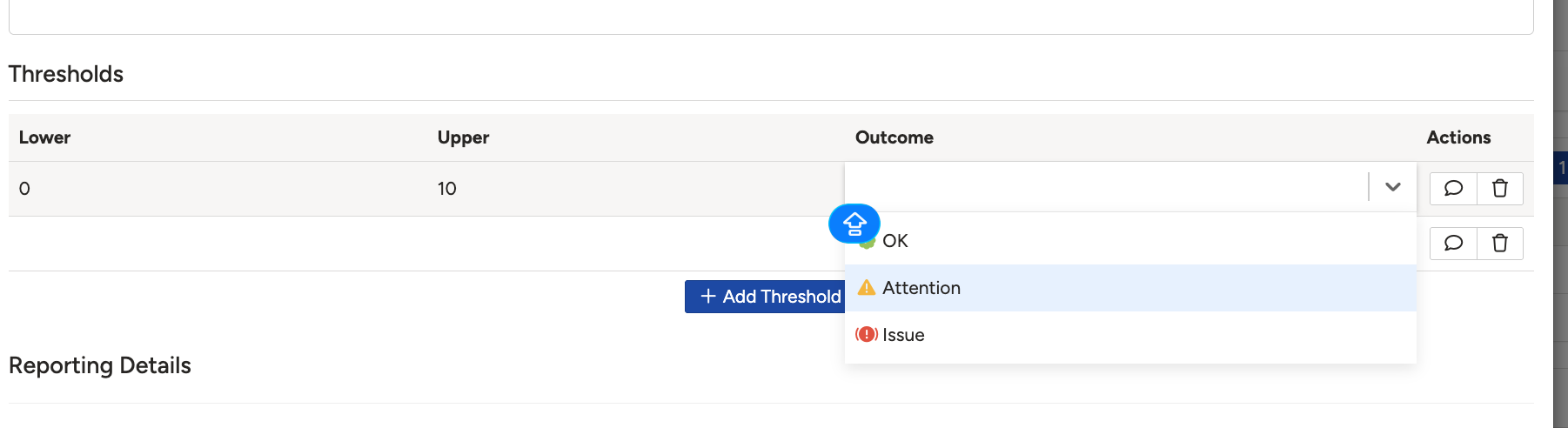
The Thresholds table, with the Add Threshold button that creates a lower and upper band and its outcome.
What the latest value shows
The header on an indicator shows a Latest Value, with the measurement unit, for example 3.0 Occurrences. That is the value from the most recent entry in the Indicator Responses sub-panel. It is a snapshot, not a total, so it does not add previous responses together.
On a record such as a risk, the header also carries an Indicators counter, showing how many of its indicators currently sit in each outcome band.
What to watch: metric permission
3. Requirements
- Access to the register you want to save the indicator against. The registers you can see depend on your level of access.
- To respond to a User Input indicator: you need to be set as the Reporter (Assignee), who is the person Clew prompts by email.
- To set a metric on an Automated indicator: the metric permission, granted through administrative teams. Read the warning above before requesting it.
4. Step-by-Step Guide
Creating an indicator from a record
These steps use a risk as the example. Indicators can be created from, or linked to, many modules including Risk, Control, Incident, Survey, Obligation, Audit, Finding, Business Objective and Declaration. You can also work from Modules, then Key Indicators, if you would rather start from the module list.
- Select the register you want to work in, then open the record, for example a risk.
- Scroll to the Indicators sub-panel.
- Click Add and choose Indicator or Key Indicator.
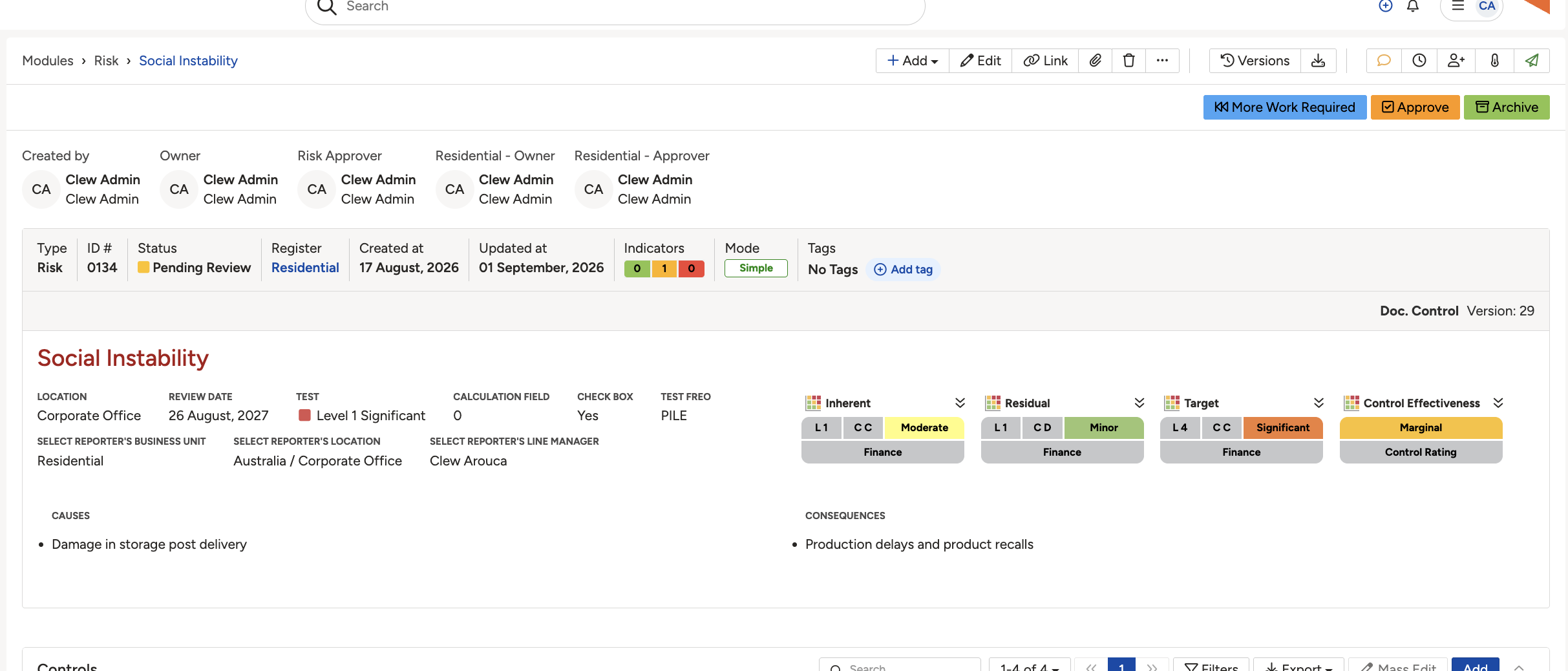
The Indicators sub-panel on a record.

The Add menu on that sub-panel, offering Indicator and Key Indicator.
Completing the form
| Field | What it is for |
| Title | Required. The name people will see in lists and sub-panels. |
| Indicator Label | Required. A short label for the indicator. |
| Description | What the indicator measures and what a bad number means. Worth completing, since this is what makes it usable by someone else. |
| Measurement Unit | The unit values are recorded in, for example Occurrences. It appears alongside the latest value. |
| Project and Location | Both required, under Organisation. Where the indicator belongs. |
| Business Objectives | Also under Organisation. This is where you link the indicator to the objectives it informs, and it is the field people go looking for. |
| Owner | Under People. Who is accountable for the indicator. |
| Reporter (Assignee) | Who is prompted to respond. There is also a Reporters (Assignees) field where more than one person should be asked. |
| Next Report Date | Under Dates. When the next response is expected. |
| Thresholds | The bands that turn a value into an outcome. Without at least one, every response reads No Outcome. |
| Reporting Details | Response Interval, Response Interval Unit, Reporting Days, and the required Mode. |
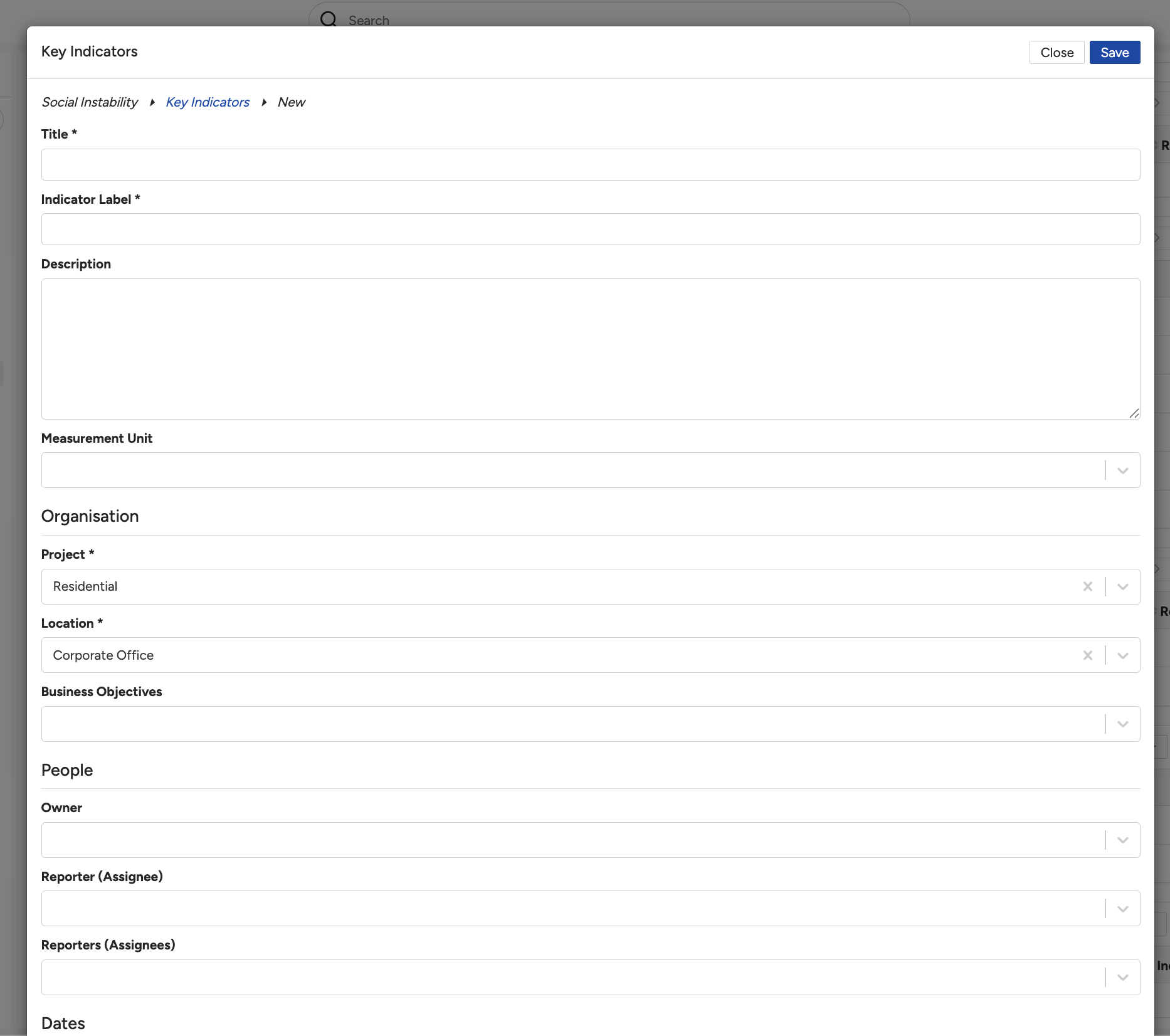
The indicator form, with Business Objectives under Organisation and the reporter fields under People.
Adding and editing a response
- Open the indicator and scroll to the Indicator Responses sub-panel.
- Click Add Response and enter the value.
- The response is listed with its ID, when it was created, the date measured, the interval it falls in, the outcome its value earned, the value itself, and who recorded it.
- To change one, click its ID in that sub-panel.
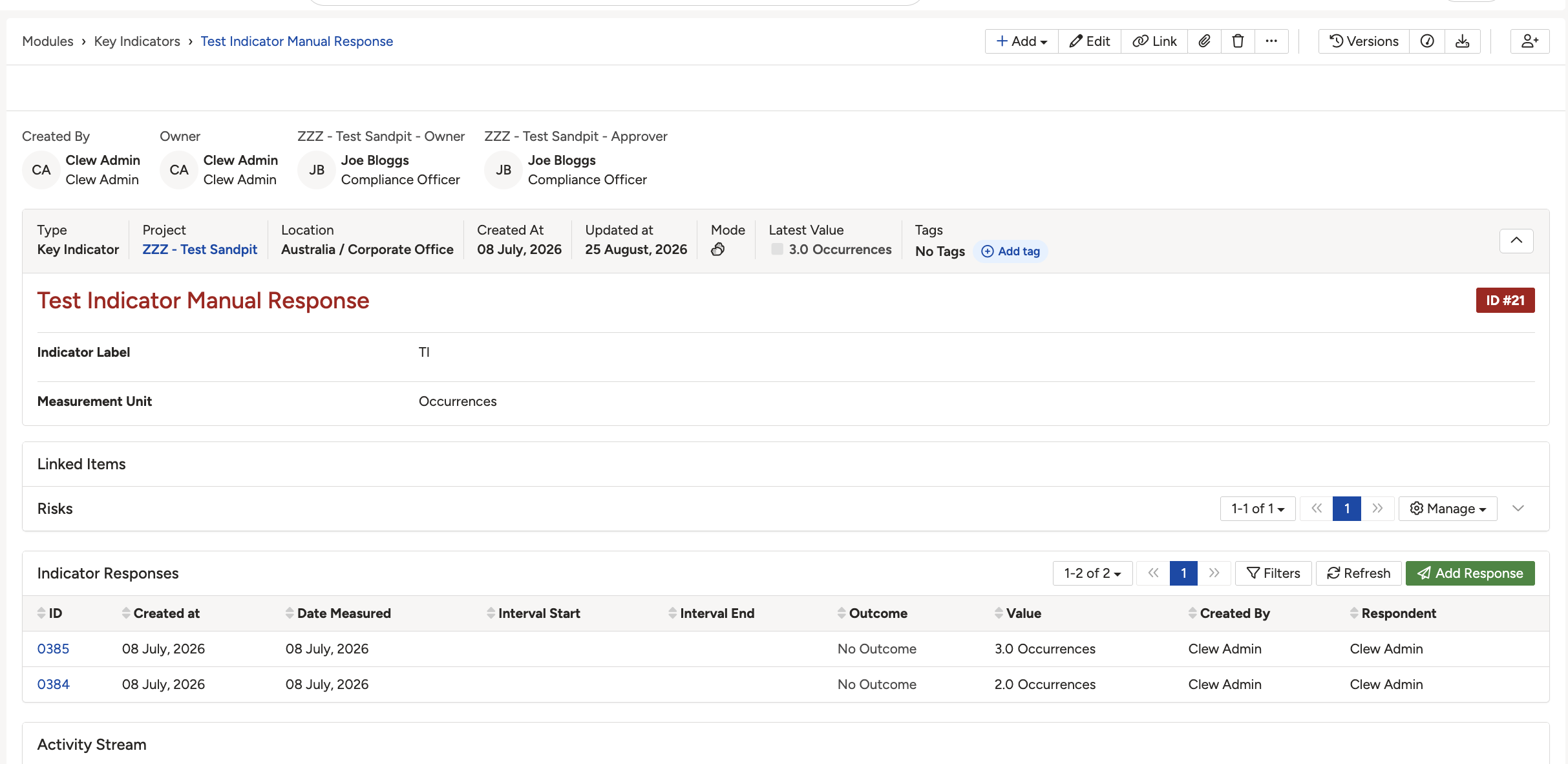
An indicator, with its latest value in the header and the Indicator Responses sub-panel below.
Linking, editing and deleting
| To do this | Do this |
| Link the indicator elsewhere | Use Link. The indicator then appears in the Indicators sub-panel on each linked record, and those records appear under Linked Items on the indicator. |
| Change the indicator | Select Edit. This is also where you add or amend thresholds. |
| See what has changed | Use Versions for the change history, or the Activity Stream at the foot of the page. |
| Remove the indicator | Select Delete. |
5. Common Issues & Troubleshooting
| Issue | Likely Cause | Solution |
| Every response shows No Outcome | The indicator has no thresholds, so there is nothing to compare the value against | Edit the indicator and use Add Threshold to set the bands and the outcome each one gives. |
| You want different outcome options | Outcomes come from the thresholds, not from a separate list | Edit the thresholds on that indicator. Changing the bands changes the outcomes available. |
| You cannot respond to an indicator | Responding belongs to the Reporter (Assignee), who is the person Clew emails | Check who is set as the reporter, and ask for it to be changed if it should be you. |
| The latest value does not match what you expected | It is the most recent response, not a total or an average of them | Open Indicator Responses and read the individual entries. |
| You cannot set a metric on an Automated indicator | The metric permission is granted through administrative teams and is deliberately restricted | Raise it with a system administrator, who should weigh the cross-group aggregation described in section 2 before granting it. |
| A response was entered but does not show on the risk | The indicator is not linked to that record | Use Link on the indicator, then check the Indicators sub-panel on the record. |
Best practices:
- Set the thresholds when you create the indicator. Values recorded before there are thresholds sit as No Outcome and tell you nothing at a glance.
- Decide which indicators are genuinely key before adding them. A long list nobody reviews is worse than a short one that gets acted on.
- Complete the description. It is what lets someone other than the author interpret the number.
- Link indicators to the business objectives they inform, so the measurement connects to what it is measuring the progress of.
- Use Automated where the data already sits in Clew, and keep User Input for things the system cannot see.
- Treat the metric permission as privileged. It returns aggregates across the whole system, outside the access groups that protect the records themselves.
▾Indicator Outcomes Open full article »
Related article
What the outcomes on an indicator mean, and how a recorded value ends up with one.
Was this article helpful?
That’s Great!
Thank you for your feedback
Sorry! We couldn't be helpful
Thank you for your feedback
Feedback sent
We appreciate your effort and will try to fix the article