Introduction
Core fields are native fields that are present on every instance of the CGR platform. System administrators can show or hide core fields and configure the values of certain core fields, such as lookups.
Core fields can be of various types, similar to custom fields — for example: date pickers, numbers, text fields, or lookup fields (please refer to this Article on lookups to understand how they can be configured). Whereas the other core fields can only be translated, hidden or displayed.
Translations change the visual name given to fields. These are typically applied during the initial setup of your CGR Platform or while an implementation is in progress.
System administrators do not have the ability to translate core fields themselves; if you require a translation of a core field, you will need to contact CGR support.
Important Notes
- System Administrator access is required to enable or disable core fields.
- Core fields can be enabled or disabled via the relevant custom type (e.g. Risk or Opportunity, and others).
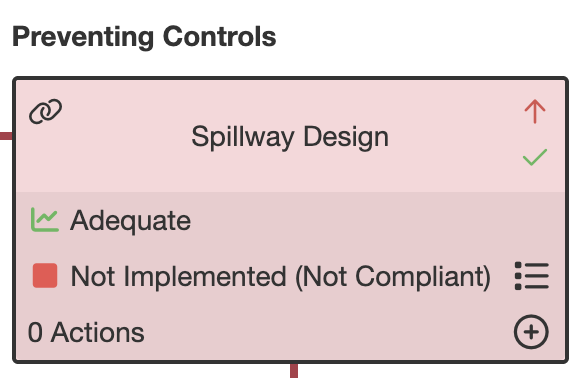
- Some specific core fields for controls can be displayed on the risk bowtie. These are:
- Control Effectiveness
- Implemented [in place or not – represented by a tickbox]
- Critical [represented by pink colour and the red upward arrow]
Step-by-Step Guide to Show/Hide Core Fields
- Navigate to the Admin section > Custom Types. Then, choose the custom type you want to work on. If you want to change the visibility of a core field across the entire module, you will need to apply the changes to all custom types—if more than one exists.
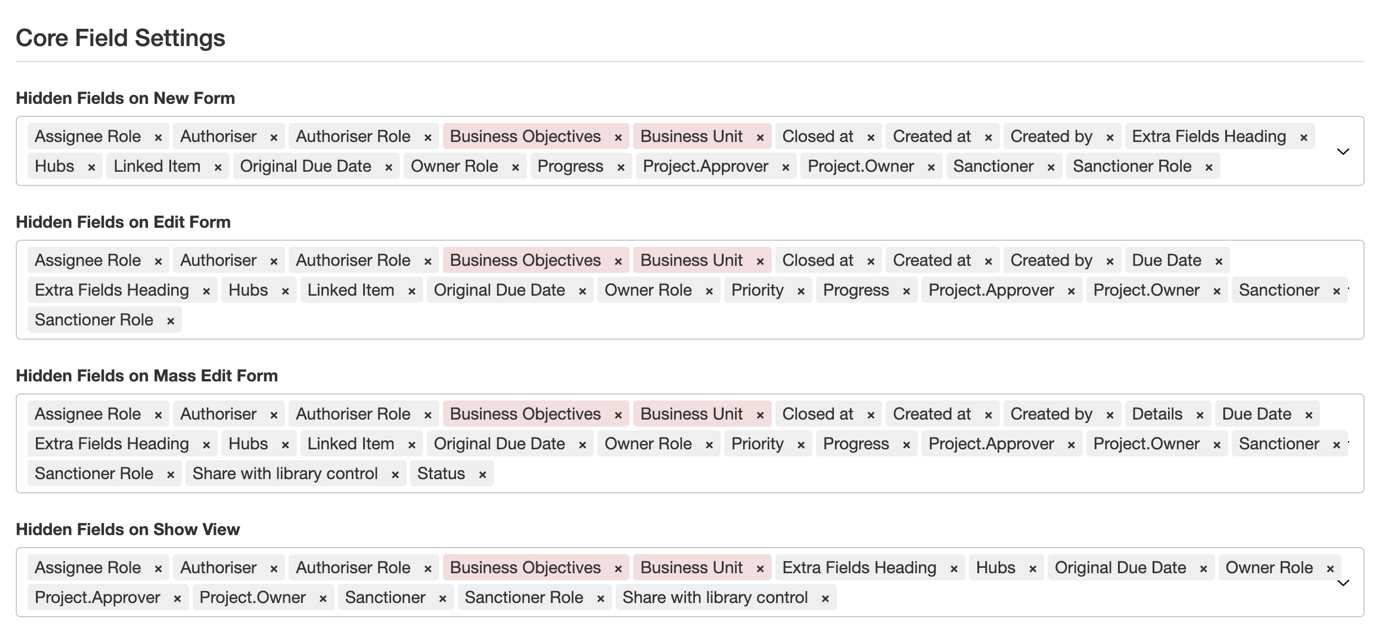
- Scroll down to ‘Core Field Settings’. Here you can change the visibility of the core fields on different views. Please note that if you use “Schemas” for dynamic forms, hiding (or displaying) a field here will require you to go to the schemas page and click the yellow “Sync” button to synchronise your changes.
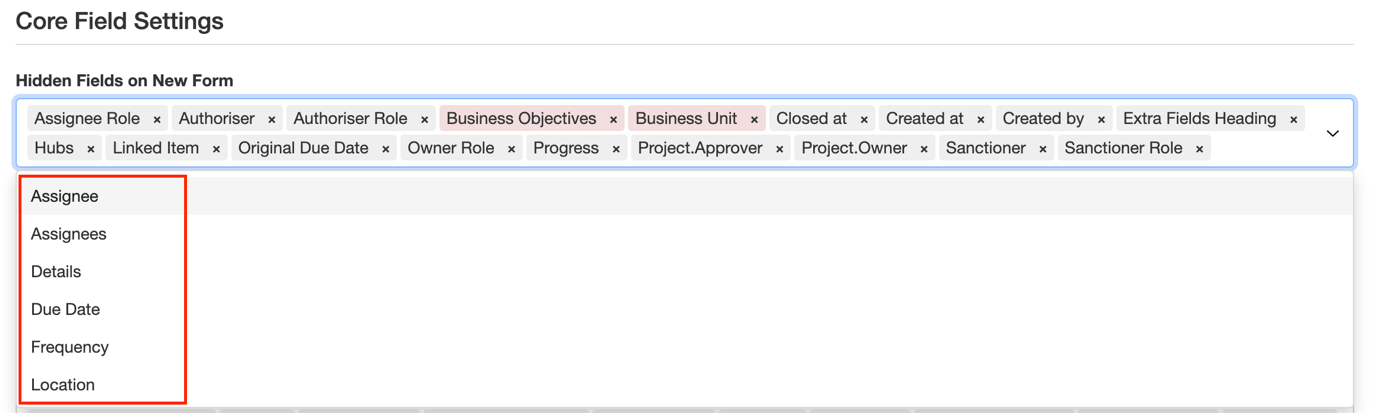
- Choose the relevant view where you want to make a change, then either click the X icon to make a field visible or click into the box and select a core field from the dropdown to hide it from the view.
| New Form | The form appears when creating a new record using the Add button. |
| Edit Form | The form appears when clicking on manage > edit on an existing record. |
| Mass Edit Form | The form appears when selecting multiple records on the list view and clicking on manage > mass edit. |
| Show View | The detailed view of a record appears after clicking on the record. |
Was this article helpful?
That’s Great!
Thank you for your feedback
Sorry! We couldn't be helpful
Thank you for your feedback
Feedback sent
We appreciate your effort and will try to fix the article