How to create, configure, and control who sees Custom Forms across your Clew modules.
Contents
- 1. Introduction & Context
- 2. Key Features & Functions
- 3. Requirements
- 4. Step-by-Step Guide
- 5. Common Issues & Troubleshooting
- 6. Related Articles
1. Introduction & Context
A Custom Form gives you an additional edit form for a record, so you can show a tailored set of fields to specific users and work with those fields directly from Datagrid. The same field set can also be surfaced as a column set in Datagrid.
Who is it for? System Administrators configure Custom Forms in Admin. End users then see and use the forms you create, as long as they have the right permissions.
What does it impact? Which fields a user sees when they edit a record, and which field sets are available as column sets in Datagrid. Custom Forms do not replace the standard edit form; they sit alongside it.
2. Key Features & Functions
- Datagrid field sets: A tidy way to build a defined set of fields that users can work from directly in Datagrid, shown as a column set.
- Restricted edit in Record View and Datagrid: A controlled way to display certain fields to certain users only. Visibility can be based on a field a user is named against (for example Owner), on specific roles, or on teams.
3. Requirements
- System Administrator access is required to configure Custom Forms in Admin.
- Custom Forms are available across Clew modules.
- The end user must have permission to update a record before the link to the Custom Form appears for them.
4. Step-by-Step Guide
Creating a Custom Form
- Go to Admin > Custom Forms. Existing forms are grouped under the module they belong to. Scroll to the module you want to create a form for, then click Add.
- When the page reloads, complete the form using the field reference below, then click Save.
Custom Form fields
| Field | Description |
| Form settings | |
| Title (required) | The name of the Custom Form. It appears in Admin, and it is also what the end user sees when they open the form from Record View or Datagrid columns. |
| Description | An internal note explaining the purpose of the form. It is only visible in Admin and is useful for sharing context between administrators or for future reference. |
| Form Fields (required) | The fields you want to display. Order matters: fields appear top to bottom in the form, and left to right as Datagrid columns. |
| Required Form Fields | The fields that must be completed in the form. Order is not relevant here. |
| Show on datagrid | Set to Yes to make the form available as a column set under Columns in Datagrid. |
| Icon | An icon shown beside the title when the end user sees the link to the form. |
| Visibility and restrictions | |
| Custom Types | If you use more than one Custom Type, this limits the form to the correct type. Leave it blank to display the form under all types. |
| Field Restrictions | Only show the form to users named against the selected field. For example, select Owner so that only the user set as the record owner can see the form link. |
| Role Restrictions | Set which roles are allowed to see the link to the form, if you use roles in Clew. |
| Team Restrictions | Select the teams that can or cannot see the Custom Form. |
| Title Translations | Set the name of the form in other languages, if your Clew platform has multiple languages enabled. |
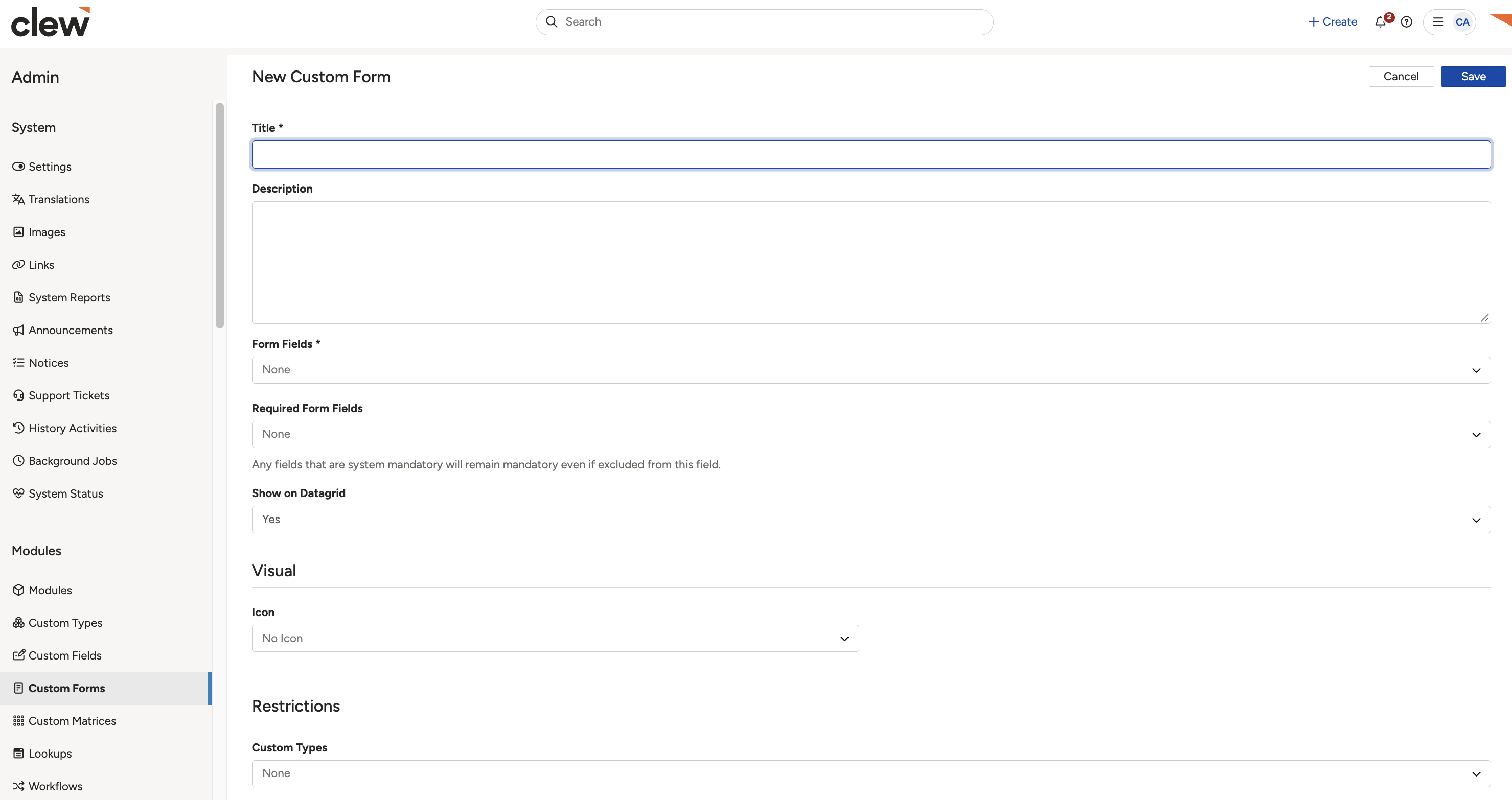
The Custom Form configuration screen, where you set the title, choose fields, and apply any restrictions.
Editing or deleting a Custom Form
- To edit a form, click the pencil icon on its row and update the fields.
- To delete a form, click the delete (bin) icon on its row. This action is irreversible.

Use the pencil icon to edit a form or the bin icon to delete it.
5. Common Issues & Troubleshooting
| Issue | Likely Cause | Solution |
| An end user cannot see the Custom Form link. | The user cannot update the record, or a Field, Role, or Team restriction excludes them. | Confirm the user has permission to update the record, then review the form's Field Restrictions, Role Restrictions, and Team Restrictions. |
| The form does not appear as a column set in Datagrid. | Show on datagrid is set to No. | Edit the form and set Show on datagrid to Yes. |
| You cannot add a form, and the module's table has a pink header. | The module is disabled. | Enable the module first, then create the Custom Form. Contact Clew Support if you are unsure whether a module should be enabled. |
| The form shows under the wrong record type. | No Custom Type restriction is set, so the form shows under all types. | Edit the form and set the correct type under Custom Types. |
Click a title to preview it here. Use the Open full article button to read the full version in a new tab.
▾Custom Fields Open full article »
Related article
The fields you add to a Custom Form are created and configured as Custom Fields. Set these up first so they are available to choose.
▾Custom Types Open full article »
Related article
Use Custom Types to control which record type a Custom Form appears under, so each type can have its own tailored form.
▾Roles Open full article »
Related article
Role Restrictions on a Custom Form rely on the roles set up here. Learn how roles are created and assigned.
▾Teams Open full article »
Related article
Team Restrictions let you show or hide a Custom Form for specific teams. See how teams are set up and managed.
Was this article helpful?
That’s Great!
Thank you for your feedback
Sorry! We couldn't be helpful
Thank you for your feedback
Feedback sent
We appreciate your effort and will try to fix the article