Responding to a Survey
The three ways to complete and submit a survey response in the Clew Platform.
Contents
- 1. Introduction & Context
- 2. Key Features & Functions
- 3. Requirements
- 4. Step-by-Step Guide
- 5. Common Issues & Troubleshooting
- 6. Related Articles
1. Introduction & Context
Responding to a survey means completing its questions and submitting your answers, which records a single survey response. In the Clew Platform a response can start in three ways, and this article covers all three: responding directly from the survey, responding from a record in another module such as Risk, and completing a response that the survey has generated for you automatically.
If the survey is scored, the outcome is calculated from your answers as you complete it, so you can see the result your response is heading towards before you submit.
Who is it for? Anyone with access to the relevant register can respond to an active survey. You do not need administrator access to respond.
What does it impact? Submitting records a response against the survey, and against a linked record where relevant. If the survey is scored, your answers determine the outcome recorded against that response.
2. Key Features & Functions
- Live outcome: if the survey is scored, the outcome is calculated as you answer, so you see the result before you submit.
- Submit or save a draft: Submit records the response, while Submit Draft saves your progress so you can finish later. Saved drafts appear in the Drafts panel on the survey.
- Three ways to start a response: directly from the survey, from a linked record, or from a response generated automatically for assignees.
- Responses on linked records: a response started from a linked record also appears against that record, not only on the survey.
- One place to review: however it started, every response is listed in the Survey Response sub-panel on the survey.
3. Requirements
- The survey must be Active or Open. A survey in Draft cannot be responded to.
- Access to the relevant register.
- To respond from a linked record, the survey must be linked to that module.
- To receive an automatically generated response, the survey must be set to create responses for assignees, and you must be one of the assignees.
4. Step-by-Step Guide
Responding directly from the survey
This is the most common way to respond.
- Navigate to the relevant register, then select Survey from the menu dropdown.
- Click the green Respond button next to the survey you want to complete.
- Answer the questions. If the survey is scored, the outcome updates as you answer.
- Click Submit to record the response, or Submit Draft to save your progress and finish it later.
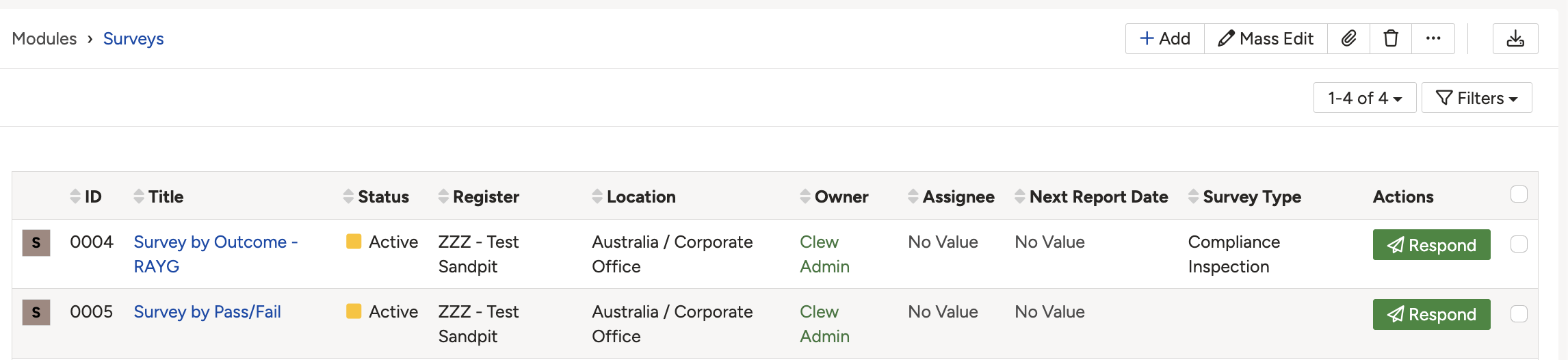
The green Respond button beside an active survey.
Responding from a linked record
When a survey is linked to another module, such as Risk, you can start a response from the record itself. The response is then tied to that record.
- Open the record the survey is linked to, for example a Risk.
- Click the survey action in the record's top right toolbar, then choose the survey you want from the list of linked surveys.
- The respond form opens tied to that record. Answer the questions and click Submit.
- The completed response appears against the linked record, as well as in the survey's own Survey Response sub-panel.
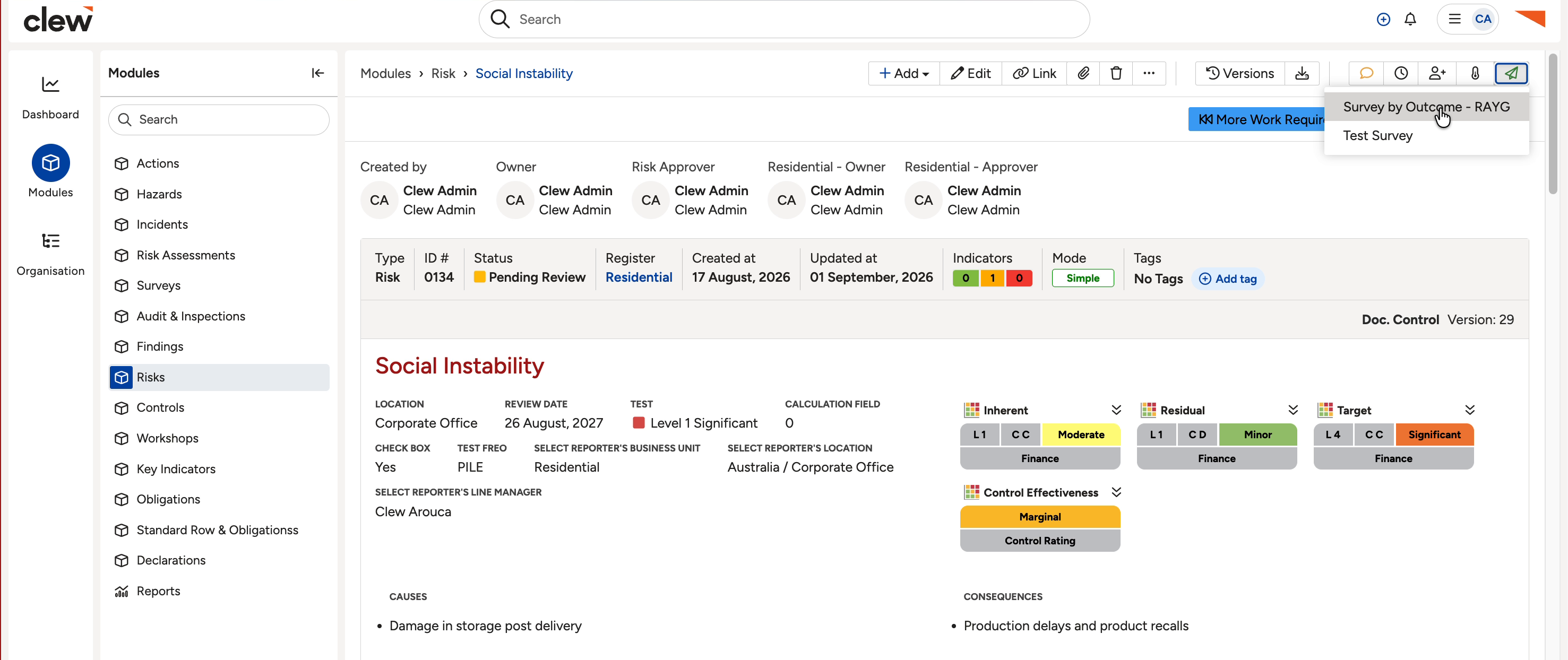
Responding to a linked survey from a Risk record, using the survey action in the top right toolbar.
Automatically generating responses
Rather than waiting for people to start a response, a survey can be set up to raise response records for its assignees on a schedule. This suits recurring work such as a monthly inspection. Once a response has been generated, the assignee completes and submits it in the same way as any other response.
Automatic generation is set up on the survey using the following settings:
- Create responses for assignees: switches on automatic generation, so responses are raised for the assigned users instead of each person starting from scratch.
- Response Interval and Response Interval Unit: set how often a new response is due, for example every 1 Day, or every set number of weeks or months.
- Next Report Date: sets when the next response is due.
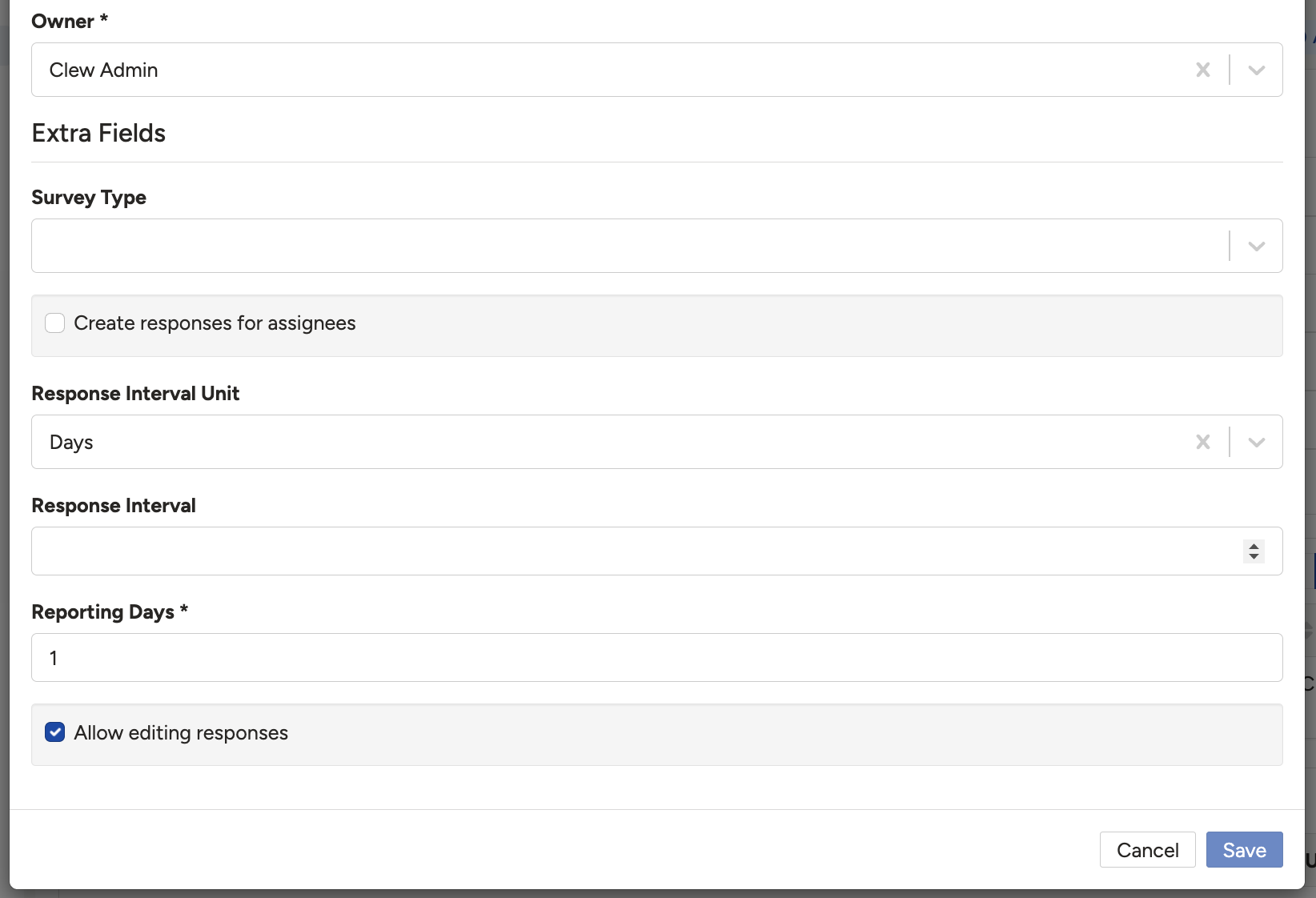
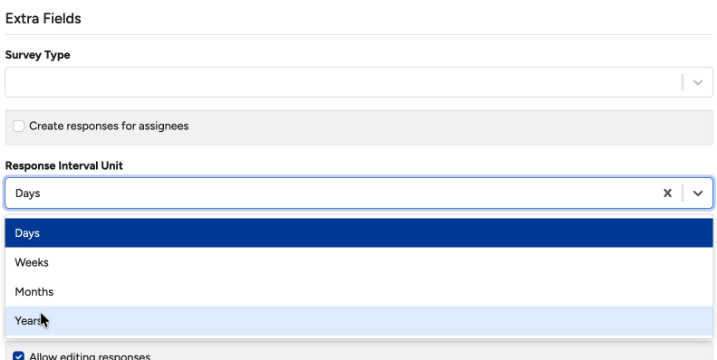
The settings that generate responses automatically for assignees: Create responses for assignees, Response Interval and Next Report Date.
Viewing a submitted response
- Open the survey whose responses you want to view.
- Scroll down to the Survey Response sub-panel, where every submitted response is listed. Any drafts you saved appear in the separate Drafts panel.
- Click the hyperlinked ID to open a response and see its full detail and outcome.
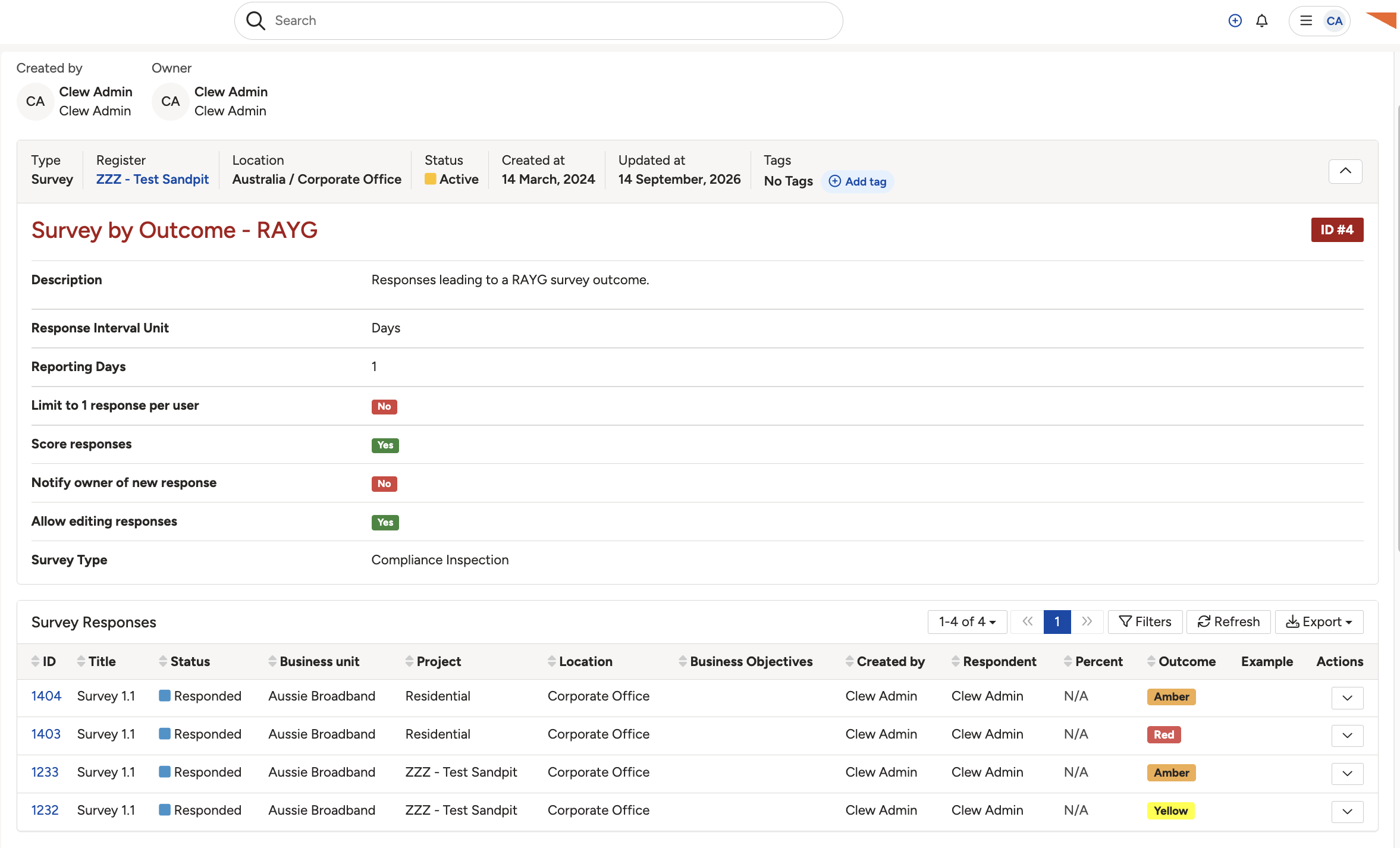
The Survey Response sub-panel. Click an ID to open the full response.
5. Common Issues & Troubleshooting
| Issue | Likely Cause | Solution |
| There is no Respond button, or the survey is not listed. | The survey is not Active or Open, or you do not have access to the register. | Check that the survey has been moved to Active or Open, and ask your administrator to confirm your register access. |
| The survey is not offered on the record you expected. | The survey is not linked to that module. | Respond directly from the survey list instead, or ask your administrator to link the survey to that module. |
| You cannot submit a second response. | Limit to 1 response per user is selected on the survey. | Ask the survey owner to clear that option if more than one response per user is needed. |
| Responses are not being generated automatically. | Create responses for assignees is off, or the interval or next report date is not set. | Ask the survey owner to move the survey to Draft, tick Create responses for assignees, and set the Response Interval and Next Report Date. |
| You cannot change a response after submitting it. | Editing responses has not been allowed on that survey. | Ask the survey owner whether Allow editing responses can be enabled, or submit a new response if the survey permits it. |
Best practices:
- Use Submit Draft if you are interrupted, so you do not lose your progress.
- If the survey is scored, check the calculated outcome before you submit.
- When a survey relates to a specific record, respond from that record so the response is tied to it.
▾Schemas Open full article »
Related article
How schemas define the fields and behaviour of a form, useful background for the questions that make up a survey.
Was this article helpful?
That’s Great!
Thank you for your feedback
Sorry! We couldn't be helpful
Thank you for your feedback
Feedback sent
We appreciate your effort and will try to fix the article