Linking Controls to a Survey
How to link controls or library controls to a whole survey or an individual question, and where the results appear.
Contents
- 1. Introduction & Context
- 2. Key Features & Functions
- 3. Requirements
- 4. Step-by-Step Guide
- 5. Common Issues & Troubleshooting
- 6. Related Articles
1. Introduction & Context
A survey can be linked to a Control or a Library Control. Once responses come in, each linked control shows the survey result (Pass or Fail) along with any calculated scores. You can link controls to a single multiple choice question or to the survey as a whole.
Who is it for? Administrators who build surveys and want responses to feed into the relevant controls. What does it impact? Linking only controls where the survey result is displayed. It does not change the control or the survey's own scoring.
2. Key Features & Functions
- Two link points: link controls to an individual multiple choice question, or to the whole survey from the bottom of the build.
- Control or Library Control: choose either type when you link.
- Results on the linked control: the linked control shows the survey result and any scores once responses are submitted.
- Library propagation: linking to a Library Control shows the result on the Library Control and on every Risk Control that originates from it. On those Risk Controls the result carries a book icon, marking it as a library-level link rather than a direct one.
- Scope by project: an optional setting can limit library-sourced results so they only appear on Risk Controls in a matching project.
3. Requirements
- The survey must be in Draft to edit its linking. Move it back to Draft first if it is active.
- Access to edit the survey build.
- The controls or library controls you want to link must already exist.
4. Step-by-Step Guide
Open the build
- Open the survey's show view and make sure it is in the Draft workflow state.
- Select the Build icon in the top right corner. You can link controls from two places: a multiple choice question, or the survey as a whole.
Link to a question
- Expand the multiple choice question, then expand the Linked items section beneath it.
- Choose the item Type, either Control or Library Control, then select the specific items to link.
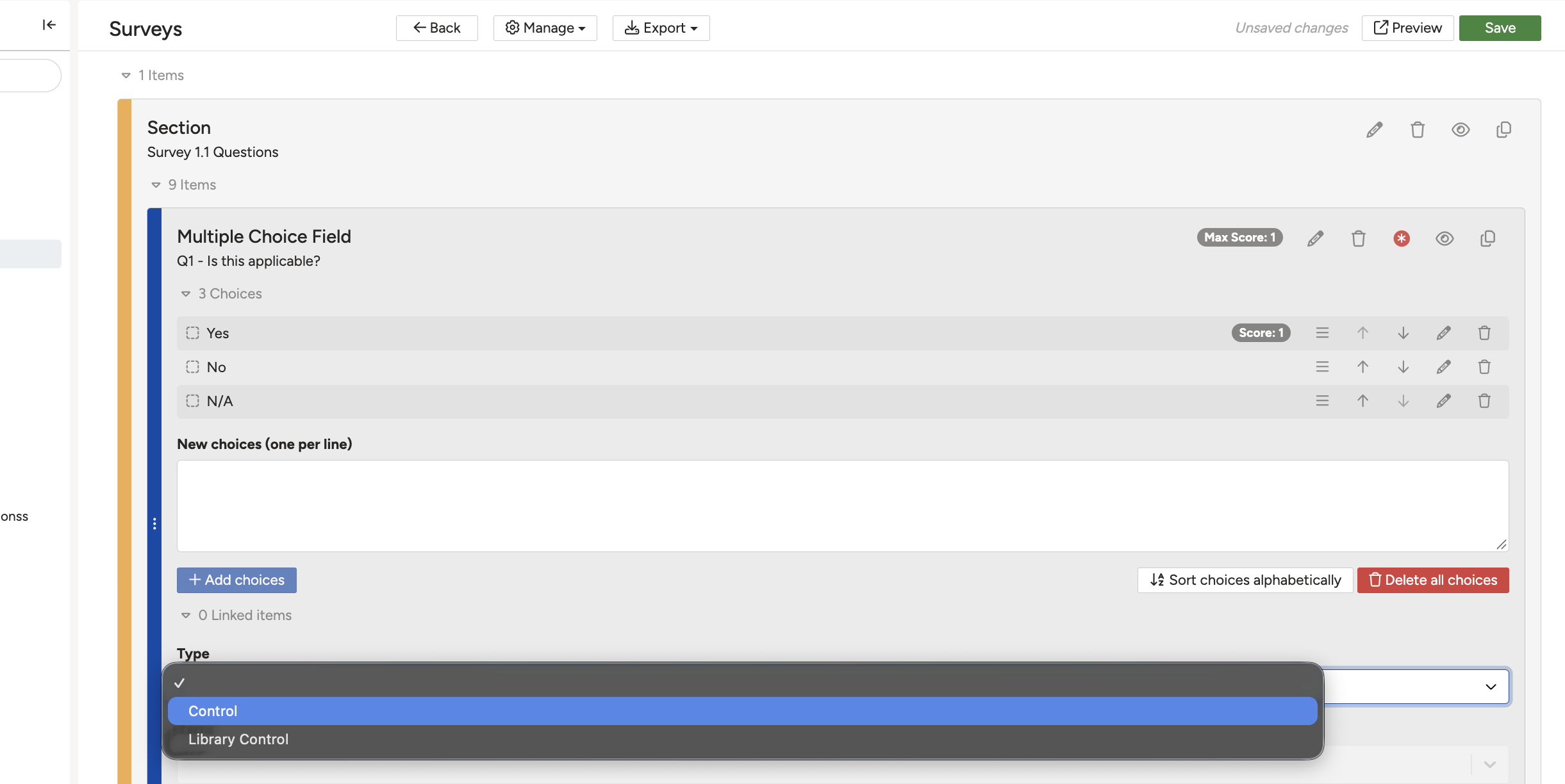
The Linked items section under a multiple choice question, with the Type and Items fields.
Link to the whole survey
- Scroll to the bottom of the build form and expand the Linked items section.
- Choose the item Type, either Control or Library Control, then select the items to associate with the survey as a whole.
5. Common Issues & Troubleshooting
| Symptom | Cause and what to do |
| You cannot add or change linked items. | The survey is not in Draft. Move it back to Draft, edit the build, then progress it forward again. |
| A survey result is not showing on a Risk Control. | If "Scope survey results by project" is enabled, a library-sourced result only shows when the Risk's project matches the response's project. The result still appears on the Library Control itself. |
| A survey result under a Risk Control has a book icon. | This is expected. It means the survey is linked at the Library Control level, not directly to that Risk Control. |
Awaiting live article URLs. Intended entries: Surveys (building a survey), Responding to a Survey, and Controls.
Was this article helpful?
That’s Great!
Thank you for your feedback
Sorry! We couldn't be helpful
Thank you for your feedback
Feedback sent
We appreciate your effort and will try to fix the article