Recurring Surveys
How to set up a survey to automatically generate responses on a schedule
Contents
- 1. Introduction & Context
- 2. Key Features & Functions
- 3. Requirements
- 4. Step-by-Step Guide
- 5. Common Issues & Troubleshooting
- 6. Related Articles
1. Introduction & Context
Recurring surveys let you set a survey up to automatically generate a new response on a repeating schedule, so you do not need to manually create and send it out each time one is due.
Instead of someone remembering to start a new survey response every week or month, the schedule does it for you. Clew generates an empty response at the right time, and the person or register it is assigned to fills it in and submits it.
Who is it for? Anyone with permission to create or edit surveys, not just system administrators, for example someone setting up a weekly safety check or a monthly compliance attestation.
What does it impact? The recurring schedule controls when new, empty survey responses are generated for an assignee. A response can also be generated for a register, but that is not driven by the schedule; it is a separate, global setting that Clew needs to enable.
2. Key Features & Functions
- Next Report Date: the date the schedule starts from. This is when the next (or first) response is due to be generated.
- Response Interval Unit: the interval at which a new response should be generated, for example weekly. This works together with Next Report Date to determine the ongoing schedule.
- Generated response: when the schedule triggers, Clew creates an empty survey response automatically. This generated response is what respondents fill in and submit, rather than a new response being created from scratch each time.
- Scheduled generation is for assignees: Next Report Date and Response Interval Unit only drive generation for a response assigned to a user. This is what makes the survey recurring.
- Generating for a register: a response can also be generated for a register, but this is not on a schedule and does not use Next Report Date or Response Interval Unit. It is a separate, global setting that has to be enabled by Clew before it is available.
3. Requirements
- Access to the Surveys module, with permission to create or edit surveys.
- An assignee to generate the scheduled response for.
- The user responding needs access to read the survey, and to create and read a survey response, enabled either through authorisation rules or security groups.
4. Step-by-Step Guide
Setting Up the Recurring Schedule
- Open the survey you want to set up as recurring.
- Set Next Report Date to the date you want the schedule to start from.
- Set Response Interval Unit to how often you want a new response generated, for example weekly.
- Save your changes.
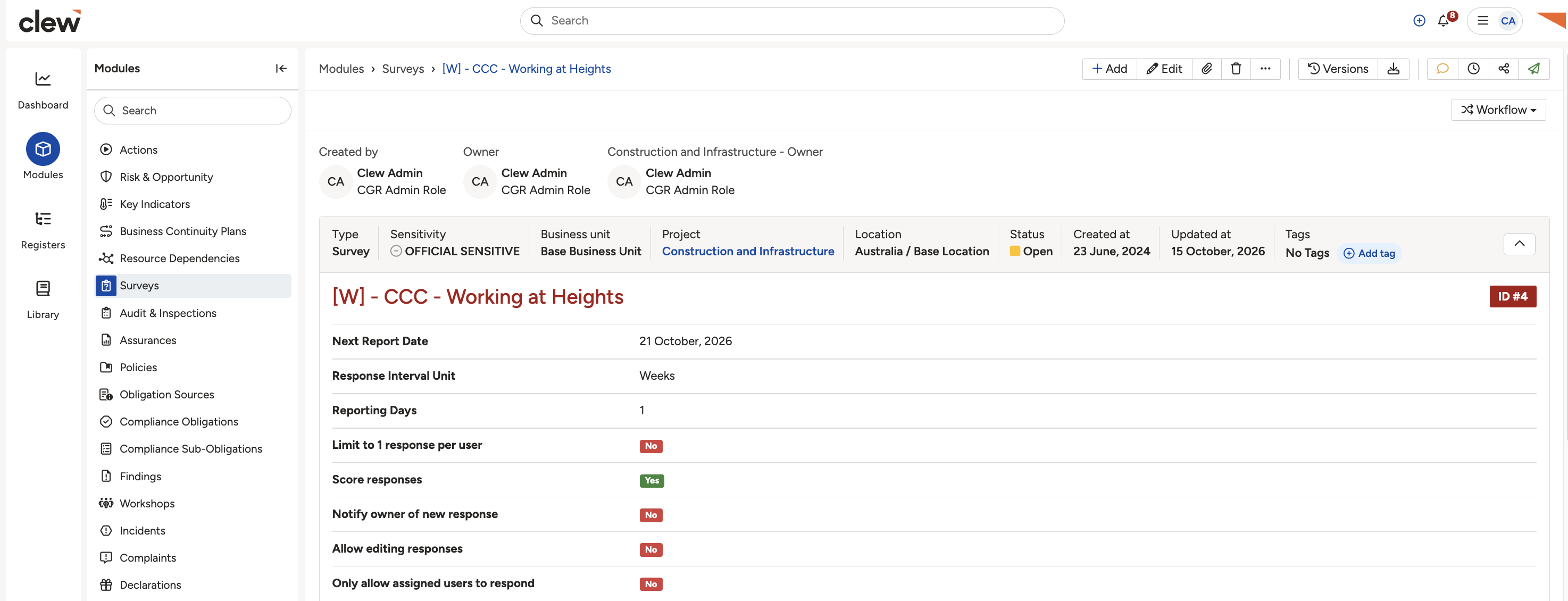
The survey configuration screen showing Next Report Date and Response Interval Unit.
Responding to a Generated Response
- When the schedule triggers, Clew automatically creates a new, empty survey response, which appears in the survey's Survey Responses list.
- Find the generated response in the list. It shows as an empty response with no outcome yet.
- Respond to the generated response using the Respond button. It is available both on the response's own row in the Survey Responses list, and in the top right once you open the response.
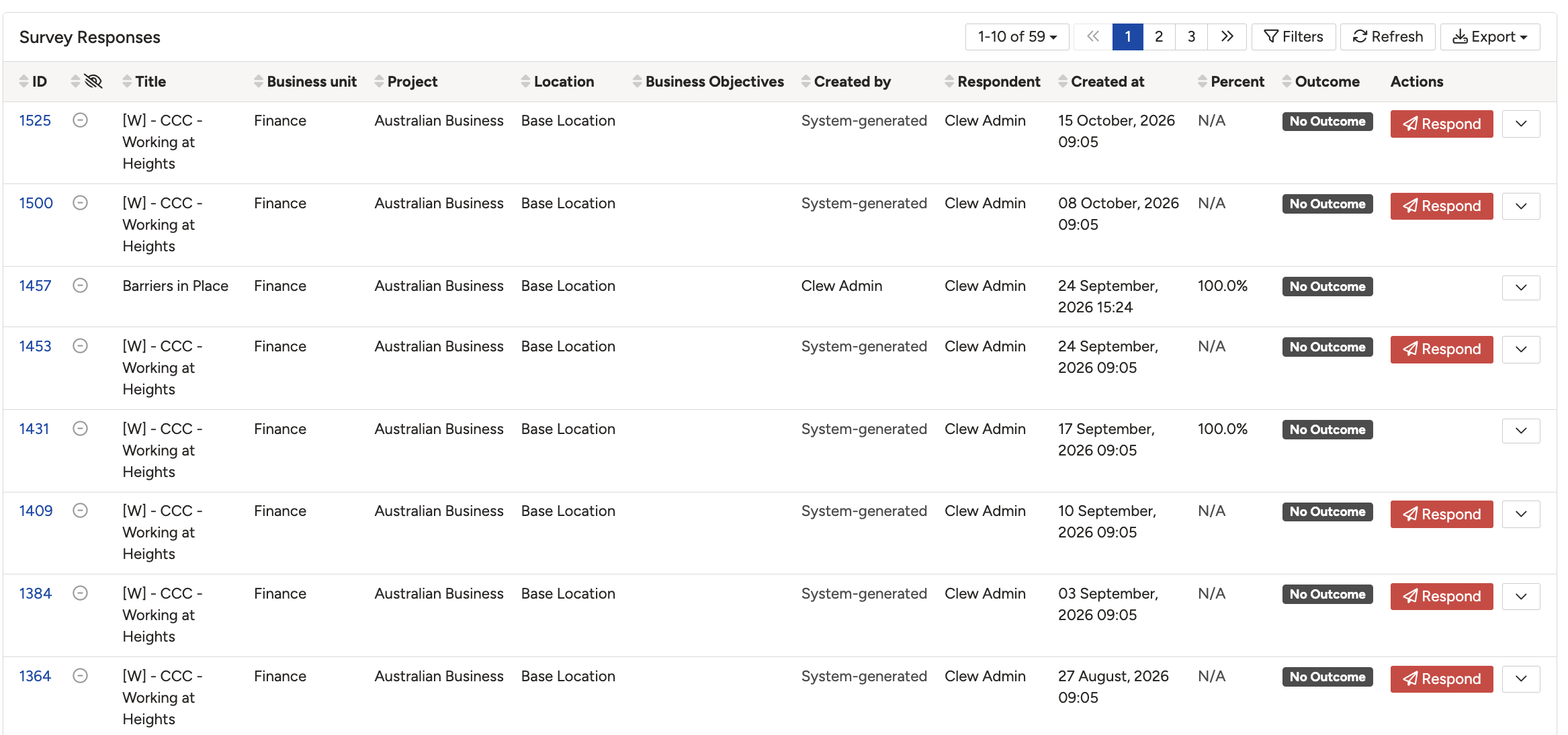
Generated survey responses.
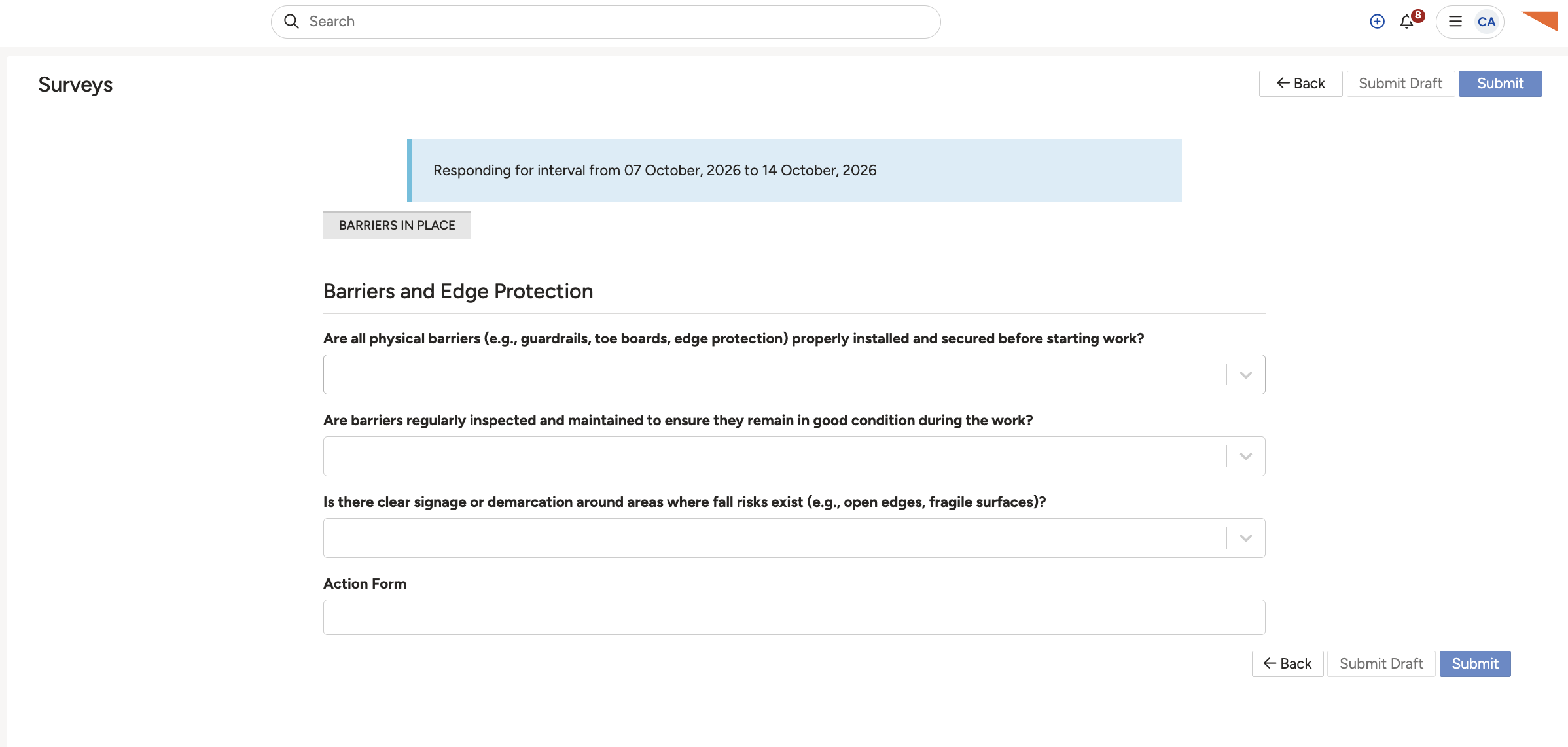
Opening a survey response to respond.
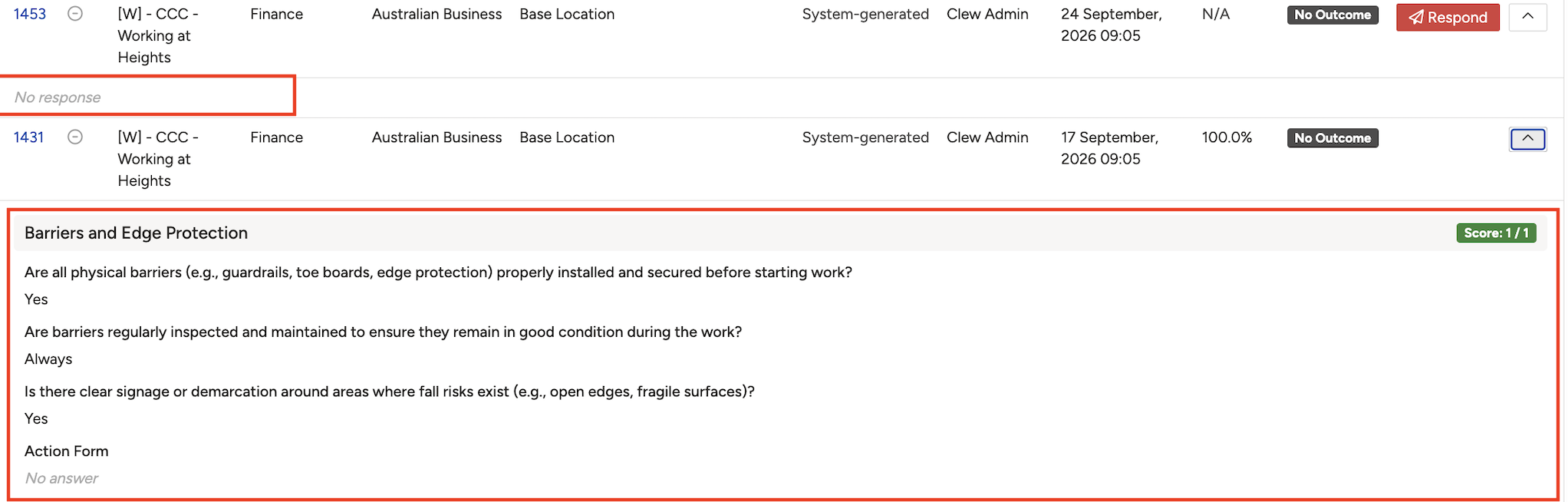
A generated survey response, and its completed response.
5. Common Issues & Troubleshooting
| Issue | Likely Cause | Solution |
| No new response was generated on the expected date. | Next Report Date or Response Interval Unit is not configured as expected. | Check both fields on the survey and correct them if needed. |
| A register was expected to get a response on the recurring schedule, but nothing was generated. | Register generation is not driven by Next Report Date or Response Interval Unit. Those fields only apply to responses generated for an assignee. | Check how register generation is expected to be triggered, rather than relying on the schedule fields. |
Click a title to preview it here. Use the Open full article button to read the full version in a new tab.
▾How to build a survey Open full article »
Related article
How to build a survey before setting it up to recur.
▾Responding to a Survey Open full article »
Related article
How to respond to and submit a survey response.
Was this article helpful?
That’s Great!
Thank you for your feedback
Sorry! We couldn't be helpful
Thank you for your feedback
Feedback sent
We appreciate your effort and will try to fix the article