Shared Permissions
How to view, filter, and manage all records that have been shared with users, roles, or teams
Contents
- 1. Introduction & Context
- 2. Key Features & Functions
- 3. Requirements
- 4. Step-by-Step Guide
- 5. Common Issues & Troubleshooting
- 6. Related Articles
1. Introduction & Context
The Shared Permissions page provides a centralised view of all records that have been shared across the organisation, so administrators can see and control exactly who has access to what.
It allows System Administrators to track which users, roles, or teams have been granted access to specific records, ensuring visibility and control over shared permissions.
Who is it for? System Administrators responsible for overseeing record sharing across the organisation.
What does it impact? Actions on this page change who can access shared records. Toggling Read or Update access, extending a share, or deleting a share entry directly affects the recipients' access.
2. Key Features & Functions
- Centralised overview: all records shared with users, teams, or roles are listed in one place.
- Detailed filtering: narrow the list by access level, expiry, recipient type, item type, or date ranges.
- In-place management: adjust Read and Update access, extend a share to more users, or delete a share entry directly from the list.
- Expiry visibility: see which shares have an expiry date set and which have already expired.
3. Requirements
- You must have admin access to reach Admin > Shared Permissions.
- A shared item will appear in multiple rows, one for each person it is shared with.
- Records remain listed as shared even if Read or Update access was later revoked. To remove them from the list entirely, delete the list item.
4. Step-by-Step Guide
Viewing Shared Permissions
- Navigate to Admin > Shared Permissions.
- Records shared with users, teams, or roles will be listed by default.
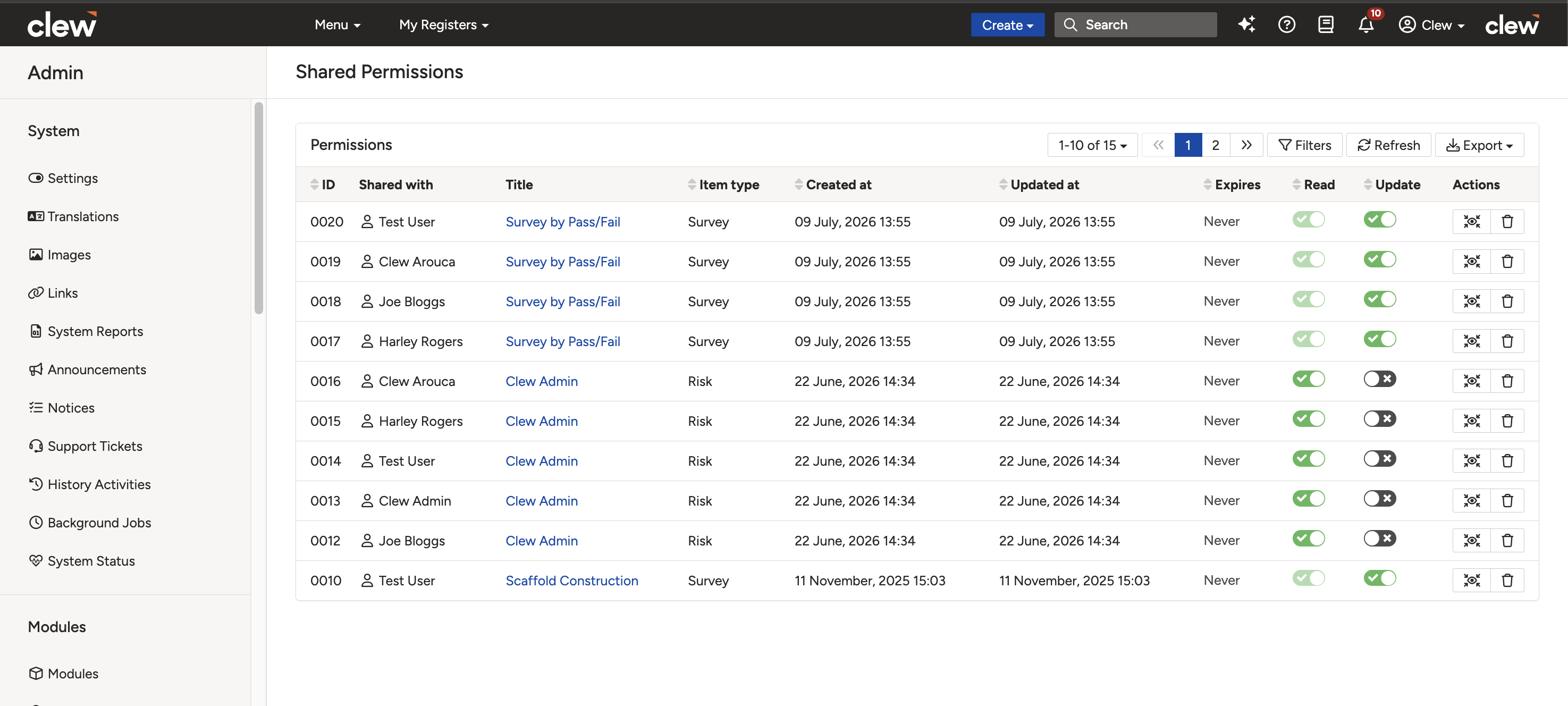
The Shared Permissions page listing all shared records.
Filtering Shared Records
To filter shared records, click Filters and apply any of the filters described in the table below.
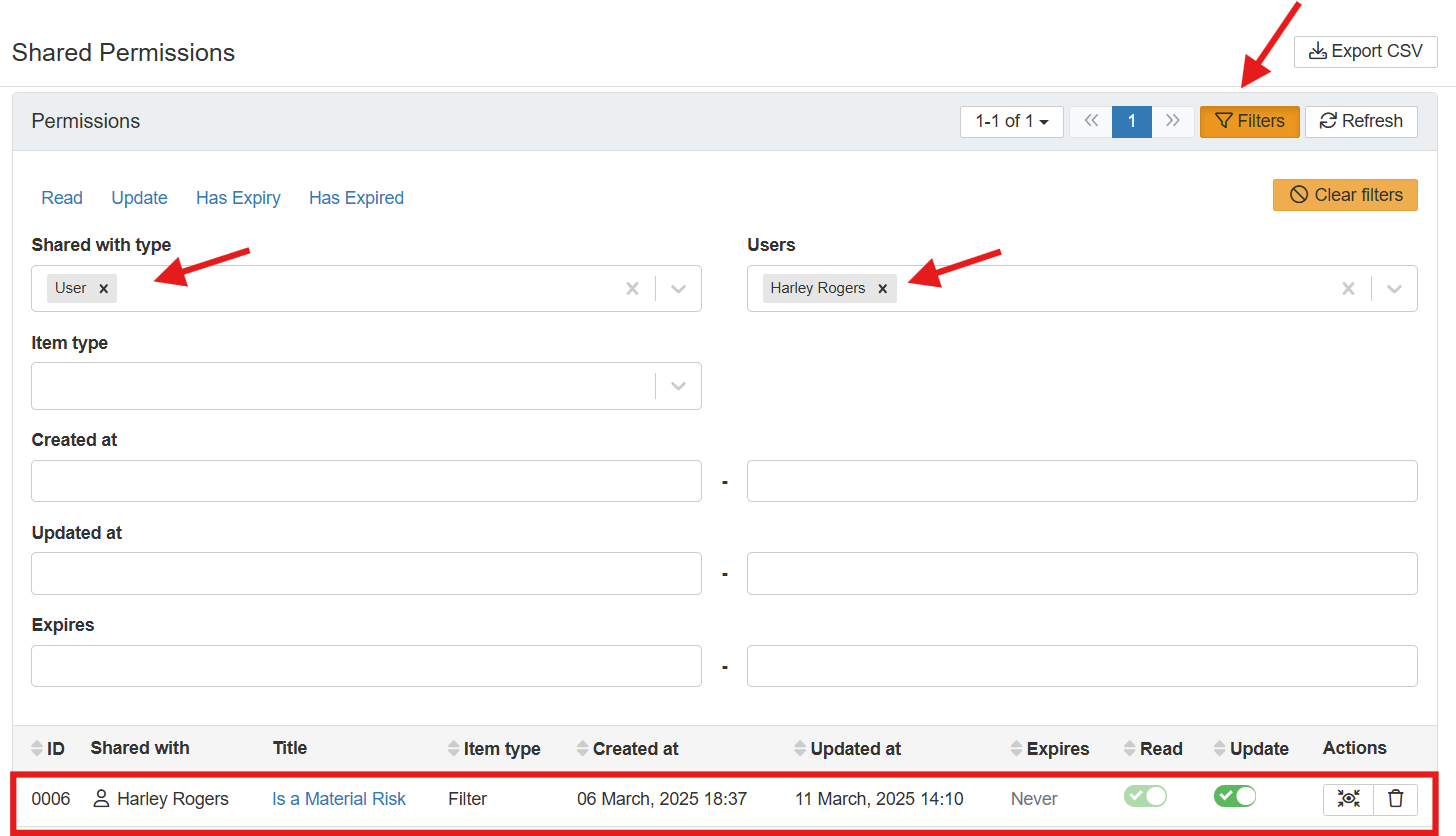
The Filters panel with the options described below.
| Filter | Description |
| Read | Displays records shared with Read access. |
| Update | Displays records shared with Update access. |
| Has Expiry | Shows records with an expiry date set. |
| Has Expired | Lists records where shared access has expired. |
| Shared With Type | Filters records based on whether they were shared with a user, role, or team. |
| Item Type | Filters records by custom type. Selecting a type enables further filtering by shared record(s). |
| Created At Range | Displays records shared within a specific date range. |
| Updated At Range | Filters records updated for sharing within a specific date range. |
| Expiry Date | Lists records with expiries within a selected date range. |
Managing Shared Records
Shared records can be managed from the Shared Permissions page as follows:
- Modify Read/Update access: adjust access by toggling the respective buttons.
- Share a record: click the Share button under the Actions column to extend access to other users with the appropriate permissions.
- Delete: click Delete to remove the record from the shared list.
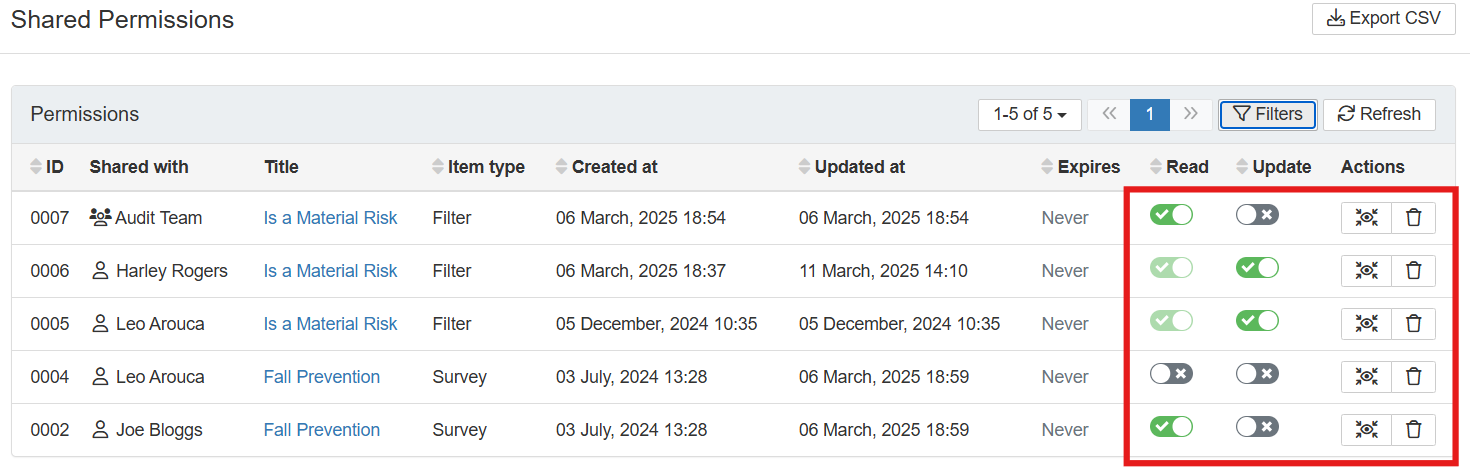
The Read/Update toggles and the Share and Delete actions on the Shared Permissions list.
5. Common Issues & Troubleshooting
| Issue | Likely Cause | Solution |
| I need to revoke shared permissions on a record for a specific user | The record is still shared with the user | Navigate to Admin > Shared Permissions, locate the shared record, and delete the user, role, or team from the shared list |
| Records show as shared even though Read and Update were revoked | Records remain listed as shared after access is revoked, by design | To remove them from the list, delete the list item from the Shared Permissions page |
| I need to modify the shared permissions of a record | Access level needs adjusting rather than removing | Navigate to Admin > Shared Permissions, locate the shared record, and toggle the Read/Update button to adjust the access |
| I cannot filter the shared records by register | The filtering options support filtering by user but not by register | This is a current limitation. Use the available filters, such as user, item type, or date range, to narrow the list |
| A shared record was deleted and recipients lost access | If an item is deleted or archived, its shared permissions are also removed | Restoring the item reinstates shared access |
Best practices:
- Review the Shared Permissions page periodically, using the Has Expired filter to clean up shares that are no longer active.
- Set expiry dates when sharing records that only need temporary access, so access ends automatically.
- Delete stale share entries rather than only revoking Read/Update access, to keep the list an accurate picture of active sharing.
- Use the Shared With Type filter to audit shares by team or role, where a single entry can affect many users.
Click a title to preview it here. Use the Open full article button to read the full version in a new tab.
▾Sharing Items Open full article »
Related article
How users share records with others, which creates the entries that appear on the Shared Permissions page.
▾Security Groups Open full article »
Related article
How Security Groups grant standing access, which sits alongside the ad-hoc access controlled through Shared Permissions.
▾Permission Sets Open full article »
Related article
How permission sets define the Share permission that allows records to be shared in the first place.
Was this article helpful?
That’s Great!
Thank you for your feedback
Sorry! We couldn't be helpful
Thank you for your feedback
Feedback sent
We appreciate your effort and will try to fix the article