Checking a User's Permissions
How a System Administrator reviews a user's access using the Users page and the Access Control Matrix.
Contents
- 1. Introduction & Context
- 2. Key Features & Functions
- 3. Requirements
- 4. Step-by-Step Guide
- 5. Common Issues & Troubleshooting
- 6. Related Articles
1. Introduction & Context
A System Administrator can check what access a user has from the Admin > Users page. As well as the security groups assigned to a user, you can open a visual breakdown of their access called the Access Control Matrix.
Who is it for? System Administrators checking or confirming a user's permissions.
What does it impact? Checking permissions is read-only and changes nothing. A user's access comes from their security groups, so changing access means adding or removing those groups, not editing the matrix.
2. Key Features & Functions
- Users page: search for and open any user from Admin > Users.
- Detailed view: switch a user to Detailed view to see the security groups assigned to them.
- Access Control Matrix: a visual breakdown of a user's access across registers and modules. It is a read-only reference.
- Permission letters: each module shows C, R, U, D, M, M, S, covering Create, Read, Update, Delete, Mass, Merge and Share.
3. Requirements
- You must be a System Administrator to check a user's access level.
4. Step-by-Step Guide
Review a user's permissions
- Go to Admin > Users and search for the user with the search bar.

Search for the user on the Admin > Users page.
- Click the icon with the four squares to switch to Detailed view, which shows the security groups assigned to the user.
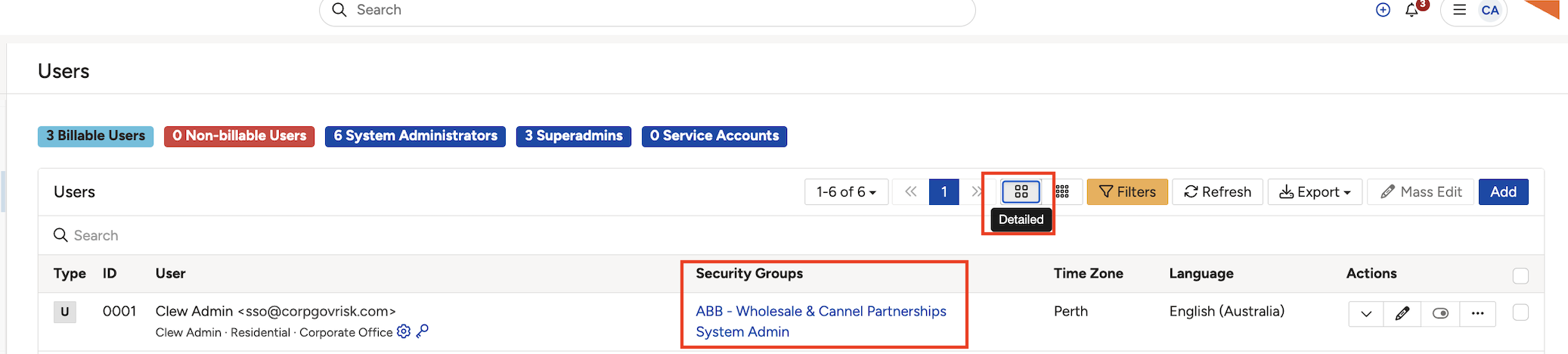
Detailed view shows the user's security groups.
- For a visual breakdown of the user's access, click the three dots in the Actions column and select Access Control Matrix.
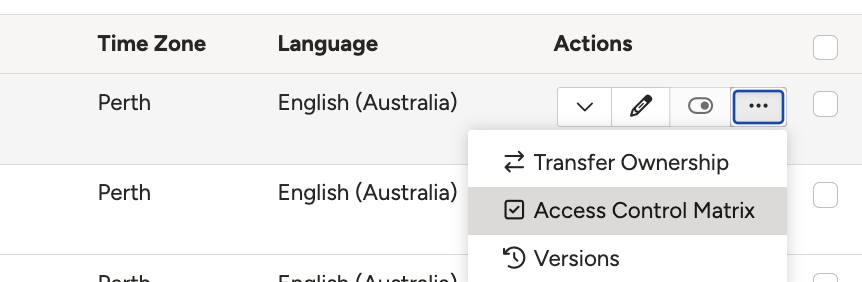
Open the Access Control Matrix from the Actions menu.
Reading the Access Control Matrix
The matrix shows the level of access the user has for each module within each register:
- The left-hand column lists all the registers in the system.
- The top row shows all the modules and their permissions.
- A green tick means the permission is granted; a white cross means it is not.
- A search bar at the top lets you type the register name you want to check, for example "Project A".
Under each module name you will see the letters C, R, U, D, M, M, S:
| Letter | Permission |
| C | Create |
| R | Read |
| U | Update |
| D | Delete |
| M | Mass |
| M | Merge |
| S | Share |
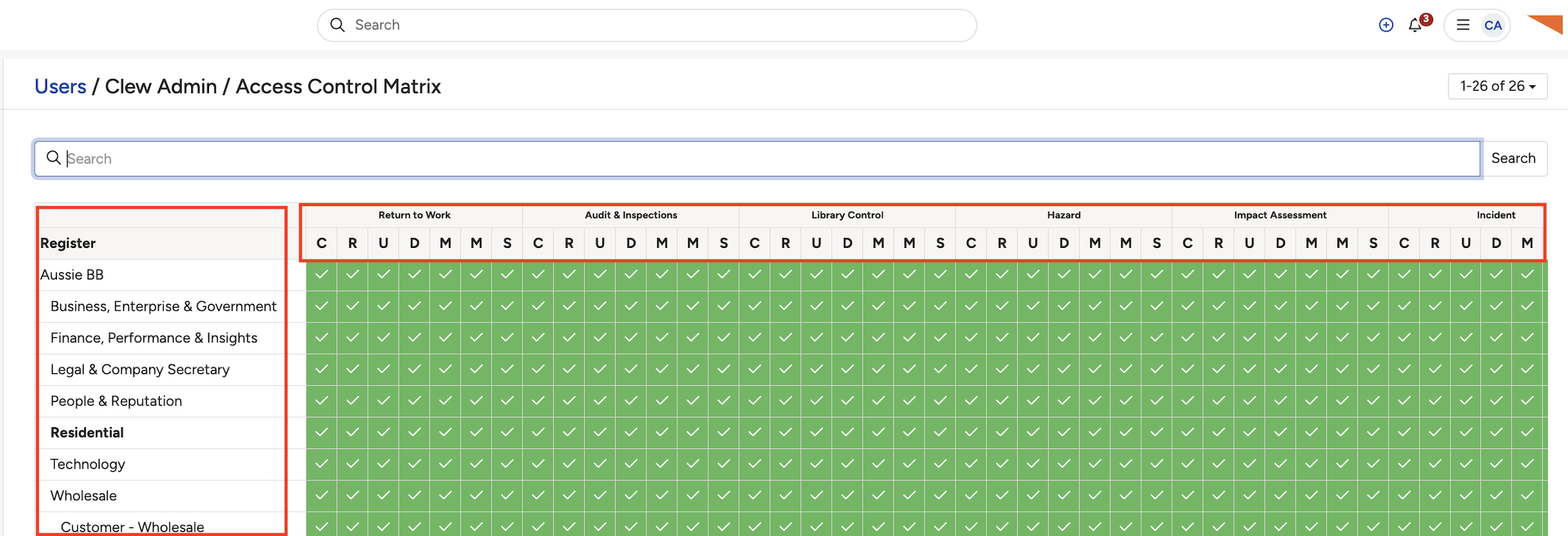
An Access Control Matrix. Here, under Hazard for Project A the user has Create, Read, Update and Delete, but not Mass, Merge or Share.
5. Common Issues & Troubleshooting
| Symptom | Cause and what to do |
| You cannot open Admin > Users. | Checking a user's permissions requires System Administrator access. Ask a System Administrator to check for you. |
| You cannot change anything in the Access Control Matrix. | The matrix is a read-only reference. Change the user's access by adding or removing security groups on their account. |
| A user is missing a permission they should have. | Permissions come from security groups. Check which groups the user is in, in Detailed view, and whether those groups grant the permission. |
▾Security Groups Open full article »
Related article
How security groups work, which is where a user's access actually comes from and how you change it.
▾Permission Sets Open full article »
Related article
How permission sets define what a security group can do, the detail behind the C R U D M M S letters in the matrix.
Was this article helpful?
That’s Great!
Thank you for your feedback
Sorry! We couldn't be helpful
Thank you for your feedback
Feedback sent
We appreciate your effort and will try to fix the article