TABLE OF CONTENTS
Overview
You can import values for matrices using a CSV import.
This can be done by a system admin for either Custom Matrices or Risk Matrices.
There are two main import methods:
- Using the Cell ID (for Custom Matrices only)
- Using Exact Values (for both Custom and Risk Matrices)
Custom Matrices vs. Risk Matrices – What is the difference?
Custom Matrices
Custom Matrices can be created and managed by a System Administrator under Admin > Custom Fields.
These appear on forms and records, similar to the example below:
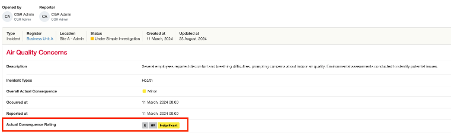
Risk Matrices
Risk Matrices can be managed under Admin > Risk Matrices. These can’t be displayed on a form and will always be displayed like in the screenshot below:
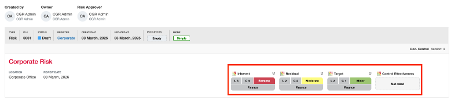
CSV Import Custom Matrices via Cell ID
- Go to Admin > Custom Fields and open the relevant Custom Matrix.
- Click on any cell in the matrix. A pop-up window will appear showing the Cell ID at the top.
Note: Each cell has a unique Cell ID.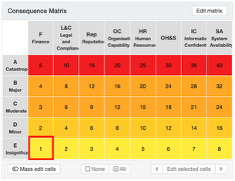
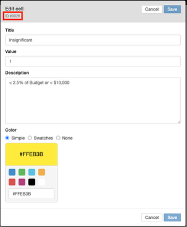
- Use this Cell ID in your CSV file for the import.

CSV Imports of Custom Matrices Values with Exact Values
This method works for both, Custom Matrices and Risk Matrices, especially useful for Risk Matrices where Cell IDs are harder to locate.
- Export a CSV file that includes the records containing your matrix (Custom or Risk).
- Open the file and find the relevant column (e.g. Actual Consequence Rating).
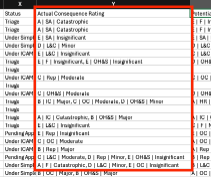
- You’ll see a structure like: Y Axis | X Axis | Cell Title. Insert your values in the same format.
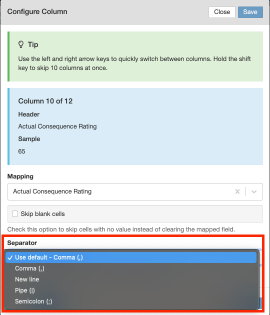
- If you’re importing multiple selections, separate each custom matrix value using the chosen separator.
CSV Imports of Risk Matrices Values with Exact Values
For Risk Matrices, ensure your CSV includes:
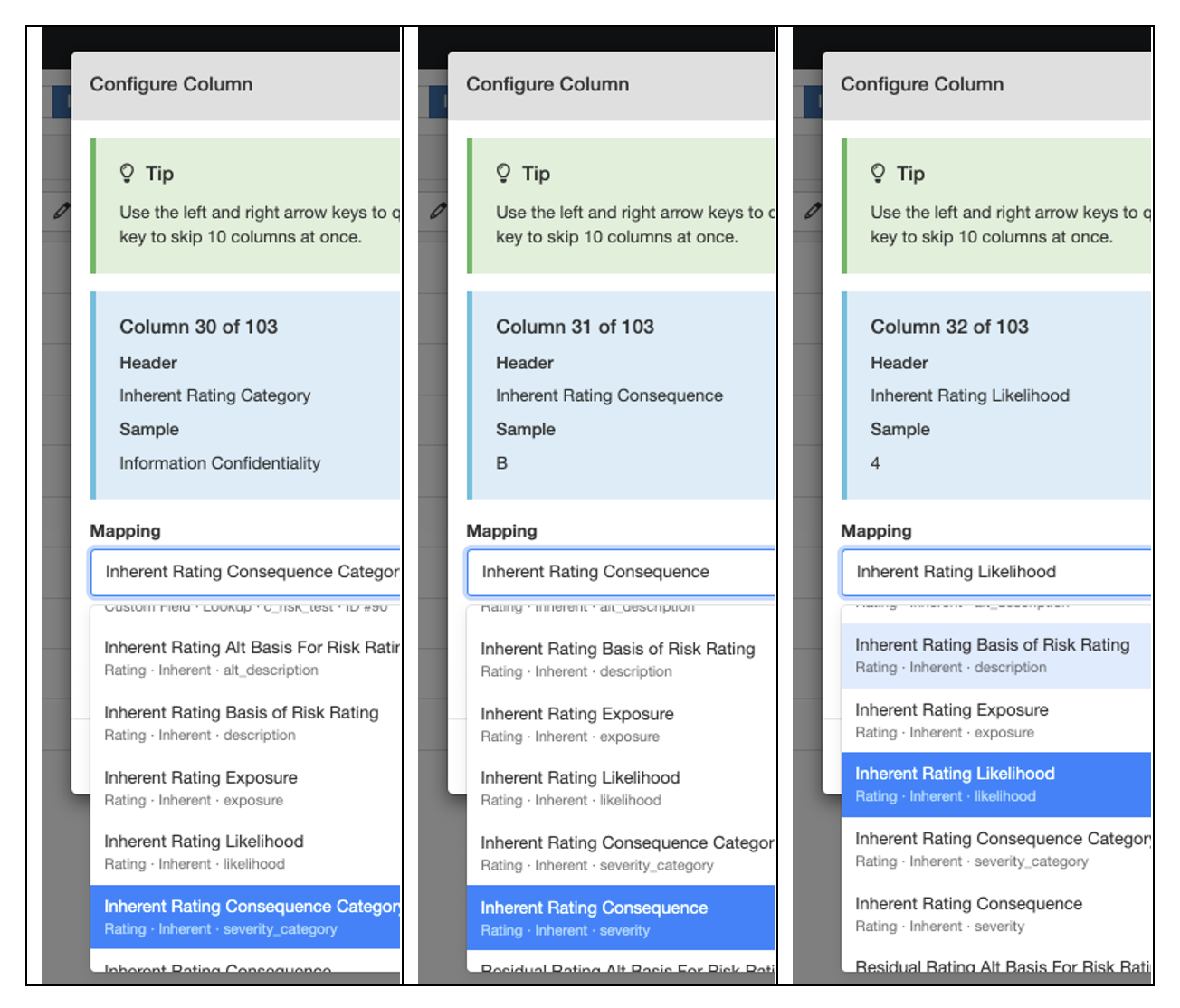
- One column for the Severity Category
- One for Likelihood
- One for Consequence Severity
Finding the corresponding values in CGR:
- Navigate to Admin > Risk Matrices.
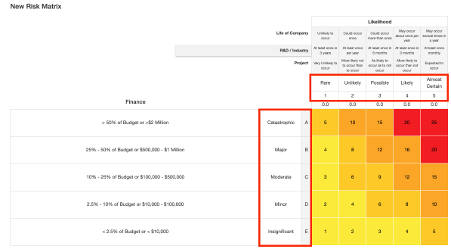
- Review the available Severity and Likelihood options, these can be used in your CSV. You can enter either the label (e.g. Catastrophic, Rare) or the code (e.g. A, 1) see the highlighted values as an example.
- Select the Rating Type, when preparing your import, specify which rating you’re updating: Inherent, Residual, Target, Control Effectiveness.
Note: The name of the rating type can vary based on your company’s terminology.
Once your CSV is ready follow the standard CSV import process in your system.
If you’re unfamiliar with CSV imports, refer to the related help article here.
Was this article helpful?
That’s Great!
Thank you for your feedback
Sorry! We couldn't be helpful
Thank you for your feedback
Feedback sent
We appreciate your effort and will try to fix the article