How can I edit a risk matrix?
How a System Administrator edits a Risk Matrix, and how changes affect existing records
Contents
- 1. Introduction & Context
- 2. Key Features & Functions
- 3. Requirements
- 4. Step-by-Step Guide
- 5. Common Issues & Troubleshooting
- 6. Related Articles
1. Introduction & Context
You must be a System Administrator to create or edit a Risk Matrix in Clew. This article explains how to edit a Risk Matrix and how those changes affect existing records.
Who is it for? System Administrators who maintain risk matrices.
What does it impact? Editing a Risk Matrix can change how existing records display, so it is worth understanding how updates cascade before you make them.
2. Key Features & Functions
- Changes cascade automatically: when you edit an existing Risk Matrix, for example changing a Consequence Category title, all records that used the matrix automatically reflect the updated title. This keeps the system consistent without a mass edit of individual records. The same applies to other fields and values within a Risk Matrix.
- Disable rather than overwrite: to keep existing records as they are but introduce a new option, disable the old value and create a new one. Existing risks continue to display the disabled rating, but it is no longer available for selection in new entries.
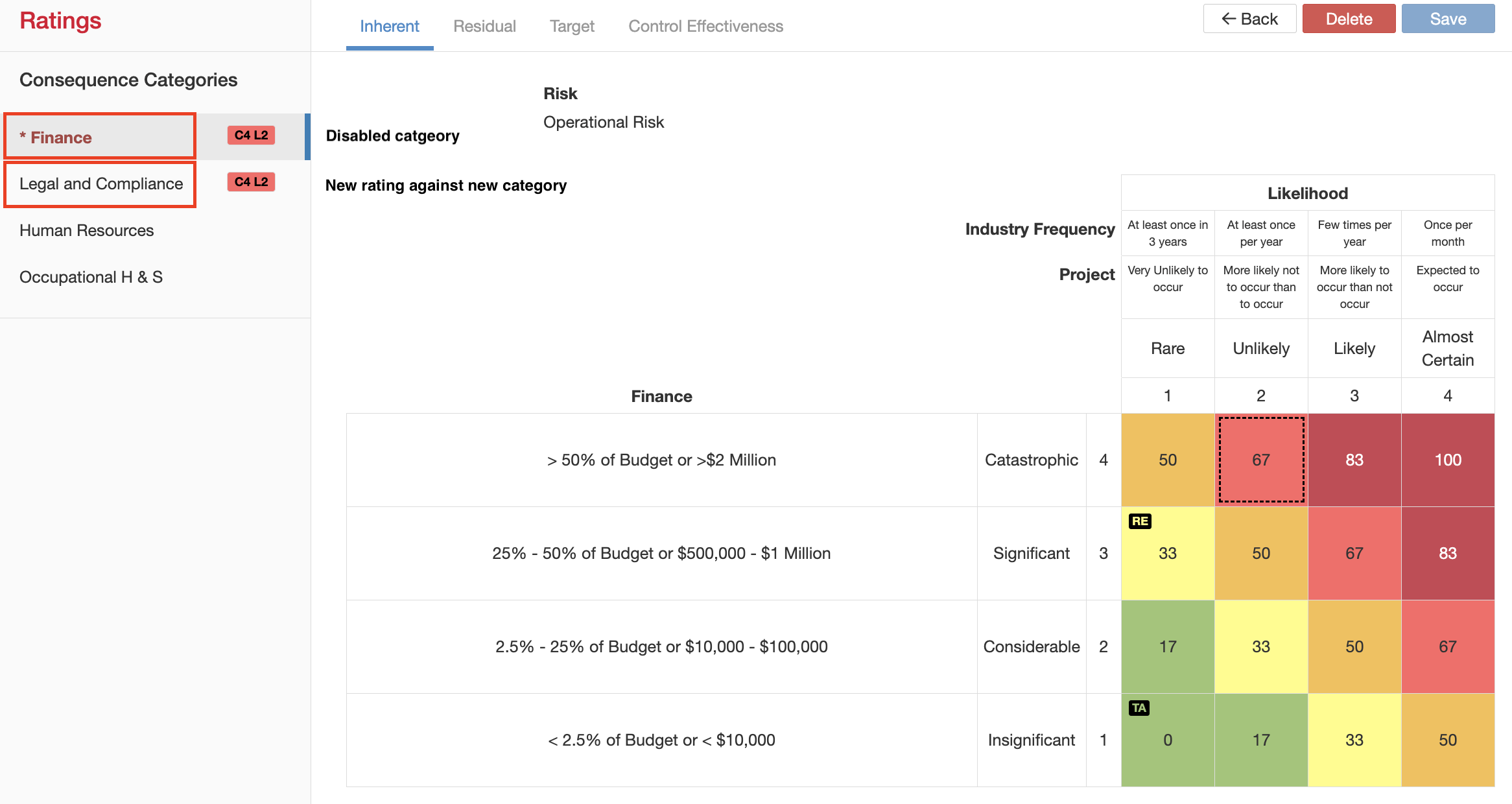
A disabled consequence category: kept on existing records, not available for new entries.
3. Requirements
- System Administrator access is required to create or edit a Risk Matrix.
- An existing Risk Matrix to edit.
4. Step-by-Step Guide
Editing a risk matrix
- Navigate to Admin > Risk Matrices and open the risk matrix you want to edit.
- Apply the changes you need. Hover over the field and click the pencil icon, or click Edit to edit the details of the matrix.
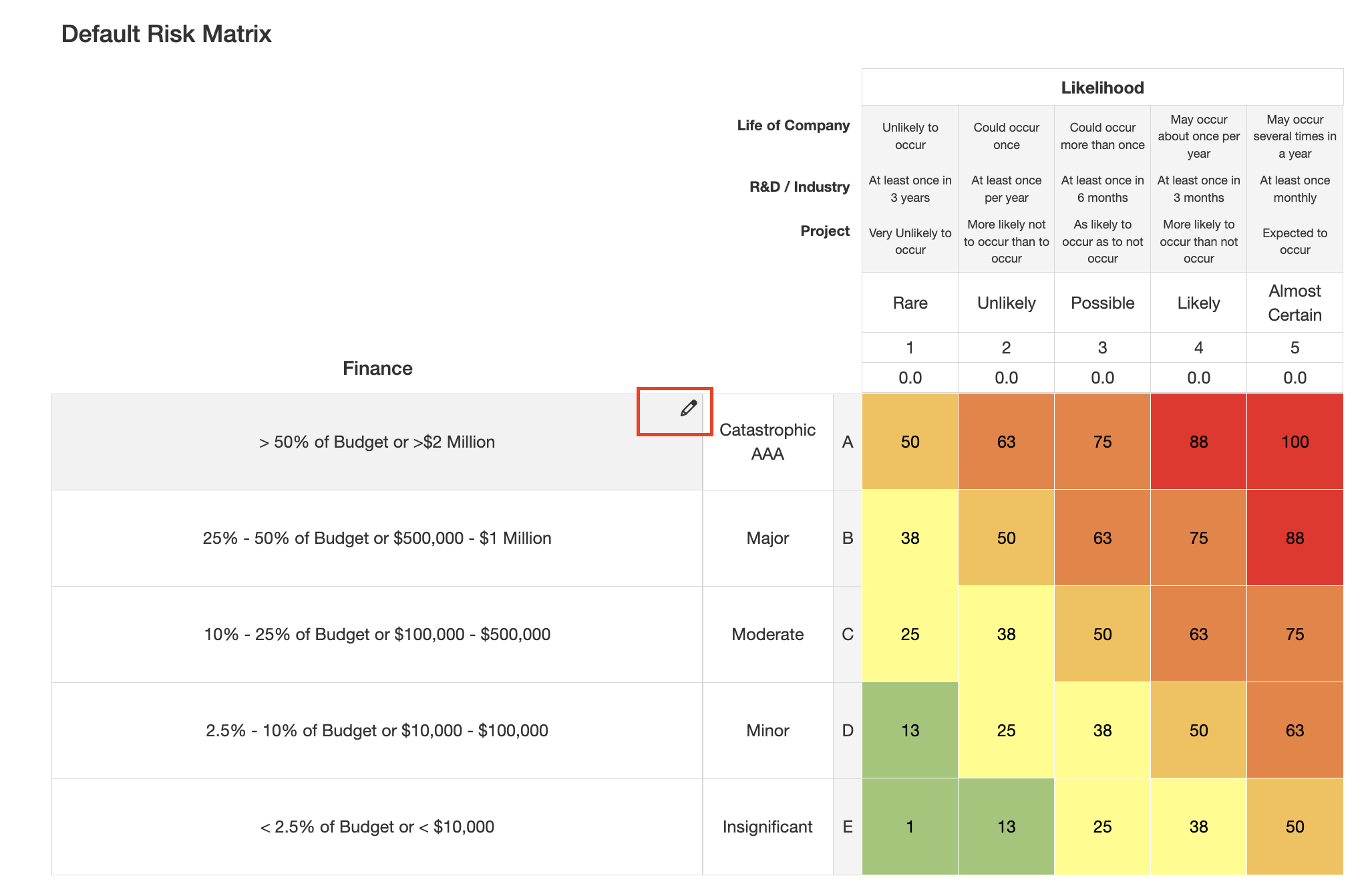
Editing a field with the pencil icon, or using Edit for the matrix details.
- Changes to the matrix are saved automatically. When you are editing the details of the matrix, click Save.
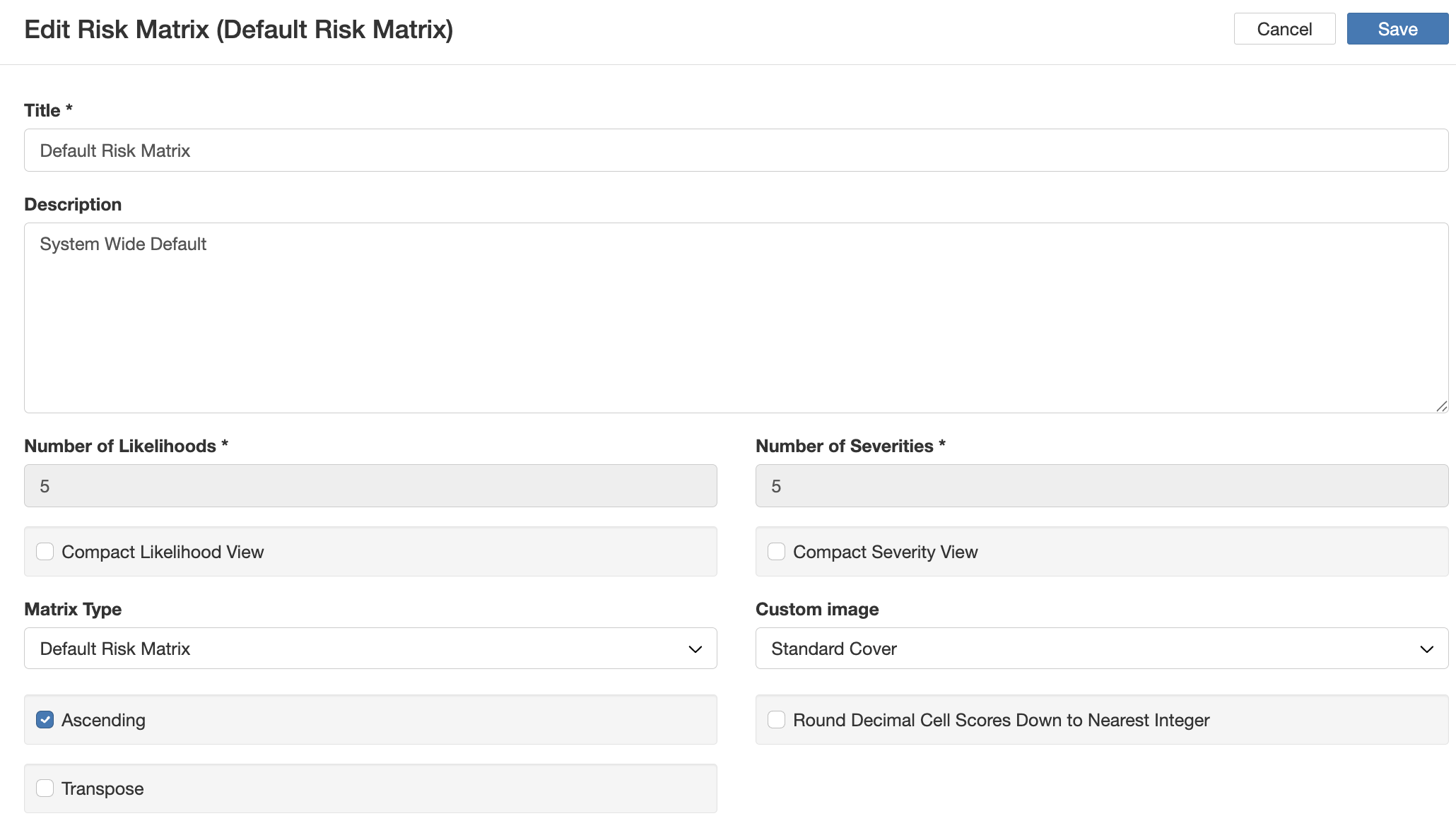
Saving changes to the matrix details.
5. Common Issues & Troubleshooting
| Issue | Likely Cause | Solution |
| An edit changed existing records unexpectedly | Edits to a Risk Matrix cascade to all records that use it. | To keep existing records unchanged, disable the old value and create a new one rather than editing the existing value. |
| An old rating still appears on some risks | The value was disabled rather than removed. | This is expected. Disabled ratings stay on existing records but cannot be selected for new entries. |
| You cannot edit the matrix | You do not have System Administrator access. | Only a System Administrator can create or edit a Risk Matrix. Ask an administrator to make the change. |
Click a title to preview it here. Use the Open full article button to read the full version in a new tab.
▾Risk Matrices Open full article »
Related article
How risk matrices are set up and configured.
▾Rating Strategies Open full article »
Related article
How rating strategies work alongside risk matrices.
Was this article helpful?
That’s Great!
Thank you for your feedback
Sorry! We couldn't be helpful
Thank you for your feedback
Feedback sent
We appreciate your effort and will try to fix the article