TABLE OF CONTENTS
Context
Delegates are users authorised to download reports that were exported by another user. This feature allows report-sharing without requiring the original user to download and share the files themselves.
How to Enable Delegates
- Go to the Admin section > Custom Type and click on it.
- Locate the User custom type and click ‘Edit’.
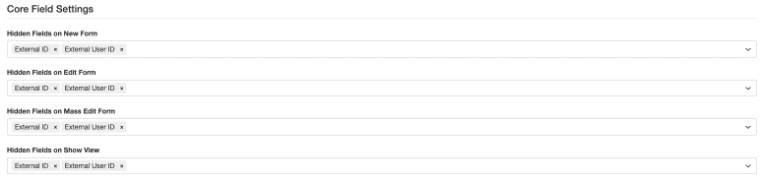
- Go to the Core Field Settings section.
- Ensure that the Delegates field is not hidden and click ‘save’.
How to Assign a Delegate to a User
- Navigate to User, either through the admin section or the dropdown.
- Open the user you want to assign a delegate to.
- On the edit profile page, locate the Delegates field.
- Select one or more users from the list.
- Click Save.
The selected users will now be authorised to download reports exported by that user.
How to Download as a Delegate
Option 1: Using a Shared Report Link
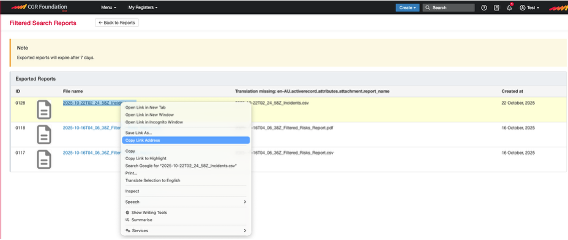
- The original user must copy the hyperlink of the report and share it with their assigned delegate.
- The delegate can then access and download the report directly from the shared link.
Option 2: Scheduling a Filtered Report
- You can also use the Schedule a Filtered Report option.
- For detailed steps, refer to the related guide by clicking here.
Was this article helpful?
That’s Great!
Thank you for your feedback
Sorry! We couldn't be helpful
Thank you for your feedback
Feedback sent
We appreciate your effort and will try to fix the article