Managing Dashboard Templates
How to enable or disable dashboard templates and what each access level allows you to do
Contents
- 1. Introduction & Context
- 2. Key Features & Functions
- 3. Requirements
- 4. Step-by-Step Guide
- 5. Common Issues & Troubleshooting
- 6. Related Articles
1. Introduction & Context
Dashboard Templates control which dashboards are available to users in the Clew Platform, and this article explains how to enable or disable them and what your access level allows you to do. When a template is enabled, users with access to it can view the associated dashboard. When it is disabled, the dashboard disappears from all views for every user who previously had access.
Who is it for? All Clew users interact with dashboard templates, but the ability to enable, disable, or manage them depends on your access level. Owners, users with Update access, and System Admins can all make changes. Read-only users can view dashboards but cannot modify them.
What does it impact? Disabling a template is a global action. It removes the dashboard from all users who had access, not just your own view. Read-only users have a separate option to hide dashboards from their personal view only, without affecting anyone else.
2. Key Features & Functions
- Enable/disable toggle: available in Dashboard Manager and in Admin > Dashboard Templates. Turns a dashboard template on or off for all users with access.
- Dashboard Manager: accessible from the user menu (top-right). Lets owners and Update-access users manage templates they own or have been shared with them.
- Admin > Dashboard Templates: a System Admin-only area that gives full control over every dashboard template in the system, including those owned by other users.
- Dashboard Preferences: a personal visibility control available to all users, including Read-only. Hides selected dashboards from your view only and does not affect other users.
Access levels at a glance
| Access Level | Description | What You Can Do |
| Owner | You created the dashboard template | Enable/disable, edit, delete |
| Shared with Update | The template was shared with you with Update access | Enable/disable (affects all users), edit (cannot delete) |
| Shared with Read-only | The template was shared with you with Read-only access | View only. Can hide via Dashboard Preferences but cannot enable/disable or edit |
| System Admin | You are the System Administrator | Full control over all templates across all users |
3. Requirements
- To enable or disable a dashboard template, you must be the Owner, have Update access, or be a System Admin.
- To access Admin > Dashboard Templates, you must have System Admin permissions.
- To hide a dashboard from your personal view using Dashboard Preferences, you only need to be a Clew user. No special permissions are required.
- Clew system dashboards cannot be modified or disabled by regular users, regardless of their access level.
4. Step-by-Step Guide
Option 1: Using Dashboard Manager
Use this option if you own the template or if it has been shared with you with Update access.
- Click your name in the top-right corner of the screen.
- Select Dashboard Manager from the menu.
- Find the template you want to manage under Dashboard Templates.
- Click the toggle switch in the Actions column. A green toggle means the template is enabled. A grey toggle means it is disabled.
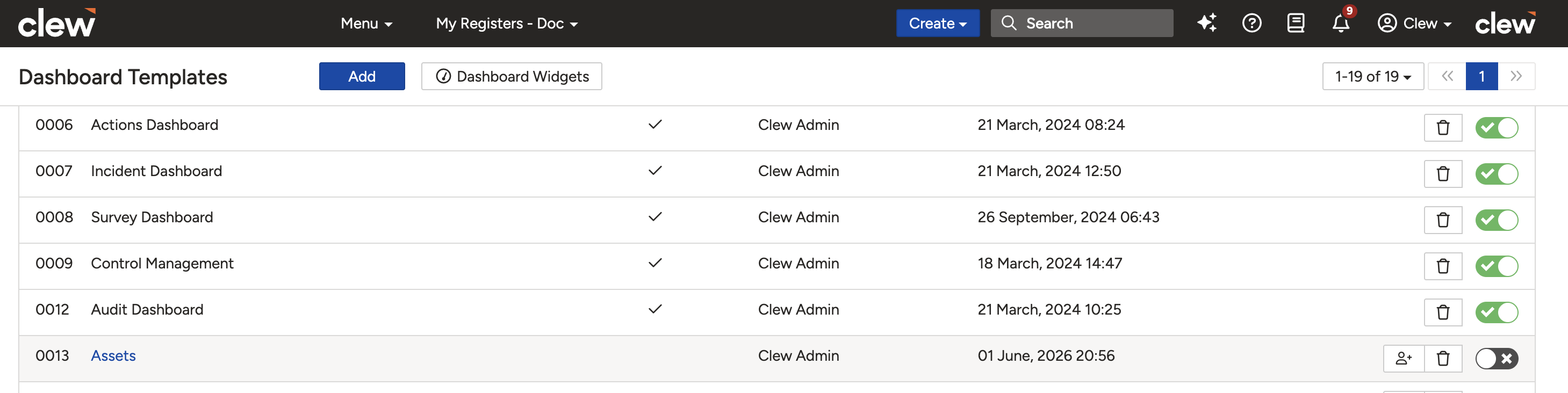
The Dashboard Manager showing the toggle switch in the Actions column. Green indicates enabled, grey indicates disabled.
Option 2: Using Admin > Dashboard Templates (System Admins only)
System Admins can manage any dashboard template in the system, including those created by other users.
- Click your name in the top-right corner and select Admin.
- Select Dashboard Templates from the left panel, or search for it using the search bar.
- Locate the template you want to manage. Use the search bar at the top of the list if needed.
- Click the toggle switch in the Actions column to enable or disable the template.
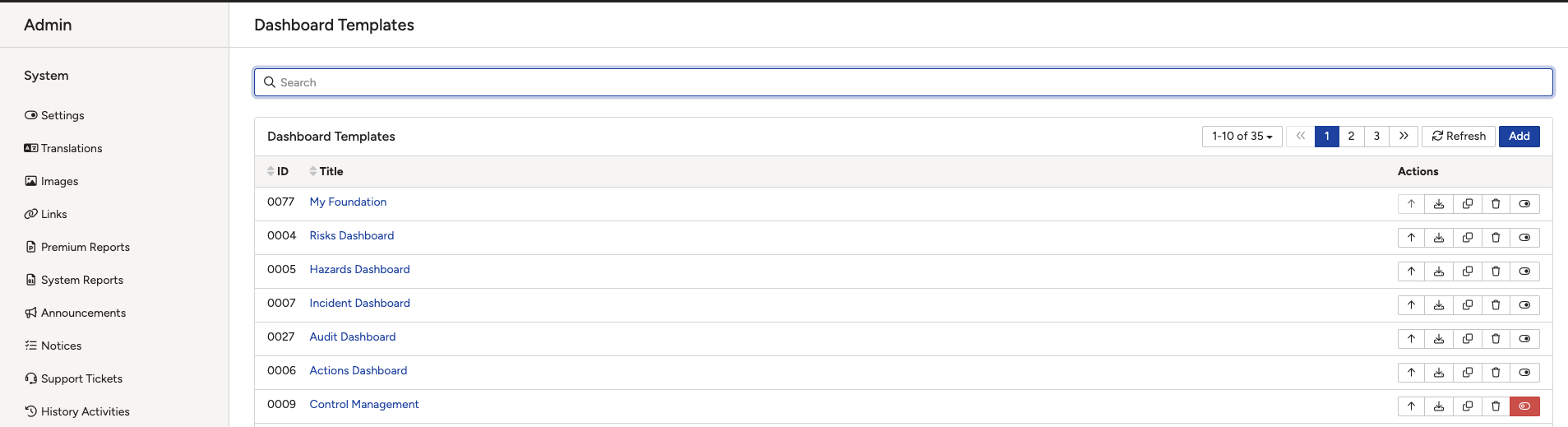
The Admin > Dashboard Templates page. System Admins can enable or disable any template from this view.
Hiding Dashboards from Your Personal View (Read-only users)
If you have Read-only access to a template, you cannot disable it. You can still hide it from your own view using Dashboard Preferences. This does not affect other users and does not disable the template.
- Click the Clew icon in the top-left corner to open My Dashboards.
- Click the Dashboard Preferences gear icon.
- Click the toggle next to any dashboard you want to hide from your view.
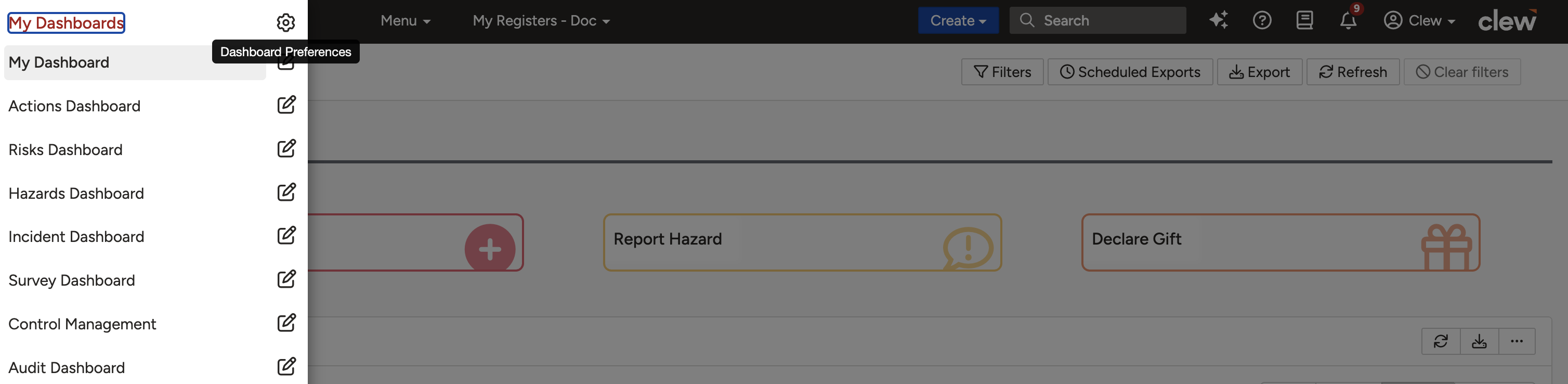
Dashboard Preferences. Use the toggles to show or hide dashboards in your personal view only.
You can re-enable any hidden dashboard at any time by returning to Dashboard Preferences and toggling it back on.
5. Common Issues & Troubleshooting
| Issue | Likely Cause | Solution |
| I cannot see the enable/disable toggle next to a template | You have Read-only access to the template | You cannot enable or disable this template. Use Dashboard Preferences to hide it from your personal view. Contact the template owner if you need Update access |
| I can view a dashboard but it does not appear in Dashboard Manager | The template was shared with you as Read-only, or it is a Clew system dashboard | You can use the dashboard but cannot modify or disable it. Contact your System Admin if you need the template to be disabled |
| A dashboard has disappeared for all users unexpectedly | The template was disabled by the owner, a user with Update access, or a System Admin | An eligible user (owner, Update access, or System Admin) needs to re-enable the template via Dashboard Manager or Admin > Dashboard Templates |
| I cannot access Admin > Dashboard Templates | You do not have System Admin permissions | Contact your System Admin to either grant you System Admin access or manage the template on your behalf |
| I hid a dashboard but want to see it again | You toggled it off in Dashboard Preferences | Return to Dashboard Preferences (gear icon in My Dashboards) and toggle the dashboard back on |
Best practices:
- Before disabling a shared template, check with other users who may be relying on it. Disabling it removes the dashboard from everyone with access.
- If you only want to tidy up your own dashboard list, use Dashboard Preferences rather than disabling the template globally.
- System Admins should use Admin > Dashboard Templates for any organisation-wide housekeeping, rather than relying on individual users to manage their own templates.
- Disabled templates can always be re-enabled. No data is lost when a template is disabled.
Click a title to preview it here. Use the Open full article button to read the full version in a new tab.
▾Dashboard Manager Open full article »
Related article
Dashboard Manager lets you build custom dashboards from a library of widgets, arrange them to suit your reporting needs, and share them with other users or teams.
▾Advanced Dashboard Templates Open full article »
Related article
Advanced Dashboard Templates let you apply report themes and add custom background images and logos to your dashboards, so your reports match your organisation's branding when shared or exported.
▾How can I change my default dashboard or dashboards order? Open full article »
Related article
Explains how to set which dashboard opens by default and how to change the order your dashboards appear in your personal view.
Was this article helpful?
That’s Great!
Thank you for your feedback
Sorry! We couldn't be helpful
Thank you for your feedback
Feedback sent
We appreciate your effort and will try to fix the article