TABLE OF CONTENTS
- Context
- Important Notes
- Critical Notes
- How do I update (edit) a widget?
- Why can’t I update a particular widget?
- Why do some widgets in Dashboard Templates not show the arrow icon for editing?
- I see some widgets on the dashboard that the CGR team created for me, but I do not see them under Dashboard Widgets. Why?
- I shared a dashboard template with my colleagues, but while I can see the data in the widgets, they cannot. Why?
- Why some widgets are not visible against certain dashboard templates?
Context
The Dashboard Widgets feature allows users to configure and manage widgets they have created or that have been shared with them via Dashboard Templates.
- Configurable widgets can be edited depending on the access rights granted (Read vs Update).
- Advanced widgets (created by CGR Admin) are locked and cannot be edited by end-users.
This FAQ explains how to update widgets, why you may not be able to, and how access levels affect what you can see and do.
Important Notes
- Blue Title + Green Tick (✔️) under Actions = you can update the widget.
- Widgets you created will display a red bin icon, allowing you to delete them.
- Widgets shared with you via Dashboard Templates (Update access) will not display the bin icon - they can be updated or disabled but not deleted.
- Widgets shared with Read only access will not appear in your Dashboard Widgets list, but they can still be seen on dashboards and in lookups in Dashboard templates.
- Disabling a widget applies only to your view of the dashboard; it does not affect the owner’s version.
- Advanced widgets are available to look up in Dashboard Templates but will not show the arrow edit icon, even if you have Update access.
Critical Notes
- Widgets don’t have their own sharing rights; access is controlled at the dashboard level.
- Even if a dashboard (with its widgets) is shared with you, you will only see data if you already have access to the relevant projects or registers. If you lack access, the widget will still display, but with no data populated.
How do I update (edit) a widget?
You can update a widget in two ways:
Option 1 – From the Dashboard Widgets list (Dashboard Manager)
- Navigate to Admin > Dashboard Manager > Click Dashboard Widgets.
- Locate the widget you want to edit.
- If the Widget Title appears in Blue and under Actions there is a green tick (✔️), you have permission to update it.
- Click on the Title of the widget to open its configuration.
- Make the required changes and click Save.
Case 1: Updating a Widget, you created.
- The widget will display with a red bin icon, meaning you can also delete it.
- You can edit, disable, or delete your own widget.

Case 2: Updating a widget shared with you by someone via Dashboard Templates (with Update access). - Shared widgets will not display the bin icon.
- You can update or disable these widgets, but you cannot delete them since you are not the owner.

Option 2 – From within a Dashboard Template
Case 1: If you created the widget inside the template:
- You will see the arrow (pop-up window) icon.
- Clicking this opens the widget configuration, where you can edit or delete it.
Case 2: If the widget was shared with you via the template (Update access):
- You will also see the arrow icon, allowing you to open the widget configuration.
- You can update or disable the widget, but you cannot delete it.
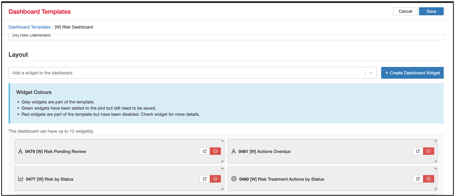
Note: If the template was shared with Read access only, the arrow icon will not appear, and you cannot edit the widget.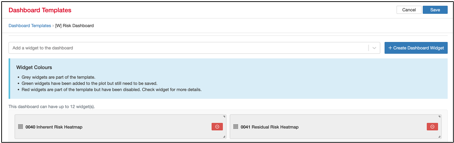
Why can’t I update a particular widget?
If you cannot view a widget under the Dashboard Widgets section but can still see it on a Dashboard or look it up under Dashboard Templates, it could be due to one of the following reasons:
Case 1: You Do NOT have Update access
- Widgets without Update permission will not appear in the Dashboard Widgets list (Dashboard Manager).
- However, if the dashboard itself has been shared with you as Read access, you will still:
- See the widgets on the Dashboard.
- Look them up in the Dashboard Templates library.
- In this case, you can view and use them, but you cannot update their configuration (edit the widget, e.g., rename it, change chart type/style, or update filters).
How this works in practice:
- When templates are shared (by clicking the Share icon in the top-right corner of the Dashboard Template), the owner can choose to give you Read access only.
- In the Share Dashboard Template configuration, if only Readis selected, you will not be able to update widgets - just view them.
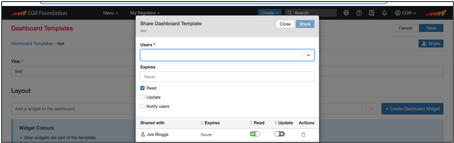
Case 2: You have Update access to the Dashboard Template
- If the template is shared with Read + Update, the widgets in that template will appear under Dashboard Widgets.
- You can then click, edit, or disable them.
- Note: Disabling applies only to your own dashboard view and does not affect the original widget owned by the creator.
- The Delete icon will not be available - delete is only possible for widgets you created yourself.
How this works in practice:
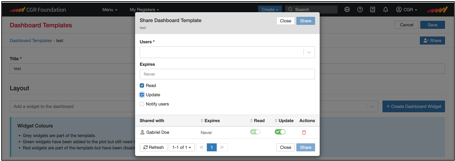
- When templates are shared with Read + Update access (through the Share Dashboard Template screen), you can edit widgets as if they were your own.
- The owner can look up a user and explicitly grant Update access alongside Read.
Why do some widgets in Dashboard Templates not show the arrow icon for editing?
When you pull shared widgets into a dashboard template:
Case 1: You have Update access
- You will see the extra arrow icon next to the widget (pop-up window icon)
- Clicking this arrow opens the widget edit page, where you can update the widget as needed.
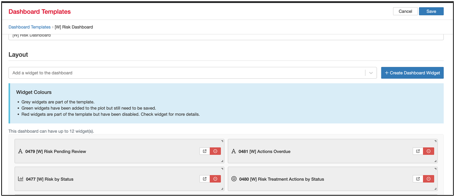
Case 2: You have only Read access
- The arrow icon will not appear, meaning you cannot edit that widget from the template.
- You can still view and use the widget on the dashboard but cannot update it.
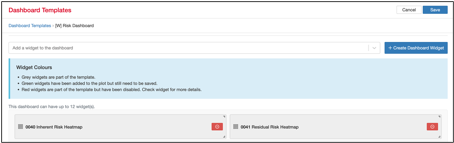
Case 3: Advanced widgets (created by CGR Admin)
- These widgets will also be available to look up and add in Dashboard Templates (if shared).
- However, they will never show the arrow icon, even if you have Update access through the dashboard templates from System Admins who have cloned the existing CGR created dashboard template.
- This is because Advanced widgets are locked for editing - only viewable, not editable.
I see some widgets on the dashboard that the CGR team created for me, but I do not see them under Dashboard Widgets. Why?
- These are Advanced widgets created by CGR Admin.
- Advanced widgets are system-level and cannot be edited directly by end-users.
- If you need modifications, please raise a support request with the CGR team.
I shared a dashboard template with my colleagues, but while I can see the data in the widgets, they cannot. Why?
- This happens when your colleagues do not have access to the underlying projects or registers that the widget(s) is drawing data from.
- The dashboard itself is shared, but without the required data access permissions, no data will be displayed to them.
Why some widgets are not visible against certain dashboard templates?
Possible Reasons:
- Other users created those widgets and placed them on their template but did not grant you 'Read' access to that template. Without access, you cannot view or map those widgets in your own templates.
- The widgets were created by CGR Admins but have not been shared with all users, so they are not available for lookup in your templates.
Workarounds:
- If created by other users: Request the creator to grant you 'Read' access to the template that contains the widgets. Once access is provided, you will be able to look them up when creating or updating your templates.
- You can share a template via your name dropdown > Dashboard Manager.
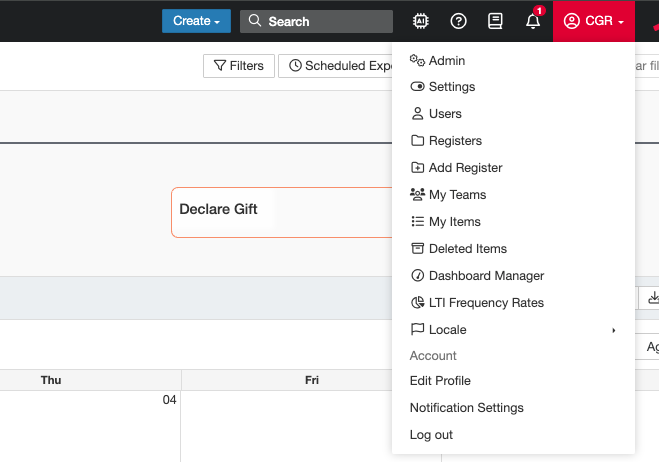
- Click on the hyperlinked title of the relevant dashboard template.
- Hit share and fill out the form and click 'share'.
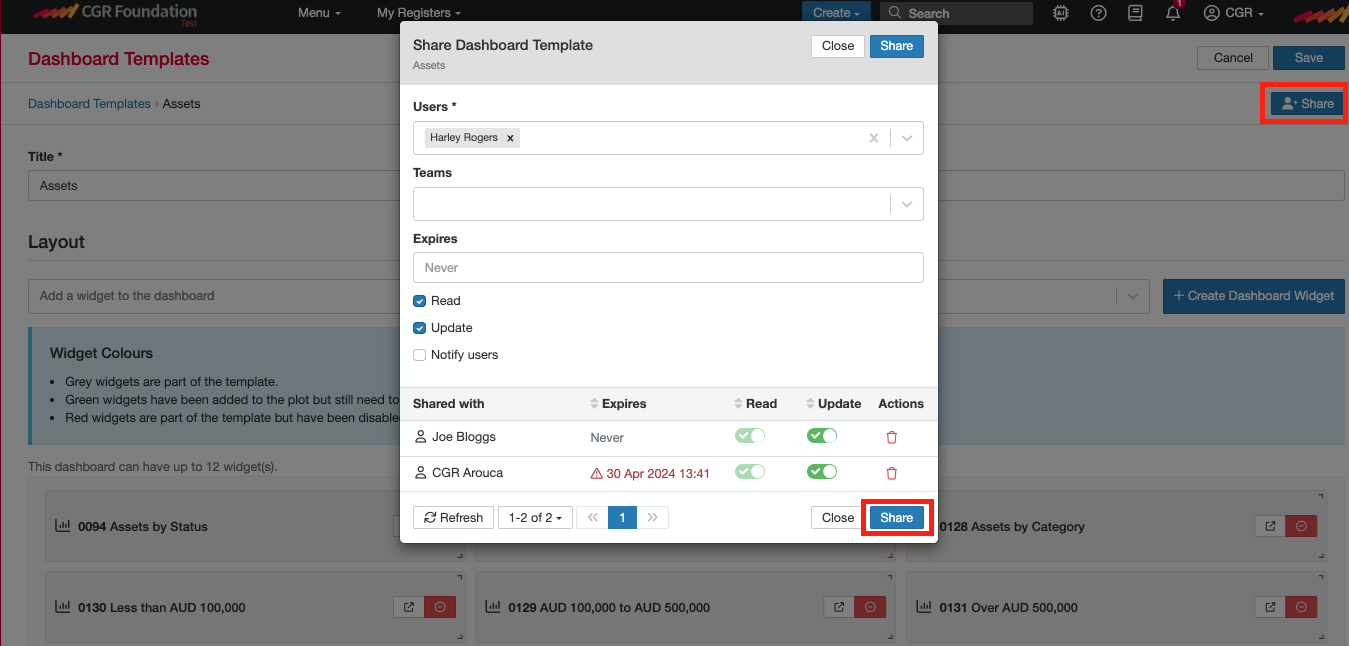
- You can share a template via your name dropdown > Dashboard Manager.
- If created by CGR Admins: Submit a request to CGR Support for access. Please note that once a widget is shared by Admins, it becomes available to map and view this widget via the dashboard manager for all users, not just you.
Was this article helpful?
That’s Great!
Thank you for your feedback
Sorry! We couldn't be helpful
Thank you for your feedback
Feedback sent
We appreciate your effort and will try to fix the article