Logging in to the Clew Platform
The two ways users can log in: email and password, or Single Sign-On (SSO)
Contents
- 1. Introduction & Context
- 2. Key Features & Functions
- 3. Requirements
- 4. Step-by-Step Guide
- 5. Common Issues & Troubleshooting
- 6. Related Articles
1. Introduction & Context
There are two ways users can log in to your Clew Platform: with an email address and password, or via Single Sign-On (SSO). Depending on your company policy, you may have only one of the two options enabled.
Who is it for? All Clew Platform users who need to log in, and administrators who manage user access and authentication settings.
What does it impact? Login methods affect how users access the platform. Enabling or disabling password authentication is set per user account, and SSO configuration applies at platform level.
2. Key Features & Functions
- Email and password login: users sign in with their email address and a password they set themselves after accepting an invitation.
- Invitation emails: new users receive an invitation email. Once accepted, the user gains access and can set their password.
- Password recovery: administrators can send a password reset email or a hard re-invite when a user forgets their password.
- Single Sign-On (SSO): users log in with their organisation credentials by clicking the SSO button on the login page.
3. Requirements
- To use email and password login, the Enable Password Authentication checkbox must be selected on the user account.
- To use SSO, the user's email address must be added to your organisation's IT provisioning list.
- SSO can only be set up by Clew. Contact Clew support if you would like SSO enabled for your platform.
4. Step-by-Step Guide
Email and Password Login
Users can log in using their email address and a password.
- For new users, send an invitation email. Once accepted, the user will gain access and can set their password.
- Make sure the Enable Password Authentication checkbox is selected on the user account.
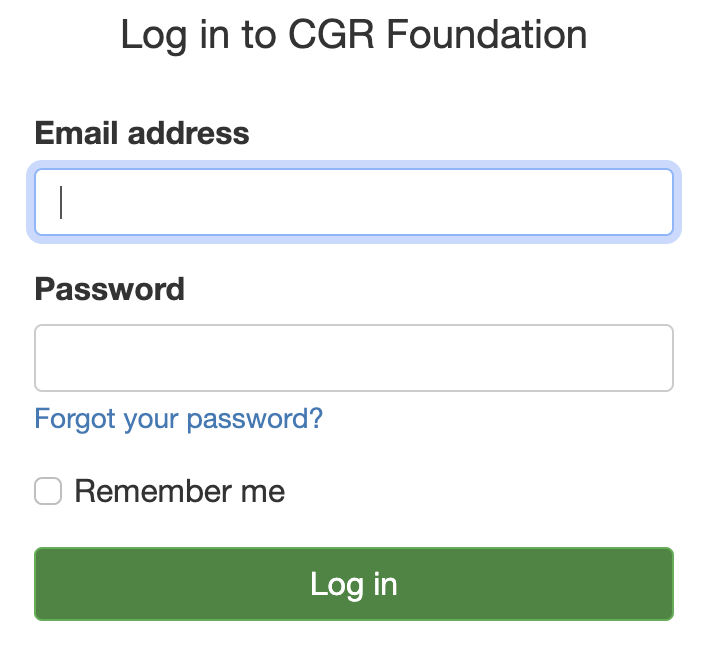
The Enable Password Authentication option on the user account.
Resetting a Forgotten Password
If a user forgets their password, you can either send a password reset email or a hard re-invite. A hard re-invite allows the user to access the system again only after accepting the new invitation.
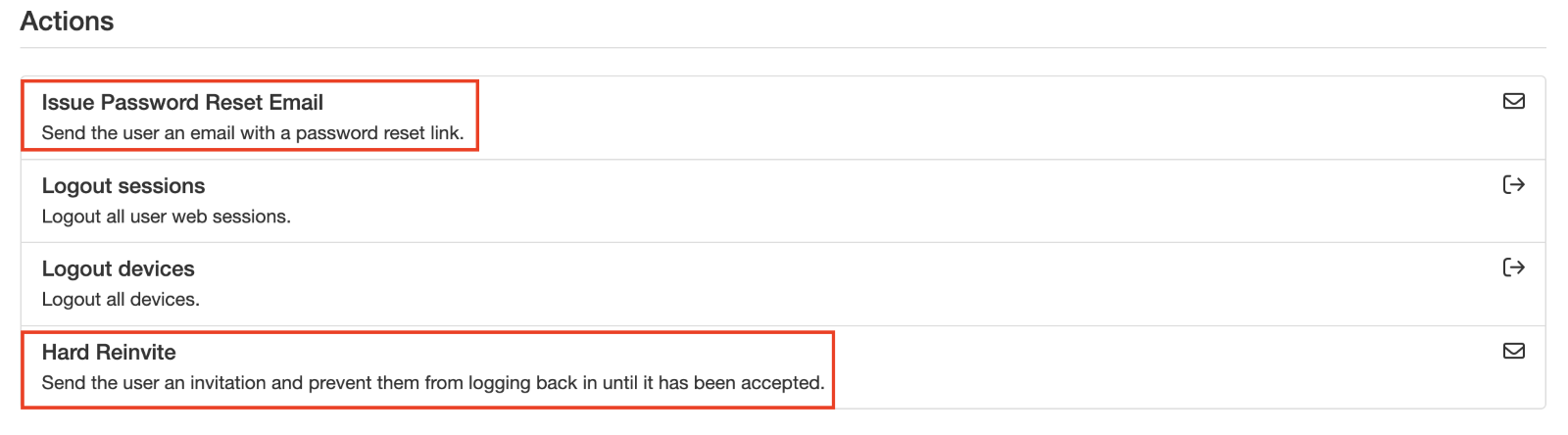
The password reset and hard re-invite options.
Single Sign-On (SSO)
Alternatively, users can log in via Single Sign-On (SSO) by clicking a button like the one shown below.
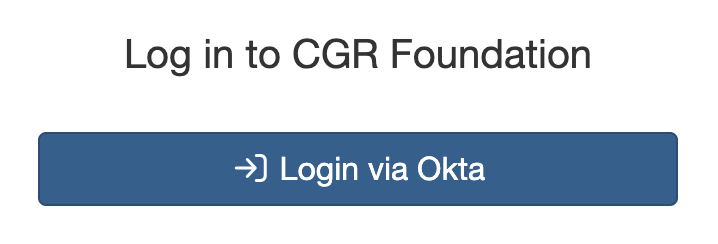
The SSO button on the login page.
If a user has trouble logging in via SSO, it is usually because their email address has not been added to the IT provisioning list. In this case, reach out to your IT department to confirm and resolve the issue.
5. Common Issues & Troubleshooting
| Issue | Likely Cause | Solution |
| A user cannot log in with their email and password | The Enable Password Authentication checkbox is not selected on their account | Open the user account and select Enable Password Authentication |
| A user has forgotten their password | Password unknown to the user | Send a password reset email, or a hard re-invite if the user should re-accept an invitation before regaining access |
| A user cannot log in via SSO | Their email address has not been added to the IT provisioning list | Ask your IT department to confirm the user's email address is on the provisioning list and add it if missing |
| SSO is not available on our login page | SSO has not been set up for your platform | Only Clew can set up SSO. Contact Clew support to arrange it |
Best practices:
- Use invitation emails for new users rather than setting passwords on their behalf, so users choose their own secure credentials.
- Use a hard re-invite when you want to be certain the user re-establishes their access themselves, as they can only get back in after accepting the new invitation.
- If your organisation uses SSO, add new users' email addresses to the IT provisioning list as part of onboarding to avoid failed first logins.
- Check your company policy before enabling password authentication for a user, as some organisations require SSO only.
Click a title to preview it here. Use the Open full article button to read the full version in a new tab.
▾Administration - Users, Organisation Structure & Security Open full article »
Related section
Browse the Administration articles covering users, organisation structure, and security, including user setup and authentication.
Was this article helpful?
That’s Great!
Thank you for your feedback
Sorry! We couldn't be helpful
Thank you for your feedback
Feedback sent
We appreciate your effort and will try to fix the article