Why Can't I Log In? Common Login Errors and Fixes
The most common reasons you may be unable to log in to the Clew Platform, and how to resolve each one.
Contents
- 1. Introduction & Context
- 2. Key Features & Functions
- 3. Requirements
- 4. Step-by-Step Guide
- 5. Common Issues & Troubleshooting
- 6. Related Articles
1. Introduction & Context
This article outlines the most common reasons you may be unable to log in to the Clew Platform. For each one, you will find the typical error message you might see and the steps to resolve it.
Who is it for? Anyone who cannot log in, and the System Administrators or IT teams who resolve these issues.
What does it impact? Most fixes are made by a System Administrator (for user records and account status) or by your own IT team (for single sign-on and certificates), not by the person who is locked out.
2. Key Features & Functions
This article covers five common login error messages. Jump to the one you are seeing:
- No User Available: the system cannot find your user record.
- User Not Assigned to SSO Group: your single sign-on setup does not place you in the correct access group for Clew.
- Password Login Not Allowed: password login is not enabled for your account.
- Inactive User Account: your account has been deactivated.
- Invalid or Expired SSO Certificate: your organisation's SSO certificate has expired or no longer matches the configuration.
3. Requirements
- A System Administrator to check or create a user record, and to activate an account.
- Your organisation's IT team to manage single sign-on groups and SSO certificates.
4. Step-by-Step Guide
No User Available
You see this message if the system cannot find your user record. This usually happens when you have not been onboarded yet, or your account details were entered incorrectly.
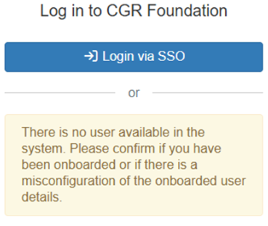
The No User Available error.
Cause: the user might not exist in the system, or their onboarding details are misconfigured.
How to fix: contact your System Administrator and ask them to:
- Go to Users by clicking your name in the top-right corner, then Users.
- Search for the user.
- If the user does not exist, follow the Adding a User guide (see Related Articles).
- If the user exists, click the Edit (pencil) icon and check that the First name, Last name, Email, and External User ID (used for SSO integration) are all correct.
- If the issue persists, contact support@clew.io.
User Not Assigned to SSO Group
This appears when your organisation's single sign-on (SSO) setup does not include your user in the correct access group for Clew.
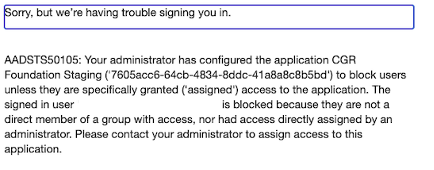
The User Not Assigned to SSO Group error.
Cause: the user has not been assigned to the correct SSO group with access to Clew.
How to fix: ask your company's IT administrator to add the user to the appropriate group in Azure AD, or your equivalent identity management system.
Password Login Not Allowed
This occurs when password-based login is not enabled for your account, typically because your organisation uses SSO for security.
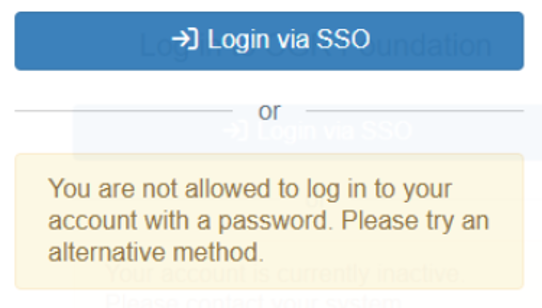
The Password Login Not Allowed error.
Cause: password login is disabled for this user.
How to fix: use SSO login instead of password authentication. If password login is genuinely required, go to the user's profile in Settings and ensure Enable Password Authentication is checked, but only after confirming with your System Administrator.
Inactive User Account
This message appears when your user account has been deactivated in Clew.
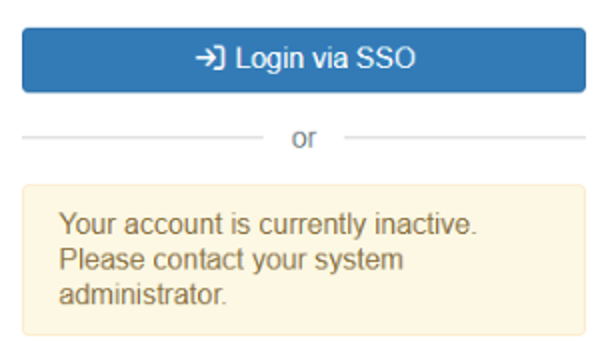
The Inactive user account error.
Cause: the user account has been deactivated.
How to fix: contact your System Administrator and ask them to:
- Go to Users > Filters and select Inactive.
- Search for the user.
- Activate the user by clicking the red toggle button.
Invalid or Expired SSO Certificate
You see this message if your organisation's SSO certificate has expired or no longer matches the system configuration.
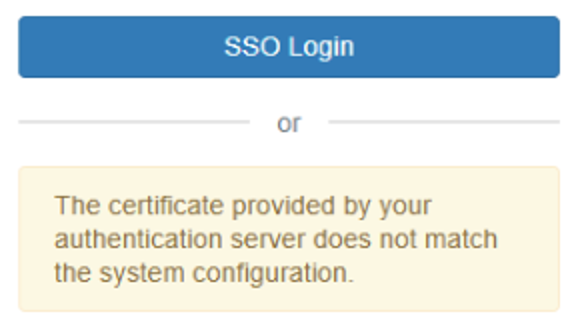
The Invalid or Expired SSO Certificate error.
Cause: the SSO certificate provided by your company has expired, causing the authentication process to fail.
How to fix:
- Notify your IT team immediately about the expired certificate.
- Ask them to generate and provide a new SSO certificate.
- Have a System Administrator contact support@clew.io with the updated certificate details, so the system configuration can be refreshed.
5. Common Issues & Troubleshooting
At a glance, here is who resolves each error:
| Error | Who resolves it |
| No User Available | Your System Administrator checks or creates the user record. |
| User Not Assigned to SSO Group | Your company's IT administrator adds you to the correct SSO group. |
| Password Login Not Allowed | Use SSO. A System Administrator can enable password login if it is genuinely needed. |
| Inactive User Account | Your System Administrator reactivates the account. |
| Invalid or Expired SSO Certificate | Your IT team issues a new certificate, then a System Administrator sends it to Clew Support. |
Awaiting the live URL for the Adding a User guide, referenced under No User Available. Intended entries: Adding a User, and Users.
Was this article helpful?
That’s Great!
Thank you for your feedback
Sorry! We couldn't be helpful
Thank you for your feedback
Feedback sent
We appreciate your effort and will try to fix the article