Survey Scoping to Specific Records
How to control exactly where a survey appears using the Survey Builder.
Contents
- 1. Introduction & Context
- 2. Key Features & Functions
- 3. Requirements
- 4. Step-by-Step Guide
- 5. Common Issues & Troubleshooting
- 6. Related Articles
1. Introduction & Context
Survey scoping controls exactly where a survey appears in your Clew environment. Instead of being available everywhere, a survey can be limited to certain types of record, or even to one specific record, from the Survey Builder.
Who is it for? Anyone with access to the Survey Builder, typically a survey or module administrator setting up or maintaining a survey.
What does it impact? Scoping decides which records show the survey in their Show view, so users only see it where it is relevant. It does not control who is allowed to respond, which is handled separately by access permissions.
2. Key Features & Functions
- Scope by custom type: make the survey available on every record of one or more chosen custom types, wherever they appear.
- Scope by particular record: make the survey available on one specific record only, chosen from a module.
- Appears in the record's Show view: once scoped, the survey shows directly on the relevant record so users can respond in context.
Example. A compliance team wants a post-incident feedback survey to appear only on Incident records, not on every record type. In the Survey Builder they choose Accept Responses From Items of Particular Types and select the Incident custom type. The survey then appears in the Show view of every Incident record, and nowhere else.
3. Requirements
- Access to the Survey Builder to change scoping settings.
- The custom type or module you want to scope to must already exist, so you can select it in the builder.
- If scoping to a particular record, that record must already exist so you can pick it from the module's list.
4. Step-by-Step Guide
Scope by custom type
Use this to make the survey available across every record of one or more chosen types.
- Go to Survey, then open the Survey Builder.
- Select Accept Responses From Items of Particular Types.
- From the list, select the custom types this survey should be available for. The survey then appears in the Show view of any record of those types.
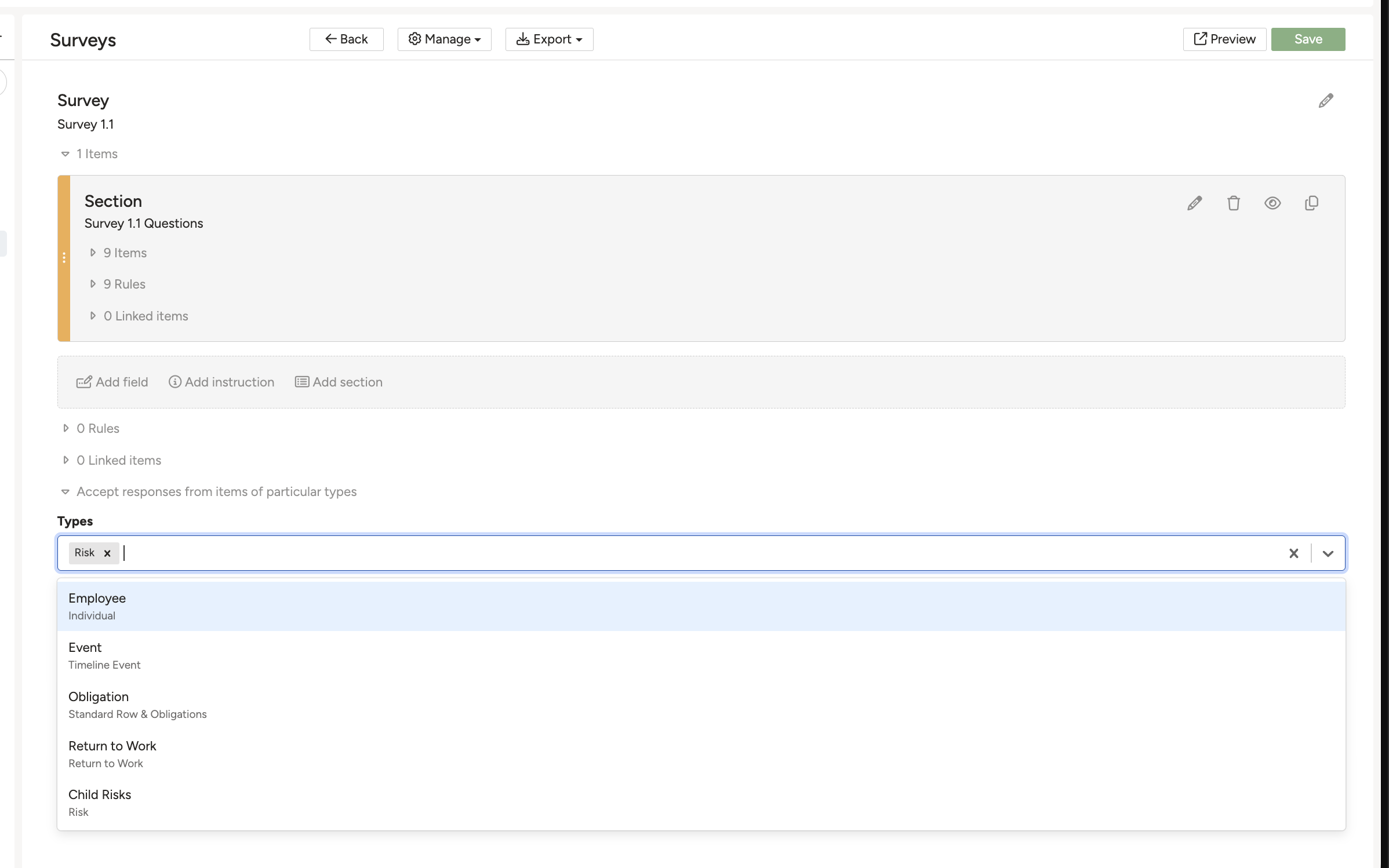
Accept Responses From Items of Particular Types, with the Risk custom type selected.
Scope by particular record
Use this to make the survey available on one specific record only.
- Go to Survey, then open the Survey Builder.
- Select Accept Responses From Particular Items.
- Select the module from the list, then select the specific record where you want the survey to be available.
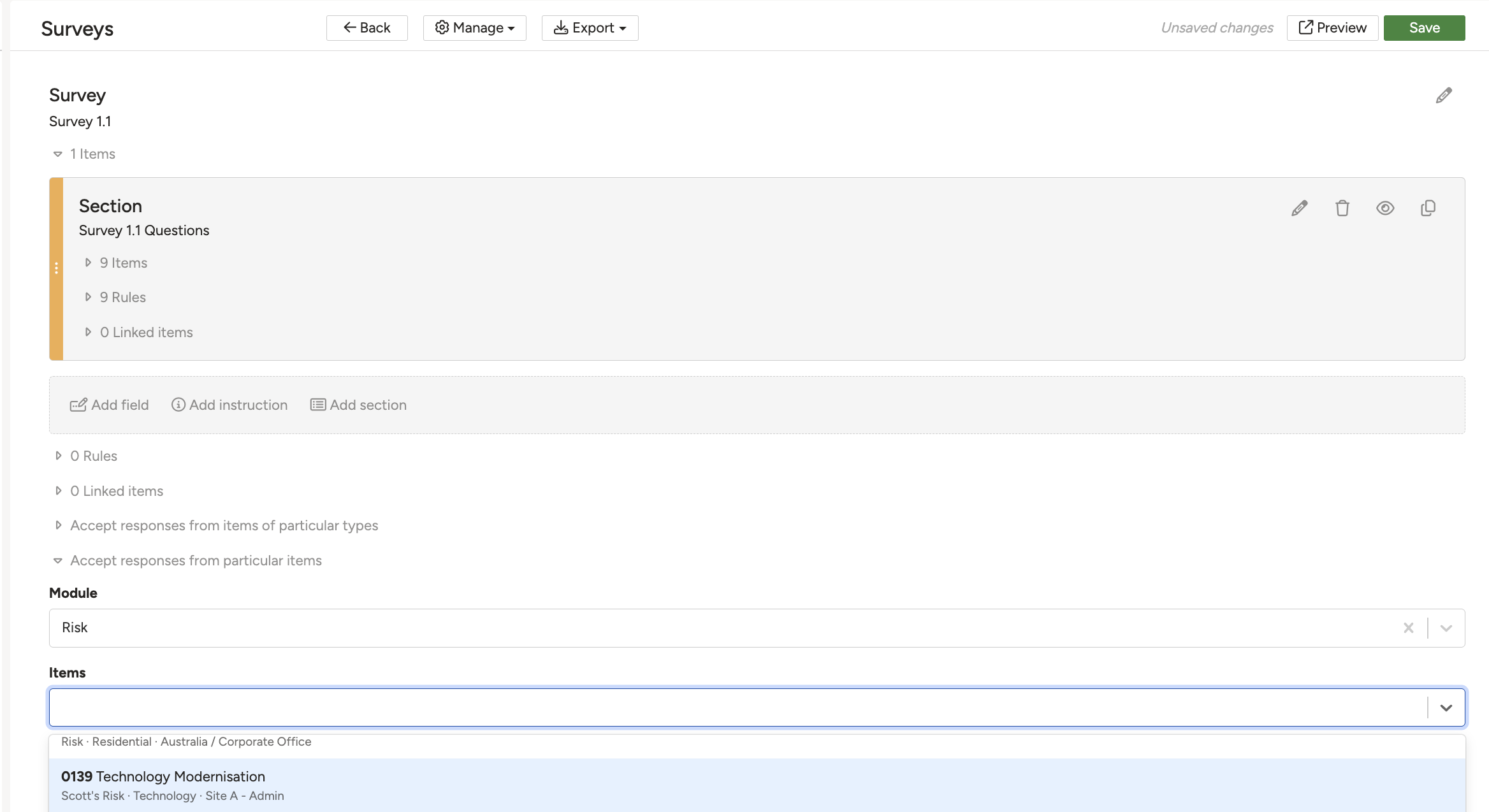
Accept Responses From Particular Items, with a Risk record selected.
5. Common Issues & Troubleshooting
| Issue | Likely Cause | Solution |
| The survey doesn't appear on a record you expected. | That record's type wasn't selected under the custom-type option, or the record itself wasn't selected under the particular-record option. | Open the Survey Builder and check the correct type or record is in the scoping list. |
| The custom type or record you want isn't in the selection list. | The type or record does not exist yet in your Clew environment. | Create the custom type or record first, then return to the Survey Builder to select it. |
| The survey appears, but the intended users can't respond. | Scoping only controls where the survey appears, not who can respond. | Check the user's access permissions on that record, separately from the survey's scoping. |
Frequently asked:
- Can I scope a survey to more than one custom type at once? Yes. Under the custom-type option you can select several types, and the survey appears on records of every type you select.
- Where does the survey show up once scoped? In the Show view of the record or records it has been scoped to.
Awaiting live article URLs. Intended entries: Surveys (building a survey), Responding to a Survey, and Linking Controls to a Survey.
Was this article helpful?
That’s Great!
Thank you for your feedback
Sorry! We couldn't be helpful
Thank you for your feedback
Feedback sent
We appreciate your effort and will try to fix the article