Understanding Risk Assessments
Building JSAs and SWMS, rating job step risks, and capturing sign-off in the Clew Platform
Contents
- 1. Introduction & Context
- 2. Key Features & Functions
- 3. Requirements
- 4. Step-by-Step Guide
- 5. Common Issues & Troubleshooting
- 6. Related Articles
1. Introduction & Context
The Risk Assessments module lets you build a Job Safety Analysis (JSA) or a Safe Work Method Statement (SWMS) directly in the Clew Platform: break a task into job steps, record the hazards and controls for each one, rate the risk before and after those controls, and capture sign-off from everyone involved, all in one record.
Who is it for? Site supervisors and workers who plan and carry out a job or high-risk activity, HSE and WHS teams who need a documented, signed-off record before work starts, and System Administrators who configure the roles used for sign-off.
What does it impact? Risk Assessments is a module in its own right, separate from your risk register, though it draws on the same hazard and control library so job steps can reuse existing controls rather than recreating them each time. Completing an assessment does not change any risk's rating in the register; it produces a signed, exportable JSA or SWMS document for that specific job.
For example, before excavation work begins on a construction site, a supervisor creates a SWMS, breaks the job into steps such as site assessment, excavation with machinery, and manual handling, rates the hazards and controls for each, and has every worker involved sign on to confirm they understand the controls before work starts.
2. Key Features & Functions
- JSA (Job Safety Analysis): a detailed examination of a specific job or task, used to identify its hazards and determine the safest way to carry it out.
- SWMS (Safe Work Method Statement): a more comprehensive, formal document for higher-risk work. A SWMS works the same way as a JSA in the platform, with the same job steps, ratings, and sign-off process.
- Job Steps: each JSA or SWMS is broken into job steps. A step can have one or more hazards (risk assessment hazards) and controls (library controls) linked to it, and steps can be built from, or added to, a reusable Job Steps library for high-risk activities you carry out repeatedly.
- Inherent and Residual ratings: each job step is rated against a configurable risk matrix. You cannot set an inherent rating until a hazard has been added to the step, and you cannot set a residual rating until a control has been added.
- Personnel and Risk Assessment Roles: personnel are added from your organisation's users and given a role, such as Supervisor or Approver, defined via Risk Assessment Roles in Admin. Roles identify what part each person played when the assessment is signed and exported.
- Digital sign-off: once the assessment is Open and every job step has been rated, personnel can sign against their own name. Signing is personal: a user can only sign for themselves, not on behalf of someone else.
- Standard export: generate a formatted SWMS or JSA export containing the job steps, hazards, controls and ratings, an acknowledgement statement, and a personnel sign-off table with each person's signature and the date they signed.
3. Requirements
- The Risk Assessments module must be enabled for your organisation.
- A workflow must be configured on the register before job steps can be added or personnel assigned. Without one, the JSA or SWMS record exists, but you cannot build it out.
- System Administrator access is required to create and manage Risk Assessment Roles in Admin. These roles need to exist before personnel can be assigned a meaningful role on an assessment.
- Job steps can only be added or edited while the assessment is in Draft status. They cannot be changed once the assessment is Open or Closed.
4. Step-by-Step Guide
Setting Up Risk Assessment Roles
Do this once, as a System Administrator, before rolling Risk Assessments out to your team.
- Navigate to Admin > Risk Assessment Roles. This opens a list of any existing roles, or shows a blank list if none exist yet.
- Click Add to create a new role.
- Enter a Title for the role, such as Supervisor or Approver. This is what end users see when they select a role for someone assigned to a JSA or SWMS. If your Clew Platform has multiple languages enabled, add a translation for each one.
- Click Save.
- Repeat for every role your team needs. To disable a role later, or to edit it, use the toggle and edit icons on its row in the list.
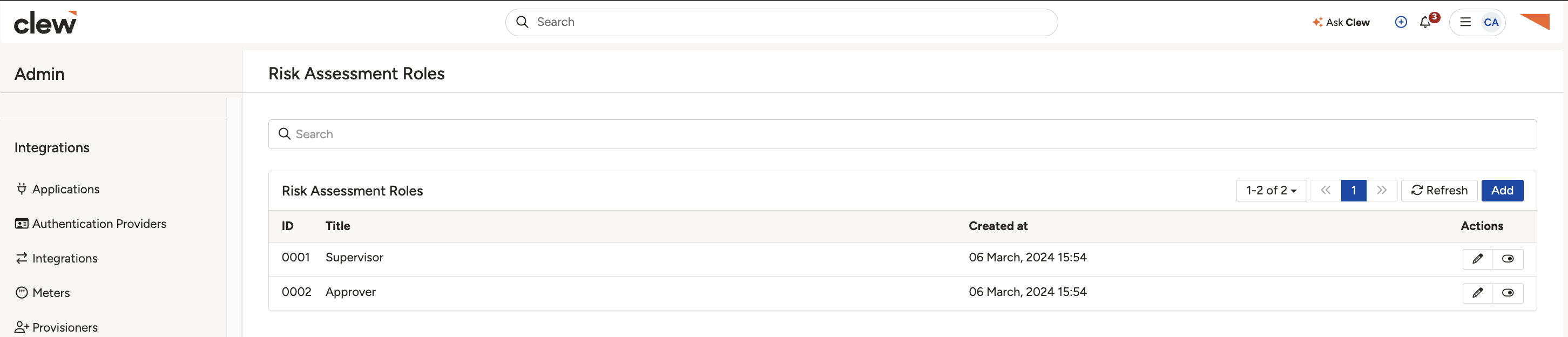
The Risk Assessment Roles list in Admin, showing existing roles with edit and disable actions.
Creating a JSA or SWMS
- Go to the Risk Assessments module for the register the job belongs to.
- Click Add and choose whether you are creating a JSA or a SWMS.
- Give it a title, and set its Register and Location.
- Fill in the Details of the job and, where relevant, the Site address.
- Save the record. It is created in Draft status, ready for job steps to be added.
Adding Job Steps
- On the JSA or SWMS, click Add in the Job Steps panel.
- Give the step a title, then add one or more Hazards. You can select from the Risk Assessment Hazard library or create a new one.
- Rate the step's Inherent Risk. This is only available once at least one hazard has been added.
- Add one or more Controls for the step, again either from the library or newly created, then rate its Residual Risk. This is only available once at least one control has been added.
- Set the step's Owner, and repeat for every step in the job. Remember, steps can only be added or edited while the assessment is in Draft status.
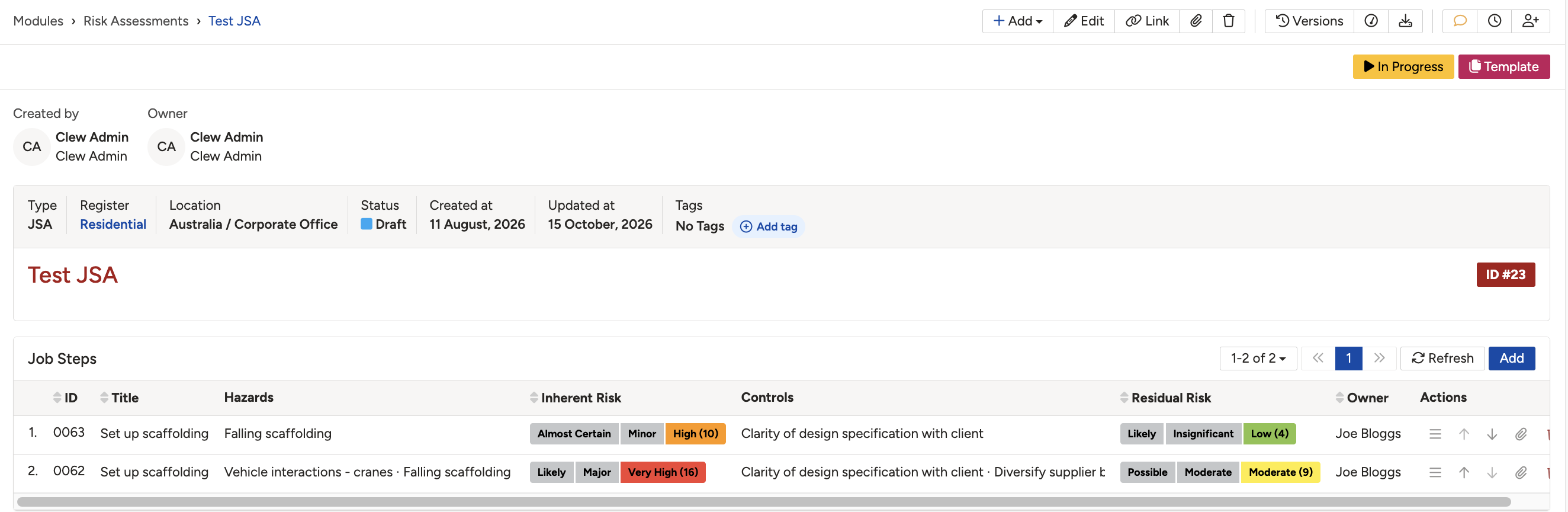
A JSA with job steps, each showing its hazards, inherent rating, controls, residual rating, and owner.
Assigning Personnel
- In the Personnel panel on the JSA or SWMS, click Add.
- Select the person from your organisation's users.
- Give them a Role from the list created in Admin, such as Supervisor or Approver.
- Repeat for everyone who needs to review or sign the assessment.
Signing Off
- Once every job step has an inherent and residual rating, move the assessment to Open status.
- Each person listed in Personnel can now sign against their own name. Signing is personal: only that user, logged into their own account, can add their signature.
Exporting the SWMS or JSA
- From the JSA or SWMS record, generate the standard export.
- The export includes the job steps with their hazards, controls, and ratings, an acknowledgement statement for anyone signing, and a personnel table showing each person's role, signature, and the date they signed.
5. Common Issues & Troubleshooting
| Issue | Likely Cause | Solution |
| Can't add job steps or assign personnel | No workflow is configured on the register | Ask a System Administrator to configure a workflow for that register. |
| Can't edit or add a job step | The assessment is Open or Closed, not Draft | Job steps are only editable in Draft status. Finalise all steps before moving the assessment out of Draft. |
| Can't set an inherent or residual rating | The step has no hazard (for inherent) or no control (for residual) | Add at least one hazard before rating inherent risk, and at least one control before rating residual risk. |
| Signature option isn't available | The assessment isn't Open yet, or not every job step has been rated | Confirm the assessment is Open and that every job step has both an inherent and a residual rating. |
| Can't sign on someone else's behalf | This is expected. Signing is personal to each user | Ask that person to log in and sign against their own name. |
| Role dropdown is empty when assigning personnel | No Risk Assessment Roles have been configured yet | Ask a System Administrator to add roles via Admin > Risk Assessment Roles. |
Best practices:
- Set up Risk Assessment Roles before rolling JSAs and SWMS out to your team, so personnel can be assigned meaningful roles from day one.
- Build a Job Steps library for high-risk activities you carry out repeatedly, so hazards, controls, and ratings can be reused rather than rebuilt each time.
- Finalise every job step while the assessment is still in Draft. Once it moves to Open, steps can no longer be added or edited.
- Have everyone sign before work starts, not after, so the export reflects genuine, pre-work acknowledgement of the controls in place.
▾Risk Assessment Roles Open full article »
Related article
Setting up the roles that personnel are assigned on a JSA or SWMS, which need to exist before anyone can be given a meaningful role.
▾Core Fields: Hazards Open full article »
Related article
The fields available on a hazard, for anyone building out the hazard library that job steps draw from.
▾Risk Matrices Open full article »
Related article
The matrix that job steps are rated against, and how its likelihood and consequence bands are configured.
Was this article helpful?
That’s Great!
Thank you for your feedback
Sorry! We couldn't be helpful
Thank you for your feedback
Feedback sent
We appreciate your effort and will try to fix the article