Risk Assessment Insights
A single, consolidated view of a risk assessment's details, risk matrix, job steps, permits and sign-off register
Contents
- 1. Introduction & Context
- 2. Key Features & Functions
- 3. Requirements
- 4. Step-by-Step Guide
- 5. Related Articles
1. Introduction & Context
Risk Assessment Insights gives you a single, consolidated view of a risk assessment, bringing together its key details, risk matrix, job steps, required permits, acknowledgement statement and personnel sign-off in one place, so you can see the full picture of an assessment without moving between screens.
Who is it for? Risk assessment owners and preparers who need to review a risk assessment, such as a Job Safety Analysis (JSA), and check that everything, from hazards and controls to permits and sign-off, has been captured correctly before it goes out to the field.
What does it impact? Risk Assessment Insights is a read-only view. It presents the information already captured on the risk assessment record; it does not change any underlying data.
This layout is designed with sharing in mind. Safe Work Australia often requires an employer to produce a record in this kind of format if an incident occurs, so having the full assessment, controls and sign-off register laid out in one consolidated view makes it straightforward to export and hand over. It is also useful when a customer is running an activity involving third parties, such as contractors or visitors, who need to be shown or given a copy of the assessment they are working under. Organisations sometimes give out the Insights page alongside a hierarchy of controls image, to show the fuller picture of how a risk has been managed.
2. Key Features & Functions
Risk Assessment Insights is made up of six sections, each covering a different part of the assessment. This article only covers what is shown on the Insights page itself. For more detail on how job steps, hazards, controls and risk ratings work within a risk assessment, see the separate article on building a risk assessment.
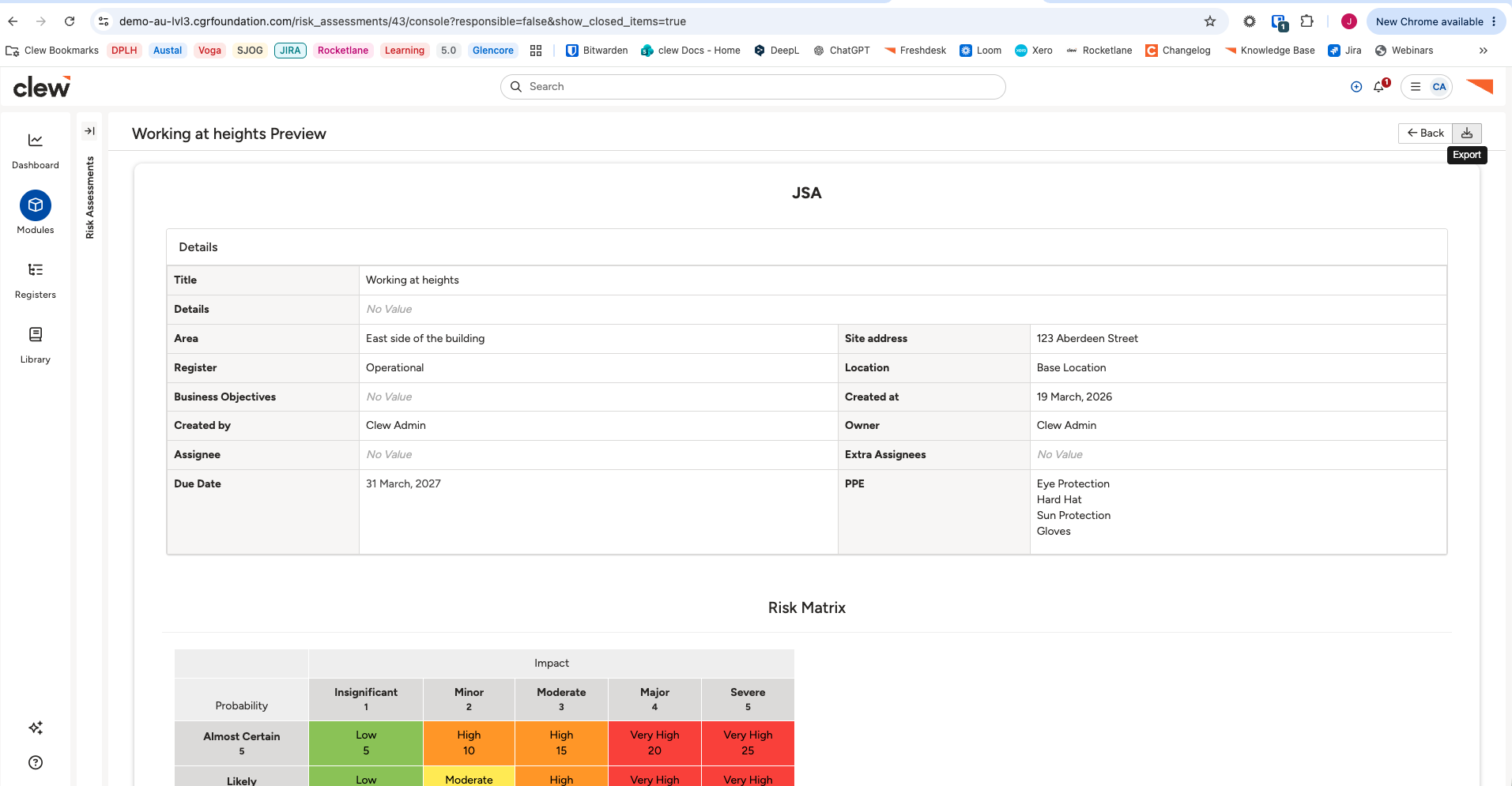
- Details. Key information about the assessment, such as its title, area, site address, register, due date and required PPE.
- Risk Matrix. Your organisation's probability and impact scale, shown as a colour-coded reference grid.
- Job Steps. Each step in the task, its hazards, inherent and residual risk ratings, controls and owner.
- Permits. Any permits required for the task, with their type and expiry date.
- Acknowledgement. The statement personnel agree to when they sign off on the assessment.
- Personnel Assigned. Everyone assigned to the assessment, their role, and whether and when they have signed off.
The Risk Assessment Insights page, showing the Details and Risk Matrix sections.
3. Requirements
- Access to the Risk Assessments module.
- An existing risk assessment record to view. Risk Assessment Insights presents information already captured on a record; it does not create one.
- For the most useful view, the assessment's job steps, hazards, controls and permits should already be filled in.
4. Step-by-Step Guide
Opening Risk Assessment Insights
- Go to Modules > Risk Assessments.
- Open the risk assessment you want to review.
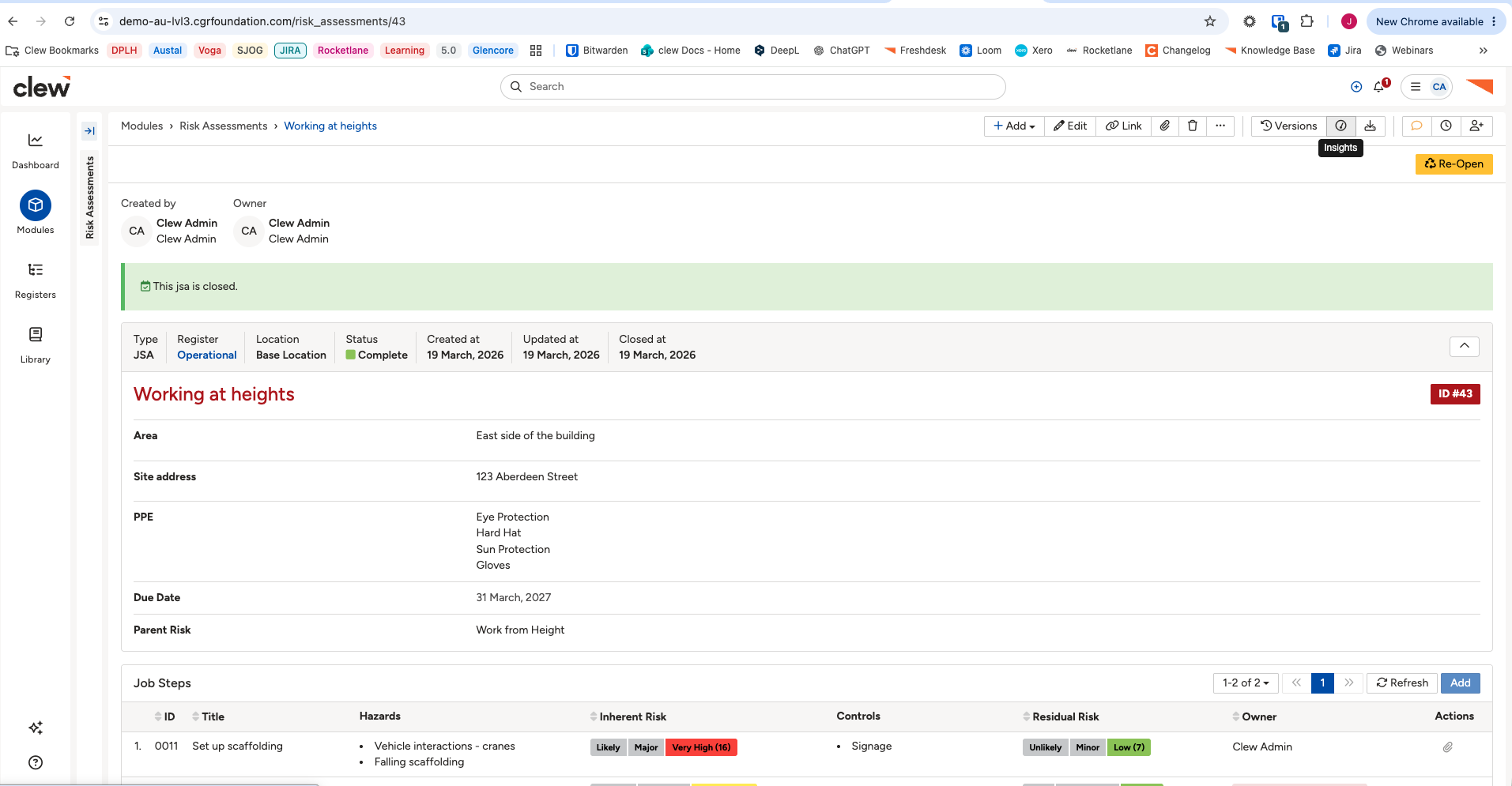
- Click the Insights icon in the toolbar, next to Versions, to open the Risk Assessment Insights preview.
The risk assessment record toolbar, with the Insights icon highlighted.
- Click Export, in the top right of the preview, to download the Insights page as a risk assessment card you can take out into the field.
- Use Back to return to the risk assessment record.
Click a title to preview it here. Use the Open full article button to read the full version in a new tab.
▾Risk Assessment Roles Open full article »
Related article
The roles people can hold on a risk assessment, which appear in the Personnel Assigned secti
Was this article helpful?
That’s Great!
Thank you for your feedback
Sorry! We couldn't be helpful
Thank you for your feedback
Feedback sent
We appreciate your effort and will try to fix the article