Understanding The Incident Module
What the Incident module is for, what an incident record captures, and how to log one
Contents
- 1. Introduction & Context
- 2. Key Features & Functions
- 3. Requirements
- 4. Step-by-Step Guide
- 5. Common Issues & Troubleshooting
- 6. Related Articles
1. Introduction & Context
The Incident module is where you log, assess, and investigate incidents that have occurred, so your organisation has a consistent record of what happened, what it could have led to, and what was done about it. It sits in the Incidents & Hazards area, alongside Hazards.
Records are grouped into registers. What you can see and do depends on your access, and which fields appear on a record is configured by your Clew administrator.
2. Key Features & Functions
An incident record brings together everything you need to understand and act on an event:
- What happened: a description of the incident, its type (chosen when you add it, such as Environment, Health and Safety, or Compliance Breach), its location, and the dates it occurred and was reported.
- Consequence assessment: an overall actual consequence and overall potential consequence, plus a rating against each consequence category, for example Legal & Compliance, HR, or Reputation, set using the consequence matrix.
- Related detail: the impacts of the incident such as injuries, the individuals involved, a timeline of events, and any linked risks.
- Status and investigation: the incident moves through a workflow, for example Triage, then Under Simple Investigation or Under ICAM Investigation, so the depth of investigation matches the incident.
The exact fields on a record, and which of them appear on the forms and in the list, are set per site. For the full field reference, see Core Fields: Incidents in Related Articles.
3. Requirements
What you can do with incident records depends on your access level to the items: Create, Read, Update, Delete, Mass, and Share. Which fields appear, and on which forms, is configured by Clew administrators in Admin Settings under Custom Types > Incident.
4. Step-by-Step Guide
Opening the module
- Open Incidents from the Modules menu.
- Select the register from the register filters at the top. Your incidents display as a list.
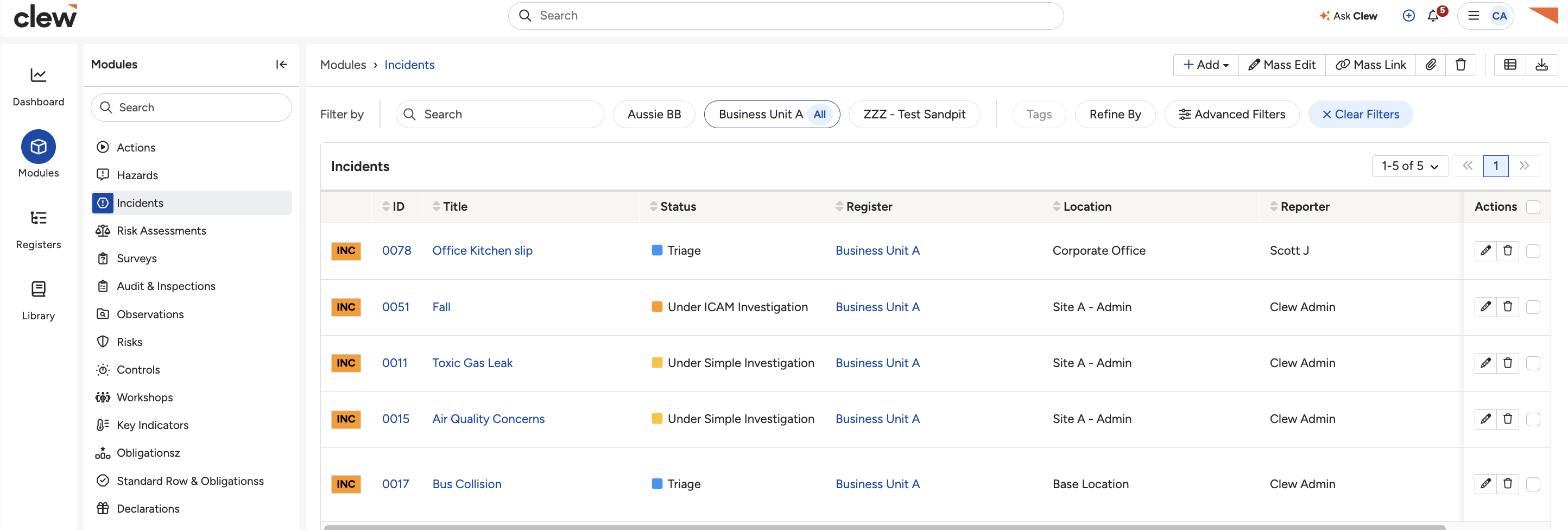
The Incident module open at a register.
Logging an incident
- Click Add and choose the type of incident to log, for example Environment, Incident, Compliance Breach, Health and Safety, Process Safety, Operations, or Security and ICT.
- Complete the new form: a description of what happened, its classification, when it occurred and was reported, and its location.
- Save the record. A new incident starts at Triage.
- Rate its actual and potential consequences, add any impacts, individuals, and timeline events, then progress it into investigation (for example Under Simple Investigation or Under ICAM Investigation).
5. Common Issues & Troubleshooting
| Issue | Likely cause | Solution |
| A field you expect is missing from the form. | Fields are configured per site, and that field may be hidden on this form. | Ask your Clew administrator to review the field settings under Custom Types > Incident. |
| A register's incidents are not showing. | A register filter or saved filter is applied, or you do not have access. | Clear the filter, or check your access with your system administrator. |
Click a title to preview it here. Use the Open full article button to read the full version in a new tab.
▾Core Fields: Incidents Open full article »
Related article
The full list of fields available on an incident record, and what each one is for.
▾Core Fields: Hazards Open full article »
Related article
The companion module for hazards, and the fields available on a hazard record.
▾List View & Datagrid Open full article »
Related article
How to view and work with your incident records in List View and the Data Grid.
Was this article helpful?
That’s Great!
Thank you for your feedback
Sorry! We couldn't be helpful
Thank you for your feedback
Feedback sent
We appreciate your effort and will try to fix the article