List View & Datagrid
How to view, manage, and edit the records in a register using List View and the Data Grid
Contents
- 1. Introduction & Context
- 2. Key Features & Functions
- 3. Requirements
- 4. Step-by-Step Guide
- 5. Common Issues & Troubleshooting
- 6. Related Articles
1. Introduction & Context
List View and the Data Grid are two ways to view and work with the records in a register. List View gives you a quick, scannable column of items, while the Data Grid gives you a spreadsheet-style table for working with your data in detail.
Both are available from any register. What you can see and do in each depends on your access to the records, so some actions described here may not appear for every user.
2. Key Features & Functions
List View
List View is a simple, vertical list of items, with each record displayed one after another in a column. It usually shows a title or summary, such as a risk name or an incident title, along with basic metadata like owner, date, and status, and it supports quick actions such as edit, delete, and attach.
When to use it: when you want to scan quickly through records with minimal, configurable detail.
Data Grid
The Data Grid is a spreadsheet-style table for structured data.
When to use it: when you need to analyse, compare, filter, or amend data in detail.
3. Requirements
What you can do in both views depends on your access level to the items: Create, Read, Update, Delete, Mass, and Share. If an action described below does not appear for you, you may not have the access it needs.
4. Step-by-Step Guide
Opening List View
- Open your module from the Modules menu.
- Select the register from the register filters at the top.
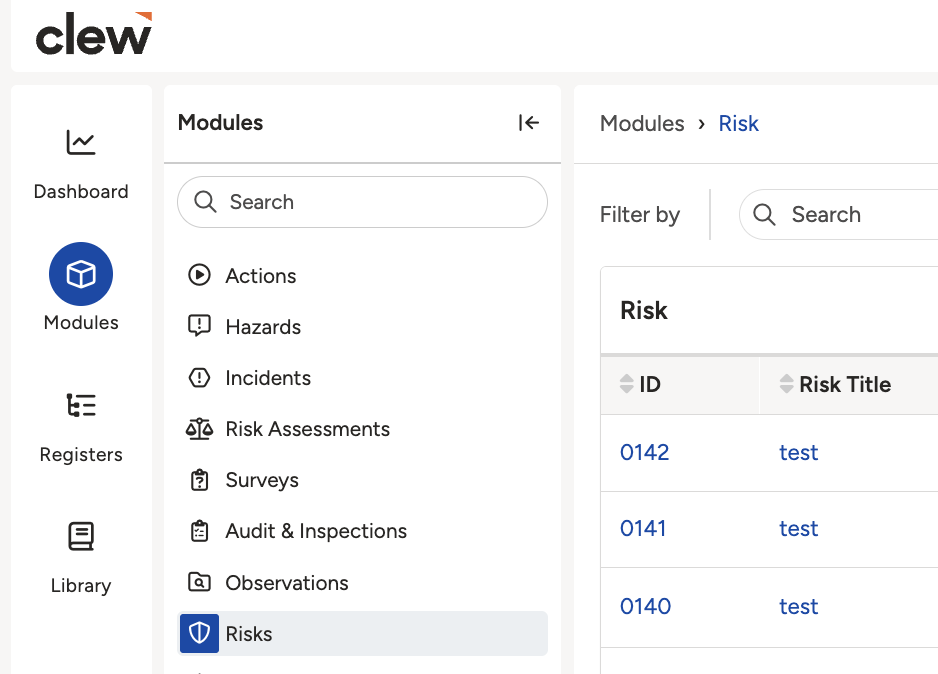
Selecting a risk view.
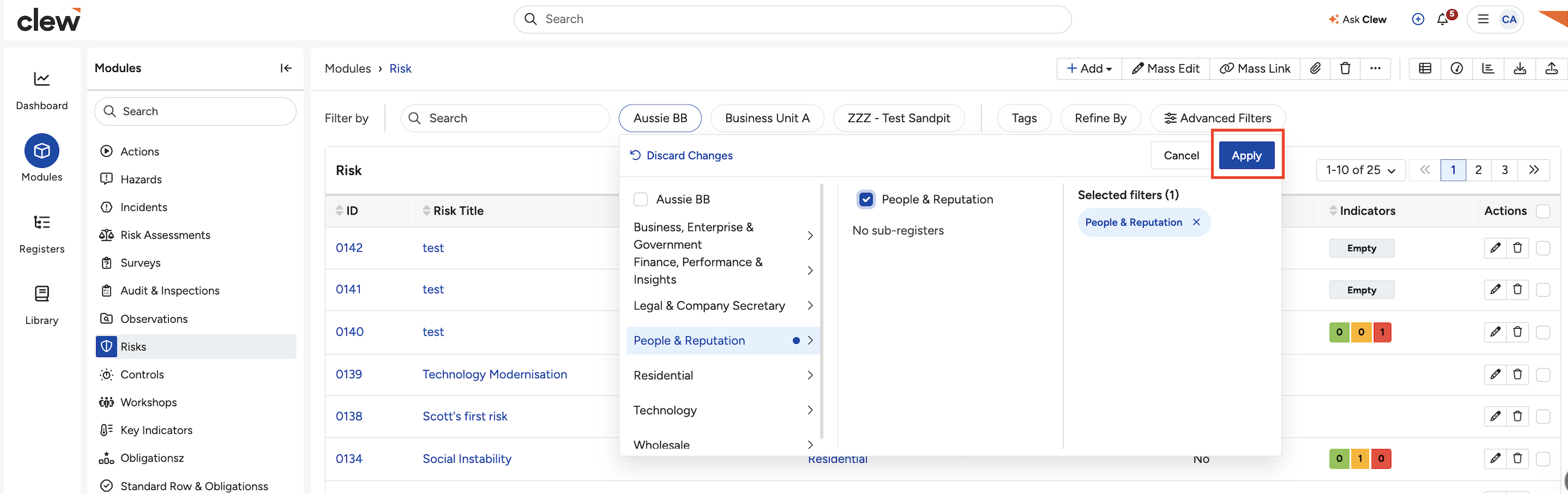
A register selected in List View.
What you can do in List View:
- Create new records using the Add button.
- Use mass functionalities such as Mass edit, Mass delete, Mass attach, and Mass clone.
- Export the list in different formats, for example CSV or PDF. System administrators can also build custom exports, which can be run from List View.
- Filter inactive items.
Opening the Data Grid
- Select the desired register from the Registers filters.
- Click the data grid icon.
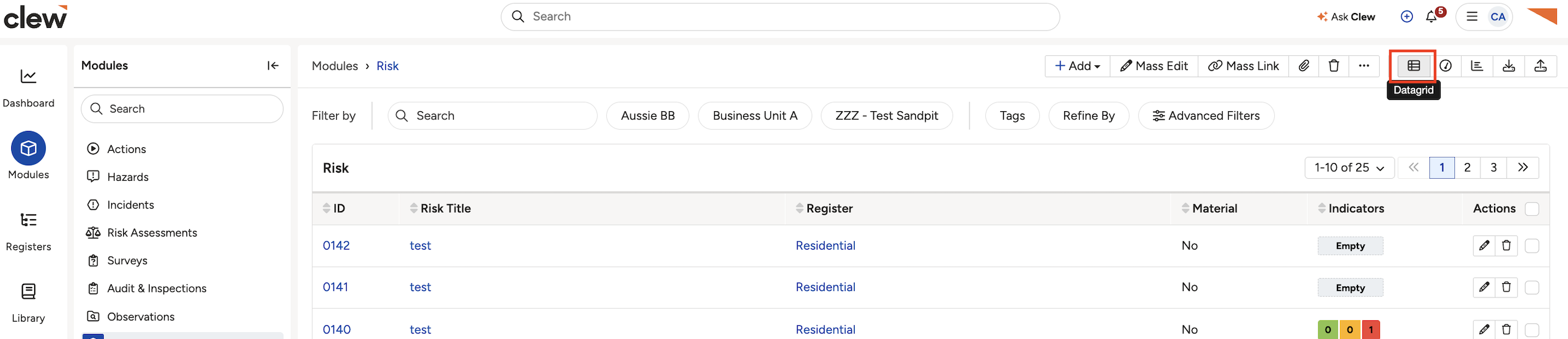
The data grid icon on the list toolbar.
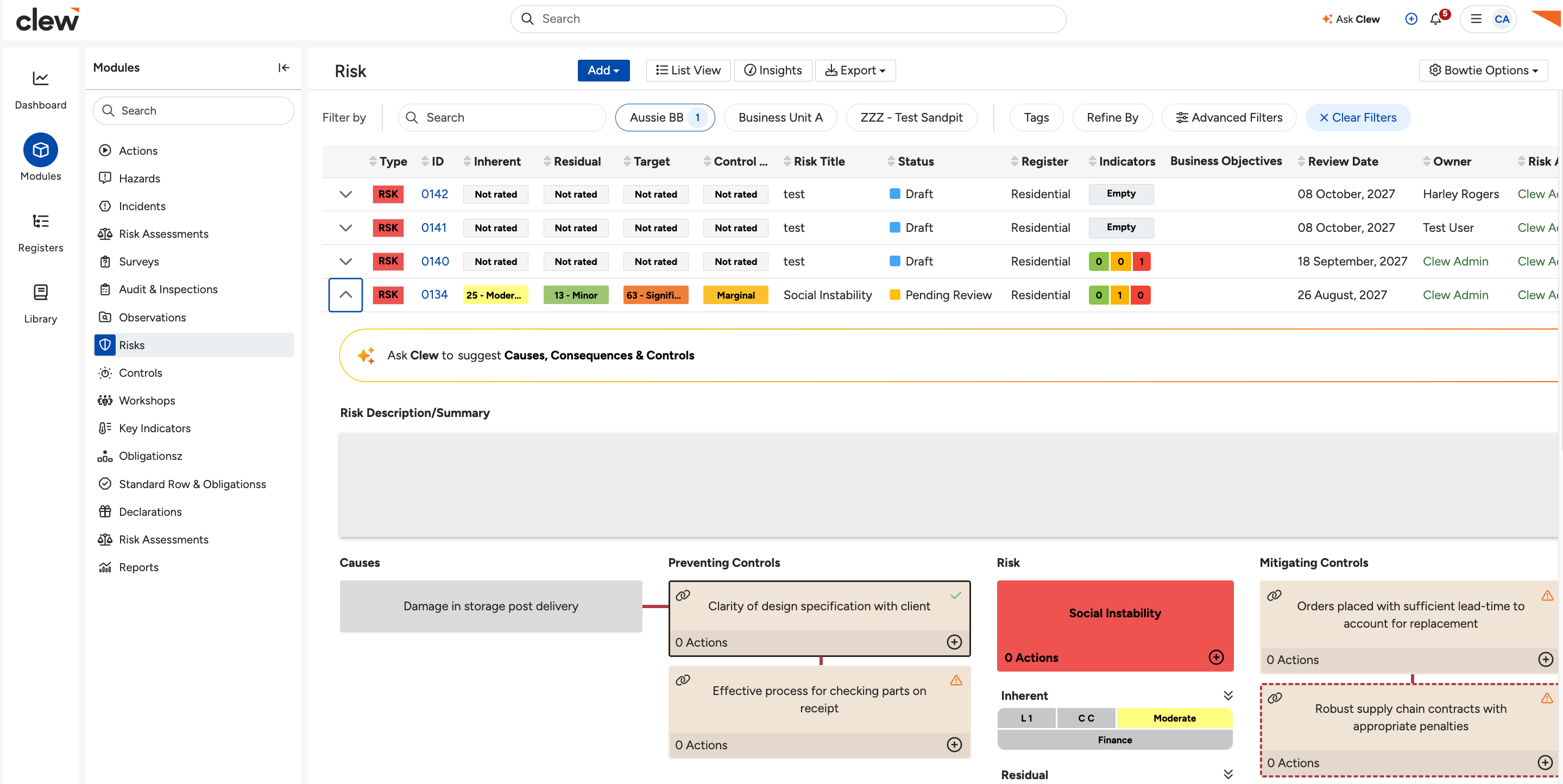
A register displayed in the Data Grid.
What you can do in the Data Grid:
- Add items using the Add button.
- Edit items on the same page by clicking directly on a cell and editing it. Some columns may be disabled for editing.
- Export the grid in CSV. System administrators can also build custom exports.
- Filter items using logic, and save a filter for future use.
- Search to find records more quickly.
- Click the arrow on the left of a row to view detailed information for that item.
- Edit a record through its edit form, or delete a record using the three-dots button on the right.
5. Common Issues & Troubleshooting
| Issue | Likely cause | Solution |
| The Add button is missing. | You do not have Create access to this register. | Contact your system administrator to review your access. |
| A cell will not let you edit it in the Data Grid. | That column is disabled for inline editing. | Edit the record through its edit form instead. |
| Some records are not showing. | Inactive items are hidden, or a saved filter is applied. | Adjust or clear the filter, or use the inactive-items filter to include them. |
Click a title to preview it here. Use the Open full article button to read the full version in a new tab.
▾Mass Functionalities Open full article »
Related article
How to edit, delete, attach, and clone several records at once from List View.
▾Filters Open full article »
Related article
How to filter records using logic and save a filter to reuse in the Data Grid.
▾Running, Scheduling & Exporting Reports Open full article »
Related article
How to export records and build custom exports from List View and the Data Grid.
Was this article helpful?
That’s Great!
Thank you for your feedback
Sorry! We couldn't be helpful
Thank you for your feedback
Feedback sent
We appreciate your effort and will try to fix the article