Context
The CGR Platform can send emails as a digest. This is a feature that only works for recurring notifications [notifications that run on a schedule] and they are not available for triggered notifications [notifications that are triggered based on record updates – e.g. action owner is changed].
This feature is really useful for those users who prefer less emails coming to their inbox.
Important Notes
- Any user can view the notification settings for their user account by navigating to their name [top-right corner] and clicking “Notification Settings.
- Notifications are scheduled to run at particular intervals, and the most common ones are: daily, weekly, monthly. However, these are highly customisable and some CGR implementation will have different frequencies.
- When a user marks a notification in for digest [steps below], these will stop being sent on the date that they would normally be sent [e.g. daily check for overdue actions] and they will be sent on the day of the week selected for the digest to occur.
- The digest email can contain data from different modules depending on the choices made by the user.
- System admins can disable this behaviour for individual notifications, meaning, users will be unable to change it to a digest.
- If you need to create a notification, please use this article.
Critical Note
Notifications sent as digest will come out in different days that they were intended to by the software, which means that if a user marks an 'overdue actions' notification to be in digest on every Monday, and this user has actions becoming overdue on Tuesday, they will only receive this the following week.
This is a critical thing to consider as system admins, and we recommend that certain notifications should be always disabled for digest.
How do I set the notification for digest?
Please follow these steps:
- Navigate to Your Name [top right corner] > Notification Settings and choose the notification you want to set for digest.
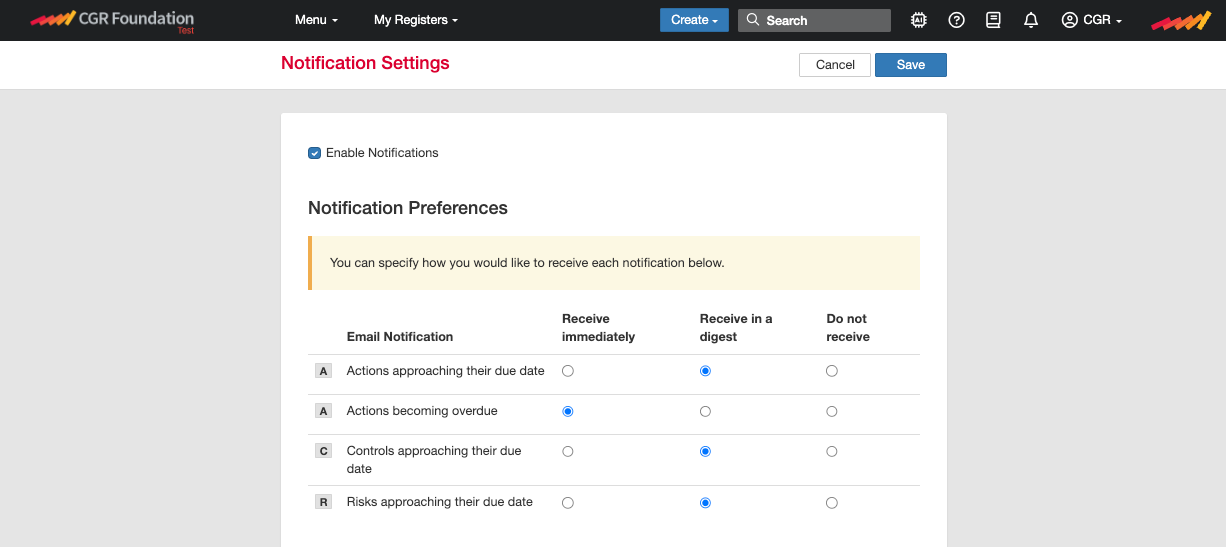
- For this FAQ, we will select the 'Action approaching their due date' notification and click the 'Receive in a digest' box [see above].
- Select the day of the of the week and the time for the digest to arrive and hit save.
Was this article helpful?
That’s Great!
Thank you for your feedback
Sorry! We couldn't be helpful
Thank you for your feedback
Feedback sent
We appreciate your effort and will try to fix the article