Managing access to registers
How security groups control register access, and where to check what a user can see
Contents
- 1. Introduction & Context
- 2. Key Features & Functions
- 3. Requirements
- 4. Step-by-Step Guide
- 5. Common Issues & Troubleshooting
- 6. Related Articles
1. Introduction & Context
Access to registers is controlled by security groups. A security group holds a set of permissions, and those permissions are assigned register by register. A user gets access to a register by being in a group that grants it, so you manage access by managing group membership rather than by editing anything on the register itself.
A user can be in more than one group, and the groups add together. Someone in a read-only group and a full-access group ends up with the wider of the two on any register where they overlap.
Who is it for? System administrators. Where Team Management is enabled, team administrators and team managers can also assign security groups to their own team members.
What does it impact? Which registers a user can open, and what they can do inside them. Changing a group changes access for everyone in it, so check who else is affected before editing one.
2. Key Features & Functions
- Permissions are set per register: within a security group, each register is granted its own level of access.
- Groups combine: a user in several groups holds the sum of what those groups allow.
- Detailed view on the Users page: shows a Security Groups column, so you can see at a glance which groups each user holds.
- Access Control Matrix: shows how a user's groups combine across registers and modules, with a search bar for finding a specific register.
- Teams as a route to groups: where Team Management is enabled, groups can be assigned to team members by a team administrator or team manager.
3. Requirements
- System administrator permissions to reach Admin > Users and to create or edit security groups.
- The security groups themselves should already exist, with register permissions set on them.
- Team Management enabled if you want team administrators or managers to assign groups. Without it, group assignment stays with system administrators.
4. Step-by-Step Guide
Seeing which groups a user has
- Go to Admin, then Users.
- Switch to the Detailed view using the view buttons above the list.
- A Security Groups column appears, listing the groups held by each user.
- Use the search box to find a particular person, or Filters to narrow the list.

The Users page in the Admin area, in the standard view.
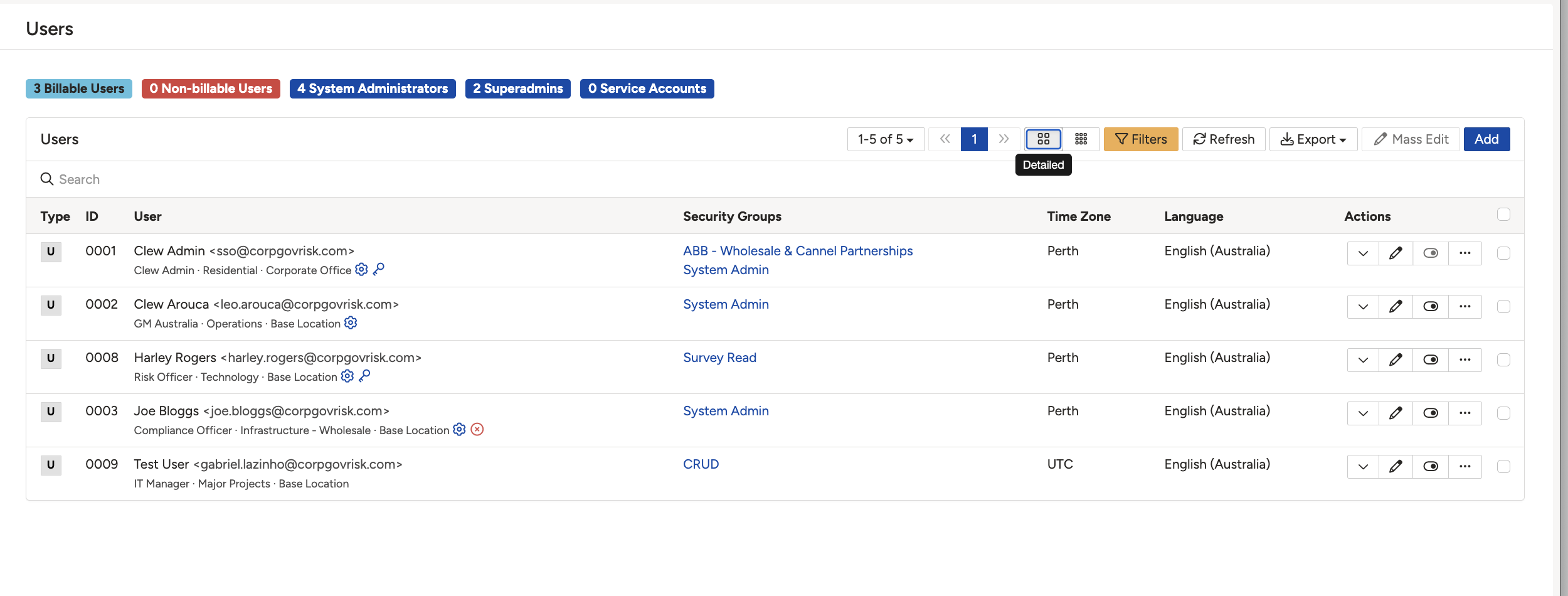
The Detailed view adds a Security Groups column showing each user's groups.
Checking access with the Access Control Matrix
The Security Groups column tells you which groups someone is in. It does not tell you what that adds up to. The Access Control Matrix does, showing how the permissions from several groups combine across registers and modules.
- On the Users list, find the user's row.
- Click the … button in the Actions column.
- Choose Access Control Matrix.
- Use the search bar to jump to a specific register rather than scrolling.
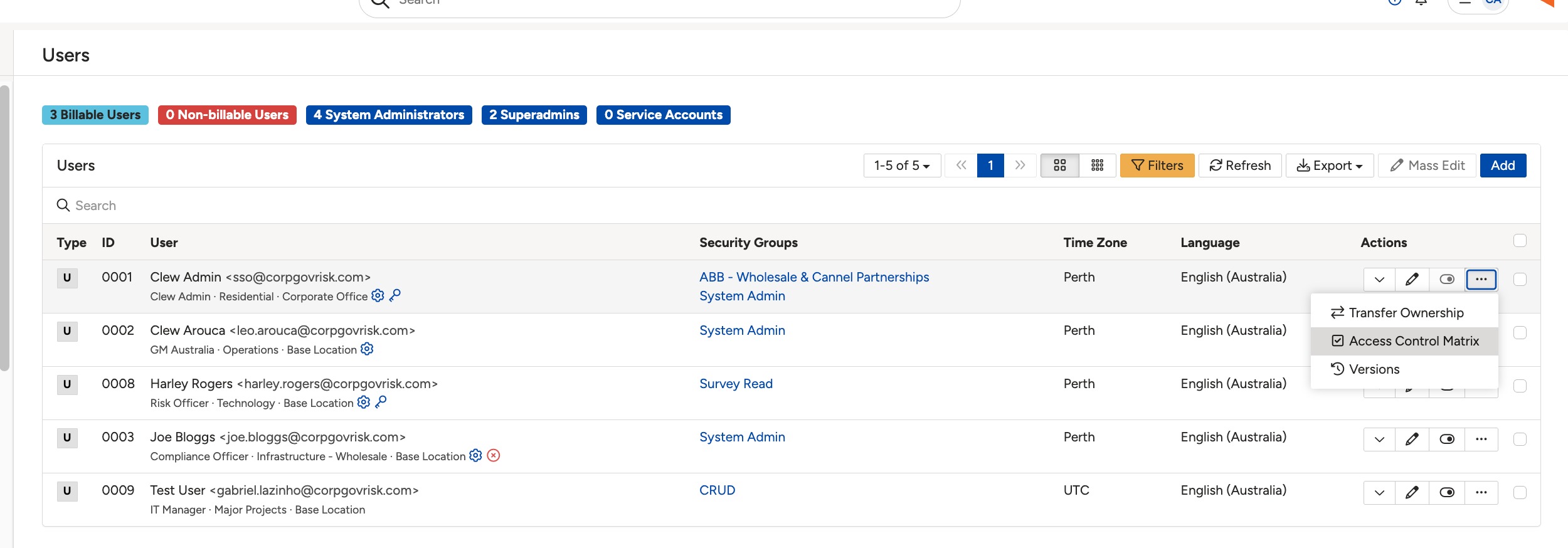
The Actions menu on a user row, where Access Control Matrix sits.
The matrix opens with the user's name in the breadcrumb, so you can confirm whose access you are looking at. Registers run down the left, nested so that child registers sit indented under their parent. Modules run across the top, and each module is split into seven single-letter columns, one per action. A green tick means the user has that action on that register, through one or more of their groups.
| Column | Action | What it allows |
| C | Create | Add new records to the register. |
| R | Read | Open and view records. Without this, the register is effectively invisible. |
| U | Update | Edit records that already exist. |
| D | Delete | Remove records. |
| M | Mass | Use the mass actions on a list view, such as mass edit, to change several records at once. |
| M | Merge | Merge records together. |
| S | Share | Share a record with another user. |
The two M columns are different actions. The first is Mass and the second is Merge, in that order. The same seven actions appear on a permission set itself, spelled out in full, which is the quickest way to confirm which is which.
The matrix can be wide, so use the search bar at the top to jump straight to a register rather than scrolling across.
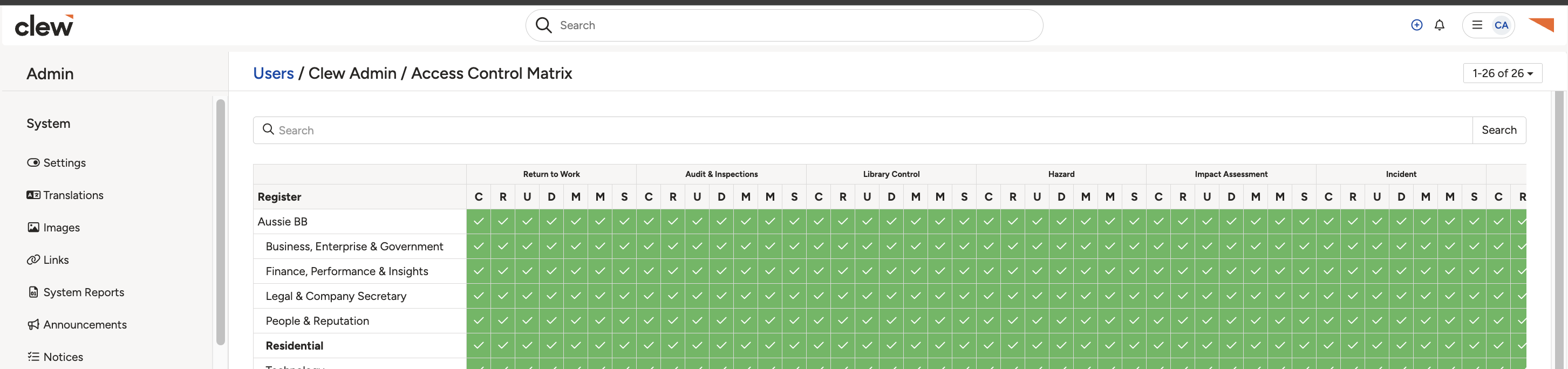
The Access Control Matrix, with registers down the left and each module's permissions across the top.
Assigning groups through a team
If Team Management is enabled in your system, a team administrator or team manager can assign specific security groups to members of their team. That keeps day-to-day access changes with the people who know the team, without giving them full system administrator rights.
5. Common Issues & Troubleshooting
| Issue | Likely Cause | Solution |
| There is no Security Groups column on the Users page | The list is in the standard view rather than the detailed view | Switch to the Detailed view using the buttons above the list. |
| A user cannot see a register you expected them to | None of their groups grants permission on that register | Open their Access Control Matrix and search for the register to see what they actually hold. |
| A user can see more than intended | They are in several groups, and the wider one is winning | Check the Security Groups column and their team memberships, then remove the group that is granting the extra access. |
| A group is listed against the user but does not seem to apply | The group has no permissions set on that particular register | Open the security group and check the register, rather than assuming membership is enough. |
| Access has changed but the user still sees the old view | Their session predates the change | Ask them to sign out and back in, then check the matrix again. |
Best practices:
- Check the Access Control Matrix before changing a group. It is quicker than working out the combined effect in your head, and it shows what the user actually has rather than what you think they have.
- Add someone to an existing group rather than creating a new one for a single person. A group per user is how permissions become unmanageable.
- Name groups after the access they grant, not the team that happens to hold them today.
- Remember that editing a group affects everyone in it. Check the membership before changing register permissions.
- Review the matrix for a sample of users after any significant change, so you catch access that widened by accident.
▾Security Groups Open full article »
Related article
How to create a security group and set its permissions register by register, which is where the access in this article comes from.
▾Team Management Open full article »
Related article
How teams work, and how a team administrator or manager can assign security groups to team members.
Was this article helpful?
That’s Great!
Thank you for your feedback
Sorry! We couldn't be helpful
Thank you for your feedback
Feedback sent
We appreciate your effort and will try to fix the article