Making changes to a locked record
Why a record locks, how to tell, and how to reopen it so you can edit
Contents
- 1. Introduction & Context
- 2. Key Features & Functions
- 3. Requirements
- 4. Step-by-Step Guide
- 5. Common Issues & Troubleshooting
- 6. Related Articles
1. Introduction & Context
If you cannot edit a record, the most likely reason is that it is locked. A record locks because of the status it is in, not because of anything about your account. Move it to a different status and it becomes editable again.
A worked example. A finding has been signed off and moved to Closed. Closed is configured as a locking status, so nobody can change the finding while it sits there. A week later the wording needs correcting. Rather than editing it in place, the owner presses the reopen button on the workflow, which moves the finding to an open status, makes the change, then closes it again.
Who is it for? Anyone who has hit a record they cannot edit. The last part of the guide is for system administrators who need to check or change which statuses lock.
What does it impact? Locking applies to the record as a whole while it is in that status. It is a deliberate control, so reopening a record is a real change to its state and will be visible to others working on it.
2. Key Features & Functions
- Locking is a property of the status, not the record. Every record in a locking status behaves the same way.
- No changes are possible while locked. The record is held as it was when it entered that status.
- The way out is a workflow button. A transition moves the record to a different status, and the lock lifts with it.
- Locked blocks editing and deleting. While a record sits in a locked status it cannot be changed or removed.
- Locked is listed per status in Admin. The Statuses list has a Locked column reading Yes or No, so an administrator can see at a glance which statuses lock.
- Locked is not the same as Closed. Closed is the status type and controls whether items show in list views. A status can be one, both or neither.
3. Requirements
- To reopen a record: access to the workflow button that moves it out of the locking status. This is normally held by the record owner, an approver or a system administrator.
- To check or change which statuses lock: system administrator permissions, since the workflow view sits in the Admin area.
4. Step-by-Step Guide
Reopening a locked record
- Open the record and check its current status.
- Look for a workflow button that moves it out of that status, for example a reopen or return button.
- Click that button. The record moves to the new status and the lock lifts.
- Make your changes.
- Move the record back to the closing status once you are finished, so it returns to its intended state.
Checking and changing which statuses lock (administrators)
- Go to Admin, then Workflow, and open the workflow used by the record's module.
- Find the Statuses list. The Locked column shows Yes or No for each status.
- To change it, open the status to bring up the Edit Status panel.
- Set Locked to Yes or No. The panel confirms that items cannot be edited or deleted while in a locked status.
- Save, then check the Transitions list to confirm there is a route out of that status and that the right people can use it.
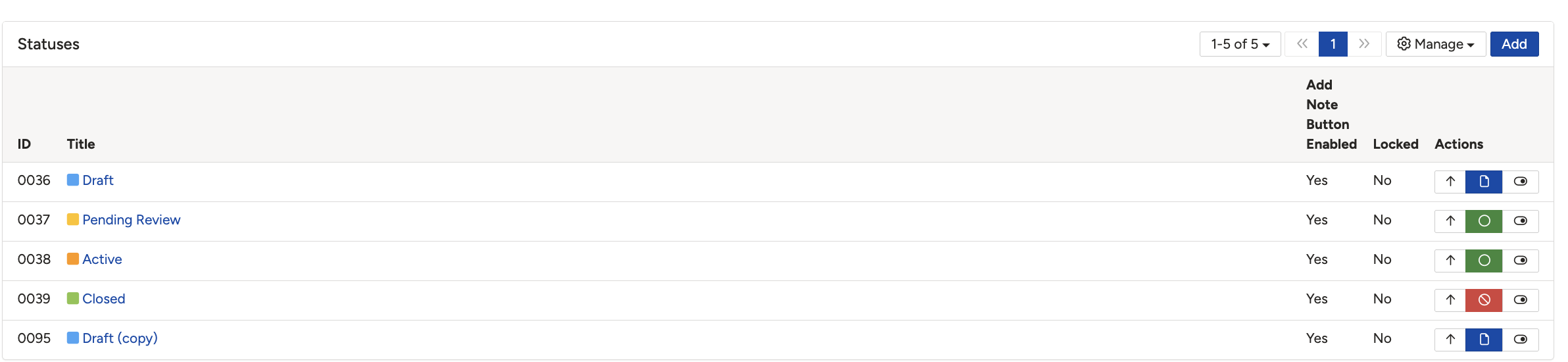
The Statuses list in Admin, with the Locked column showing which statuses lock records.
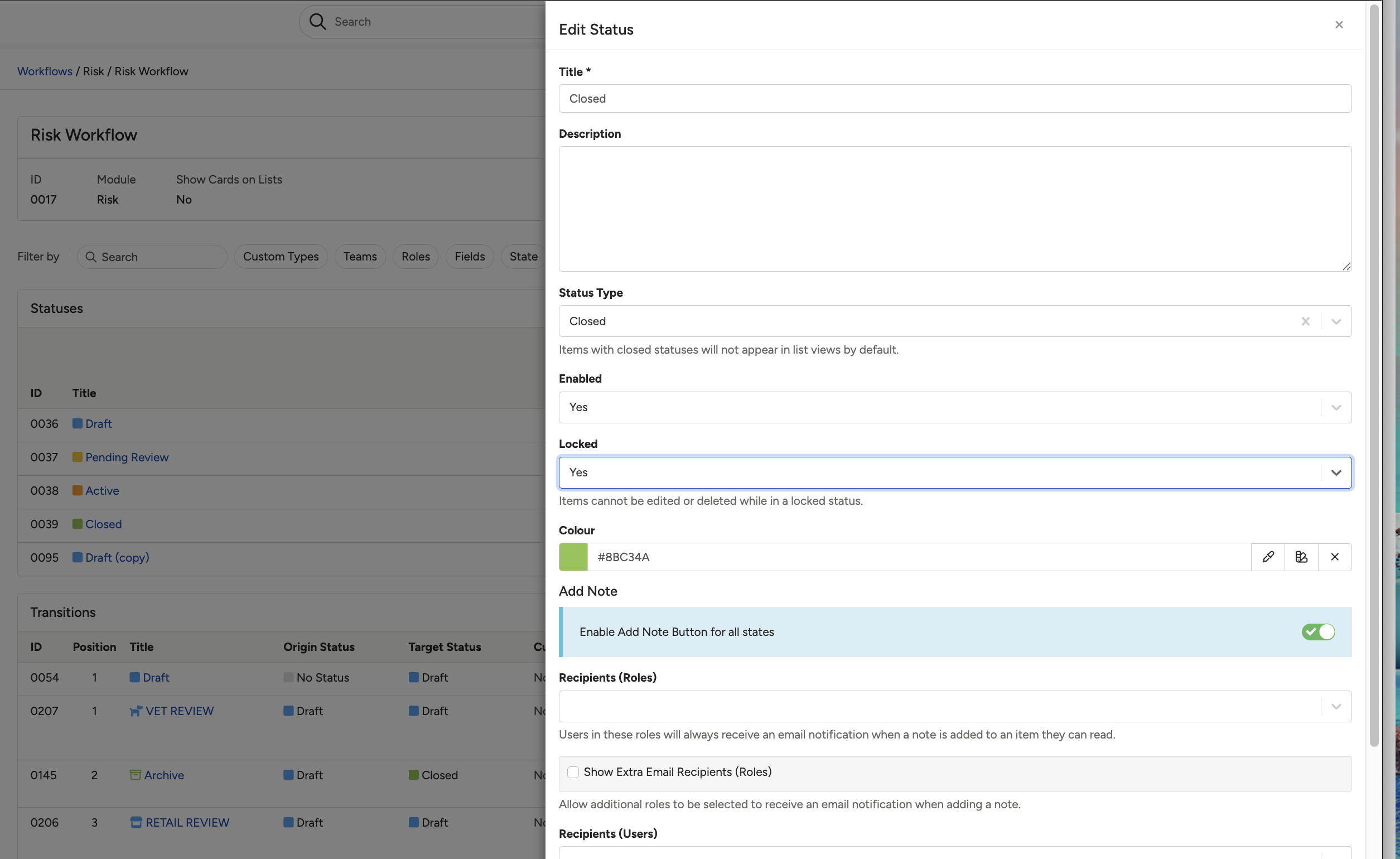
The Edit Status panel, with Locked set to Yes on the Closed status.
Locked is not the same as Closed
These two settings are easy to mix up because they often apply to the same status, but they do different things.
| Setting | Where you see it | What it does |
| Locked | The Locked column in the Statuses list, and the Locked dropdown in Edit Status | Stops records in that status being edited or deleted. This is the setting that causes the problem in this article. |
| Status Type | The Status Type field in Edit Status, and the coloured icon in the Actions column | Marks the status as Draft, Open or Closed. Items with a closed status do not appear in list views by default. It does not lock anything. |
Hovering the icon in the Actions column tells you which type a status is.
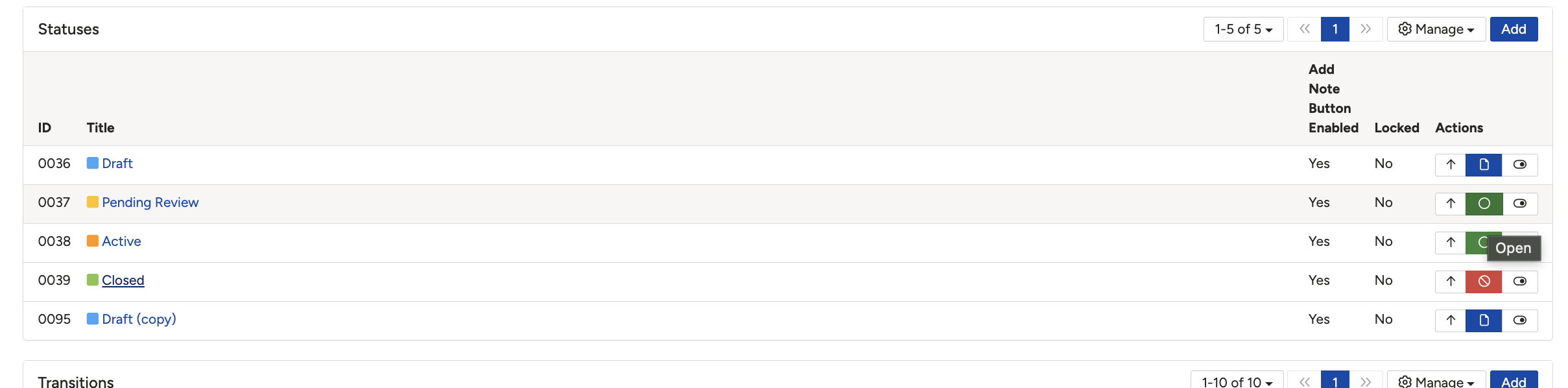
Hovering the Actions icon on a status shows its type. Green reads Open. Blue is Draft.
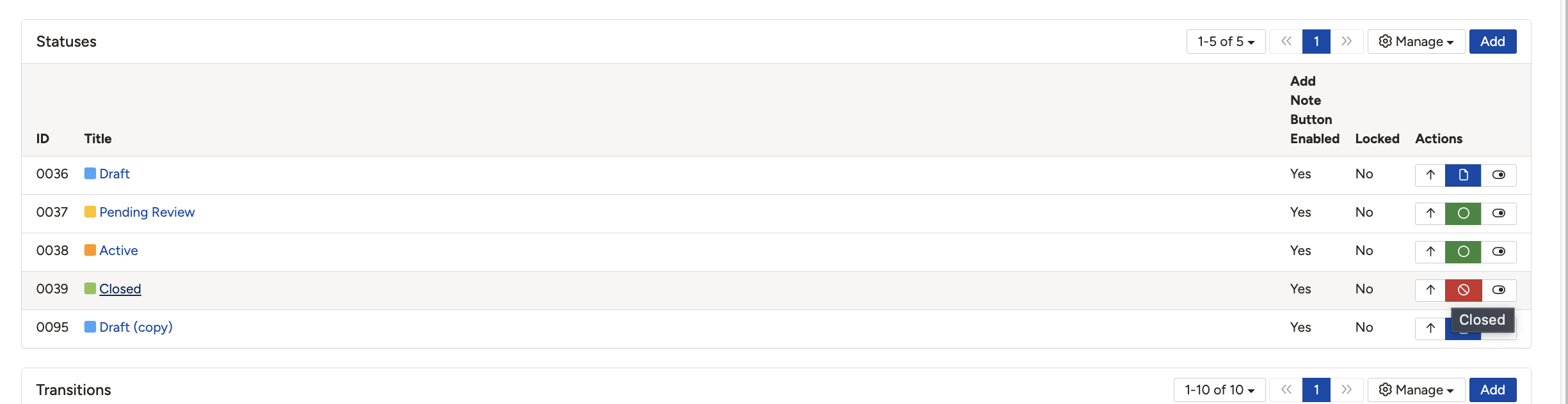
The same icon on another status reads Closed. This is the status type, not the lock.
5. Common Issues & Troubleshooting
| Issue | Likely Cause | Solution |
| You cannot edit a record and there is no obvious reason why | The record is in a status configured to lock it | Check the status on the record, then use a workflow button to move it to a different one. |
| There is no button to move the record out of its status | The transition exists but is restricted to a role or team you are not in | Ask the record owner, an approver or a system administrator to reopen it. |
| A colleague can edit the record but you cannot | They reopened it, so it is no longer in the locking status | Refresh the record and check the current status before assuming a permissions problem. |
| Records lock at a point in the process where they should not | The wrong status has been set to lock in the workflow configuration | A system administrator should open the status in Admin > Workflow and set Locked to No. |
Best practices:
- Move the record back to its closing status once you have finished. Leaving it reopened undoes the control the lock was there to provide.
- Add a note explaining why the record was reopened, so the change has a reason attached to it.
- Lock only the statuses that genuinely represent a finished state. Locking mid-process statuses creates work rather than control.
- Make sure at least one route out of every locking status is available to somebody, or records will strand there.
▾Workflow Statuses: Overview & Functionalities Open full article »
Related article
What each workflow status setting does, including the setting that locks records, and who can manage them.
▾Workflow Transitions Open full article »
Related article
How the buttons that move a record between statuses are set up, and how access to them is restricted.
Was this article helpful?
That’s Great!
Thank you for your feedback
Sorry! We couldn't be helpful
Thank you for your feedback
Feedback sent
We appreciate your effort and will try to fix the article