TABLE OF CONTENTS
Context
To generate a report on a specific dataset and either export it or receive it by email, you can use a Filtered Search Report.
These reports can also be scheduled and delivered directly to your inbox.
All users can access this functionality, but they will only see records for which they have at least read access.
How to Generate Reports
Follow the steps below to access and generate reports:
- Open the ‘Filtered Search Reports’ page through the menu dropdown.
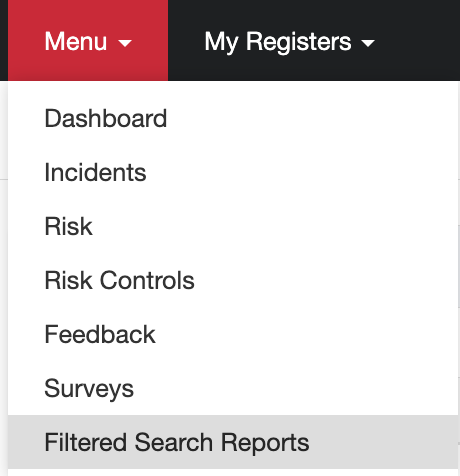
- You can view Available Reports on the landing page. Then a list of standard reports will be displayed.
Each report provides a summary of a specific module.
If a report has a star icon, this means it is a saved template. More on templates is explained in Section 2. - Generate a Report by clicking on the title of the report you want to generate.
Adjust the data included in the report by applying filters (e.g. Registers, Statuses, etc.). - Click ‘Run Report’ to generate the filtered report.
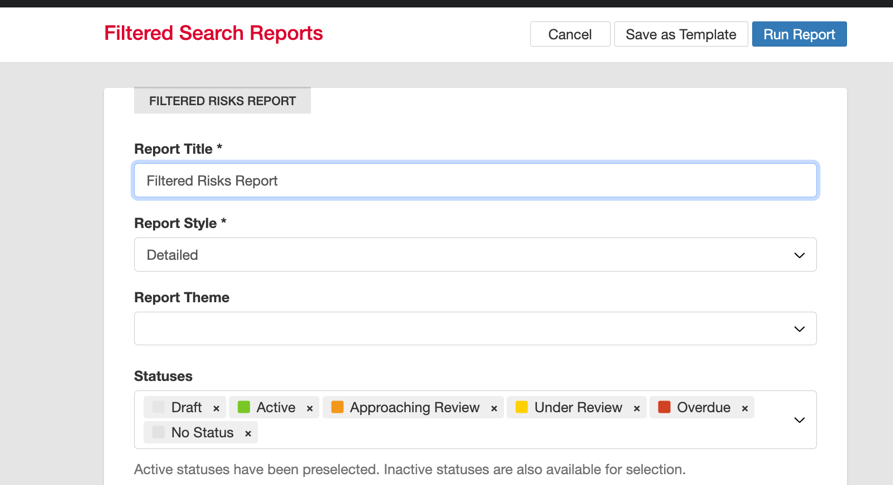
- Once the report is generated, you’ll have several report options:

- Email Report > Send a copy to your email in your preferred format (CSV or PDF).
- Export > Export the report directly in CSV or PDF format.
- Manage > Edit filters or perform a mass edit on the items generated in the report.
- Manage > Save as a template
As a system admin you have the ability to also schedule the report for other users or share this template across the organisation. Then every user can generate their own report, but it is not necessarily scheduled.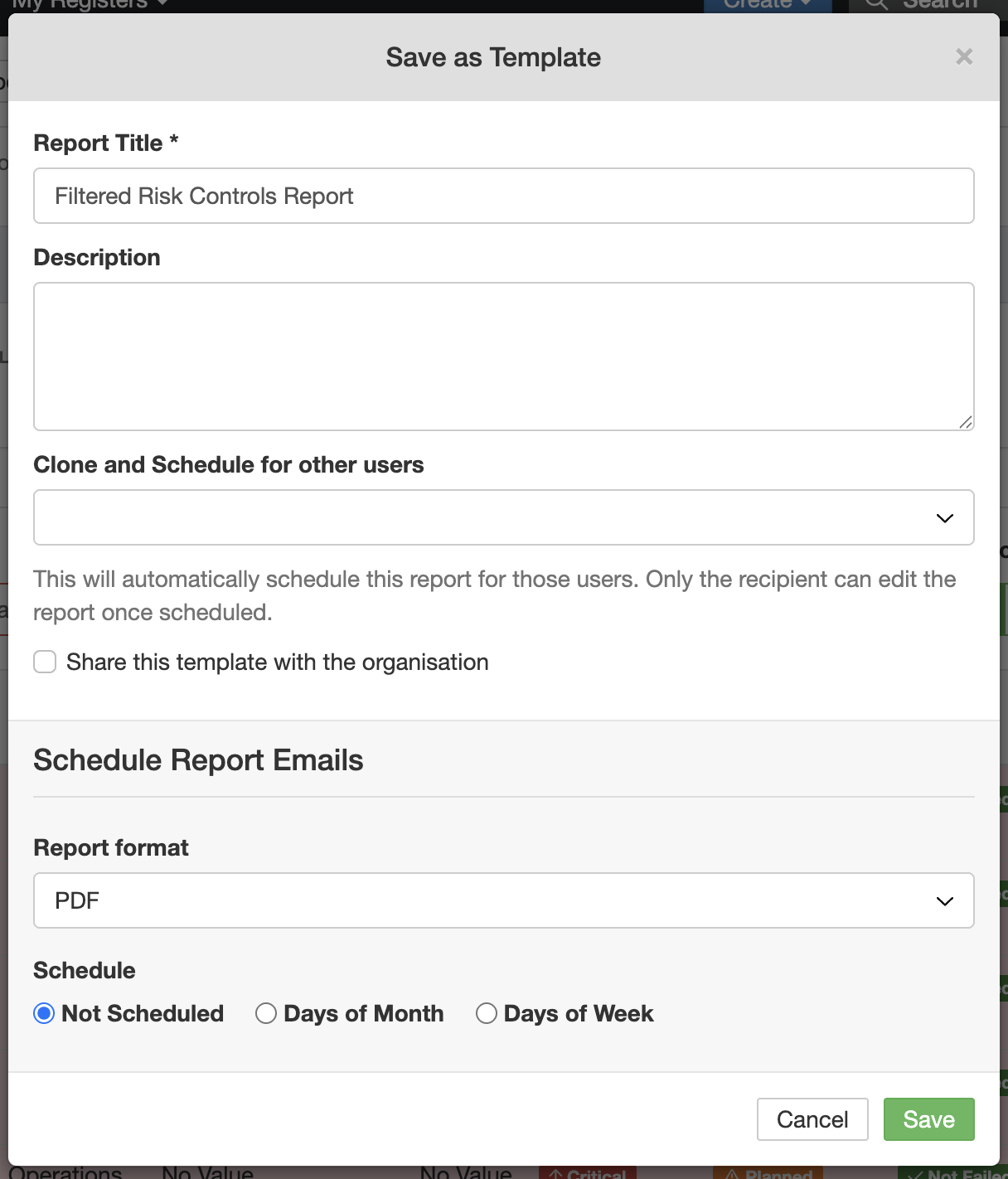
Note: Emailing reports is disabled on the staging server.
Creating and Using Report Templates
Report templates allow you to save a customised set of filters and settings so you can quickly generate the same type of report again in the future.
- Create a Template
- After running a report with your preferred filters, click ‘Save as Template’.
- Give your template a clear name and description so it’s easy to identify later.
- Identify Templates
- Saved templates are marked with a star icon in the report list.
- Saved templates are marked with a star icon in the report list.
- Use a Template
- Click on a starred report to open it.
You can run it as-is or further adjust the filters before generating.
- Click on a starred report to open it.
- Manage Templates
- Click on the three dots button, to update, rename, or delete templates as needed.
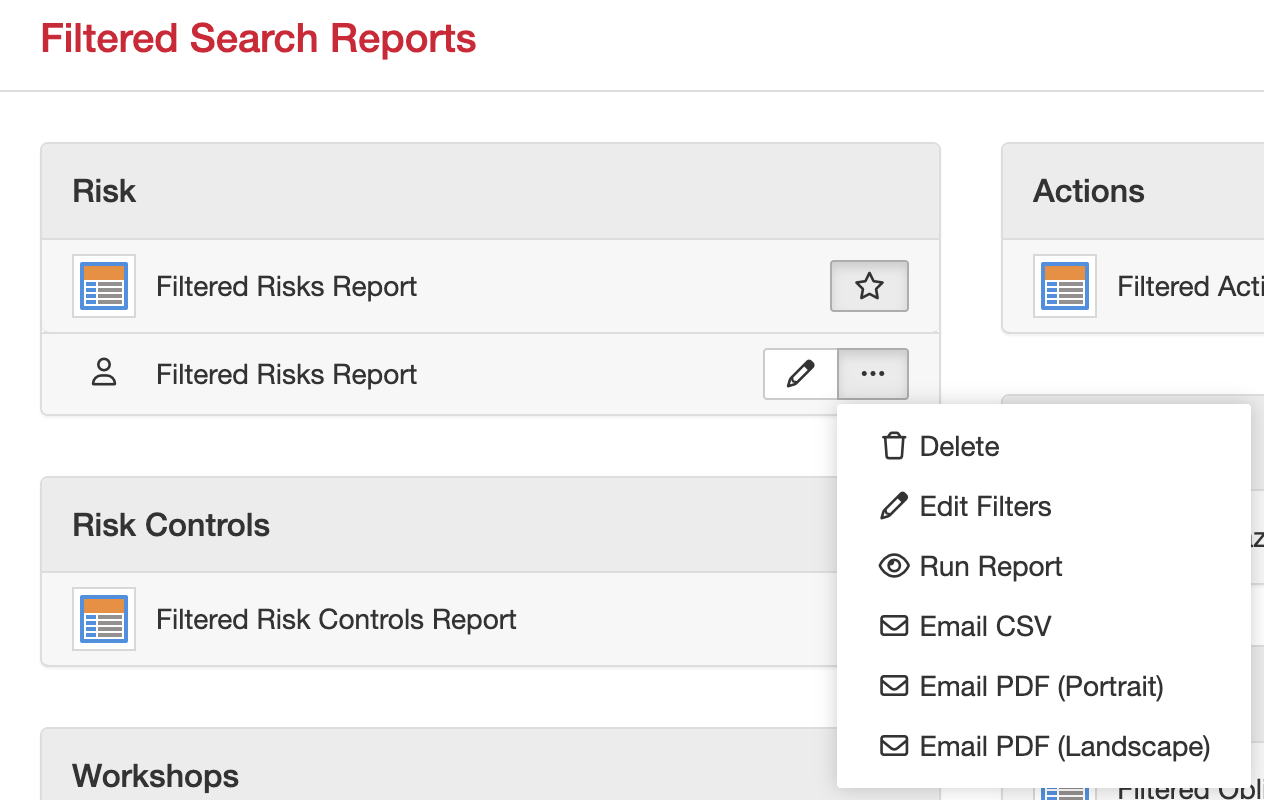
- Via the pencil icon you can add a description of the report and change the report format or schedule.
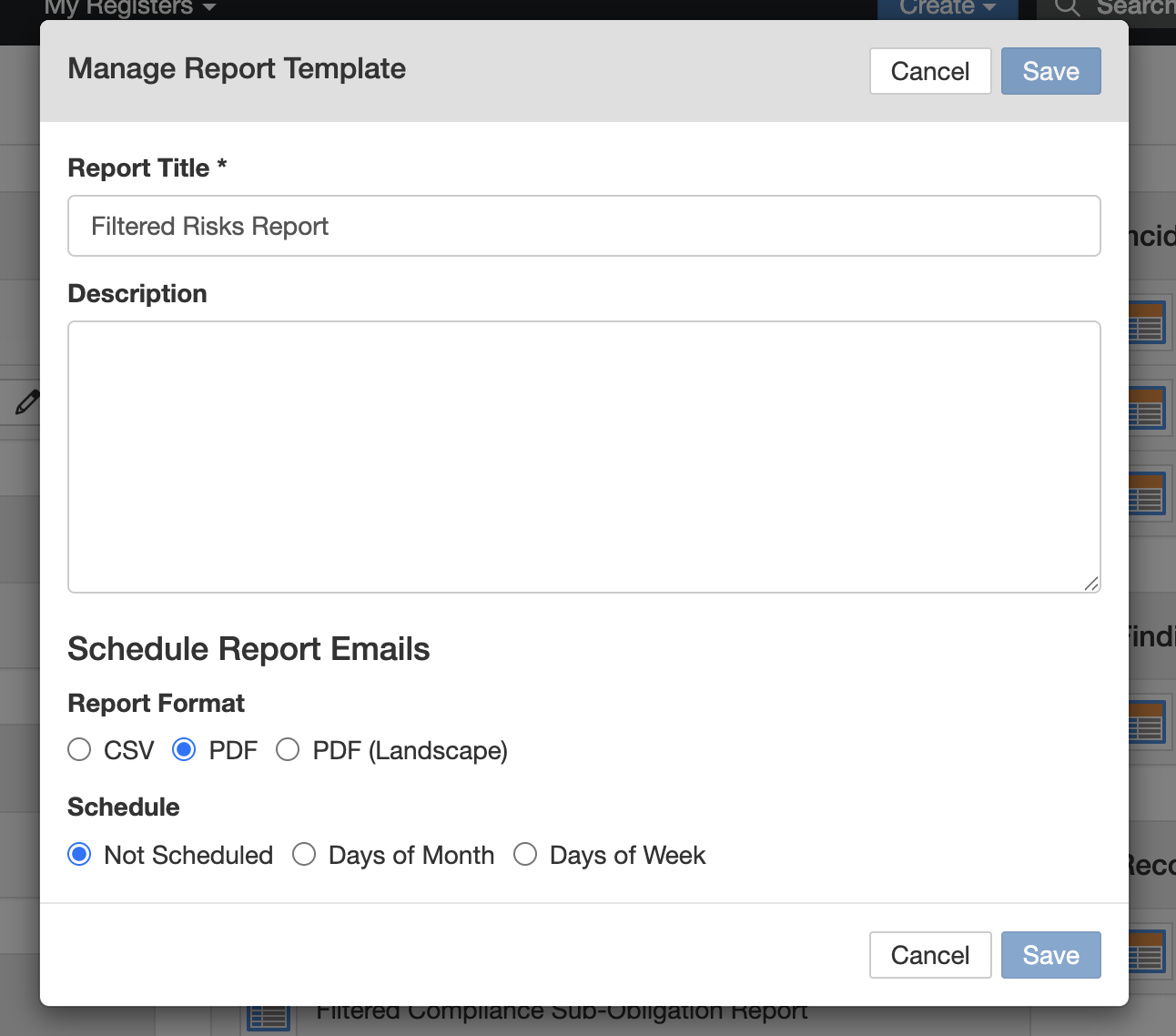
Tip: The clock-icon is indicating whether a report is scheduled to run.
Dashboard Templates
- You can view an overview of all templates through the ‘Dashboard Templates’ button.
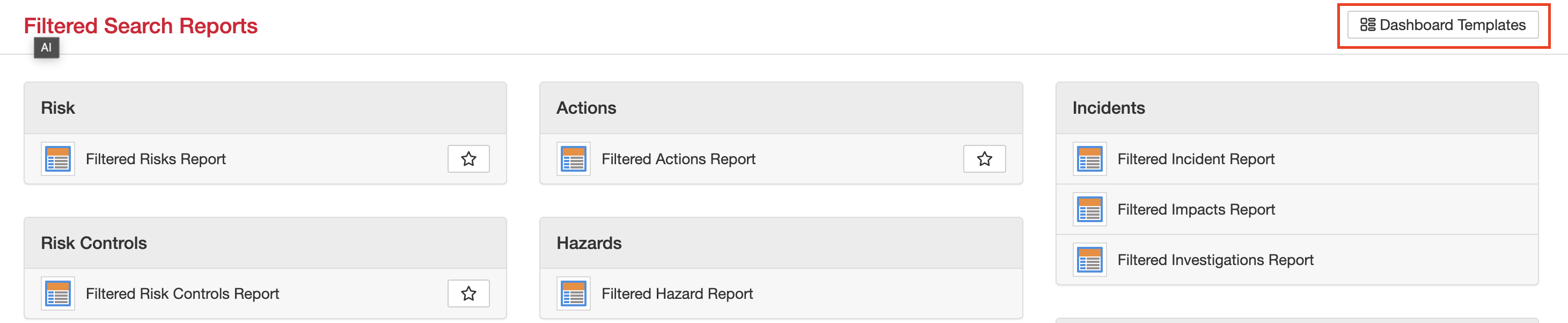
- Then select a reports section to view all templates for the module.
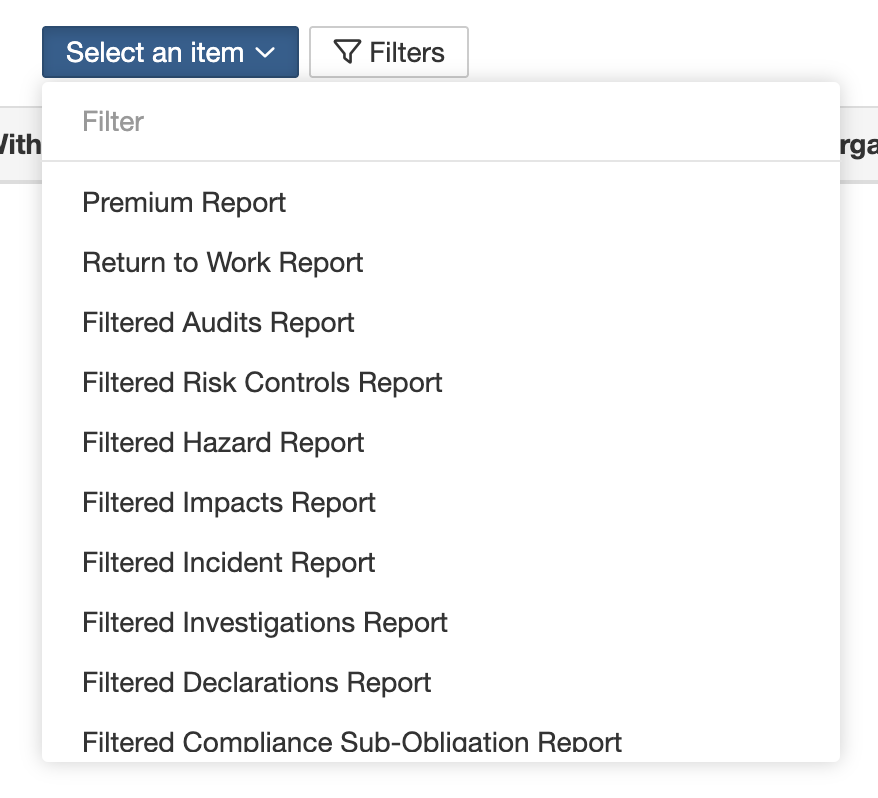
- After selecting a module you will see the saved templates and its details, for example who shared it with me, the scheduled date and who its shared with.

Was this article helpful?
That’s Great!
Thank you for your feedback
Sorry! We couldn't be helpful
Thank you for your feedback
Feedback sent
We appreciate your effort and will try to fix the article