TABLE OF CONTENTS
Context
This article outlines the most common reasons you may be unable to log in to the CGR platform. Below, you’ll find the typical error messages you might encounter and the steps to resolve them.
No User Available
You’ll see this message if the system can’t find your user record. This usually happens when you haven’t been onboarded yet or your account details were entered incorrectly.
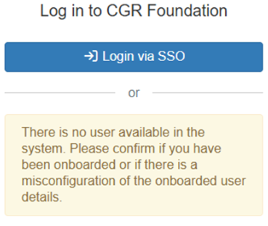
Cause: The user might not exist in the system, or their onboarding details are misconfigured.
How to fix:
Contact your System Administrator and ask them to:
- Go to Users by clicking your name (top-right) >Users.
- Search for the user.
- If the user does not exist, follow the [Step-by-Step Guide to Add a User].
- If the user exists, click the Edit (pencil) icon and check that:
- First name
- Last name
- External User ID (used for SSO integration
are all correct.
- If the issue persists, contact support@corpgovrisk.com.
User Not Assigned to SSO Group
This appears when your organisation’s single sign-on (SSO) setup doesn’t include your user in the correct access group for CGR.
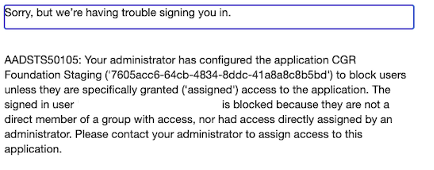
Cause: The user hasn’t been assigned to the correct SSO group with access to CGR.
How to fix:
Ask your company’s IT administrator to add the user to the appropriate group in Azure AD (or equivalent identity management system).
Password Login Not Allowed
This occurs when password-based login isn’t enabled for your account, typically because your organisation uses SSO for security.
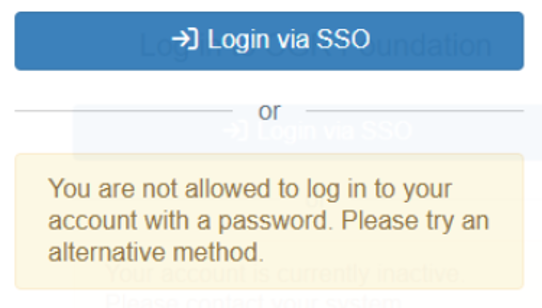
Cause: Password login is disabled for this user.
How to fix:
Please use SSO login instead of password authentication.
If password login is required, go to the user’s profile in Settings and ensure Enable Password Authentication is checked, but only after confirming with your System Administrator.
Inactive user account
This message appears when your user account has been deactivated in CGR.
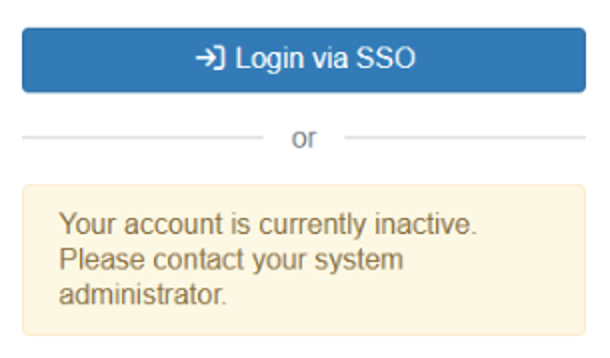
Cause: The user account has been deactivated.
How to fix:
Contact your System Administrator and ask them to:
- Go to Users > Filters > select Inactive.
- Search for the user.
- Activate the user by clicking the toggle (red) button.
Invalid or Expired SSO Certificate
You’ll see this message if your organisation’s SSO certificate has expired or no longer matches the system configuration.
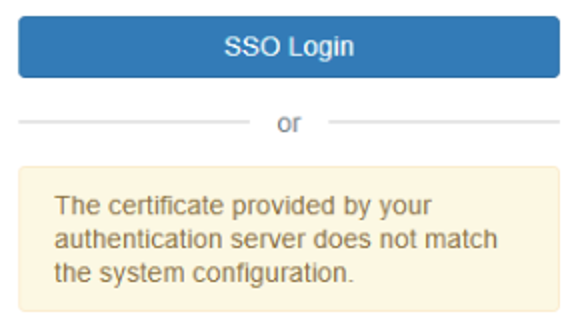
Cause: The SSO certificate provided by your company has expired, causing the authentication process to fail.
How to fix:
- Notify your IT team immediately about the expired certificate.
- Ask them to generate and provide a new SSO certificate.
- Have a system admin contact support@corpgovrisk.com with the updated certificate details so the system configuration can be refreshed.
Was this article helpful?
That’s Great!
Thank you for your feedback
Sorry! We couldn't be helpful
Thank you for your feedback
Feedback sent
We appreciate your effort and will try to fix the article