Registers
How to find, navigate, and use Registers in the Clew Platform
Contents
- 1. Introduction & Context
- 2. Key Features & Functions
- 3. Requirements
- 4. Step-by-Step Guide
- 5. Common Issues & Troubleshooting
- 6. Related Articles
1. Introduction & Context
Registers are the core organisational structure of the Clew Platform. All module data such as risks, obligations, audits, and incidents is recorded against a Register, giving your organisation a structured way to group, manage, and control access to information.
Who is it for? All Clew Platform users interact with Registers. System administrators set them up and manage access. Everyone else uses them to navigate to the data relevant to their role.
What does it impact? A user's access to module data is controlled at the Register level. If you do not have access to a Register, you cannot view the records within it, even if the records exist in the system.
2. Key Features & Functions
- Hierarchical structure: Registers work like folders and can be nested in a parent-child hierarchy. Child registers can roll up data to a parent register for a consolidated view.
- Per-register, per-module access: Access to each module's data can be managed independently for each Register, giving fine-grained control over what different roles and users can see.
- Summary view: Each Register has a summary page showing all data recorded within it across every enabled module in one place.
- Export: Export the Register summary as a PDF in portrait or landscape format, or export all controls.
- Risk Datagrid: Edit multiple risks simultaneously in a spreadsheet-style view directly from the Register page, including bowtie fields.
- Filters: Control whether child register data rolls up into the summary view and whether inactive (closed or archived) records are displayed.
- Pagination: Adjust how many records display per page in the summary view.
3. Requirements
- Access granted by a system administrator: You must be assigned access to a Register before it appears in your view. Contact your system administrator if you cannot see a Register you expect to have access to.
- Register must exist in the hierarchy: Registers are created and maintained by system administrators. If the Register has not yet been set up, it will not appear for any user.
- Module must be enabled under your Clew licence: The Register summary view only shows panels for modules that are active in your organisation's Clew licence.
4. Step-by-Step Guide
Finding Your Registers
Click the My Registers button at the top of the application to see all Registers you have access to.

The My Registers button is located at the top of the application.
If a Register you expect to see is not listed, it is likely because:
- The Register exists but you have not been granted access to it. Contact your system administrator to request access.
- The Register has not been created yet. Contact your system administrator to have it added to the hierarchy.
Using the Register Summary View
Clicking on a Register opens its summary view. This page shows all data recorded within that Register across every module your organisation has enabled. Each module appears as its own panel, and you can click any record title within a panel to open the detailed view of that record.
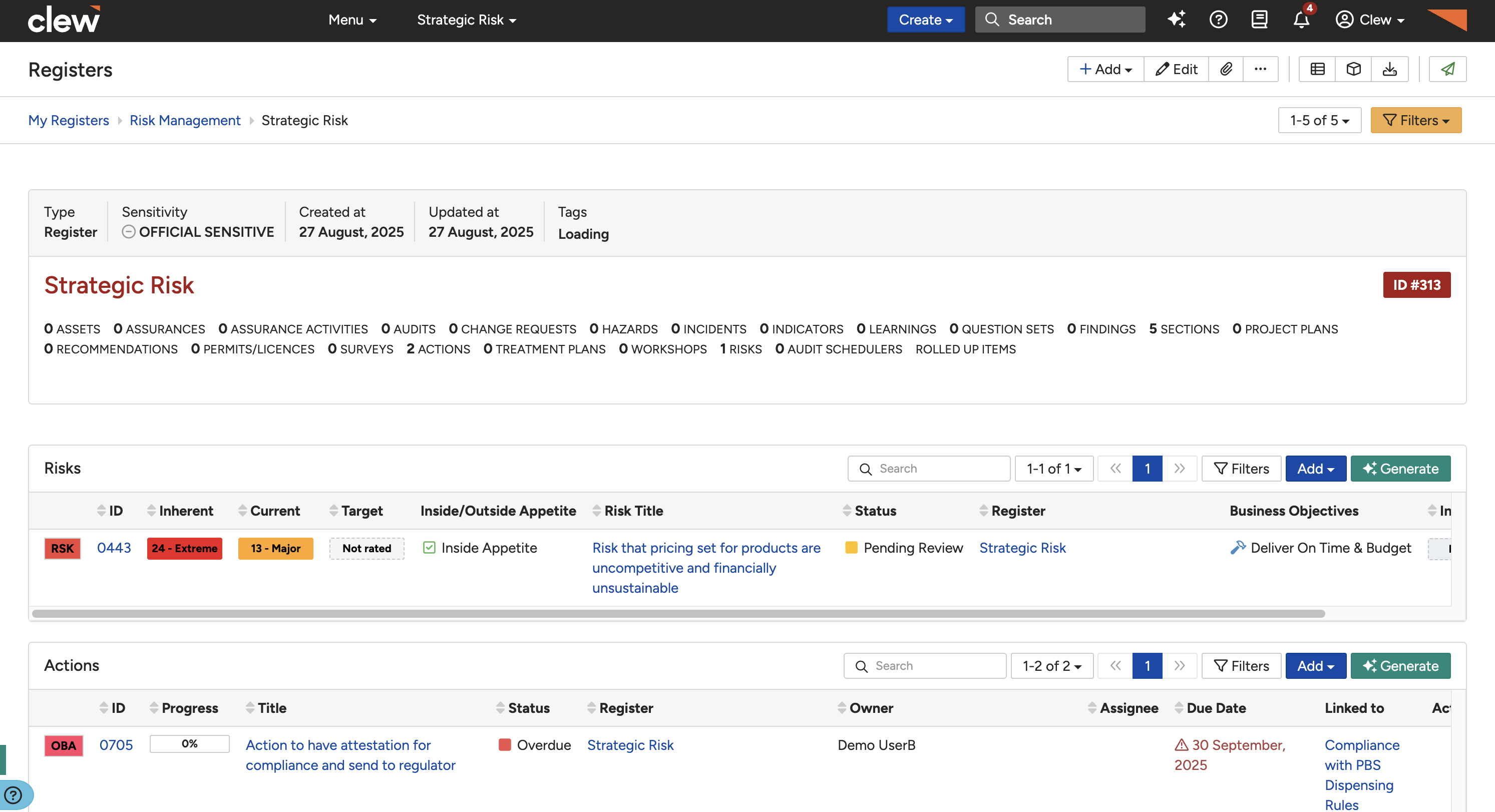
The Register summary view with a panel for each enabled module. Click any record title to open it.
Other Options on the Register Page
Several controls are available at the top of the Register summary page.
Export
The Export button lets you download a copy of the Register summary. Available formats are PDF (Portrait) and PDF (Landscape).

The Export button offers PDF (Portrait) and PDF (Landscape).
Risk Datagrid
The Risk Datagrid button opens a spreadsheet-style view of all risks in the Register. You can compare risks side by side and edit any field directly, including bowtie fields, without opening each risk individually.

The Risk Datagrid button opens a spreadsheet-style view for quick bulk editing of risks.
Filters
The Filters button lets you control the following display settings for the Register summary view:
- Roll up from child registers: When enabled, records from child registers are included in the parent Register summary.
- Show inactive records: When enabled, closed or archived records are included in the summary view.
- Map Ratings: When enabled, mapped ratings appear with an asterisk on the rating pill, and the summary confirms the parent project the ratings are mapped to.

The Filters panel controls roll-up from child registers, visibility of inactive records, and mapped ratings.
Pagination
Use the Pagination control at the top of the Register summary page to change the number of records displayed per page in each module panel.

Adjust the pagination control to change how many records are shown per page.
5. Common Issues & Troubleshooting
| Issue | Likely Cause | Solution |
| A Register is missing from My Registers | You have not been granted access, or the Register has not been created yet | Contact your system administrator to request access or ask them to create the Register in the hierarchy. |
| A module panel is missing from the Register summary | The module is not enabled under your organisation's Clew licence, or you do not have access to it for this Register | Contact your system administrator to confirm whether the module is licensed and whether your access has been configured correctly. |
| Child register records are not appearing in the parent summary | The roll-up filter is turned off | Click Filters on the Register summary page and enable the roll-up from child registers option. |
| Closed or archived records are not visible | Inactive records are hidden by default | Click Filters and enable the option to show inactive records. |
| The Risk Datagrid button is not visible | The Risk module may not be enabled or you may not have edit access for this Register | Contact your system administrator to confirm your permissions for the Risk module on this Register. |
Best practices:
- Use descriptive Register names so users can identify the right one quickly from the My Registers list.
- Set up a clear hierarchy before assigning access. Access is managed per Register, so a well-structured hierarchy makes permission management much simpler.
- Use the Filters roll-up option when you need a consolidated view of data across a parent and all its child Registers.
- Use the Risk Datagrid for bulk editing rather than opening risks one at a time when making changes across multiple records.
Click a title to preview it here. Use the Open full article button to read the full version in a new tab.
▾Navigating Clew Open full article »
Related article
A guide to moving around the Clew Platform, including the navigation bar and how to reach the areas relevant to your role.
▾Risk Matrix Configuration Open full article »
Related article
Explains how risk matrices are set up in the Clew Platform, including the likelihood and consequence scales used to rate risks.
▾Mapped Ratings Open full article »
Related article
Explains how mapped ratings let a register's ratings map to a parent project's scale, shown with an asterisk on the rating pill.
Was this article helpful?
That’s Great!
Thank you for your feedback
Sorry! We couldn't be helpful
Thank you for your feedback
Feedback sent
We appreciate your effort and will try to fix the article