Risk Insights: What Data is Available
How to use Risk Insights to view and compare your risk matrix across two points in time in the Risk module
Contents
- 1. Introduction & Context
- 2. Key Features & Functions
- 3. Requirements
- 4. Step-by-Step Guide
- 5. Common Issues & Troubleshooting
- 6. Related Articles
1. Introduction & Context
Risk Insights lets you see how your organisation's risk profile has changed over time by comparing your risk matrix across two points in time, so you can tell at a glance whether your exposure is improving, worsening, or holding steady.
It is a feature within the Risk module that gives you a visual, data-driven view of your risk landscape. Rather than a static snapshot, it lets you track movement across any date range you define, which is useful for internal reviews, board reporting, and audit purposes.
Who is it for? Risk Managers, System Administrators, and anyone responsible for monitoring or reporting on organisational risk.
What does it impact? Risk visibility and reporting only. Risk Insights is a read-only analytical view. No changes made within Insights affect the underlying risk data.
2. Key Features & Functions
- Risk Matrix Visualisation: displays your risks plotted on a colour-coded matrix showing likelihood vs consequence.
- Current vs Historical toggle: switch between a live view of today's risk profile and a side-by-side historical comparison across two dates.
- Matrix selector: choose which matrix to view, for example Default or Default Opportunity Matrix, depending on your organisation's setup.
- Rating Type selector: filter by assessment stage, including Inherent, Procedural, Target, or any other types configured for your organisation.
- As of Date Range: define a start and end date to compare your risk profile across any two points in time.
- Risk List: a paginated list of individual risks below the matrix showing key scores and metadata, up to 30 items at a time.
- Export and display options: export the current view as a PDF or switch between List View and Datagrid format.
3. Requirements
- You must have access to at least one Risk Register in Clew.
- Your organisation must have a Risk Matrix configured.
- To view Historical data, at least one risk must have been rated or updated before your selected start date.
- No special admin access is required to view Insights, though the options available will reflect your organisation's specific configuration.
4. Step-by-Step Guide
Step 1: Open Risk Insights from a Register
- Go to the Risk page for any register.
- Look for the Insights button in the top right area of the page and click it.
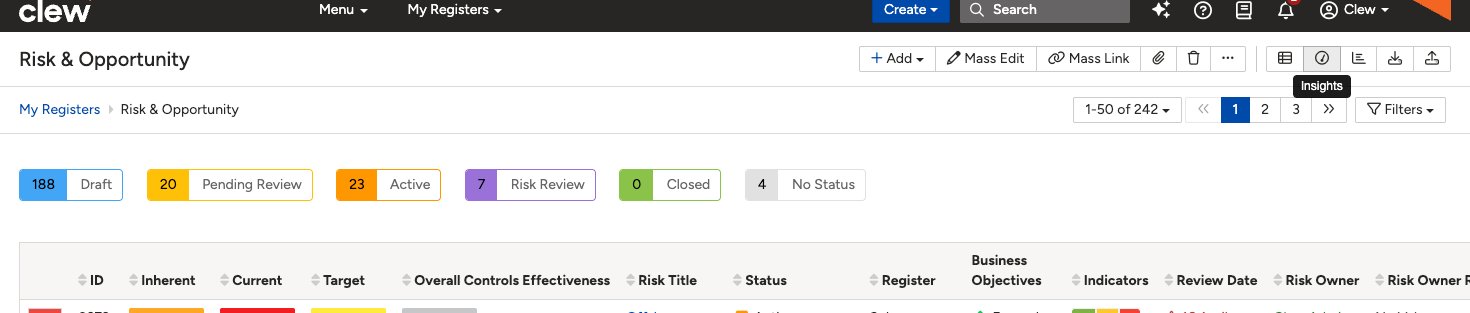
The Risk Register page. Click the Insights button in the top right toolbar to open the Insights view.
Step 2: Choose Historical or Current View
Once the Insights panel opens, use the toggle in the top left to choose which type of data you want to view.
- Current: shows a live snapshot of your risk matrix as it stands today.
- Historical: shows two versions of your matrix side by side, one for each date in your selected range, so you can compare how your risk profile has shifted over time.
You can switch between the two modes at any point while using the Insights view.
Step 3: Select the Matrix and Rating Type
- Select the Matrix you want to inspect, for example Default or Default Opportunity Matrix.
- Select the Rating Type you want to analyse. Options may include Inherent, Procedural, Target, or others depending on your setup.
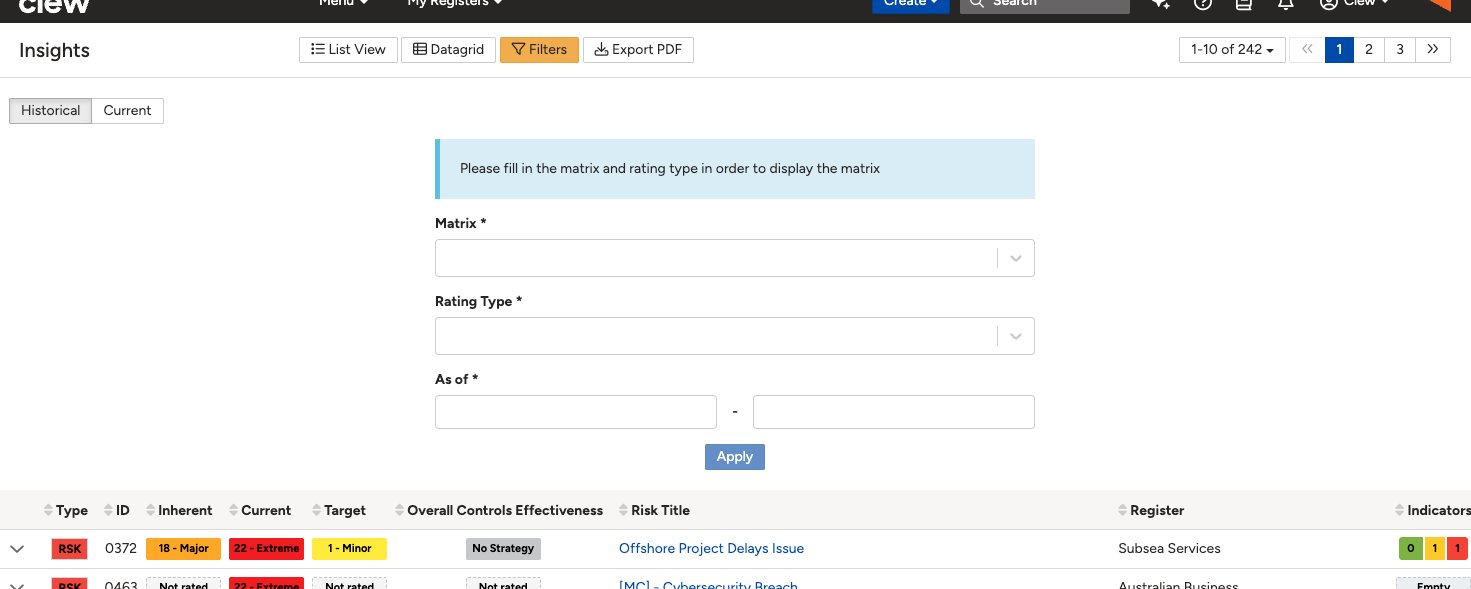
The Insights panel showing the Matrix, Rating Type, and As of date fields with the Apply button.
Step 4: Set the Date Range and Apply
- Set your As of date range using the start and end date fields. For example, from March to the current date.
- Click Apply to load the results.
- The view will update to show the matrix changes between the two selected dates.
Step 5: Review the Matrix and Risk List
- The Insights panel now displays two versions of your risk matrix side by side, one for each date you selected.
- Scroll down to view the Risk List below the matrix. Each row shows the risk Type, ID, Inherent score, Current score, Target score, Overall Controls Effectiveness, Risk Title, Register, and Indicators.
- The list displays up to 30 risks per page. Use the pagination controls in the top right to navigate through the full dataset.
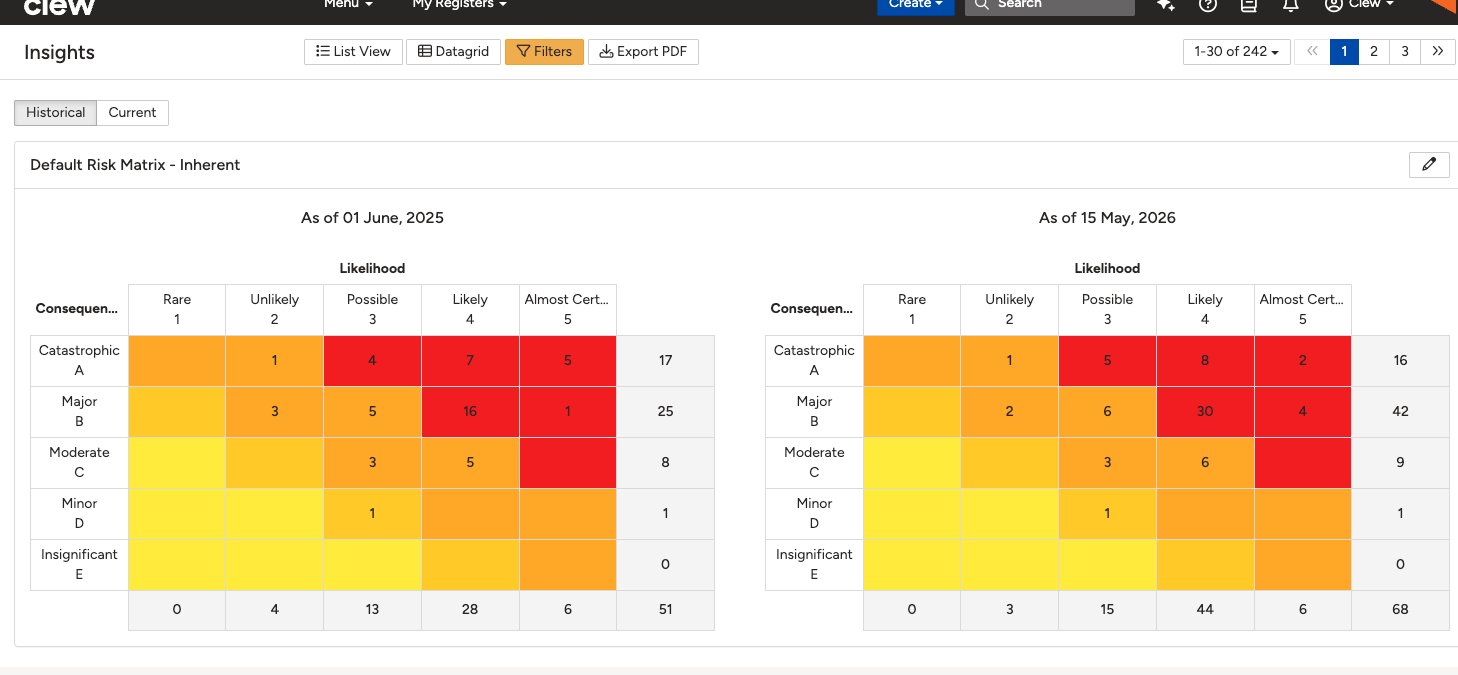
Historical mode showing two risk matrices side by side. The left matrix shows the earlier date and the right shows the later date.
Step 6: Export or Change the Display Format
At the top of the Insights panel you have three options.
- List View: displays risks in a standard list format.
- Datagrid: displays data in a grid layout for easier comparison.
- Export PDF: exports the current view as a PDF for sharing or reporting purposes.
Use the Filters button to narrow down what is displayed in both the matrix and the list.
Step 7: Return to the Register
Once you have finished reviewing the Insights data, use the back option at the top of the page to return to the register you were working in.
5. Common Issues & Troubleshooting
| Issue | Likely Cause | Solution |
| Matrix is not displaying | Matrix or Rating Type not selected | Ensure both fields are filled before clicking Apply |
| Historical view shows identical matrices | Date range too narrow or no risk changes in that period | Widen the date range to a period where risk activity occurred |
| Fewer risks shown than expected | Active filters are hiding results | Check the Filters panel and clear any active filters |
| Rating Type options differ from another user's | Organisation-specific configuration | This is expected. Contact your System Administrator if an option is missing |
| Export PDF is blank or incomplete | Filters are hiding all risks | Clear filters and re-apply before exporting |
Best practices:
- Always select both a Matrix and a Rating Type before clicking Apply to avoid a blank view.
- Use a wide enough date range in Historical mode to capture meaningful risk movement, such as a full quarter or financial year.
- Clear all filters before exporting to PDF to ensure the full risk dataset is included in the report.
- Use the Datagrid view for side-by-side score comparisons and the List View for a more narrative-style review.
Click a title to preview it here. Use the Open full article button to read the full version in a new tab.
▾Dashboard Manager Open full article »
Related article
Dashboard Manager lets you build custom dashboards from a library of widgets, arrange them to suit your reporting needs, and share them with other users or teams. It is useful for surfacing the risk, register, and performance data that matters most to your role in one place.
Was this article helpful?
That’s Great!
Thank you for your feedback
Sorry! We couldn't be helpful
Thank you for your feedback
Feedback sent
We appreciate your effort and will try to fix the article