Clearance and Sensitivity
What Clearance and Sensitivity mean in the Clew Platform, and how they control who can see what
Contents
- 1. Introduction & Context
- 2. Key Features & Functions
- 3. Requirements
- 4. Step-by-Step Guide
- 5. Common Issues & Troubleshooting
- 6. Related Articles
1. Introduction & Context
Clearance and Sensitivity are a pair of security classification levels in the Clew Platform: Clearance is set on a user's profile, Sensitivity is set on a record, and together they control whether that user can see that record. A user can only view a record whose Sensitivity level is at or below their own Clearance level.
Think of it as a second, independent layer of access control that sits alongside Security Groups. Security Groups determine which registers, projects, and modules a user can generally access. Clearance and Sensitivity then add a finer-grained check within that access: even if a user's Security Groups give them access to a register, an individual record in that register can still be hidden from them if its Sensitivity level is higher than their Clearance level.
Who is it for? Administrators who manage user security profiles, and administrators or record owners who classify sensitive records so that only appropriately cleared users can see them.
What does it impact? A user's Clearance level (set on their profile) determines the highest Sensitivity level of record they can see. A record's Sensitivity level determines the minimum Clearance a user must hold to view it. Neither setting replaces Security Groups; both checks must pass before a user can see a record.
2. Key Features & Functions
- Clearance (on the user): a security clearance level assigned to a user on their profile, in the Security section of the user form.
- Sensitivity (on the record): a classification level assigned to a record, marking how sensitive its contents are.
- Three standard levels, from lowest to highest: Unclassified, Protected, and Confidential (Note: You can modify the names and have further levels, if preferred)
- Matching rule: a user can only see a record if their Clearance level is equal to or higher than the record's Sensitivity level. For example, a user with Protected clearance can see Unclassified and Protected records, but not Confidential records.
- Works alongside Security Groups: Security Groups control access to registers and modules; Clearance and Sensitivity add a further check on individual records within that access.
Example scenario: Your organisation stores incident reports in one register. Most reports are Unclassified, but a small number involving a serious matter are marked Confidential. Everyone in the relevant Security Group can open the register, but only users whose profile Clearance is set to Confidential can see the Confidential reports; everyone else sees only the Unclassified and Protected ones.
3. Requirements
- The Clearance feature must be enabled through Clew before the Clearance field appears on the user form, and before a Sensitivity field can appear on your records. Contact the Clew team to have it enabled.
- You must have admin access to set a user's Clearance level.
- A record's Sensitivity field must be added to the relevant Custom Type before it can be set on that record's form.
- Security Groups still need to be configured correctly. Clearance and Sensitivity restrict what a user can see within their existing Security Group access; they do not grant access to registers, projects, or modules on their own.
4. Step-by-Step Guide
Setting a User's Clearance
- Click your name in the corner of the page and click Users.
- Open the user you want to set a Clearance level for, or click Add to create a new user.
- In the Security section of the form, find the Clearance dropdown.
- Select the level that matches the user's required access: Unclassified, Protected, or Confidential.
- Click Save.
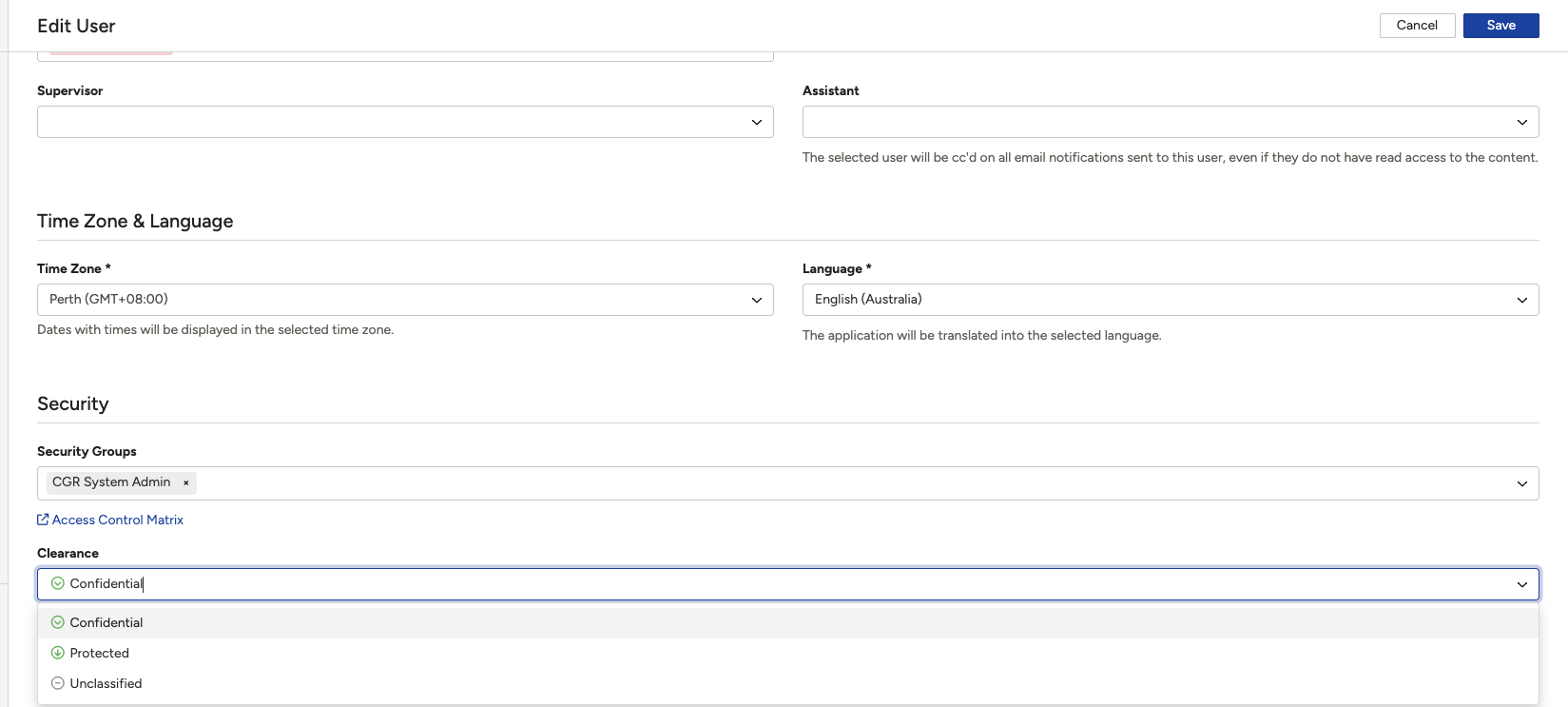
Setting a Record's Sensitivity
- Open the record you want to classify.
- Find the Sensitivity field on the record's form. Its exact position depends on how your organisation's Custom Type has been configured, for example in a Security or Classification section.
- Select the level that matches how sensitive the record's contents are: Unclassified, Protected, or Confidential.
- Click Save.
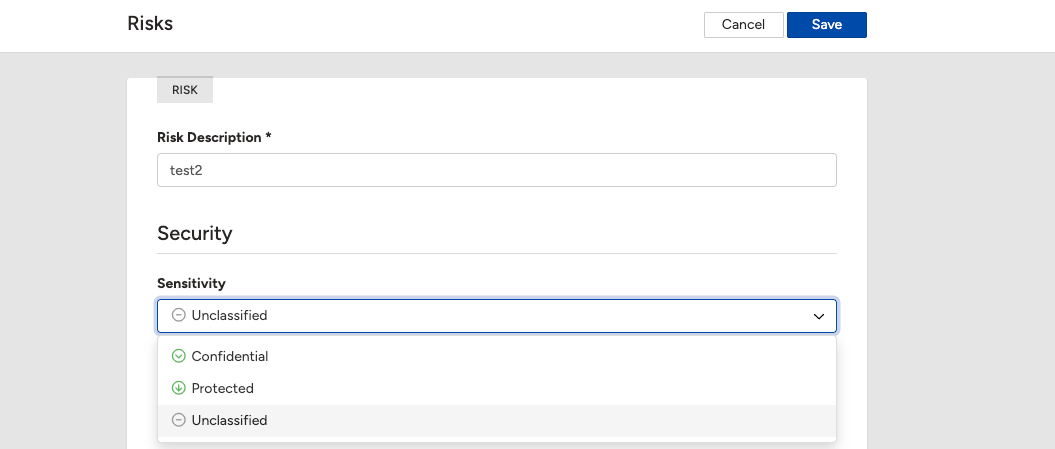
5. Common Issues & Troubleshooting
| Issue | Likely Cause | Solution |
| The Clearance field is not visible on the user form | The Clearance feature has not been enabled for your organisation | Contact the Clew team to have the feature enabled |
| A user cannot see a record they should have access to | The user's Clearance level is lower than the record's Sensitivity level | Check the record's Sensitivity level and raise the user's Clearance level on their profile if appropriate |
| A user cannot see any records in a register at all | This is a Security Group issue, not a Clearance issue | Check the user's Security Groups first. Clearance only restricts records within a register the user can already access |
| The Sensitivity field is not available on a record | The field has not been added to that record's Custom Type | Ask your administrator to add the Sensitivity field to the relevant Custom Type |
Best practices:
- Set Clearance levels based on a user's actual need to see sensitive records, not by default at the highest level.
- Review Sensitivity levels on records periodically, especially if a record's contents change.
- Remember that Clearance and Sensitivity work in addition to Security Groups, not instead of them. Review both when troubleshooting access issues.
- Set an Expiry Date on user profiles for contractors and temporary users so elevated Clearance levels are not left active longer than needed.
Click a title to preview it here. Use the Open full article button to read the full version in a new tab.
▾Creating a User Open full article »
Related article
How to add a new user to the Clew Platform and configure their profile, security, and settings, including where to set their Clearance level.
▾Managing Access with Security Groups Open full article »
Related article
How Security Groups control which registers, projects, and modules a user can access, and how they work alongside Clearance and Sensitivity.
▾Custom Types: Overview & Use Open full article »
Related article
How to add and configure fields, including a Sensitivity field, on a Custom Type.
Was this article helpful?
That’s Great!
Thank you for your feedback
Sorry! We couldn't be helpful
Thank you for your feedback
Feedback sent
We appreciate your effort and will try to fix the article