Announcements
How to create and manage announcements shown to users across the Clew Platform
Contents
- 1. Introduction & Context (Purpose)
- 2. Key Features & Functions
- 3. Requirements (Important Notes)
- 4. Step-by-Step Guide
- 5. Common Issues & Troubleshooting
1. Introduction & Context
Announcements let System Admins broadcast a time-bound message, such as planned maintenance or a policy update, directly within Clew to some or all of your users.
Who is it for? Announcements are created and managed by client System Admins. Once published, an announcement is seen by whichever users it is targeted at, or by everyone if no specific users or teams are selected.
What does it impact? Announcements are purely a communication feature. They display a message for a set period of time and do not change or move any module data.
2. Key Features & Functions
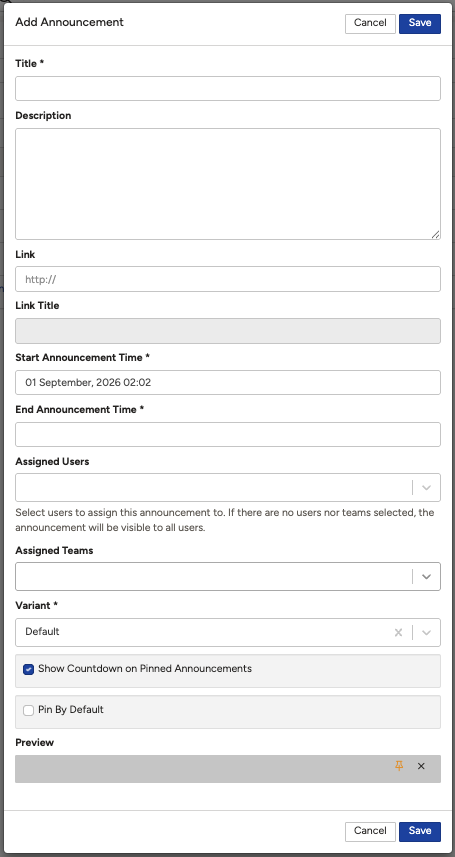
- Message content: a Title and Description carry the announcement's headline and full message.
- Optional link: an announcement can include a Link and Link Title, giving users something to click through to for more detail.
- Scheduling: a Start Announcement Time and End Announcement Time control exactly when the announcement appears and disappears, automatically.
- Targeting: Assigned Users and Assigned Teams let you limit an announcement to specific people. Leave both empty to show it to everyone.
- Pinning: Pin By Default keeps an announcement persistently visible rather than easily dismissed, and Show Countdown on Pinned Announcements adds a countdown to the End Announcement Time for pinned announcements.
- Live preview: a Preview area shows how the announcement will look before you save it.
Example: An admin creates an announcement titled "Scheduled Maintenance This Friday", adds a description of the outage window, sets the Start and End Announcement Time to bracket the maintenance period, leaves Assigned Users and Assigned Teams empty so everyone sees it, and enables Pin By Default so it stays visible for the duration.
3. Requirements
- System Admin access, to open and manage the Announcements screen.
- If targeting specific people, the relevant Users and/or Teams must already exist in Clew.
4. Step-by-Step Guide
Creating an Announcement
- Click your username in the top-right corner, then select Admin.
- Open Announcements.
- Select Add.
- Enter a Title. This is the headline text users see first.
- Enter a Description with the full message you want users to read.
- Optionally, enter a Link URL and a Link Title (the label shown for that link) if you want users to be able to click through to more information.
- Set the Start Announcement Time and End Announcement Time to define the window during which the announcement will be shown.
- Optionally, select specific Assigned Users and/or Assigned Teams to limit who sees the announcement. Leave both empty to show it to everyone.
- Choose a Variant, which sets the announcement's visual style. Default is the standard option.
- Tick Show Countdown on Pinned Announcements if you want a countdown to the End Announcement Time shown when the announcement is pinned.
- Tick Pin By Default if the announcement should stay persistently visible rather than be easily dismissed.
- Check the Preview area to see how the announcement will appear.
- Select Save.
5. Common Issues & Troubleshooting
| Issue | Likely Cause | Solution |
| An announcement isn't showing to anyone | The Start Announcement Time is still in the future, or the End Announcement Time has already passed | Edit the announcement and confirm the Start/End Announcement Time window covers the current date and time |
| An announcement is showing to everyone when it should be limited | No Assigned Users or Assigned Teams were selected | Edit the announcement and select the specific Users and/or Teams it should be limited to |
| Some people can't see an announcement meant for them | They are not included in the Assigned Users or Assigned Teams selected | Edit the announcement and add the relevant user or team |
| The link doesn't appear on the announcement | The Link or Link Title field was left blank | Edit the announcement and complete both the Link URL and the Link Title |
| A pinned announcement doesn't show a countdown | Show Countdown on Pinned Announcements was left unticked | Edit the announcement and tick Show Countdown on Pinned Announcements |
Best practices:
- Set an End Announcement Time that matches when the message stops being relevant, so it doesn't linger after the fact.
- Use Assigned Users or Assigned Teams to avoid showing announcements to people they don't apply to.
- Reserve Pin By Default for genuinely important or urgent announcements, so pinned messages keep their impact.
- Check the Preview before saving to confirm wording and links display as intended.
Was this article helpful?
That’s Great!
Thank you for your feedback
Sorry! We couldn't be helpful
Thank you for your feedback
Feedback sent
We appreciate your effort and will try to fix the article