Provisioners
How to set up a provisioner to automatically onboard and off-board users from your identity provider
Contents
- 1. Introduction & Context
- 2. Key Features & Functions
- 3. Requirements
- 4. Step-by-Step Guide
- 5. Common Issues & Troubleshooting
- 6. Related Articles
1. Introduction & Context
A provisioner is a connector that automates user provisioning between an external identity provider, such as Okta or Entra ID (Azure), and Clew, so users are onboarded, updated, and off-boarded automatically with the correct roles and settings. This article explains what a provisioner does and how to configure one so your Clew user accounts stay in sync with your organisation's directory.
Provisioners are built on the SCIM 2.0 (System for Cross-domain Identity Management) standard, which provides secure and consistent identity synchronisation across systems. Setting one up reduces manual administration and keeps data consistent across environments, which is especially valuable where user populations are large or change often.
Who is it for? System administrators responsible for user access in Clew who work with an external identity provider.
What does it impact? A provisioner creates, updates, and off-boards user accounts based on your identity provider. The mapping rules and default values you choose determine how users are matched to registers, locations, and roles, so they should be set deliberately.
2. Key Features & Functions
- Automated onboarding and off-boarding: user accounts are created, updated, and removed automatically based on your identity provider.
- SCIM 2.0 synchronisation: secure, standards-based identity synchronisation with providers such as Okta and Entra ID (Azure).
- Field mapping: map attributes from your identity provider to Clew fields, with optional fallbacks and data casting.
- Fuzzy matching for registers and locations: where there is no exact match, Clew attempts the nearest match using the Levenshtein distance method.
- Configurable defaults: set a default project (register), location, and user custom type to apply as fallbacks.
- Role assignment via position ID: when using role-based assignment, users can be linked to roles through a
positionIdcustom attribute in your identity provider.
3. Requirements
- System Administrator access is required to configure or edit provisioners.
- An external identity provider that supports SCIM 2.0, such as Okta or Entra ID (Azure).
- Attribute mapping details verified with your IT or identity team before you activate the provisioner.
- Where registers and locations should sync automatically, a register structure that matches your directory (AD) structure as closely as possible, so matching resolves correctly.
4. Step-by-Step Guide
Adding a Provisioner
- Go to Admin, then Provisioners.
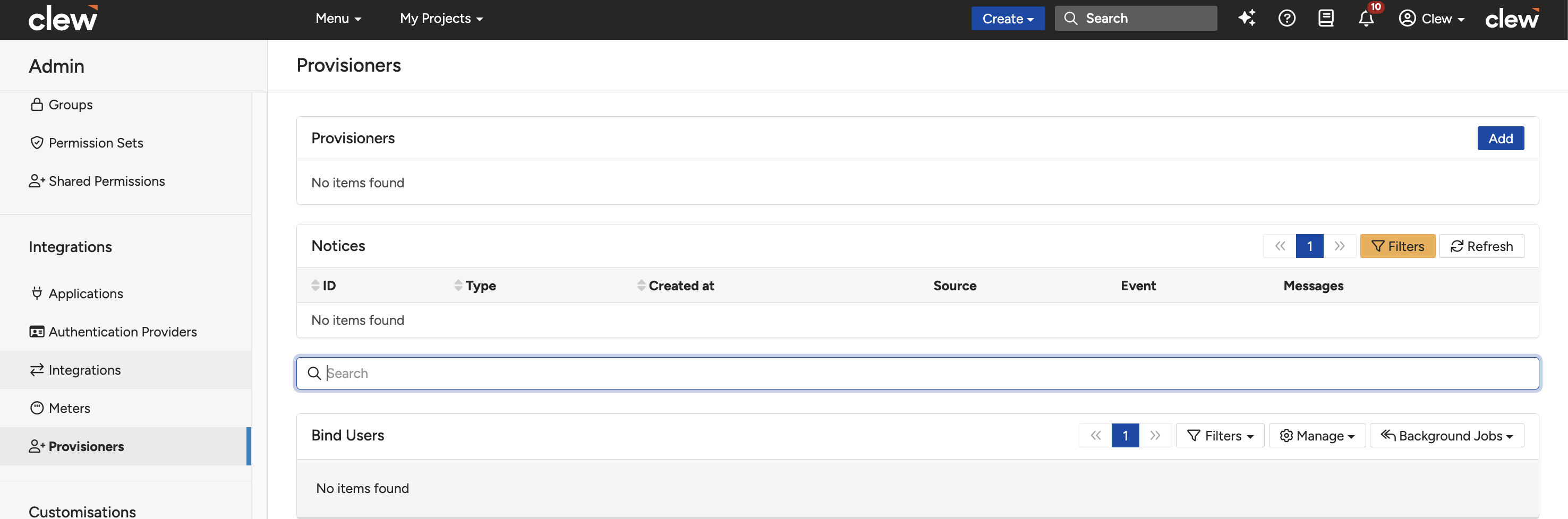
The Provisioners section in the Clew admin panel.
- Click Add Provisioner, complete the fields below, and click Save.
| Field | Description |
| Title | Enter a unique name for the provisioner. |
| Position | Defines the order of execution if more than one provisioner is created. It is recommended to have only one, to avoid provisioners clashing when a user appears in more than one provisioner. |
| Active? | Select Yes to enable the provisioner. |
| Contacts | Optional. Enter email addresses to receive provisioning notifications. |
| Notify on Failure | Enable to receive alerts when provisioning errors occur. |
| Propagate Users / Groups | Choose Propagate Users only. Clew does not currently support group propagation. |
| Create Roles | If the platform uses role-based assignment rather than user-centric assignment, creating and linking roles is an option. To do this, set up the positionId custom attribute in your identity provider (see Related Articles). |
| Enable Notifications for New Users | Set to Yes if administrators should be alerted when new users are created. |
| Default Project | The selected record is used only as a fallback when no matching record can be found within the platform. |
| Default Location | The selected record is used only as a fallback when no matching record can be found within the platform. |
| Default User Custom Type | Select User. If your platform has more than one option, refer to your system owner as to which to select. |
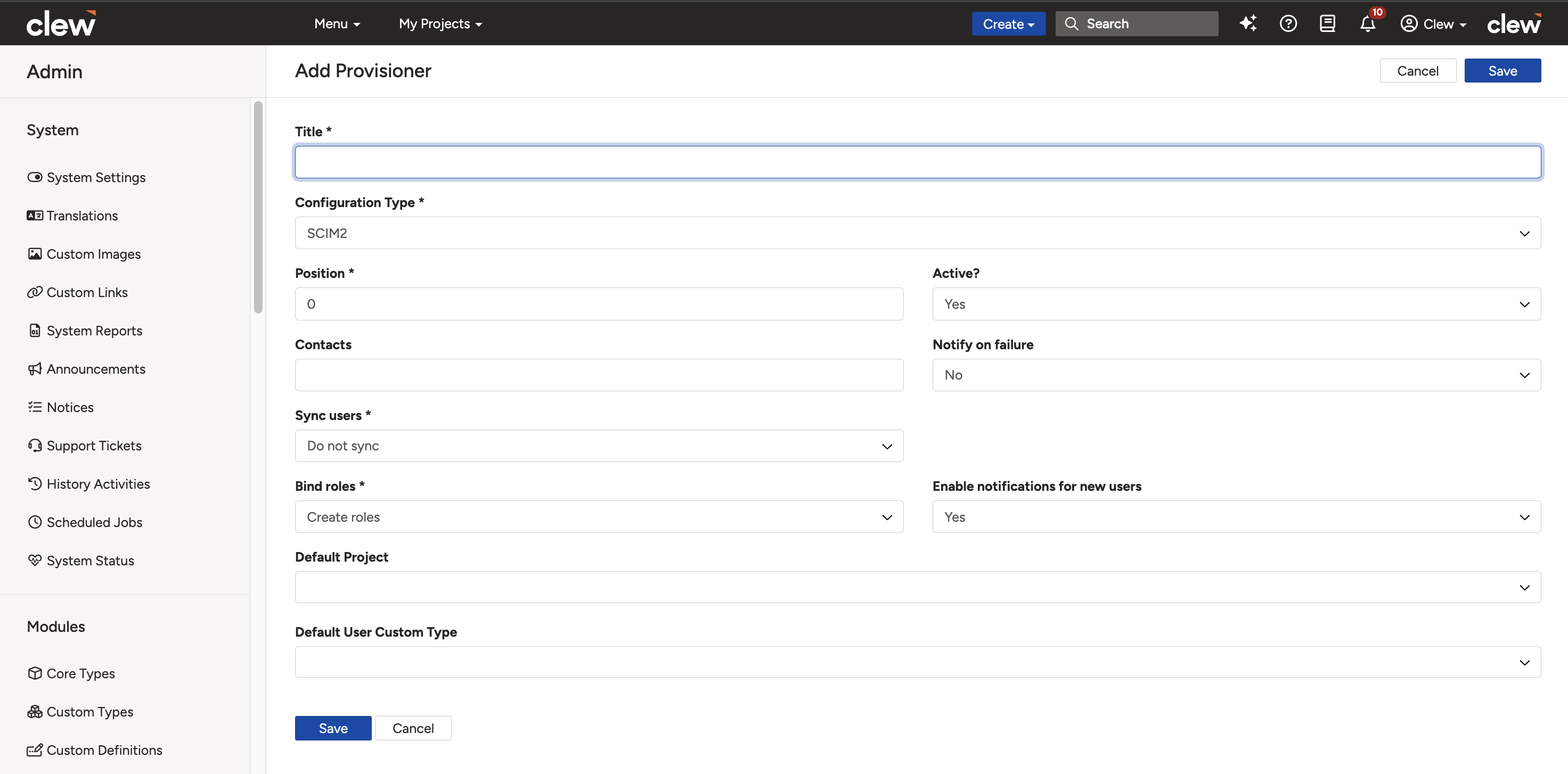
The Add Provisioner configuration form.
Configuring Field Mapping
After the provisioner has been created, define how information flows between the external identity provider and Clew. This is done by setting the Remote Attribute, Local Attribute, and Caster for each mapped field.
| Field | Description |
| Remote Attribute | The attribute name used in the external identity provider. For example, name.givenName may represent a user's first name in Okta. |
| Local Attribute | The corresponding field in Clew where the incoming value will be stored. For example, if the remote attribute is name.givenName, the local attribute should be first_name, the field in Clew that stores the given name. Ensure the local attribute matches a valid Clew system field or a defined custom user field. |
| Remote Attribute Fallback | An optional secondary attribute that is used if the primary attribute is empty or unavailable. |
| Caster | Determines how the incoming data should be interpreted or converted before being written to Clew. Selecting Native Caster applies the value exactly as received. Other casters may be used for converting data types such as dates or Booleans. |
5. Common Issues & Troubleshooting
| Issue | Likely Cause | Solution |
| Duplicate or conflicting user records | More than one active provisioner is running, and a user appears in more than one. | Keep only one active provisioner. Set the others to Active? No. |
| Users are not assigned to the right project or location | No matching register or location record exists in Clew, so fuzzy matching cannot resolve it. | Align your register structure with your directory structure, or rely on the Default Project and Default Location fallbacks. |
| Roles are not assigned to users | The positionId custom attribute is not configured, or the platform uses user-centric assignment. | Set up the positionId custom attribute in Okta or Entra ID and enable Create Roles. |
| Group members are not syncing | Group provisioning is not supported. | Set Propagate to Users only, and manage group membership internally within Clew. |
| A user is not created or updated | The provisioner is inactive, or the user is not in scope at the identity provider. | Set Active? to Yes, confirm the user is assigned in your identity provider, and check the provisioning notices for errors. |
Best practices:
- Run only one active provisioner to avoid duplicate or conflicting records.
- Match your register structure to your directory structure as closely as possible so fuzzy matching resolves correctly.
- Verify all attribute mappings with your IT or identity team before activating the provisioner.
- Set sensible Default Project and Default Location values as safe fallbacks.
- Enable Notify on Failure so provisioning errors are caught early.
Was this article helpful?
That’s Great!
Thank you for your feedback
Sorry! We couldn't be helpful
Thank you for your feedback
Feedback sent
We appreciate your effort and will try to fix the article