Report Themes
How to create and configure custom report themes in the Clew Platform
Contents
- 1. Introduction & Context
- 2. Key Features & Functions
- 3. Requirements
- 4. Step-by-Step Guide
- 5. Common Issues & Troubleshooting
- 6. Related Articles
1. Introduction & Context
Report themes let system administrators control the visual appearance of exported reports in the Clew Platform, including a branded cover page and customised headers and footers.
Themes can be scoped to specific registers, modules, locations, and custom types, giving you precise control over which theme applies to which exports across the platform.
Who is this for? System administrators responsible for configuring the Clew Platform.
What does it impact? The selected theme is applied when users export reports. A theme assigned at a more specific scope (for example, a custom type) will override a broader theme (for example, a register-level theme).
2. Key Features & Functions
- Cover page: Configure a background image, logo, logo position, and text colours for the cover page of exported reports.
- Header and footer: Set header and footer text, and control text and background colours for both.
- Scoped application: Apply a theme to specific locations, registers, modules, or custom types so different areas of the platform can have different report styles.
- Priority override: Custom types take priority over modules, and modules take priority over registers. This means a theme scoped to a custom type will always override a theme scoped to the module it belongs to.
- Portrait and landscape preview: Preview the cover page and header/footer in both orientations before saving.
3. Requirements
- System administrator access to the Clew Platform.
- If you want to use a custom image for the cover page background or logo, that image must be uploaded in the Images section before creating the theme. See Managing Images for details.
- An understanding of which registers, modules, or custom types the theme should apply to.
4. Step-by-Step Guide
Creating a Report Theme
- Navigate to Admin > Report Themes. The page displays a table of any existing report themes in your platform.
- Click Add. The Add Report Theme form will open.
- Enter a Report Theme Title. This is the name that will appear when selecting a theme to apply to dashboard templates or other exports across the platform.
- In the Apply tosection, select the areas of the platform this theme should apply to:
- Locations: Specific locations in the locations list.
- Registers: Specific registers in the main register list. This option gives detailed control over report exports across different organisational registers.
- Modules: Specific modules to use this report theme.
- Custom Types: Specific record types within a module. For example, within the Risks module you could apply one theme to Risks and a different theme to Opportunities.
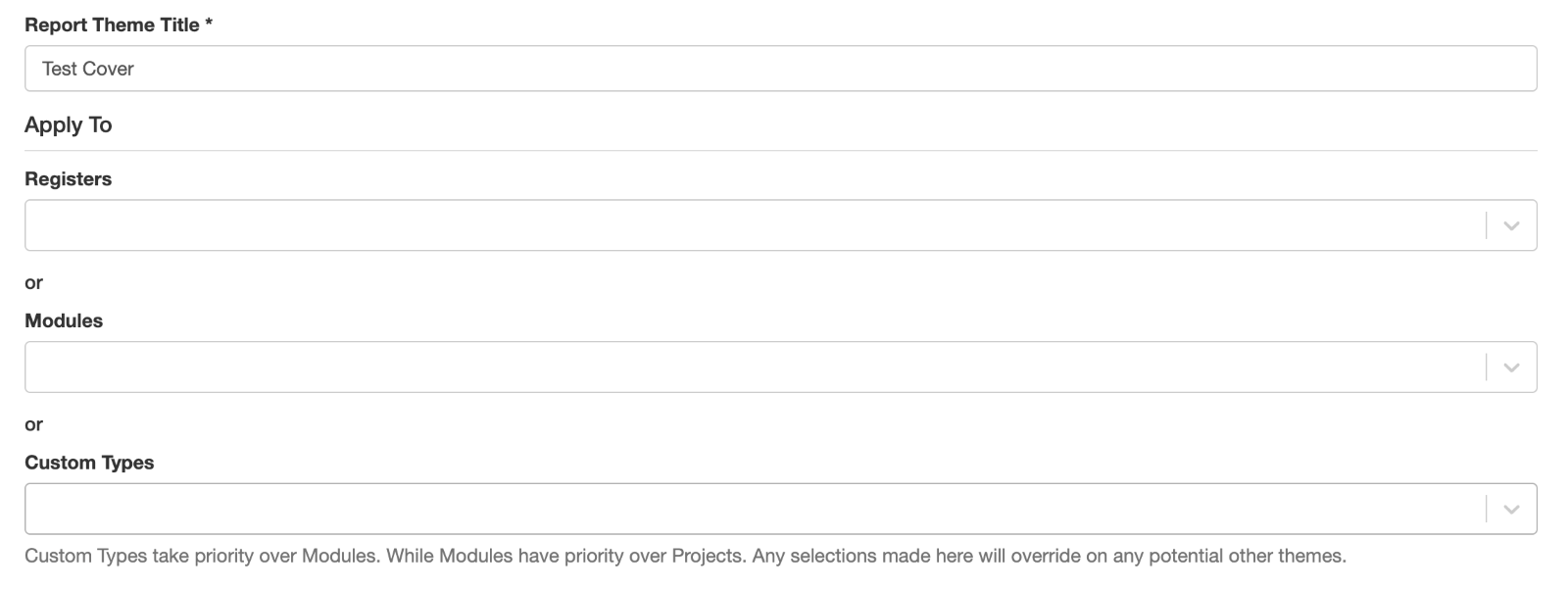
The Add Report Theme form showing the title and Apply to fields.
- Click the Cover Page tab to configure the cover page appearance. Use the field descriptions in the table below as a guide.
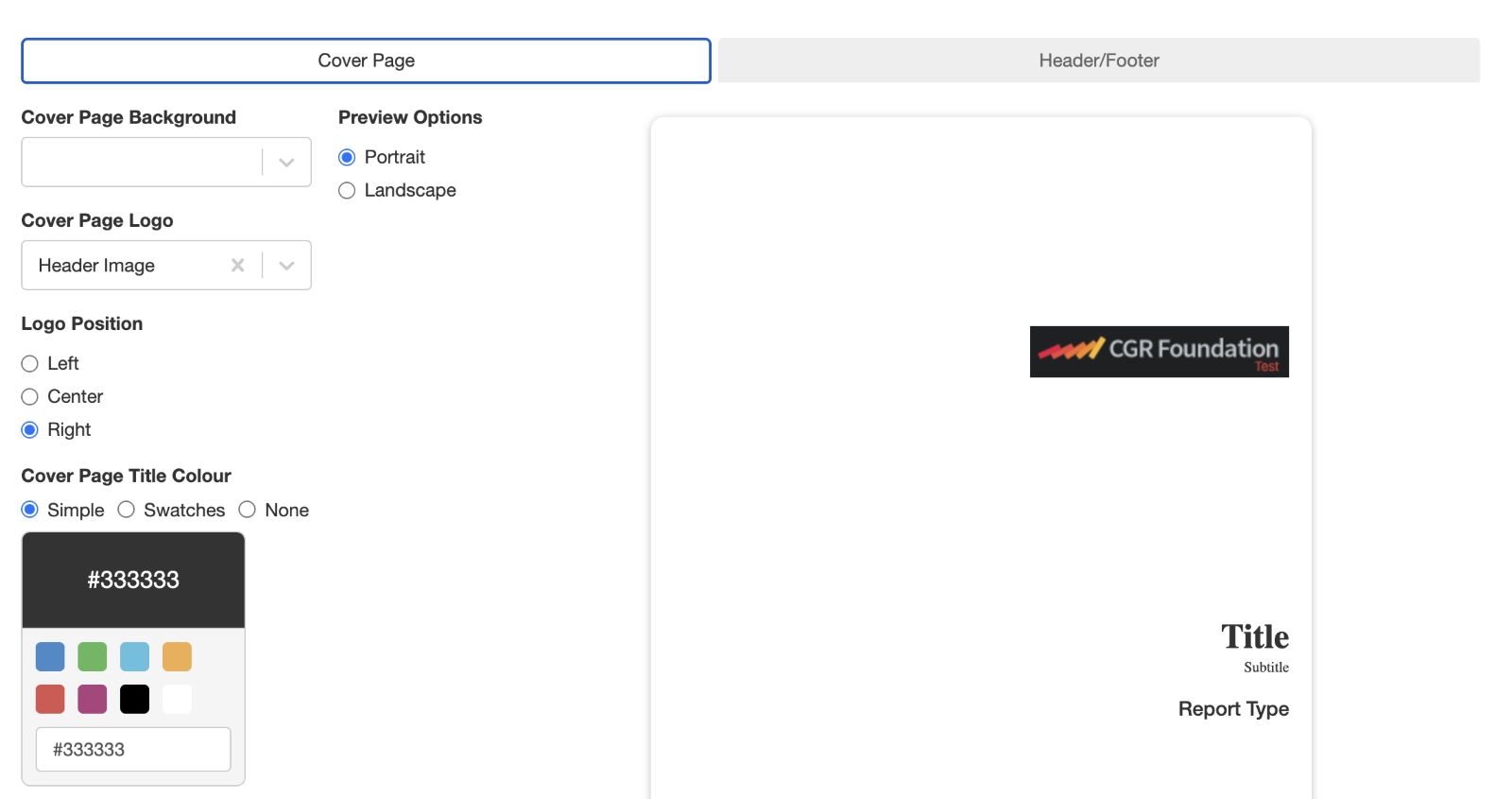
The Cover Page tab showing layout and colour configuration options.
Cover Page fields:
| Field | Description |
| Cover Page Background | Select an image from the dropdown to use as the cover page background. Images are managed in the Images section. Learn more. |
| Cover Page Logo | Select an image from the dropdown to use as the cover page logo. Images are managed in the Images section. Learn more. |
| Preview Options | Toggle the cover page preview between portrait and landscape format. |
| Logo Position | Set the horizontal placement of the logo on the cover page: left, centre, or right. |
| Cover Page Title Colour | Choose the title text colour by selecting from the suggested colours, available swatches, or by entering a colour code. |
| Cover Page Disclaimer and Confidentiality Text Colour | Choose the disclaimer and confidentiality text colour by selecting from the suggested colours, available swatches, or by entering a colour code. |
| Cover Page Background Colour | Choose the cover page background colour by selecting from the suggested colours, available swatches, or by entering a colour code. |
- Click the Header/Footer tab to configure the page header and footer. Use the field descriptions in the table below as a guide.
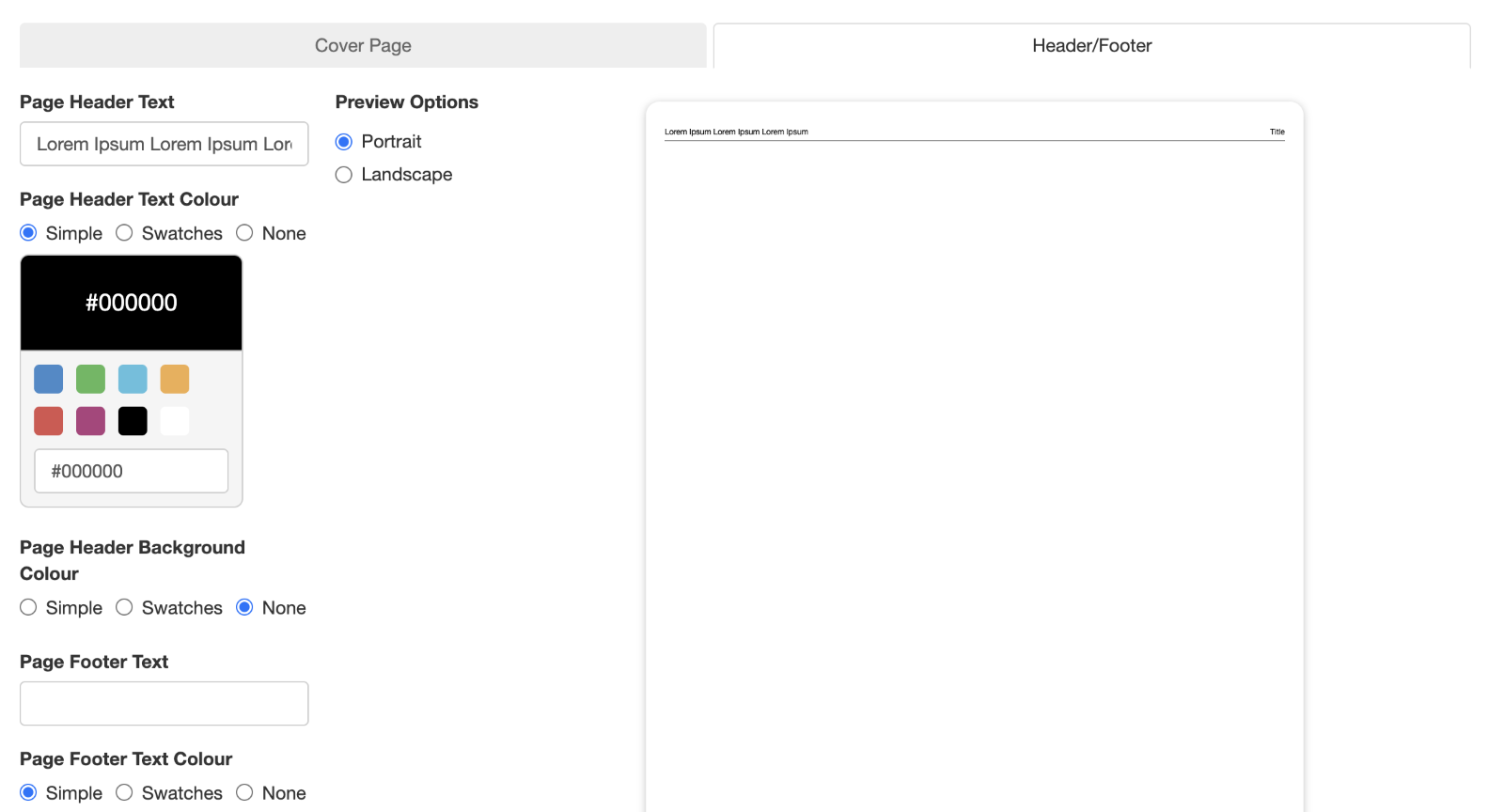
The Header/Footer tab showing text and colour configuration options.
Header/Footer fields:
| Field | Description |
| Page Header Text | Enter the text to display in the page header. |
| Preview Options | Toggle the header/footer preview between portrait and landscape format. |
| Page Header Text Colour | Choose the header text colour by selecting from the suggested colours, available swatches, or by entering a colour code. |
| Page Header Background Colour | Choose the header background colour by selecting from the suggested colours, available swatches, or by entering a colour code. |
| Page Footer Text Colour | Choose the footer text colour by selecting from the suggested colours, available swatches, or by entering a colour code. |
| Page Footer Background Colour | Choose the footer background colour by selecting from the suggested colours, available swatches, or by entering a colour code. |
- Click Save to create the theme. It will now be available to select when applying themes to dashboard templates or other exports.
5. Common Issues & Troubleshooting
| Issue | Likely Cause | Solution |
| The theme is not applying to a particular export | The Apply to scope does not include the register, module, or custom type being exported, or another theme with higher priority is overriding it | Check the Apply to settings on the theme. If a custom type theme is active, it will override module and register themes. Review all themes in Admin > Report Themes to check for conflicts. |
| No images are available in the Cover Page Background or Logo dropdowns | No images have been uploaded in the Images section | Navigate to Admin > Images and upload the images you want to use before creating or editing the theme. See Managing Images for steps. |
| The theme does not appear in the selection dropdown when applying it to a dashboard template | The theme may not have been saved, or a page refresh is needed | Confirm the theme was saved in Admin > Report Themes. Refresh the page and try again. |
Best practices:
- Give each theme a clear, descriptive title that reflects its scope, for example "Risk Register Cover Theme" rather than a generic name, so it is easy to identify when applying themes across the platform.
- Upload all required images in the Images section before creating a theme, so the cover page background and logo dropdowns are ready to use.
- Use the portrait/landscape preview to check how the cover page and header/footer will look before saving, particularly when using background images.
- Be mindful of the priority order (custom types override modules, modules override registers) when applying multiple themes across the same area of the platform, to avoid unexpected results in exports.
Click a title to preview it here. Use the Open full article button to read the full version in a new tab.
▾Administration - Configuration Open full article »
Related section
Browse the Administration and Configuration articles covering how to set up and manage the admin area settings of the Clew Platform.
▾Creating Custom Filters As A System Administrator Open full article »
Related article
How system administrators create and configure filters to narrow down datasets across the platform, including in dashboard widgets and data grid views.
Was this article helpful?
That’s Great!
Thank you for your feedback
Sorry! We couldn't be helpful
Thank you for your feedback
Feedback sent
We appreciate your effort and will try to fix the article