Create an Audit
How to create and run an audit against your records, and where the results appear
Contents
- 1. Introduction & Context
- 2. Key Features & Functions
- 3. Requirements
- 4. Step-by-Step Guide
- 5. FAQs & Troubleshooting
- 6. Related Articles
1. Introduction & Context
An audit lets you check your records against a defined set of criteria and capture the outcome. Audits are built from an audit template, which sets which existing records the audit runs against and what your team fills in while auditing. When a template uses audit result columns, the result flows back onto the items being audited, so assurance outcomes stay visible on the source records.
2. Key Features & Functions
What can be audited
The records an audit runs against are set by its audit template. An administrator configures the template to audit against specific existing records, so what you can audit depends on how your templates are set up. See Audit Templates in Related Articles.
Where the results appear
When the audit template uses audit result columns, the result of the audit appears on the items being audited, keeping the outcome visible on the source record as well as in the audit. Within the audit itself, each item's result rolls up into a compliance summary per section and an Overall Compliance figure across the whole audit.
3. Requirements
What you can do with audits depends on your access level to the items: Create, Read, Update, Delete, Mass, and Share. Audit templates are configured by Clew administrators, so the templates available to you are set up for your site.
4. Step-by-Step Guide
Creating an audit
- Open Audit & Inspections from the Modules menu, and select the register from the register filters at the top.
- Click Add and choose the type of audit to create, for example Standard Assessment or Risk Control Audit.
- Complete the form: the lead auditor, the auditee and any additional auditees, the register and location, the due date, and the audit type.
- Save the audit. It starts as Draft.
- Move the audit to In Progress / Fieldwork and assess each item against the compliance scale: Compliant, Partially Compliant, Not Compliant, N/A, or Awaiting Assessment.
- When the fieldwork is done, click Fieldwork Complete to progress the audit.
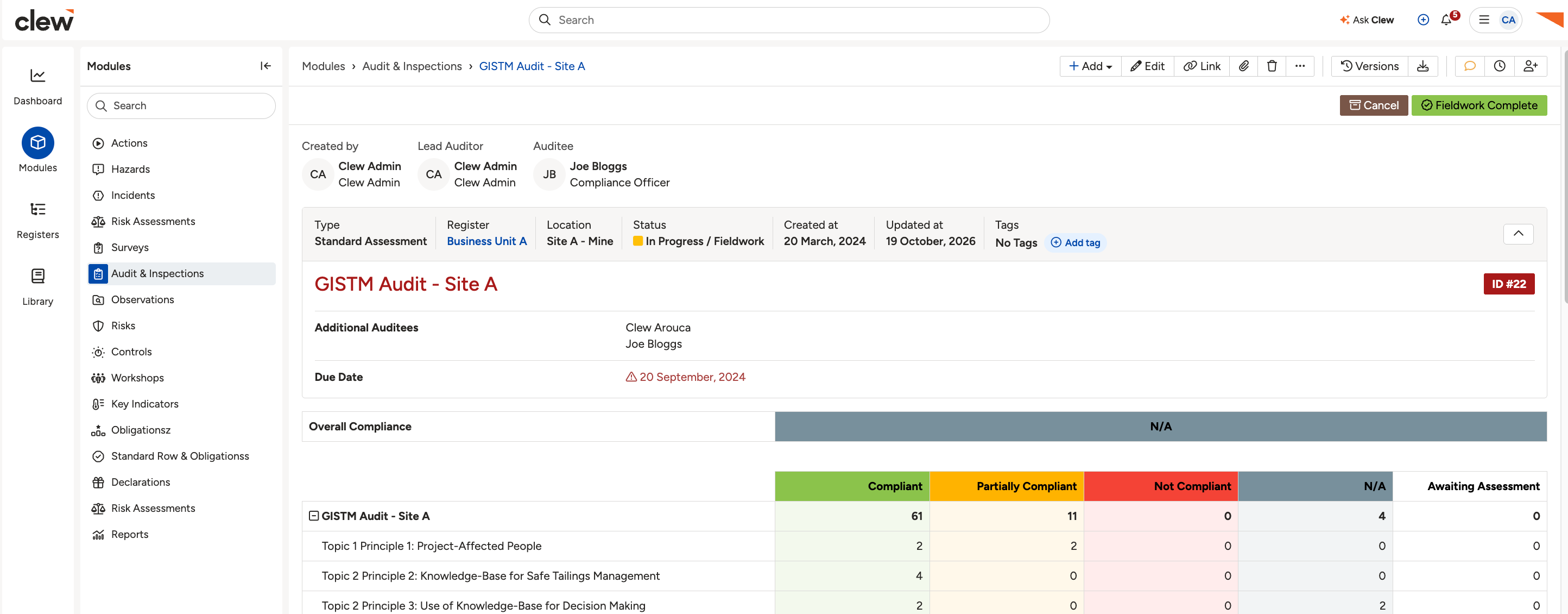
Creating an audit.
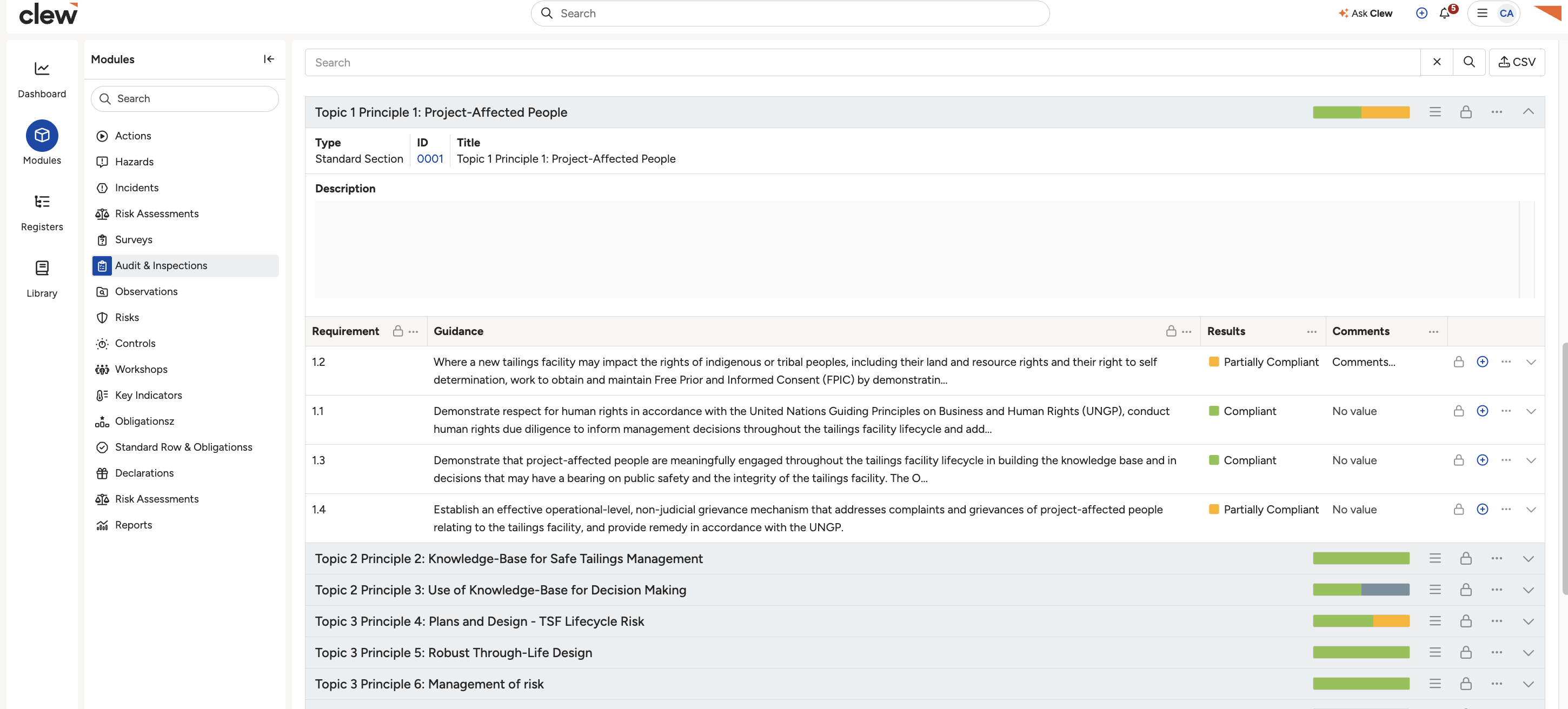
An audit record showing the compliance results by section.
Editing an audit
Open the audit and click Edit in the toolbar at the top right of the record to change its details.
Viewing the audit history
An audit records its history in two places. The Activity Stream on the record lists changes such as status transitions, with who made each change and when. The Versions button in the toolbar shows the record's version history.
Grouping audit sections
Audit items are organised into sections, shown as grouped rows in the results table. Results roll up for each section and across the whole audit, with an Overall Compliance figure at the top. The section structure comes from the audit template, and you can expand or collapse each section to focus on the part you need.
5. FAQs & Troubleshooting
Can I give an external auditor access?
Yes. A system administrator can give an external auditor access by creating a user account for them, adding them to the appropriate Security Groups with the correct permissions, and, if needed, setting the account to auto-deactivate on a specific date. See Adding New Users for the steps.
Is the result automatically displayed on the main item?
Yes, when the audit template uses audit result columns. In that case the audit result appears on the item being audited, not just in the audit itself.
Click a title to preview it here. Use the Open full article button to read the full version in a new tab.
▾Audit Templates Open full article »
Related article
How administrators build the templates that decide what an audit runs against and what is filled in.
▾Core Fields: Audit Open full article »
Related article
The fields available on an audit record and what each one is for.
▾Can I give an external auditor access to Clew? Open full article »
Related article
How a system administrator sets up access for an external auditor.
Was this article helpful?
That’s Great!
Thank you for your feedback
Sorry! We couldn't be helpful
Thank you for your feedback
Feedback sent
We appreciate your effort and will try to fix the article