Import Your Data into the Audit Template
How to populate an audit template with your own data using the CSV importer
Contents
- 1. Introduction & Context
- 2. Key Features & Functions
- 3. Requirements
- 4. Step-by-Step Guide
- 5. Common Issues & Troubleshooting
- 6. Related Articles
1. Introduction & Context
If you have an audit and want to populate its audit template with your own data, you can use the CSV importer instead of entering every row by hand. Once your data has been uploaded, you can review it directly within the audit template.
Who is it for? Users working with the Audits module who have data prepared in a spreadsheet and want to bring it into an audit quickly. The one-off template setup in Step 1 is an administrator task.
What does it impact? The importer creates and updates data within your audit sections. It builds the rows for you from the CSV, so the audit is populated from your file rather than by hand.
2. Key Features & Functions
- Audit templates: a reusable audit structure that works like a replica of your spreadsheet, so your import lines up with the columns you already use.
- Flexible column types: build a template from a range of column types (date, lookup, number, text, and more) so it closely matches your existing spreadsheet.
- Export a template file: download the template as a CSV in the expected structure, ready for you to populate with your own data.
- Import into audit sections: upload the populated CSV to create and update the data in your audit sections in one step.
3. Requirements
Before you start, make sure you have:
- The Audits module enabled.
- An audit template available. If you do not have one yet, follow Step 1 below to create one. The template setup is an administrator task.
- Your data saved in CSV UTF-8 format. Other formats will not import correctly.
4. Step-by-Step Guide
Step 1: Set up an audit template (Admin)
This is a one-off setup step. If an audit template already exists, skip to Step 2.
- Go to Admin > Clone Templates.
- Create a workflow status called Template. This allows an audit to be used as a pre-existing audit template. On the clone template, set Purpose to Templating and the Status Filter to Template.
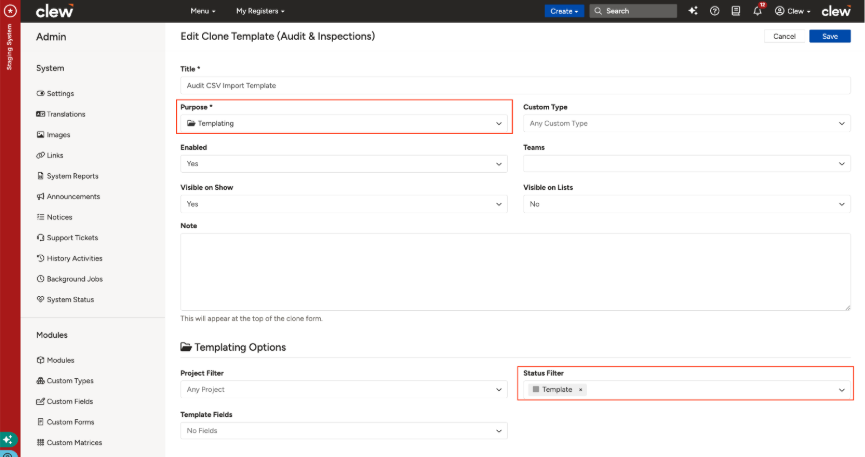
The clone template set to Templating, filtered to the Template status.
- Save your changes, then add a clone relation called Audit Sections.
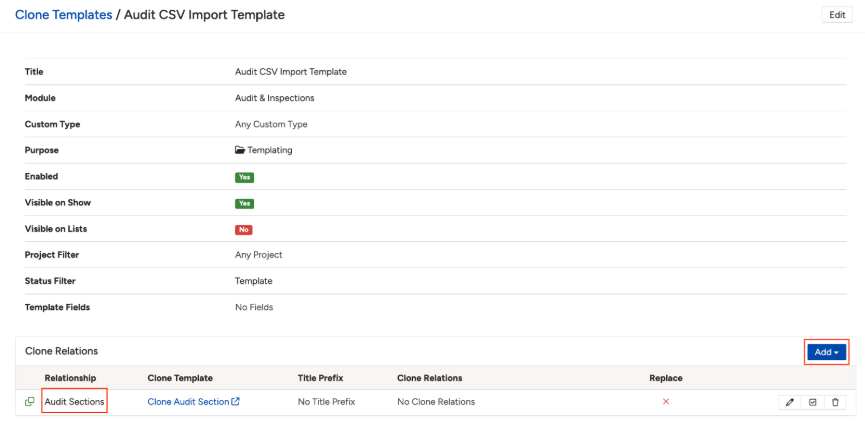
Adding the Audit Sections clone relation.
Step 2: Build your template
- Create an audit where you want to prepare your audit template. This is what pulls in the audit columns, and works like a replica of your spreadsheet.
- Add a section and give it a title.
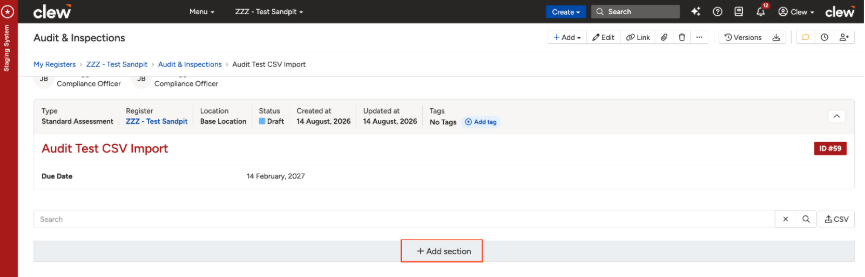
Adding a section to the audit template.
- Add as many columns as you need, choosing from the available column types (see the table below).
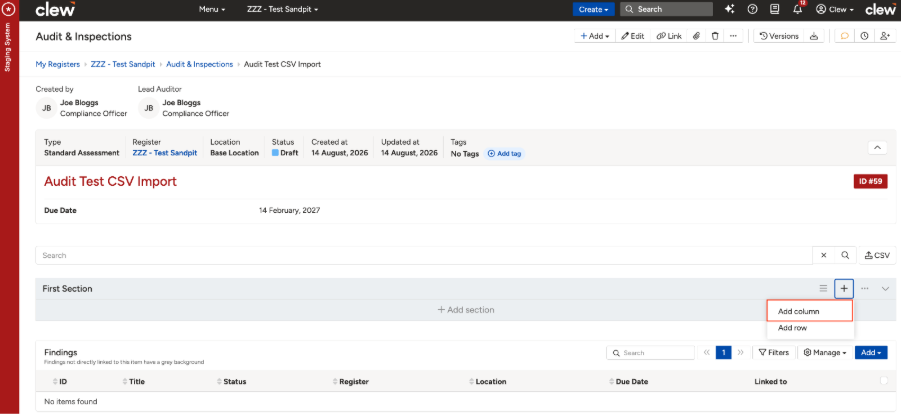
Adding columns to a section.
Templates support the following column types, so a template can closely match the structure of your existing spreadsheet:
| Column Type | Description |
| Date | A date in a valid format. |
| Item Lookup | A lookup that pulls from available system fields, for example a register. |
| Link | A URL in a valid format. |
| Lookup | A custom field lookup from the system. The values in your CSV need to exactly match these options. |
| Number | A number field. Its value must not exceed 2,147,483,647. |
| Role | Roles listed in the system. |
| Text | Any text within a 254 character limit, including whitespace. |
| Textarea | Any text within a 20,000 character limit, including whitespace. |
| User | Users listed in the system. |
| Yes/No | Yes and No are the only valid options. |
Step 3: Export and populate the template
- Once you are satisfied with your template, download it as a CSV.
- Populate the downloaded CSV with your own data.
- Move the audit into the Template status.
Step 4: Create your audit and import your data
- Create an audit by clicking Add, then select the relevant audit type if more than one is available.
- In the top right corner, select the audit template you want to use.
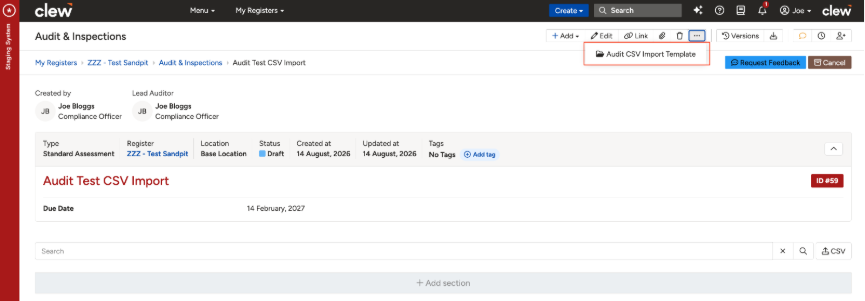
Selecting the audit template on a new audit.
- Click the CSV button on the audit and select the file you want to import. You can use Export Template in this dialog to download the expected structure, and set the Modebefore importing.
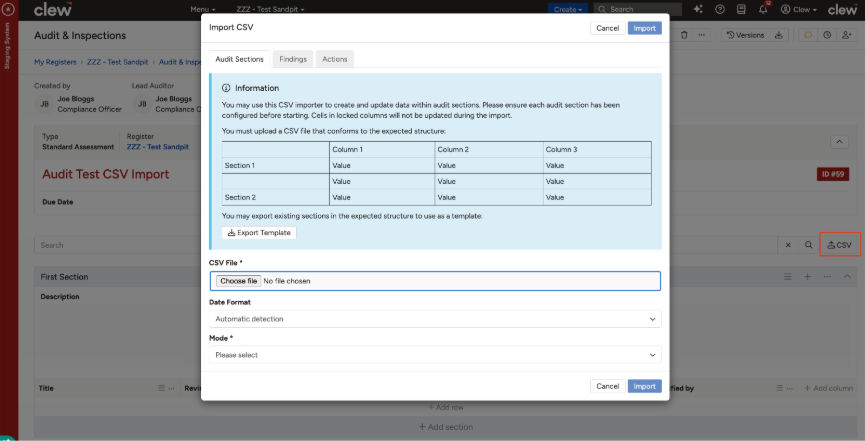
The Import CSV dialog on the audit.
5. Common Issues & Troubleshooting
| Issue | Likely Cause | Solution |
| The file will not import | The file is not saved in CSV UTF-8 format | Re-save the file as CSV UTF-8 and upload it again. Other formats will not import correctly. |
| Lookup values are not accepted | The values in your CSV do not exactly match the lookup options in the system | Make sure lookup values in your file match the system options exactly, including spelling and case. |
| A number will not import | The value exceeds the number field limit | Keep number values at or below 2,147,483,647. |
| The template is not available when creating an audit | The audit is not in the Template status, or the clone template setup is incomplete | Confirm the audit is in the Template status, and that the clone template has Purpose set to Templating with the Audit Sections clone relation added. |
Best practices:
- Export the template first and populate that exact file, so your columns line up with the expected structure.
- Match the column types to your spreadsheet when building the template, so values import cleanly.
- Always save as CSV UTF-8 before uploading.
- Review the imported rows within the audit template to confirm everything came across as expected.
Click a title to preview it here. Use the Open full article button to read the full version in a new tab.
▾CSV Imports Open full article »
Related article
How CSV imports work across the Platform for creating records in a module.
▾Clone Templates Open full article »
Related article
For administrators: how to create and configure the clone templates used to set up an audit template.
Was this article helpful?
That’s Great!
Thank you for your feedback
Sorry! We couldn't be helpful
Thank you for your feedback
Feedback sent
We appreciate your effort and will try to fix the article