Understanding Control Contexts
How controls appear on a record, the difference between a local control and a shared library control, and how to add actions to a control
Contents
- 1. Introduction & Context
- 2. Key Features & Functions
- 3. Requirements
- 4. Step-by-Step Guide
- 5. Common Issues & Troubleshooting
- 6. Related Articles
1. Introduction & Context
A control on a record, such as a risk, records how that risk is managed. The same control can appear on more than one record, so it helps to know whether you are working with a control that belongs only to this record or one that is shared across the whole organisation.
Who is it for? Risk and control owners who add and maintain controls on their records, and administrators who look after the shared control library.
What does it impact? A local control belongs to a single record. A library control is shared across the organisation and reused on other records, so editing it can change it everywhere unless you choose to create a copy. Controls can also have their own actions, which sit underneath the control.
2. Key Features & Functions
- Controls section on a record: shows the controls for that record, split into Critical and Non Critical, with filters to show or hide controls by status.
- Local control: a control that belongs only to the record you are on.
- Library control: a control shared across the organisation and reused on other records.
- Shared-control prompt: when you edit a shared control, you choose to update it everywhere or create a new copy for this record only.
- Control detail: capture whether it is a Critical Control, whether it is Implemented or Failed, the Owner, Performance Expectations, a Control Category, and a Control Effectiveness rating.
- Actions on a control: add an action directly to a control; it appears nested underneath as a child item.
3. Requirements
- Access to the record and its Controls section.
- Permission to add or edit controls, and to add actions to them.
- An understanding that a library control is shared across the organisation, so editing it can affect other records.
4. Step-by-Step Guide
Viewing controls on a record
- Open the record, for example a risk, and scroll to the Controls section.
- Read the Critical and Non Critical tiles to see how many of each the record has.
- Use the Show filters (for example Show Critical, Show Implemented, Show Unlinked, Show Linked) to focus the list.
- Each row shows the control's status, ID, title, register, owner, and due date.
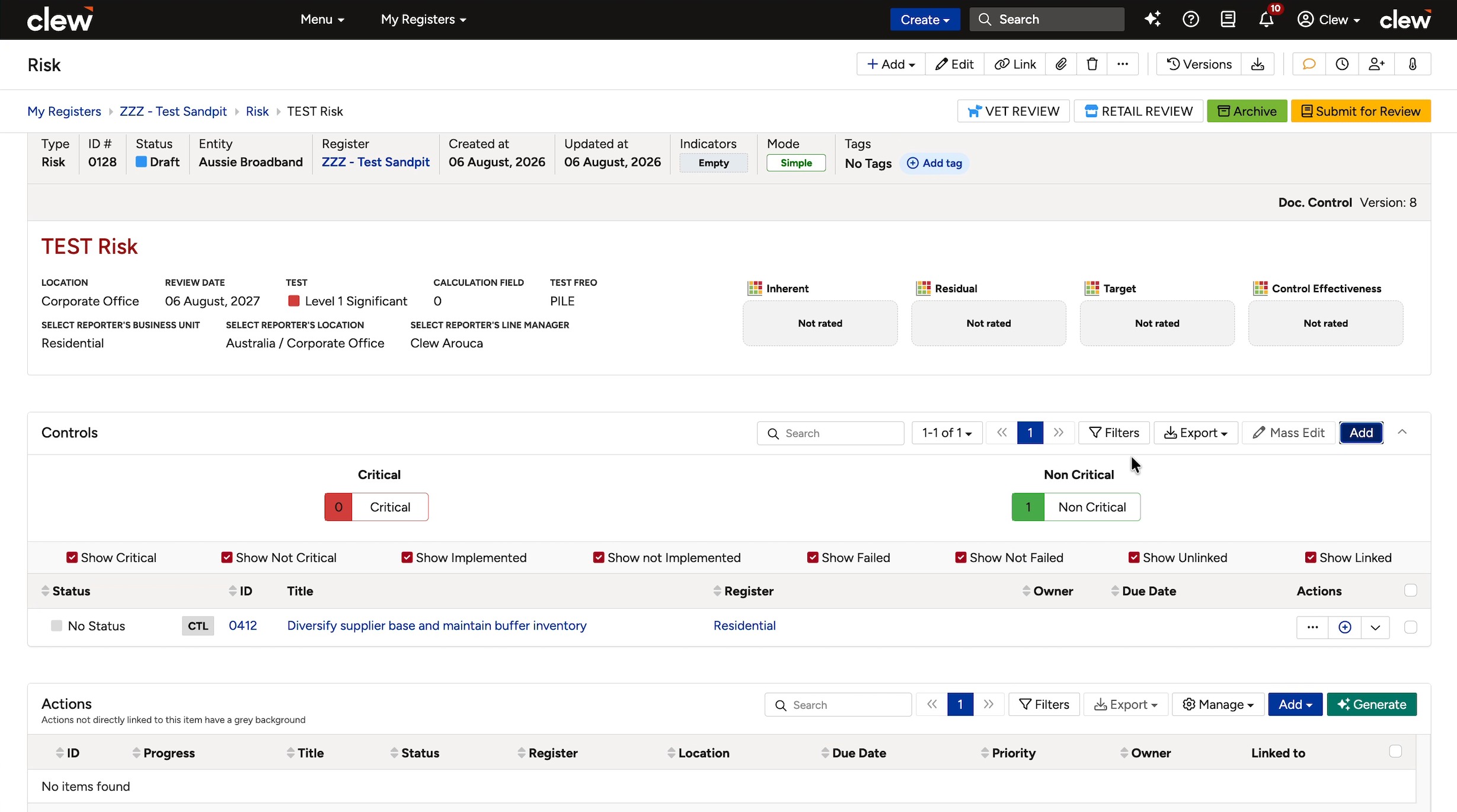
The Controls section on a risk, with the Critical and Non Critical tiles, the Show filters, and a control row.
Adding a control
- In the Controls section, click Add.
- To reuse an existing shared control, choose one from Library Control.
- To create one that belongs to this record, use Create new Local Control: enter a Title, tick Critical Control?, Implemented?, or Failed? as needed, and set the Owner and Performance Expectations.
- Choose a Control Category and a Control Effectiveness rating.
- Click Save.
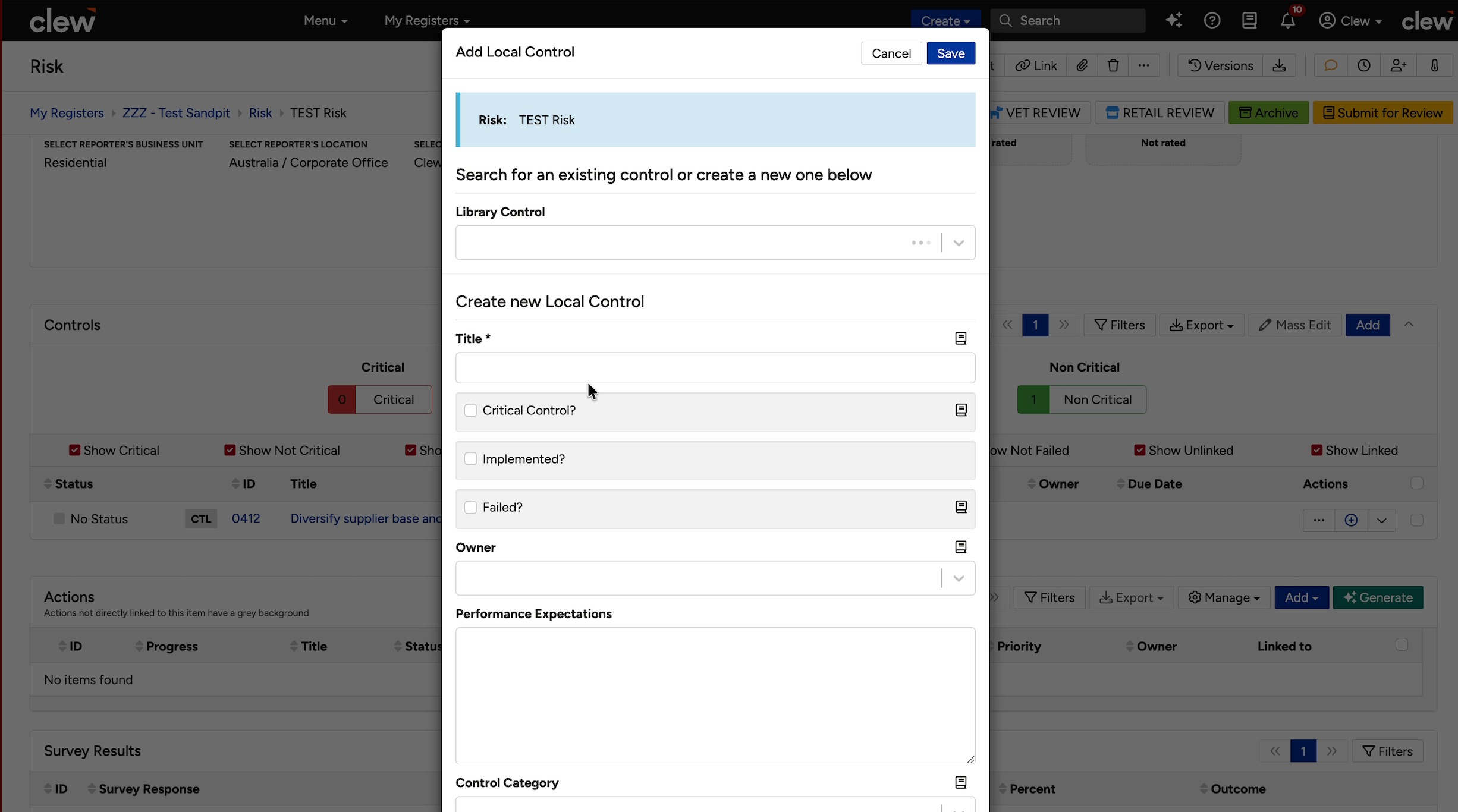
The Add Local Control panel, with Library Control and the Create new Local Control fields.
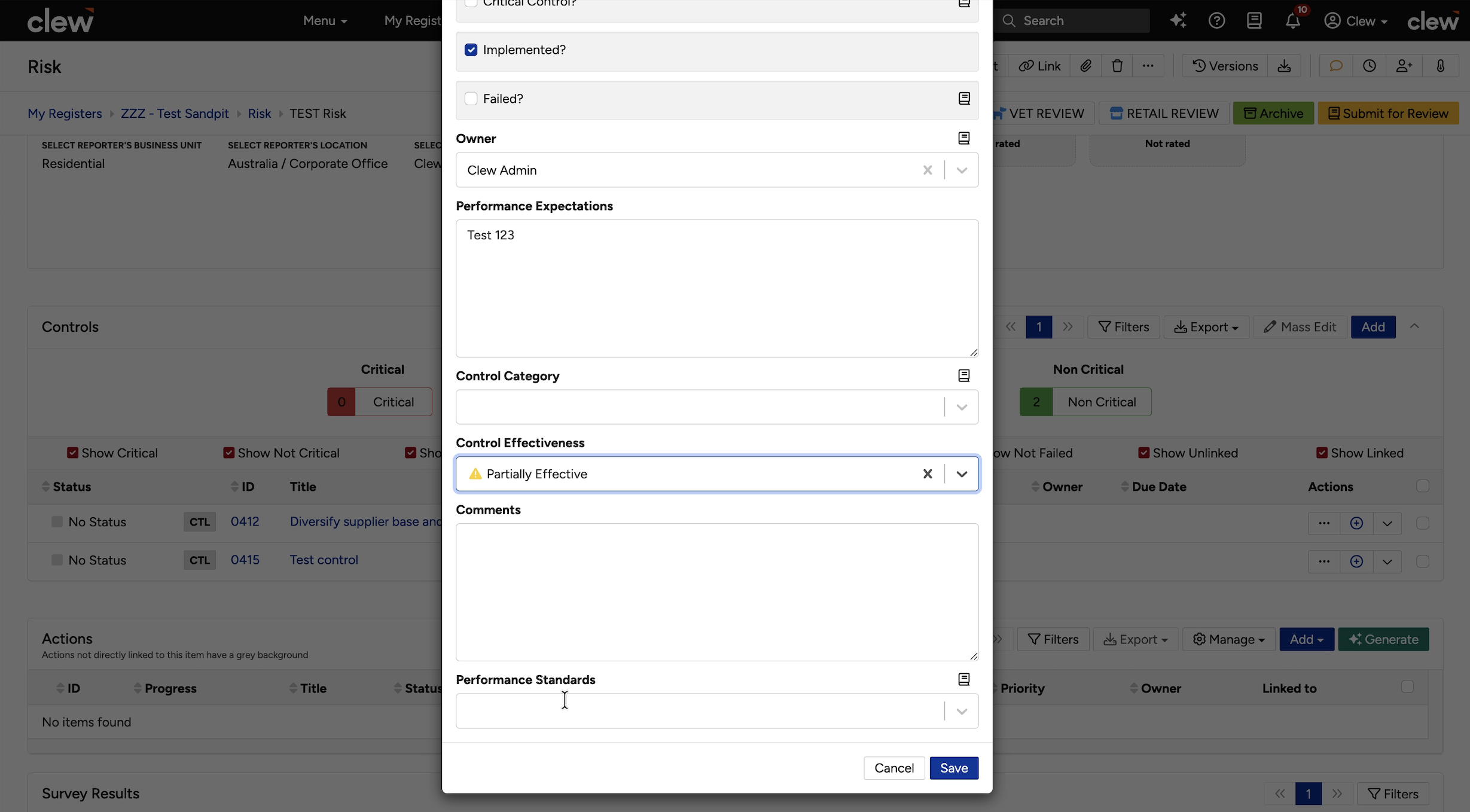
The Control Category and Control Effectiveness fields on the control.
If you edit a control that is shared across the organisation, Clew asks how the change should apply.
- Open the control and make your change.
- When the message This control is shared across the entire organisation appears, decide how to save it.
- Leave Create a new copy unticked to update the control everywhere it is used.
- Tick Create a new copy to make a separate copy for this record only, leaving the shared control unchanged.
- Save.
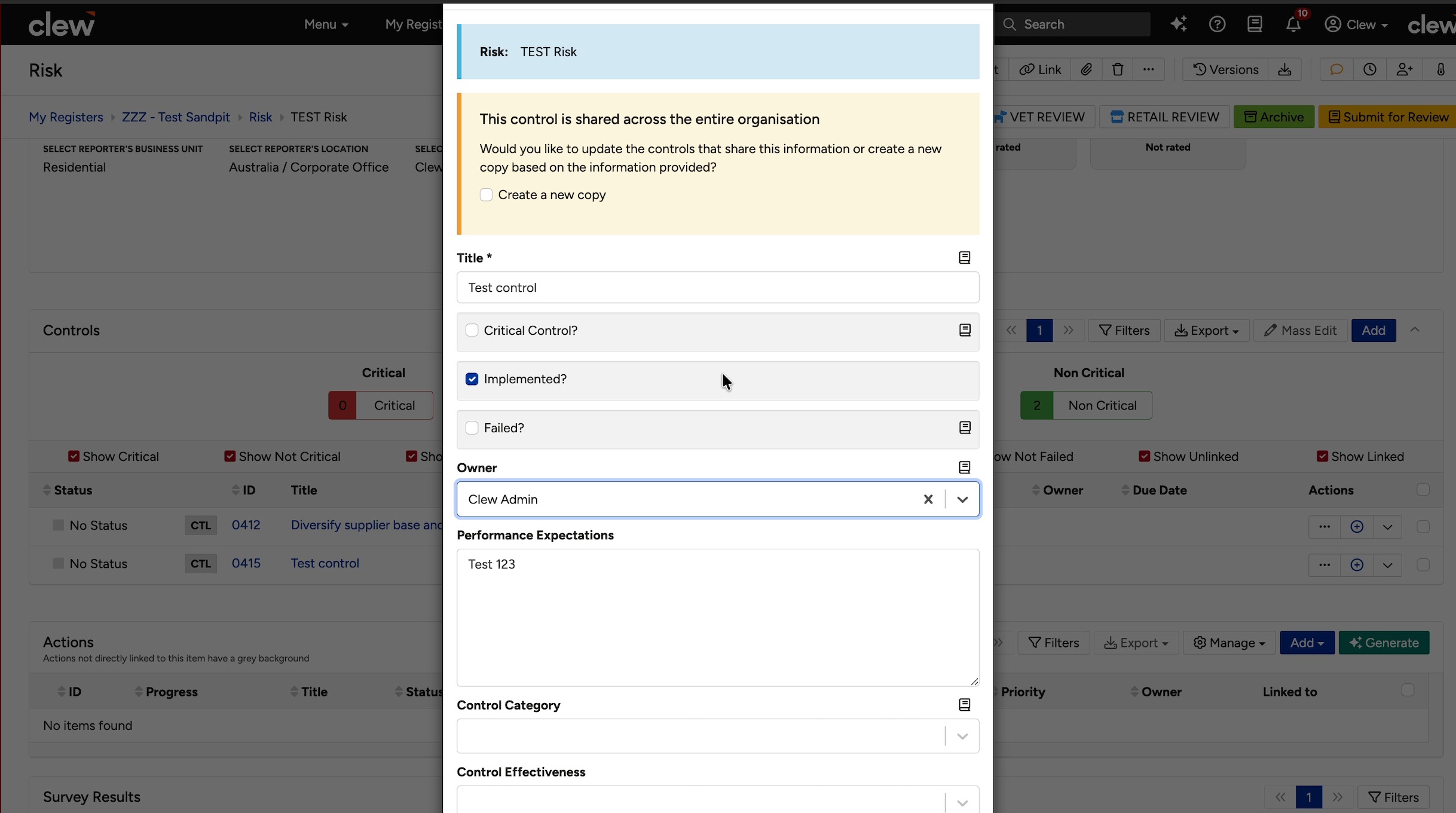
The shared-control prompt, offering to update everywhere or create a new copy.
Adding an action to a control
A control can have its own actions, which sit underneath it as child items.
- On the control's row, use the add-action button (the plus icon) in the Actions column.
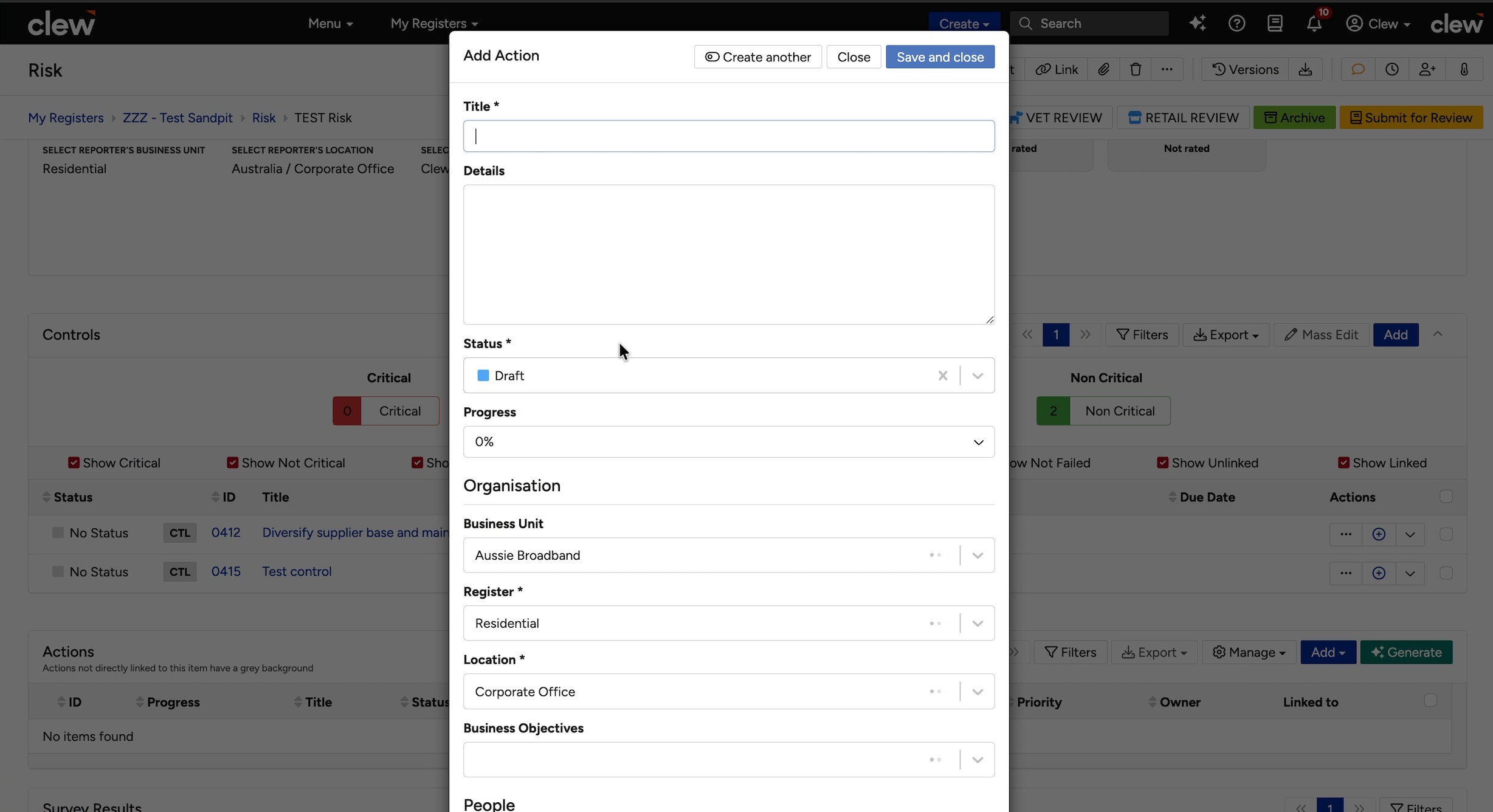
- Complete the action form (Title, Status, Progress, Owner, Due Date, and so on) in the same way as any other action.
- Click Save. A confirmation banner appears.
- Expand the control row to see the action listed underneath, under Actions with a count.
A control row showing the add-action and expand buttons in the Actions column.
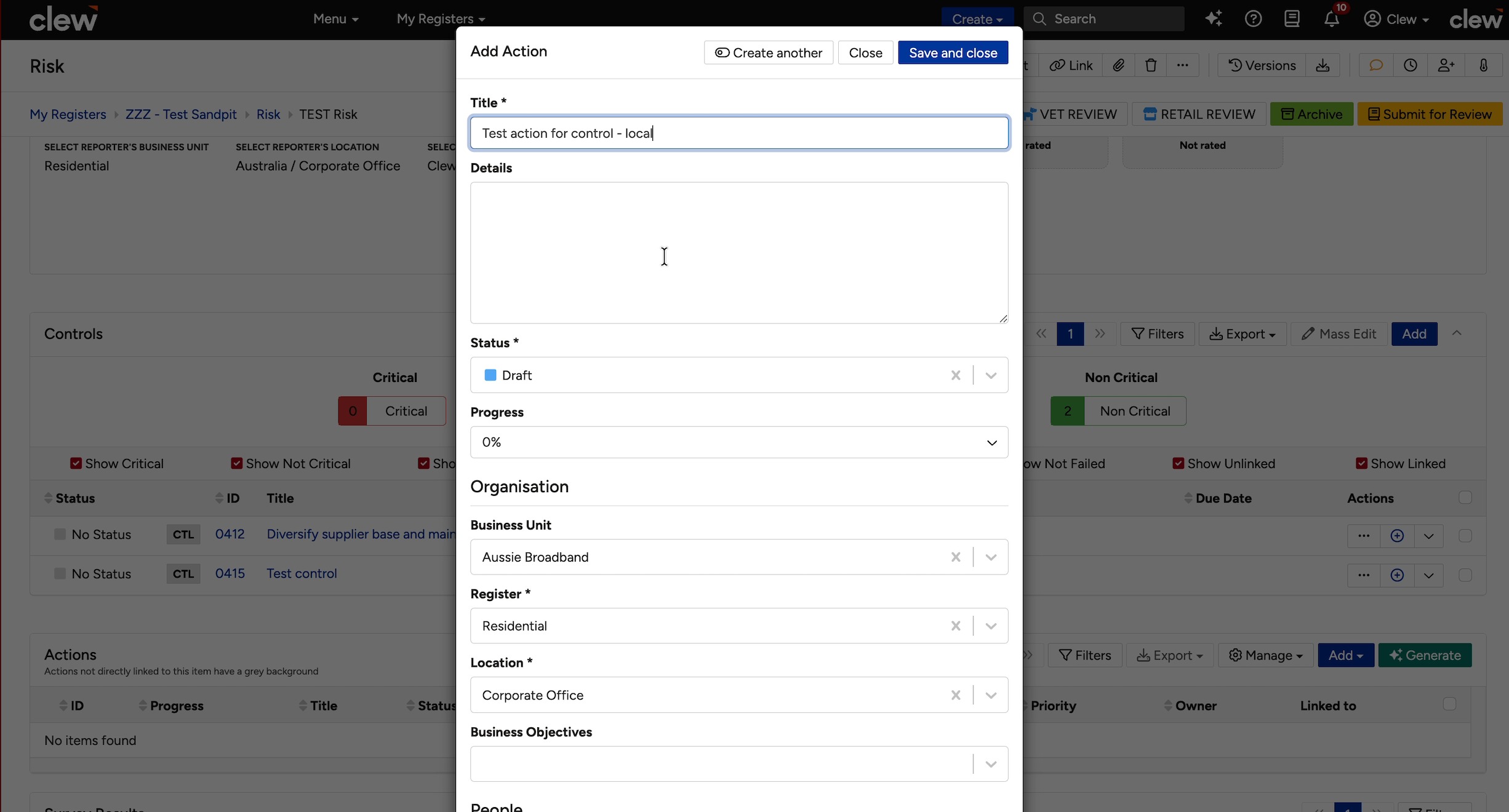
The action form opened from a control.
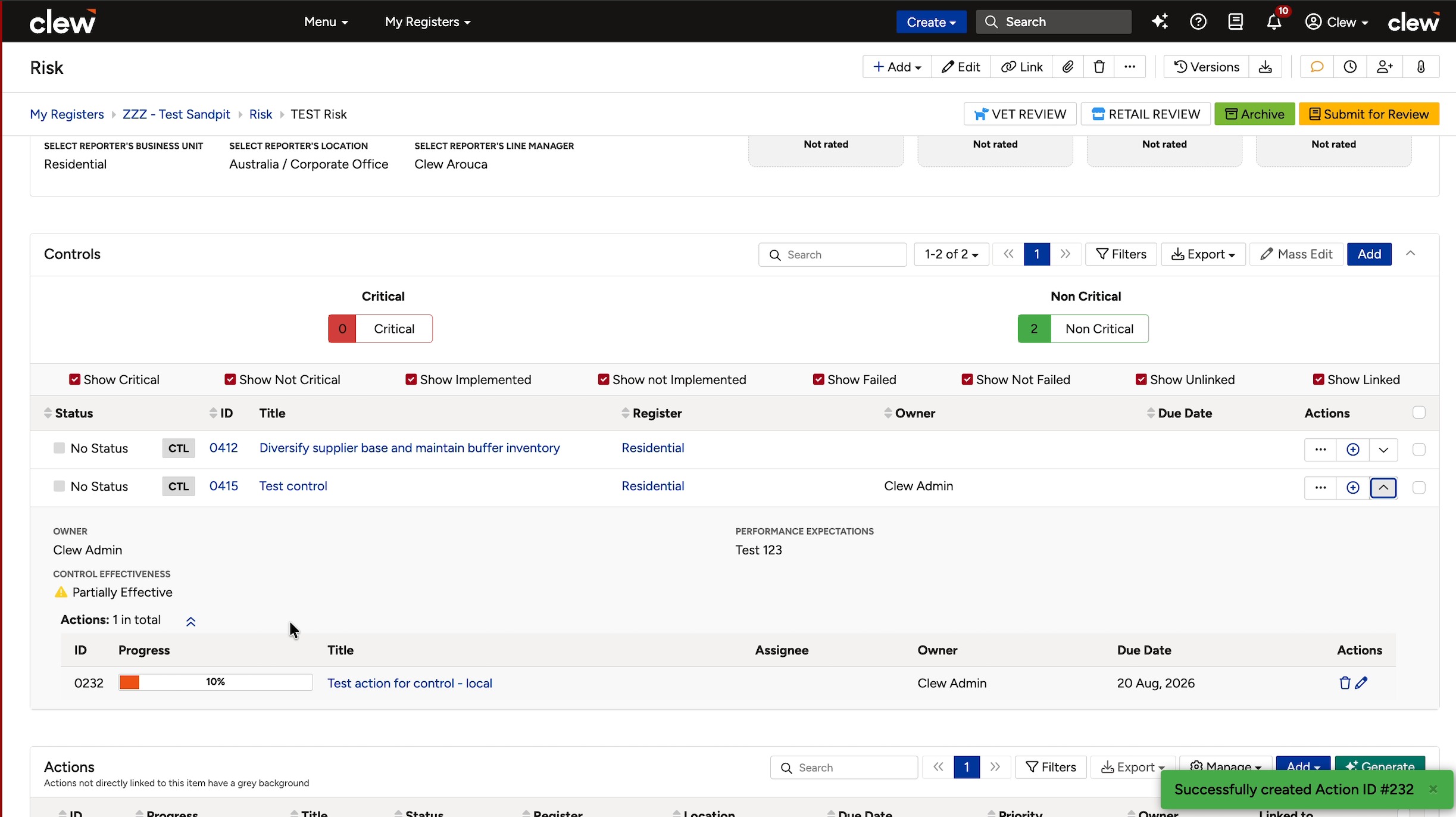
The control expanded, showing its action nested underneath.
5. Common Issues & Troubleshooting
| Issue | Likely Cause | Solution |
| Editing a control changed it on other records | The control is a shared library control, so the edit applied everywhere. | When you want the change to stay on this record only, tick Create a new copy in the shared-control prompt. |
| A control is missing from the list | A Show filter is hiding it, for example Show Not Critical or Show Unlinked is switched off. | Turn the relevant Show filters back on to reveal the control. |
| An action I added is not visible | Actions on a control are nested under the control, not in the record's main Actions list. | Expand the control row to see its actions underneath. |
| I cannot add or edit a control | You may not have permission on this record's controls. | Ask your administrator to confirm your permissions. |
Best practices:
- Before editing a shared control, decide whether the change should apply everywhere or only here, then use Create a new copy accordingly.
- Search the Library Control list before creating a new local control, to avoid duplicates.
- Set a Control Category and Control Effectiveness on every control so reporting stays consistent.
Was this article helpful?
That’s Great!
Thank you for your feedback
Sorry! We couldn't be helpful
Thank you for your feedback
Feedback sent
We appreciate your effort and will try to fix the article