Quick Filters
Show or hide controls at a glance using the quick filter toggles on a record's sub-panels
Contents
- 1. Introduction & Context
- 2. Key Features & Functions
- 3. Requirements
- 4. Step-by-Step Guide
- 5. Common Issues & Troubleshooting
- 6. Related Articles
1. Introduction & Context
Quick Filters are the checkbox toggles that sit directly above the Controls table inside a record, and below the Causes and Consequences sub-panel headers. They let you narrow what the table shows at a glance, without opening the full Filters panel. Each toggle shows or hides one category of controls, and the toggles combine, so you can focus on exactly the controls you care about.
2. Key Features & Functions
On the Controls sub-panel, the quick filters are:
- Show Critical and Show Not Critical, by whether the control is critical.
- Show Implemented and Show not Implemented, by implementation status.
- Show Unlinked and Show Linked, by whether the control is linked.
On the Causes and Consequences sub-panels, a subset applies to their preventing and mitigating controls: Show Critical, Show Not Critical, Show Implemented, and Show not Implemented.
3. Requirements
Quick Filters appear on a record's sub-panels wherever controls are shown, so no setup is needed to use them. What controls you can see still depends on your access to the records.
Quick Filters are switched on by default. They can be turned off for an entire module, but this is a Clew-managed setting that only Clew can change, so they may not appear on every module.
4. Step-by-Step Guide
Using Quick Filters
- Open a record and go to the Controls sub-panel, or the Causes or Consequences sub-panel.
- Above the table, tick or untick the quick filter toggles to show or hide each category.
- The table updates straight away to show only the controls that match the ticked toggles.
- To widen the list again, re-tick the toggles. Ticking all of them shows everything.
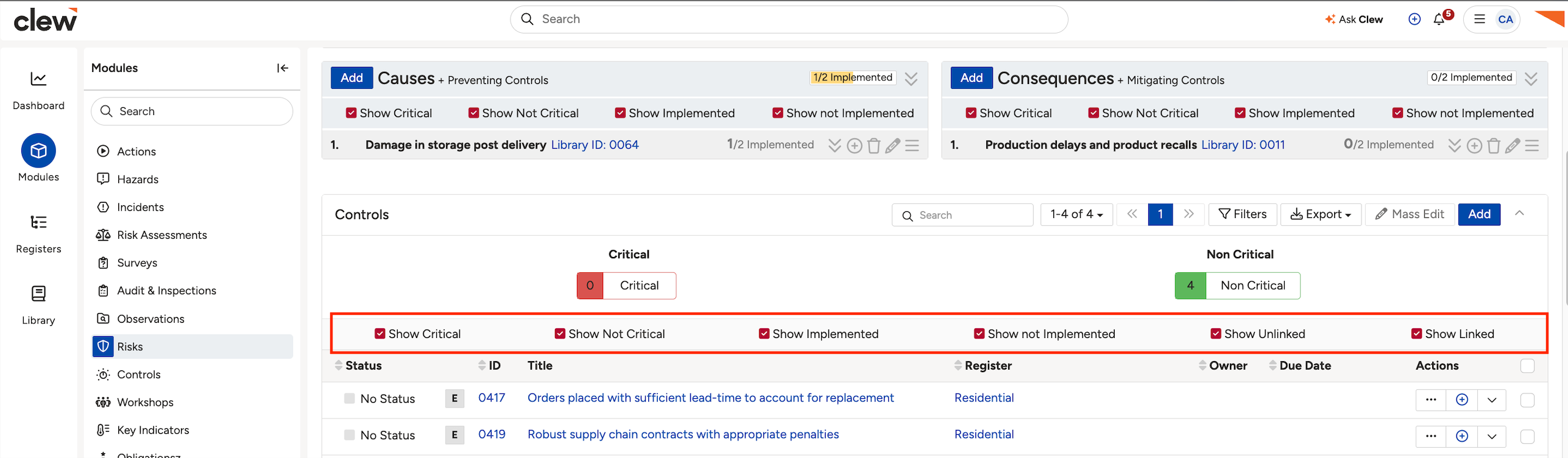
The quick filter toggles above the Controls table.
5. Common Issues & Troubleshooting
| Issue | Likely cause | Solution |
| The table shows "No items found". | Your quick filter combination excludes every control. | Re-tick the toggles, or tick all of them to show everything. |
| You cannot find the quick filters. | They sit above the Controls, Causes, or Consequences table inside a record, not on the main list. They may also have been turned off for this module. | Open a record and go to the relevant sub-panel. If they are still missing, they may be switched off for the module, which only Clew can change, so contact Clew support to review it. |
Click a title to preview it here. Use the Open full article button to read the full version in a new tab.
▾Simple & Bowtie Risks Open full article »
Related article
How controls, causes, and consequences work on a risk, including critical and implemented controls.
▾List View & Datagrid Open full article »
Related article
How to filter and refine a full list of records, including the Advanced Filters panel.
▾What are Filters? Open full article »
Related article
The full filter options, for when the quick filters are not enough.
Was this article helpful?
That’s Great!
Thank you for your feedback
Sorry! We couldn't be helpful
Thank you for your feedback
Feedback sent
We appreciate your effort and will try to fix the article