How to Apply My Own Filters in a Widget
Narrow down what a widget shows you, save the filter, and reuse it later
Contents
- 1. Introduction & Context
- 2. Key Features & Functions
- 3. Requirements
- 4. Step-by-Step Guide
- 5. Common Issues & Troubleshooting
- 6. Related Articles
1. Introduction & Context
When viewing data through a widget, you can narrow down what it shows by applying a filter, for example by Status, Owner, or Register, without affecting what other users see. Widgets can carry a default filter set by your system administrator or a colleague, and you can also create and save your own filters for personal or shared use.
Who is it for? Any user viewing widgets on a dashboard. No administrator access is required to apply, build, or save your own filters.
What does it impact? Applying a filter customises your own view of a widget. It does not change what other users see, unless the filter is shared (see Sharing a Filter with Other Users in Related Articles) or the data is exported into a report.
2. Key Features & Functions
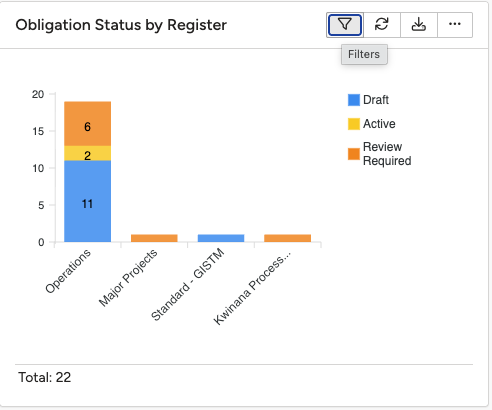
- Filter icon: every widget has a Filter icon in its top-right corner that opens its filter configuration window.
- Simple filters: build a single condition directly on the widget (field, operator, value) and save it with one click.
- Multi-condition filters: combine several conditions with AND logic when a single condition is not specific enough.
- Favourites: saved filters remain available under your Favourites, even after you clear them from view.
- Shared filters: a filter saved with Share with all users ticked is visible to everyone who can access that widget or dashboard.
- Default filters: a filter your system administrator or a colleague has applied when configuring the widget itself.
Example scenario: An "Obligation Status by Register" widget shows every obligation regardless of status. You filter it to Status is equal to Review Required, save it as "Review Required" so you can reapply it whenever you check the widget, and clear it afterwards without losing it.
3. Requirements
- No administrator access is needed to apply, build, or save your own filters.
- You need access to the widget or dashboard through your existing Security Groups. A filter can only narrow down data you already have access to; it cannot reveal data you cannot otherwise see.
- A multi-condition filter needs the correct Module selected before its fields become available to filter on.
- Only a system administrator can set a default filter that you cannot remove from a widget.
4. Step-by-Step Guide
Checking for Existing Filters
- On the widget (for example, "Obligation Status by Register"), click the Filter icon in the top-right corner. This opens the filter configuration window.
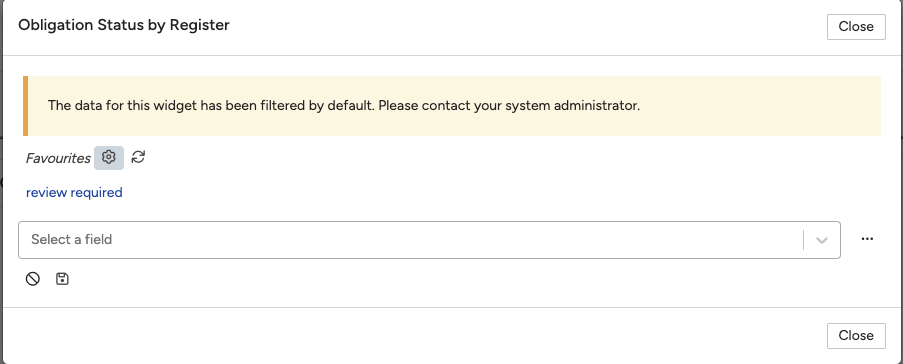
- Check for a message such as "The data for this widget has been filtered by default. Please contact your system administrator." This means a filter was applied when the widget was configured, for example, to only display obligations that have been assigned a status.
- Any shared filters appear under the configuration (Manage filters) icon. Click the star icon next to a filter to mark it as a favourite; it will then appear under Favourites. Click one to apply it.
Building and Saving a Simple Filter
- In the Select a field dropdown, start typing the field name (for example Status or Compliance Status) and select it.
- Choose an operator, such as is equal to, is not equal to, is any of, or is none of, then select one or more values. For example: Status → is equal to → Review Required.
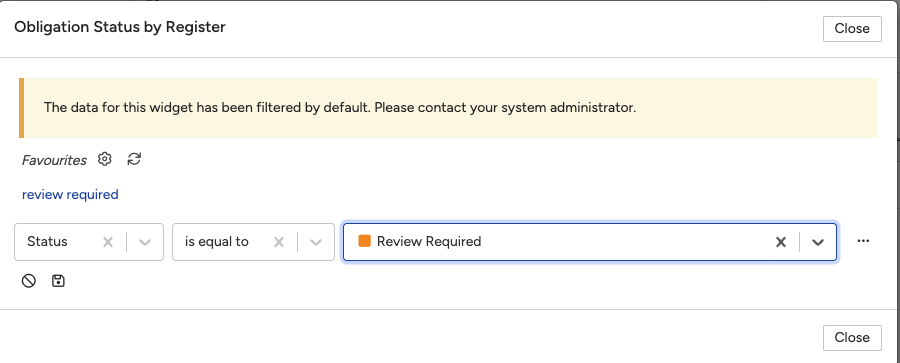
- Click the Save filter icon (the disk icon).
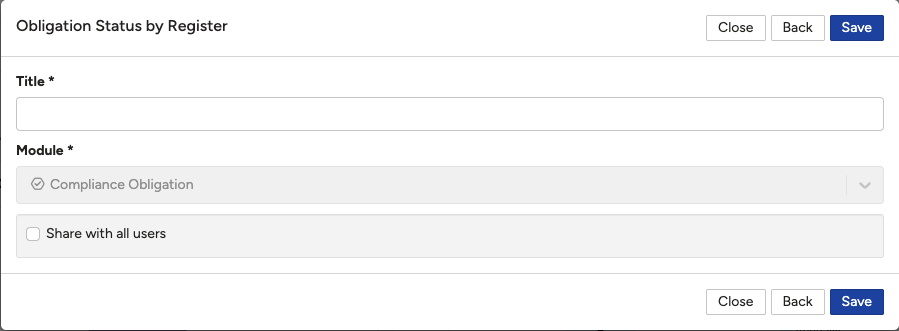
- In the Title field, enter a descriptive name, for example "Review required".
- Optionally tick Share with all users to make the filter available to others.
- Click Save, then Close.
Building a Filter with Multiple Conditions
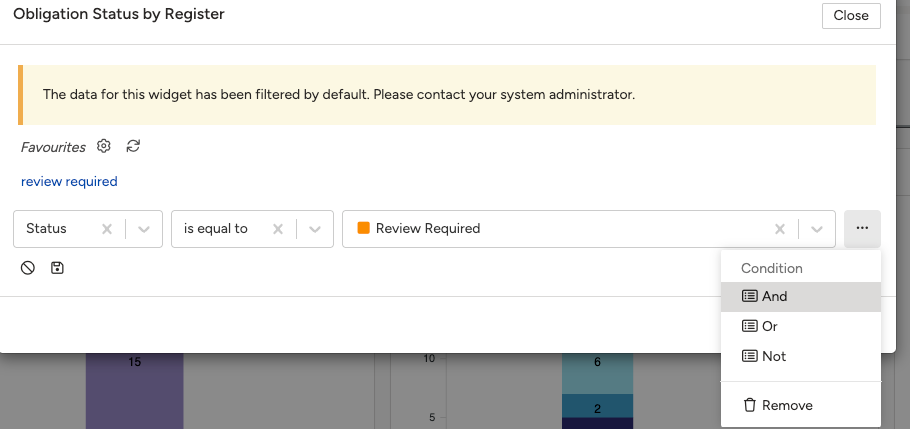
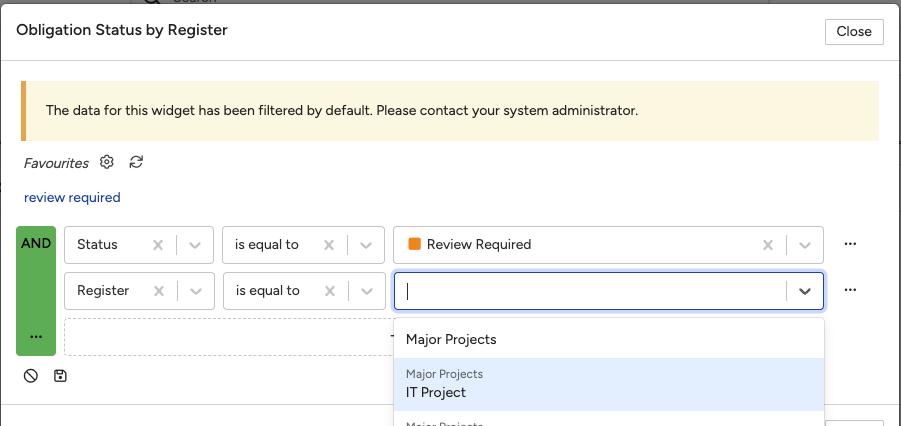
A simple filter on the widget only supports one condition at a time. When you need to combine several conditions, for example Status is equal to Review Required and Owner is equal to your own name, create the filter from My Filters instead.
- From the widget's configuration (Manage filters) icon, open My Filters and click Add.
- Enter a Title for the filter and select the Module it applies to, for example Action or Obligation. This determines which fields you can filter on.
- Build your first Condition: choose a field, an operator, and a value. Click + Add Condition to add further conditions, which are joined with AND.
- Optionally tick Share with all users.
- Click Save.
Viewing and Clearing a Filter
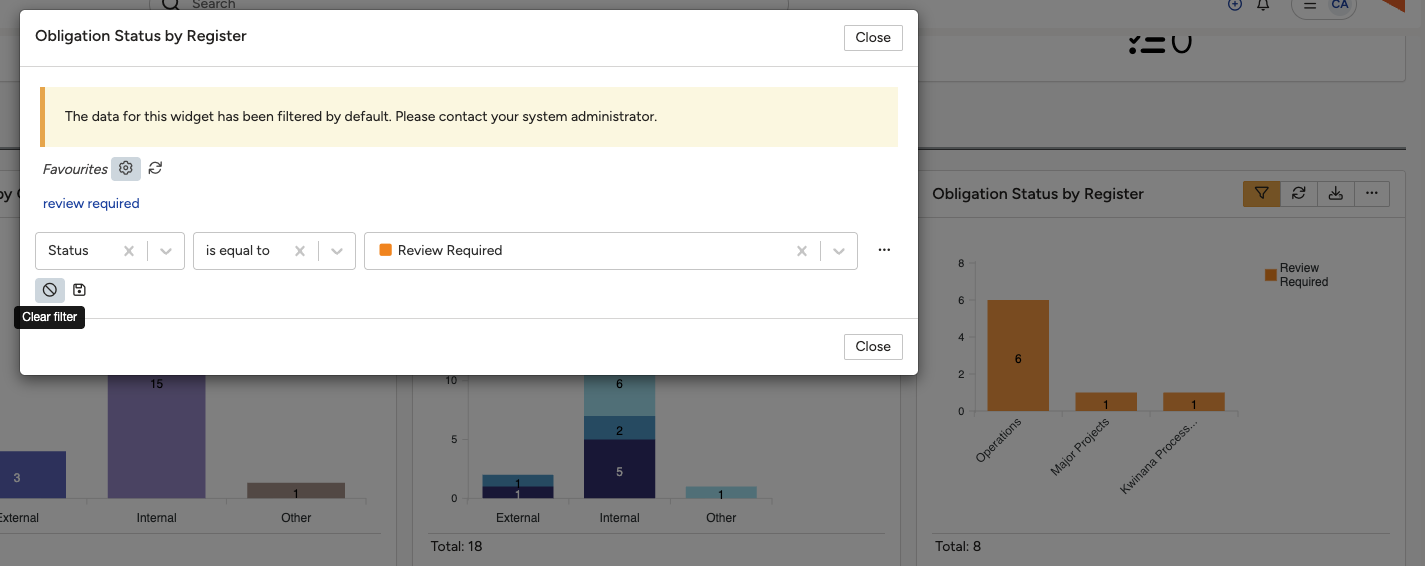
- Once applied, the widget automatically refreshes and displays results based on your selected filter, for example only showing obligations marked Review Required.
- To restore the original, unfiltered view, click the Filter icon again, then click Clear filter.
- The filter is removed from the display, but it is not deleted. It remains saved under Favourites for you to use again whenever you need it.
5. Common Issues & Troubleshooting
| Issue | Likely Cause | Solution |
| I can't remove or change the filter on a widget | A system administrator has set a default filter on that widget | This is expected. You can supplement it with your own filter, but contact your system administrator if the default itself needs to change |
| I cleared a filter and now can't find it again | Clearing a filter only removes it from view; it is not deleted | Open the widget's Filter icon and check under Favourites; the filter is still saved there |
| I need to filter on two things at once, but the widget only lets me build one condition | The quick filter on the widget only supports a single condition | Build the filter from My Filters instead, where you can add multiple conditions joined with AND |
| A filter I applied doesn't seem to affect what my colleague sees | Applying a filter only customises your own view unless it was shared | Tick Share with all users when saving it, or share it with specific people, see Sharing a Filter with Other Users |
Best practices:
- Give each filter a clear, descriptive Title so you and others recognise what it does later.
- Only tick Share with all users for filters that genuinely apply organisation-wide.
- Clear a filter rather than rebuilding it each time; it stays saved under Favourites.
- Use a multi-condition filter from My Filters once a single condition is no longer specific enough for what you need.
Click a title to preview it here. Use the Open full article button to read the full version in a new tab.
▾Sharing a Filter with Other Users Open full article »
Related article
How to share a saved filter with specific people, with Read, Update, and Notify permissions and an optional expiry date.
▾Setting a Default Filter on a Widget Open full article »
Related article
How to attach a saved filter permanently to a widget's own configuration, so it applies automatically for anyone who sees it.
Was this article helpful?
That’s Great!
Thank you for your feedback
Sorry! We couldn't be helpful
Thank you for your feedback
Feedback sent
We appreciate your effort and will try to fix the article