How do I restore a deleted record?
Why deleted records can be recovered, and how to restore your own or, as a system administrator, anyone's
Contents
- 1. Introduction & Context
- 2. Key Features & Functions
- 3. Requirements
- 4. Step-by-Step Guide
- 5. Common Issues & Troubleshooting
- 6. Related Articles
1. Introduction & Context
When you delete records in the system, they are not permanently removed. All deleted records are soft deleted, meaning they are simply marked with a 'deleted at' date and time. This lets you restore them later if needed.
Who is it for? Any user, to restore records they deleted; system administrators, to restore records deleted by anyone.
What does it impact? Restoring a record brings it back into the system. Deleting it does not remove the data, so there is no permanent loss unless a record is purged separately.
2. Key Features & Functions
- Soft delete: deleted records are marked with a 'deleted at' date and time rather than removed, so they can be restored.
- Restore your own deletions: any user can restore records they deleted, from the Deleted Items page under their name.
- Restore anyone's deletions: a system administrator can restore records deleted by anyone, from Admin, Deleted Items.
3. Requirements
- Any user can restore records they deleted themselves.
- System Administrator access is required to restore records deleted by others.
4. Step-by-Step Guide
There are two ways to restore deleted records, depending on your access level.
Restore records you deleted yourself
- Click your name in the top-right corner of the application.
- Select Deleted Items to open the restore page.
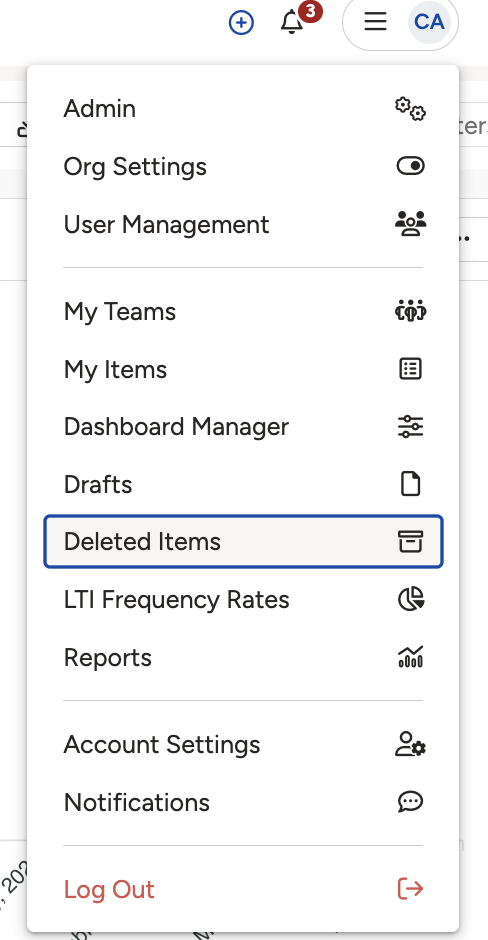
Opening Deleted Items from the menu under your name.
- Use the Select Item Type field to choose the relevant module (for example, Incident), then click Filter.
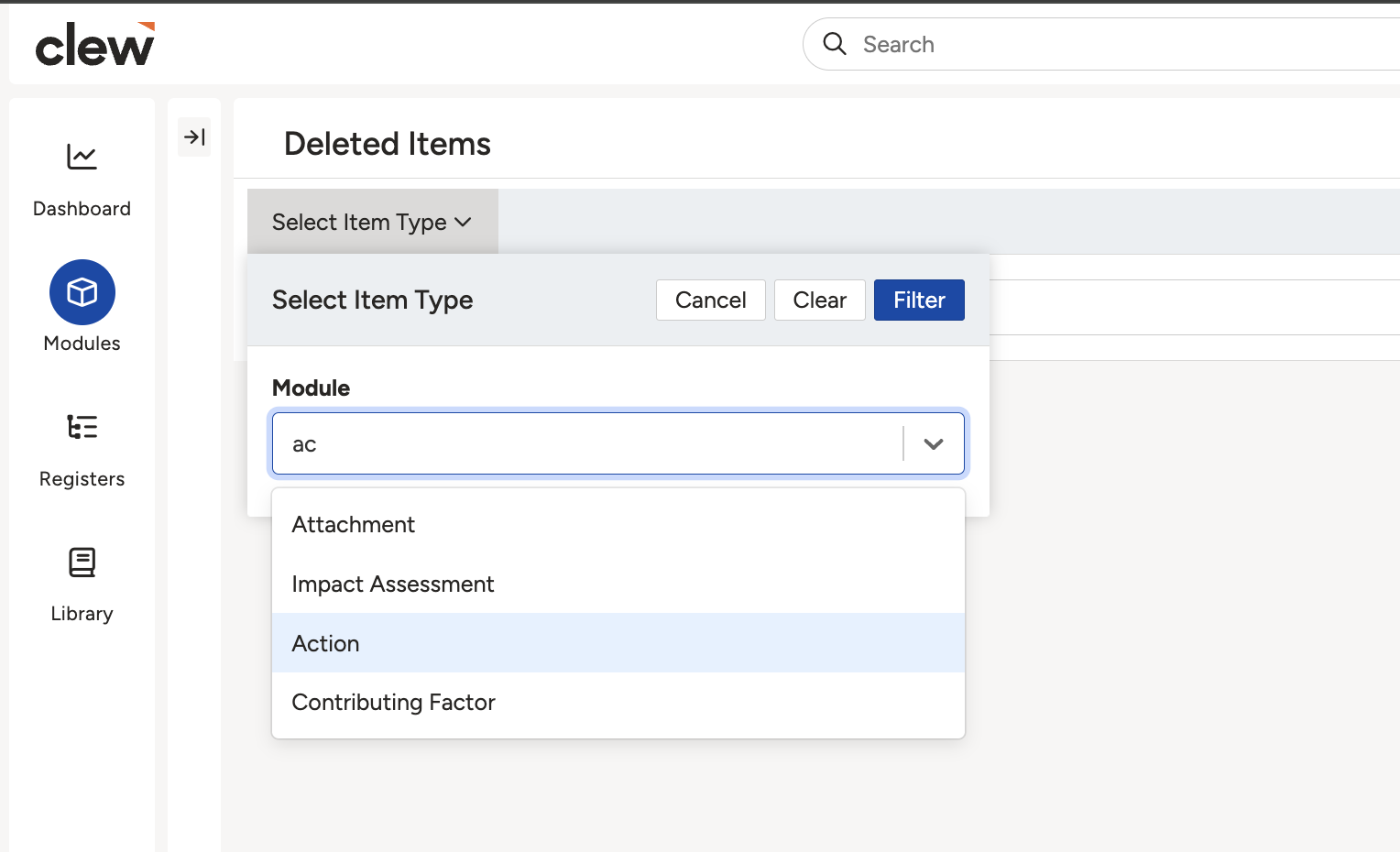
Filtering the deleted items by module.
- Locate the record and click Restore.

Restoring a deleted record.
Restore records as a System Admin
- Go to the Admin section, then Deleted Items.
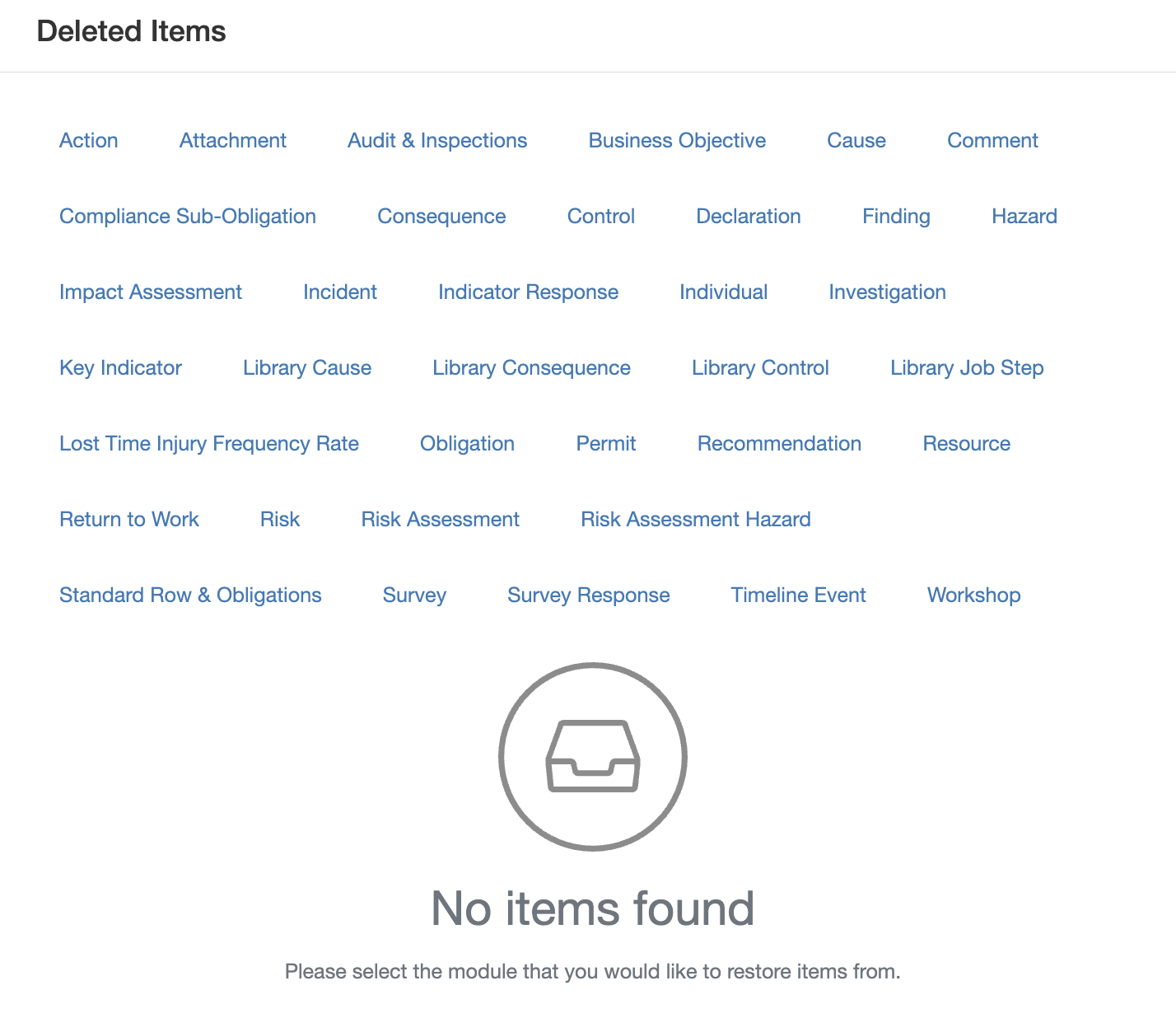
The Deleted Items page in Admin.
- Click the hyperlinked module name (for example, Action) to filter the results.
- Find the record and click Restore.
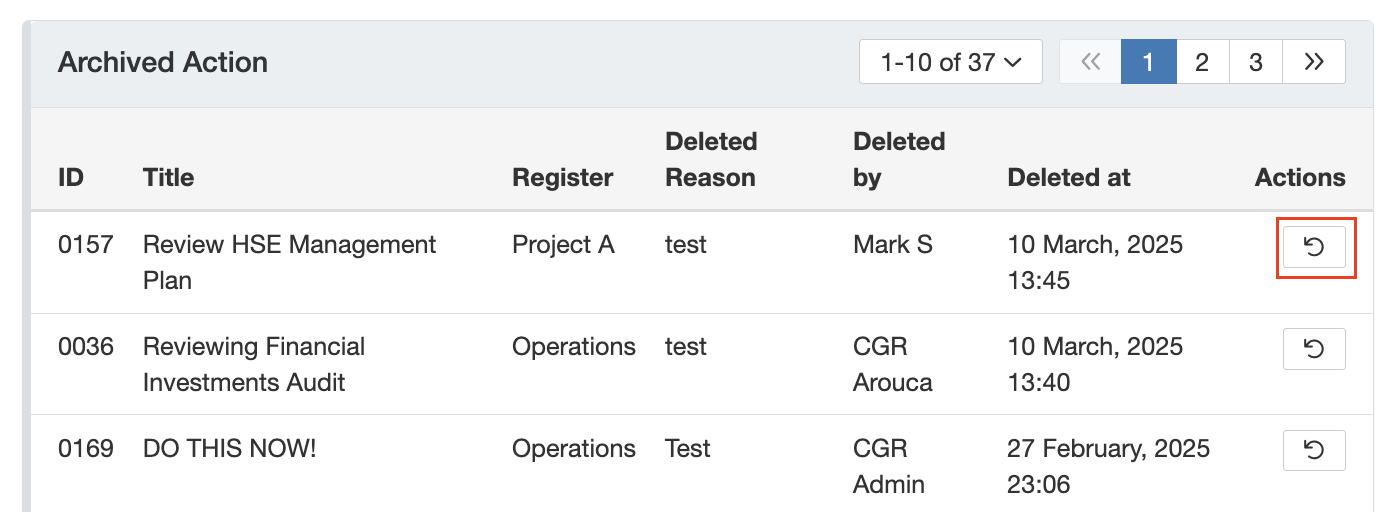
Restoring a record from Admin, Deleted Items.
5. Common Issues & Troubleshooting
| Issue | Likely Cause | Solution |
| A deleted record you expected is not listed | Someone else deleted it, so it does not appear in your own Deleted Items. | You can only restore records you deleted. Ask a system administrator to restore records deleted by others, from Admin, Deleted Items. |
| You cannot find the record in the list | The list is not filtered to the right module. | Use Select Item Type (or the module name in Admin) to filter to the correct module. |
| The Restore button is greyed out | The record is a child whose parent has not been restored. | Restore the parent record first. See the related article on the Restore button. |
Click a title to preview it here. Use the Open full article button to read the full version in a new tab.
▾Why is the Restore button not clickable? Open full article »
Related article
Why a greyed-out Restore button usually means a parent record must be restored first.
Was this article helpful?
That’s Great!
Thank you for your feedback
Sorry! We couldn't be helpful
Thank you for your feedback
Feedback sent
We appreciate your effort and will try to fix the article