Context
The Clew Platform allows system administrators to configure workflows. These workflows can have statuses that are considered inactive/ closed by the Clew Platform.
This article does not cover creating and customising workflows, for a comprehensive guide on this, please go to this article.
Important Notes
- You need to be a system administrator to be able to perform the steps below.
- Statuses that are marked as inactive/ closed, will be hidden by default from lists and register views, unless a Clew global setting is set to display closed items.
- Dashboards don't follow these rules unless filters have been specifically applied to hide certain records. Dashboards are customised for each user and display all data available to them based on their security permissions.
How to configure inactive/ closed workflow statuses?
Please follow these steps:
- Navigate to Admin > Workflows and select the workflow for the module you need to make changes to.
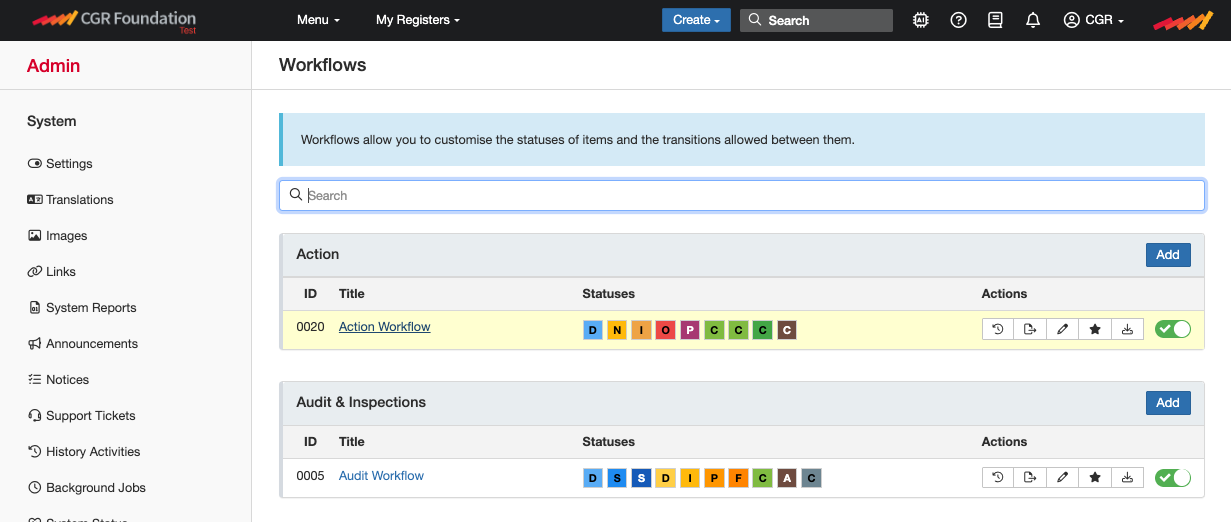
- For this FAQ, we will select Action workflow, and we are looking into making one of the statuses inactive/ closed.
- When the page loads, you should see the workflow statuses first, and this is where we make this change.
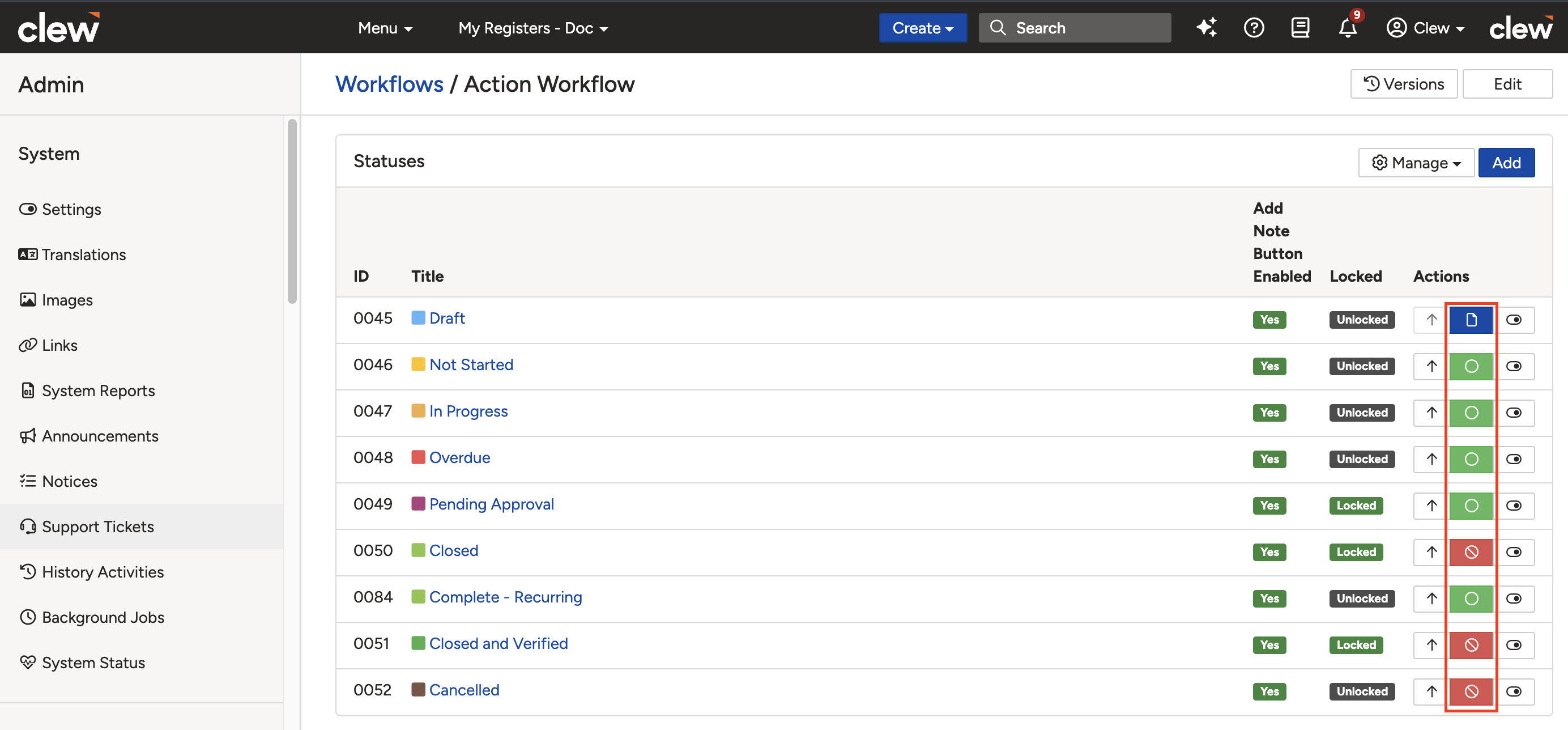
- Any workflow statuses that display with the “Red” button to the right are considered inactive/ closed for this particular workflow.
To change this status type simply click the icon and it will change to one of the following options:- Draft [Blue]. Records in draft are editable by the user who created the record regardless of the user having access to update [useful for declarations].
- Open [Green]. Records in open are displayed across the software and behave as an open status.
- Closed [Red]. These are hidden by default from lists.
- Once you click to the option that you prefer, there is no need to save, this is already changed.
Was this article helpful?
That’s Great!
Thank you for your feedback
Sorry! We couldn't be helpful
Thank you for your feedback
Feedback sent
We appreciate your effort and will try to fix the article