How do I change which fields can be mass edited?
How a system administrator sets which core and custom fields appear on the mass edit form
Contents
- 1. Introduction & Context
- 2. Key Features & Functions
- 3. Requirements
- 4. Step-by-Step Guide
- 5. Common Issues & Troubleshooting
- 6. Related Articles
1. Introduction & Context
Clew lets end users mass edit records for any given module, for example risks, actions, and incidents. When a user enters mass edit mode, Clew displays the fields available for mass editing. These available fields are configured by system administrators, and this article explains how to change them.
Who is it for? System administrators who decide which fields users can mass edit.
What does it impact? Making a field available for mass editing lets any user with the right permissions change it in bulk. Consider the impact before enabling a field (see Common Issues & Troubleshooting).
2. Key Features & Functions
- Set per custom type: which fields can be mass edited is configured on each custom type, in the Admin area.
- Core fields: Clew standard fields are managed under Core Field Settings, using the Hidden fields on Mass Edit Form list.
- Custom fields: fields you created are managed under Custom Field Settings, using the Visible on Mass Edit Form checkbox.
- One custom type at a time: if a module has more than one custom type (for example Risk and Opportunity), the change must be made on each type separately.
3. Requirements
- System Administrator access is required to perform these steps.
- To actually mass edit records, a user needs both edit permission and mass permission. Users without edit permission, or with edit but not mass permission, cannot mass edit.
4. Step-by-Step Guide
Changing the mass editable fields
- Navigate to Admin > Custom Types.
- Select the custom type for the module you want to change, and click it. In this example, we are changing the Risk module to make the Risk Approver field mass editable for the Risk custom type.
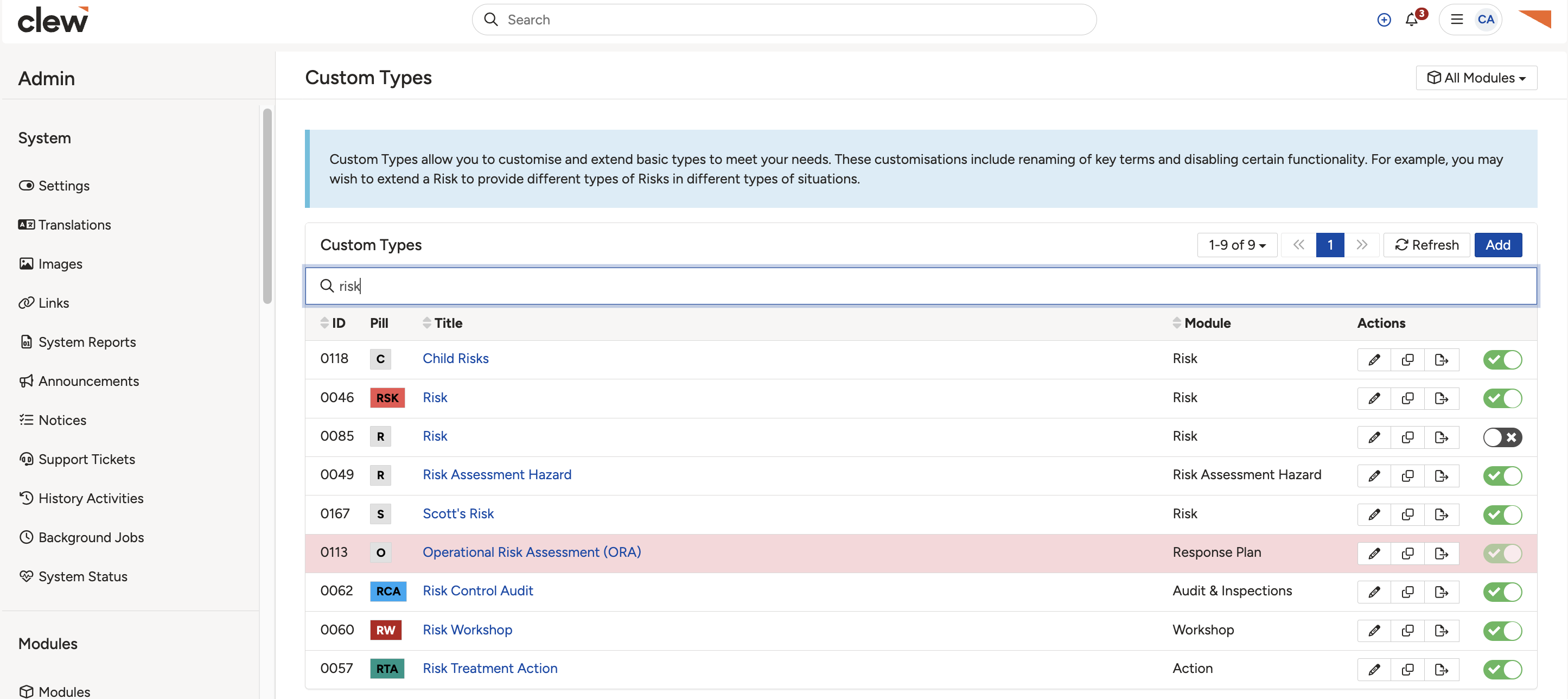
Selecting the custom type for the module under Admin, Custom Types.
- Once the page loads, you are viewing the custom type's details. For more about this page, see the Custom Types article (in Related Articles).
- Scroll down to Core Field Settings. This is where you enable or disable core fields (Clew standard fields) on the mass edit form. In Hidden fields on Mass Edit Form, remove the field you want to display, or select the field you want to hide.
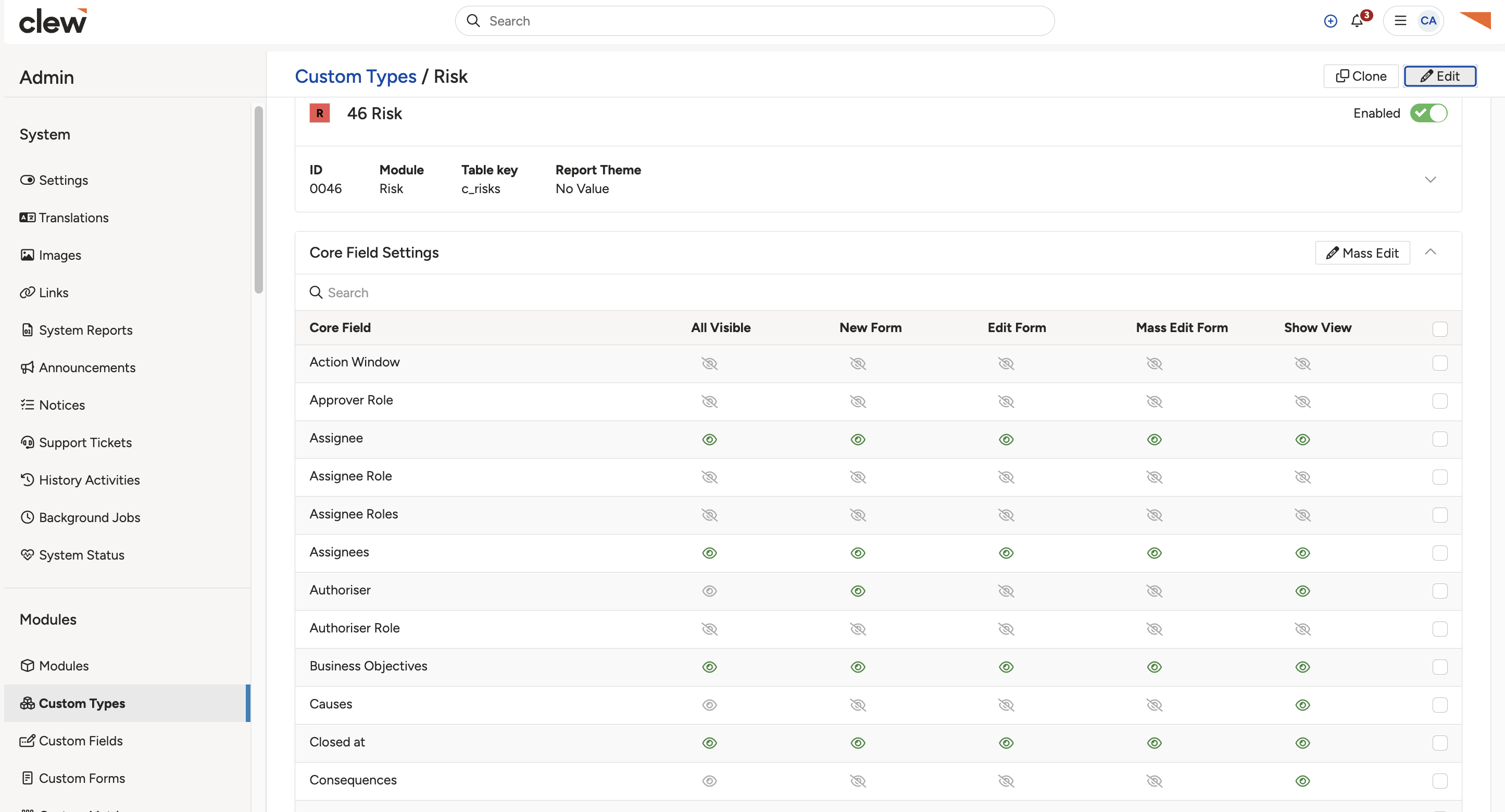
Core Field Settings, with the Hidden fields on Mass Edit Form list.
- Click Save.
- To enable or disable a custom field you created, scroll further down the custom type page to Custom Field Settings.
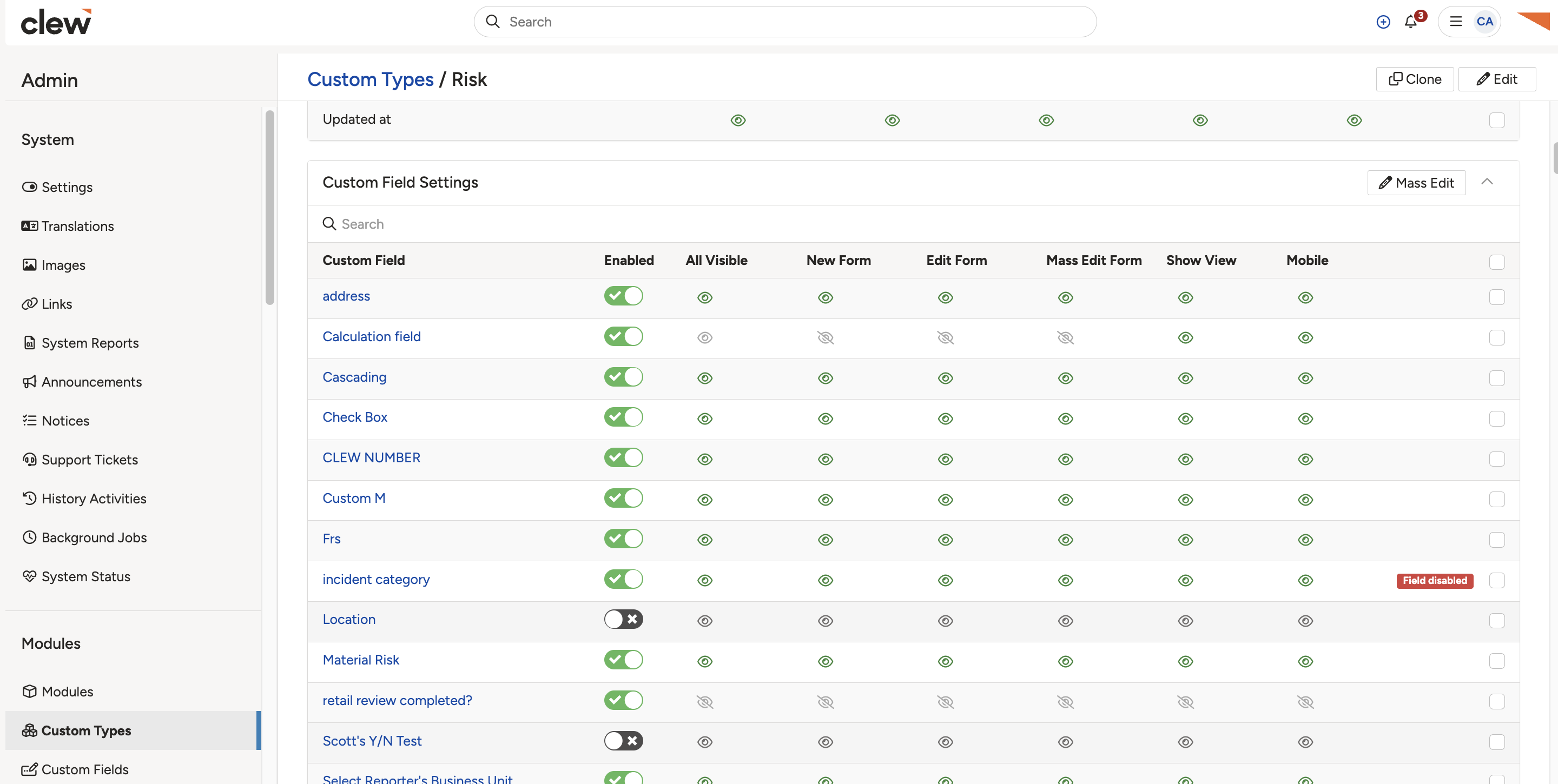
Custom Field Settings, with the Visible on Mass Edit Form checkbox.
- To disable or enable a custom field for mass edit, uncheck or check the box under Visible on Mass Edit Form.
- Click Save.
5. Common Issues & Troubleshooting
| Issue | Likely Cause | Solution |
| A user cannot mass edit at all | They do not have edit permission for the records. | Users without edit permission cannot mass edit. Grant the appropriate edit permission. |
| A user can edit but not mass edit | They have edit permission but not mass permission. | Grant the mass permission as well. See Permission Sets in Related Articles. |
| A field is still not available for mass edit | It was enabled on a different custom type, or not enabled on the one in use. | Enable the field on the correct custom type, and repeat for each custom type in the module (for example Risk and Opportunity). |
Consider the impact before enabling a field:
- Enabling mass edit for date fields, such as action due dates, could let users with update access extend due dates without going through the proper workflow approvals.
- Enabling mass edit for user fields needs careful thought depending on the module. On a declarations module (conflict of interest, gifts, and similar), you probably do not want people to mass edit the owner of a declaration, since this transfers the declaration to the newly assigned user.
Click a title to preview it here. Use the Open full article button to read the full version in a new tab.
▾Custom Types Open full article »
Related article
How custom types are configured, including core and custom field settings.
▾Permission Sets Open full article »
Related article
How permission sets control edit and mass permissions.
Was this article helpful?
That’s Great!
Thank you for your feedback
Sorry! We couldn't be helpful
Thank you for your feedback
Feedback sent
We appreciate your effort and will try to fix the article