Why am I not seeing a specific field on the mass edit form?
What controls whether a field appears in mass edit, and how to get it back
The short answer
Mass edit has its own visibility setting, separate from the other forms. A field can appear perfectly well when you create or edit a single record and still be missing from mass edit, because Mass Edit Form is switched off for it.
Where that setting lives depends on the kind of field. Core fields are controlled under Core Field Settings, custom fields under Custom Type Settings. Both are in Admin, on the custom type for that module.
Why this happens
Work down this list. The first cause is by far the most common.
| Cause | How to tell |
| Mass Edit Form is switched off for that field | The field shows on the new form, the edit form or the record itself, but not in mass edit. |
| The field is off for that custom type | It works on one record type and not another. Visibility is set per custom type, not per module. |
| A recent change has not been synced | Someone switched it on and nothing changed. Custom field changes only reach the forms once the schema is synced. |
| You are in datagrid rather than list view | No mass options appear at all, not just the field. Mass functionality is not available in datagrid. |
| The field is not enabled for your organisation | It is not listed under Core Field Settings at all, not just switched off. |
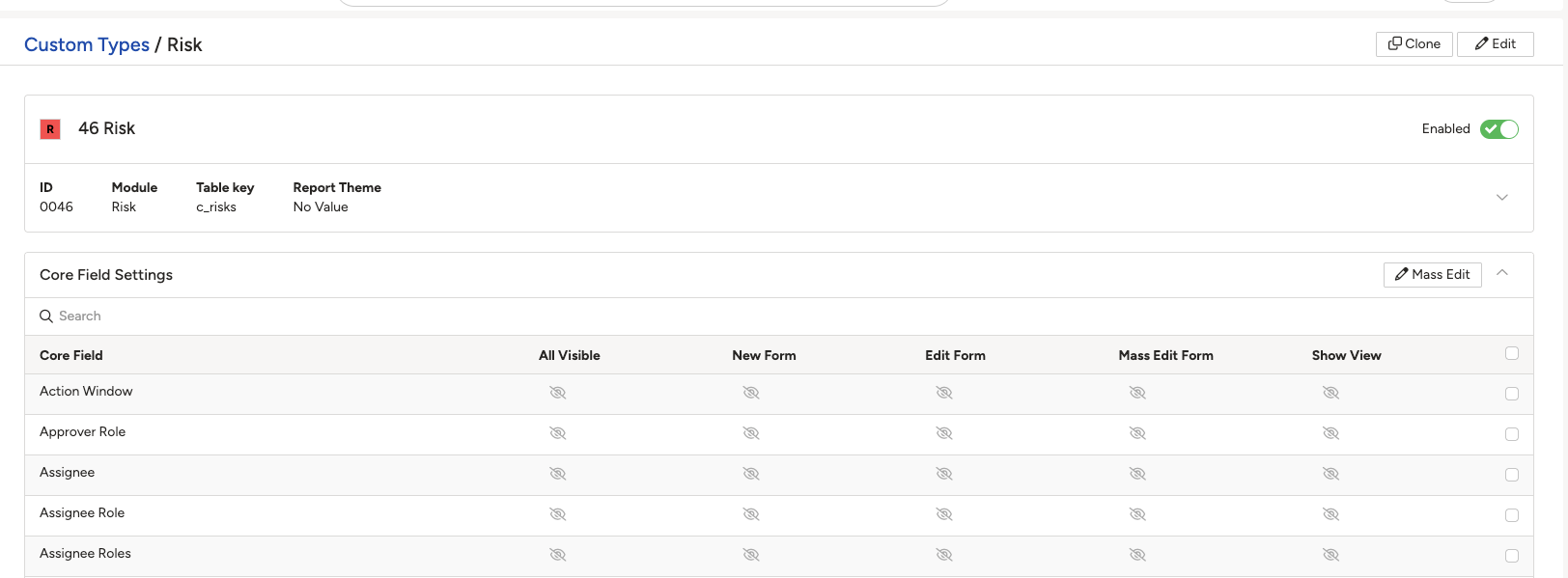
Core Field Settings, where Mass Edit Form is a column of its own alongside New Form, Edit Form and Show View.
What to do
These steps need system administrator permissions. If you do not have them, pass the field name and the record type to an administrator in your organisation.
- Check you are in list view rather than datagrid, and that you have selected at least one record.
- Go to Admin, then Custom Types, and select the module.
- For a core field, scroll to Core Field Settings, find the field, and switch on the Mass Edit Form column on its row.
- For a custom field, open the field from Admin > Custom Fields and switch on Mass Edit Form in its Custom Type Settings, on the row for the custom type you are working with.
- If you changed a custom field, go to Admin > Schemas and click Sync Schemas. Until you do, the form will not pick the change up.
- Reload the list view and open mass edit again.
▾Core Fields: Overview Open full article »
Related article
The full picture on Core Field Settings, including what each visibility column controls.
▾How to change what fields can be mass edited Open full article »
Related article
Changing which fields are available in mass edit, for administrators making the change rather than diagnosing it.
Was this article helpful?
That’s Great!
Thank you for your feedback
Sorry! We couldn't be helpful
Thank you for your feedback
Feedback sent
We appreciate your effort and will try to fix the article