How do I export a dashboard?
How to export a single widget, or an entire dashboard, as a PDF or CSV
Contents
- 1. Introduction & Context
- 2. Key Features & Functions
- 3. Requirements
- 4. Step-by-Step Guide
- 5. Common Issues & Troubleshooting
- 6. Related Articles
1. Introduction & Context
Clew lets users control and customise their own dashboards, and export their dashboard reports for further use.
- Individual widgets: export in PDF or CSV format.
- Entire dashboard: export the full dashboard as a PDF.
Who is it for? Anyone who wants to export a dashboard or a single widget from it.
2. Key Features & Functions
- Widget export: export a single widget as a PDF or CSV.
- Dashboard export: export the entire dashboard as a PDF, in portrait or landscape.
- One item per row: in landscape, this option exports each chart on its own page.
- Adjustable page scale: fit the content on the page, which is useful for tables with many columns, so nothing is cropped.
- Find your export: once a dashboard is exported, the report appears under the bell icon in the top-right corner.
3. Requirements
- Access to the dashboard, or the widget, you want to export.
4. Step-by-Step Guide
Export an individual widget
- On the left, open the Dashboard panel and select the dashboard that contains the widget you want to export, by clicking the three lines.
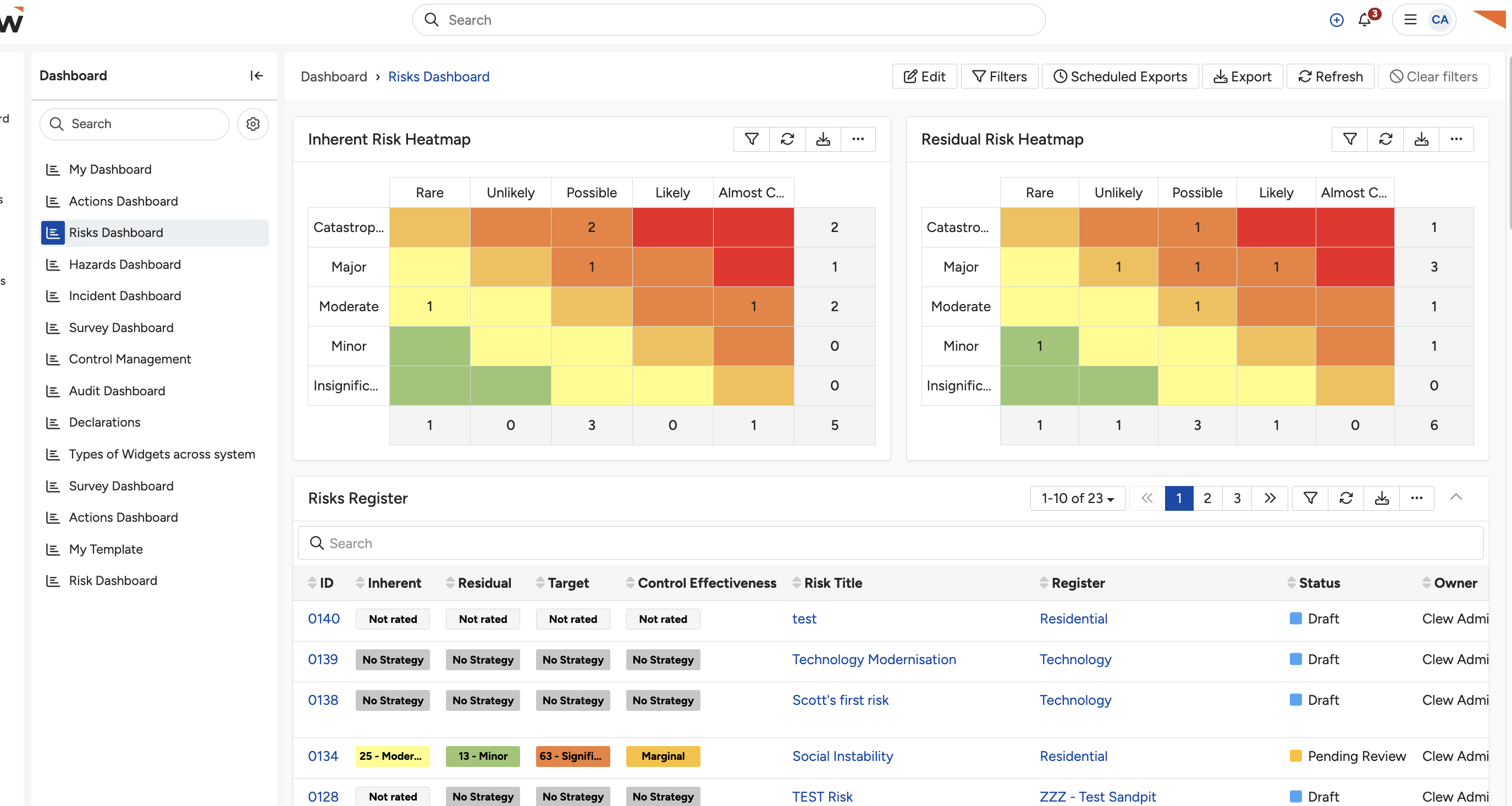
Selecting a dashboard from the Dashboard panel.
- Locate the widget and click the down arrow to export it in CSV or PDF format.
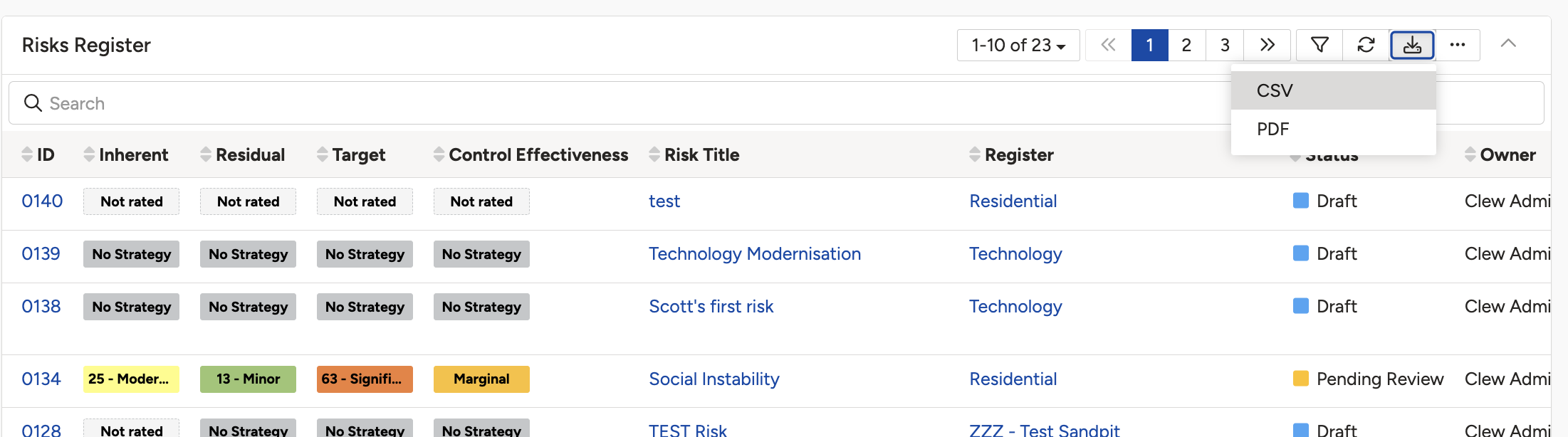
The down arrow exports a widget as CSV or PDF.
- For PDF, select landscape or portrait orientation. If you choose landscape, you can also adjust the page scale. This is useful when exporting tables with many columns, so all content fits on the page without cropping.
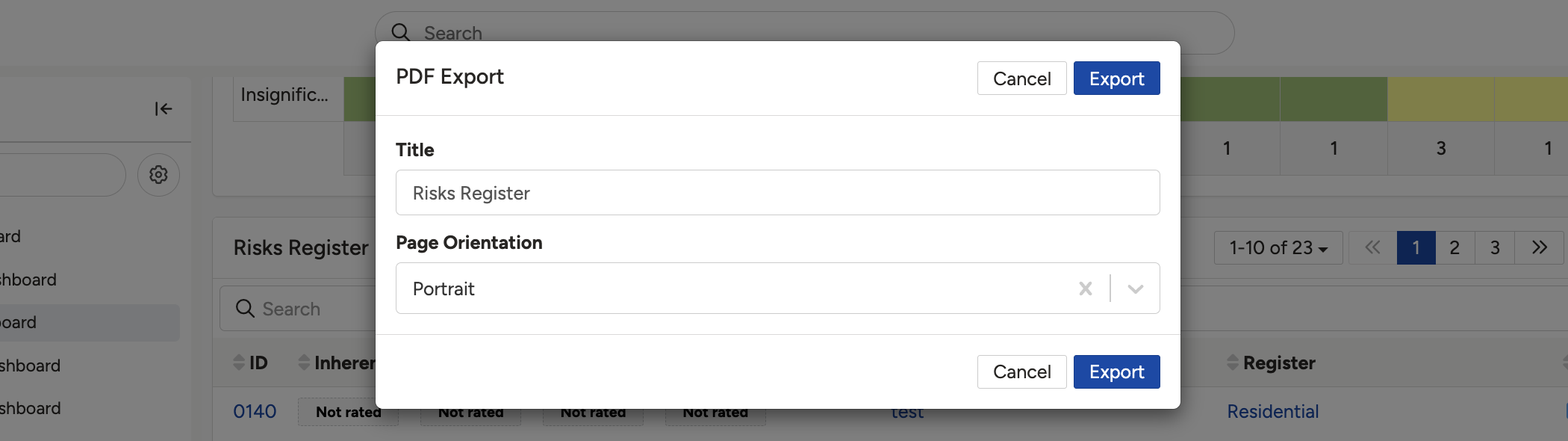
PDF export options: orientation and page scale.
Export the entire dashboard
- Navigate to Menu > Dashboard and select the dashboard you want to export.
- Click the Export button at the top and enter the dashboard report title.

The Export button and report title field.
- Select the page orientation, Portrait or Landscape.
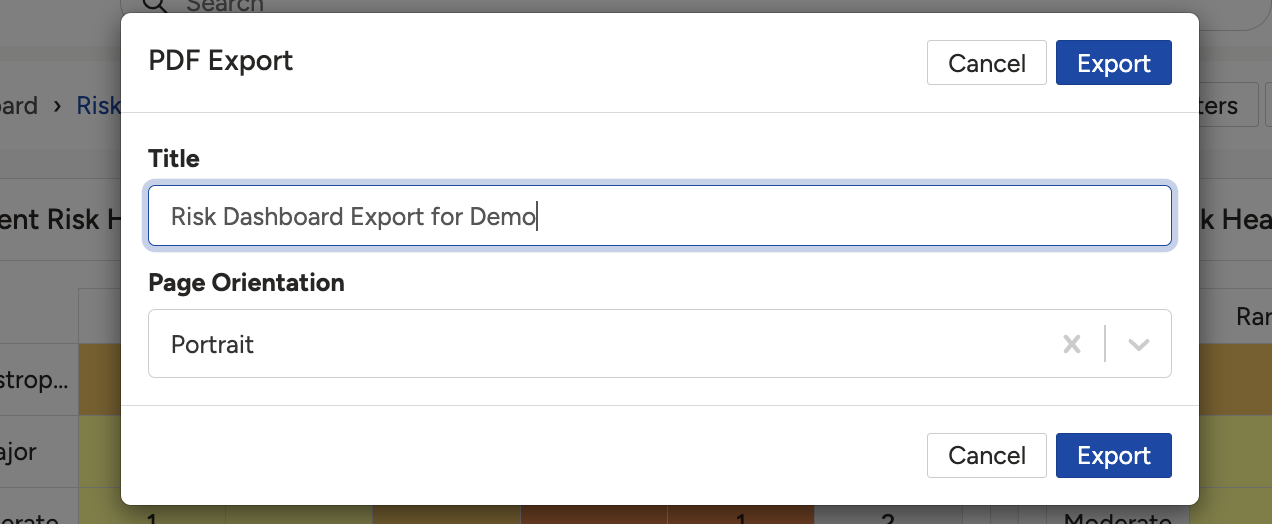
Choosing portrait or landscape orientation.
- For landscape, select the Current or One item per rowlayout:
- Current: exports the dashboard in the same format as it is customised.
- One item per row: exports each widget or chart on a separate page.
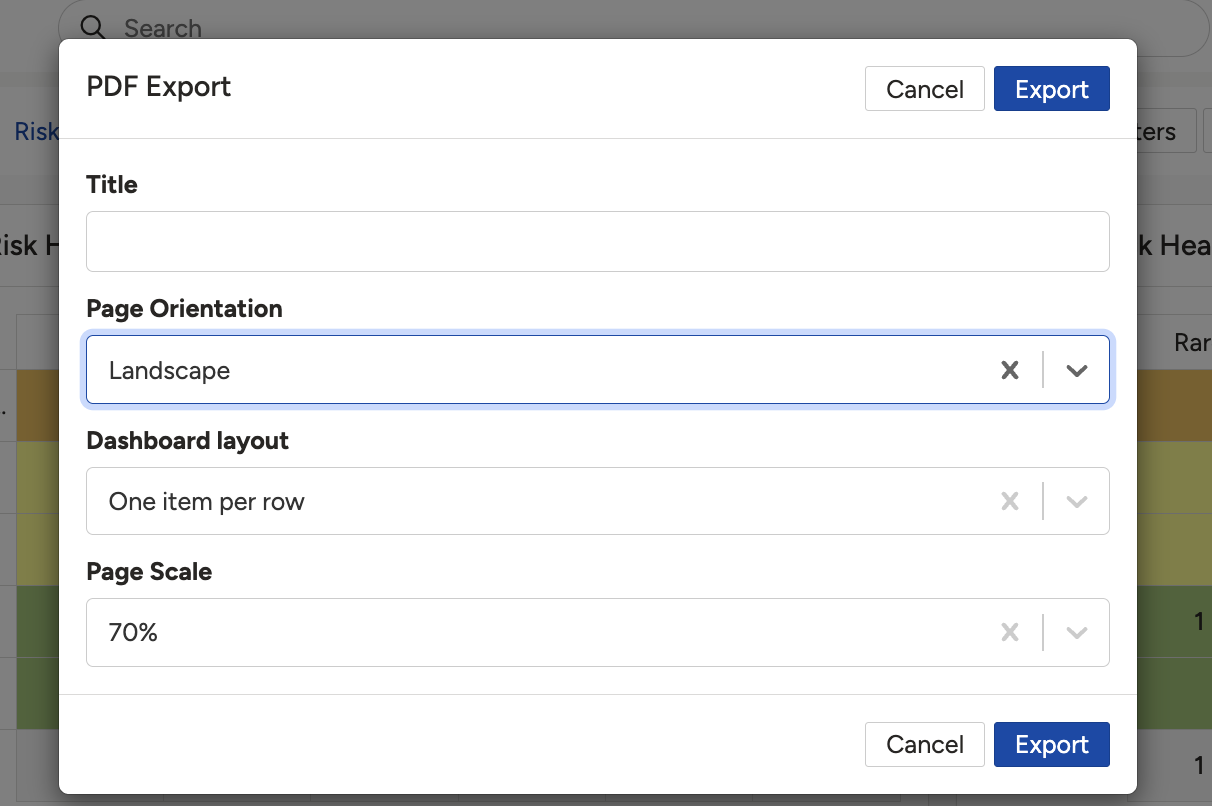
The landscape layout options: Current and One item per row.
- Adjust the page scale to fit the content on the page. This is useful when exporting tables with many columns, so all content fits without cropping.
- Once the dashboard is exported, find the report under the bell icon in the top-right corner.
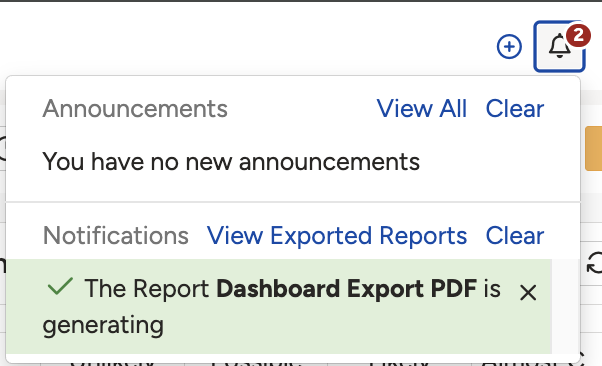
The exported report appears under the bell icon.
5. Common Issues & Troubleshooting
| Issue | Likely Cause | Solution |
| A wide table is cropped in the export | The page scale is too large for the number of columns. | Use landscape and adjust the page scale so all columns fit on the page. |
| You cannot find your exported report | Dashboard exports are delivered to the notifications area. | Open the bell icon in the top-right corner to find the exported report. |
| You want each chart on its own page | The Current layout keeps the customised arrangement. | Export in landscape and choose One item per row. |
Click a title to preview it here. Use the Open full article button to read the full version in a new tab.
▾Dashboard Manager Open full article »
Related article
How the Dashboard Manager works, including managing your dashboards.
▾Dashboard Templates Open full article »
Related article
How dashboard templates are configured.
Was this article helpful?
That’s Great!
Thank you for your feedback
Sorry! We couldn't be helpful
Thank you for your feedback
Feedback sent
We appreciate your effort and will try to fix the article