Using Filtered Search Reports
How to generate, export, email, and schedule filtered reports, and how to save and manage report and dashboard templates.
Contents
- 1. Introduction & Context
- 2. Key Features & Functions
- 3. Requirements
- 4. Step-by-Step Guide
- 5. Common Issues & Troubleshooting
- 6. Related Articles
1. Introduction & Context
A Filtered Search Report lets you generate a report on a specific dataset and either export it or receive it by email. Reports can also be scheduled and delivered straight to your inbox.
Who is it for? All users can generate reports. A system administrator can also schedule reports for other users and share report templates across the organisation.
What does it impact? Reports read existing data rather than change it, and they respect your access. You only ever see records you have at least read access to.
2. Key Features & Functions
- Standard reports per module: the landing page lists available reports, each summarising a specific module.
- Filters: narrow a report's data, for example by Registers or Statuses, before you run it.
- Email, export, and manage: once run, a report can be emailed to you, exported as CSV or PDF, or managed to edit filters or mass edit the items in it.
- Report templates: save a set of filters and settings so you can run the same report again. Templates are marked with a star icon, and a clock icon shows when one is scheduled.
- Scheduling: have a report sent by email on a schedule. Administrators can also schedule on behalf of other users and share a template across the organisation.
- Dashboard Templates: an overview of all templates by module, showing details such as who shared each one, its schedule, and who it is shared with.
3. Requirements
- At least read access to the records you want included. A report only ever shows records you can already see.
- System administrator access to schedule reports for other users or to share a template across the organisation.
4. Step-by-Step Guide
Generate a report
- Open the Filtered Search Reports page from the reports menu.
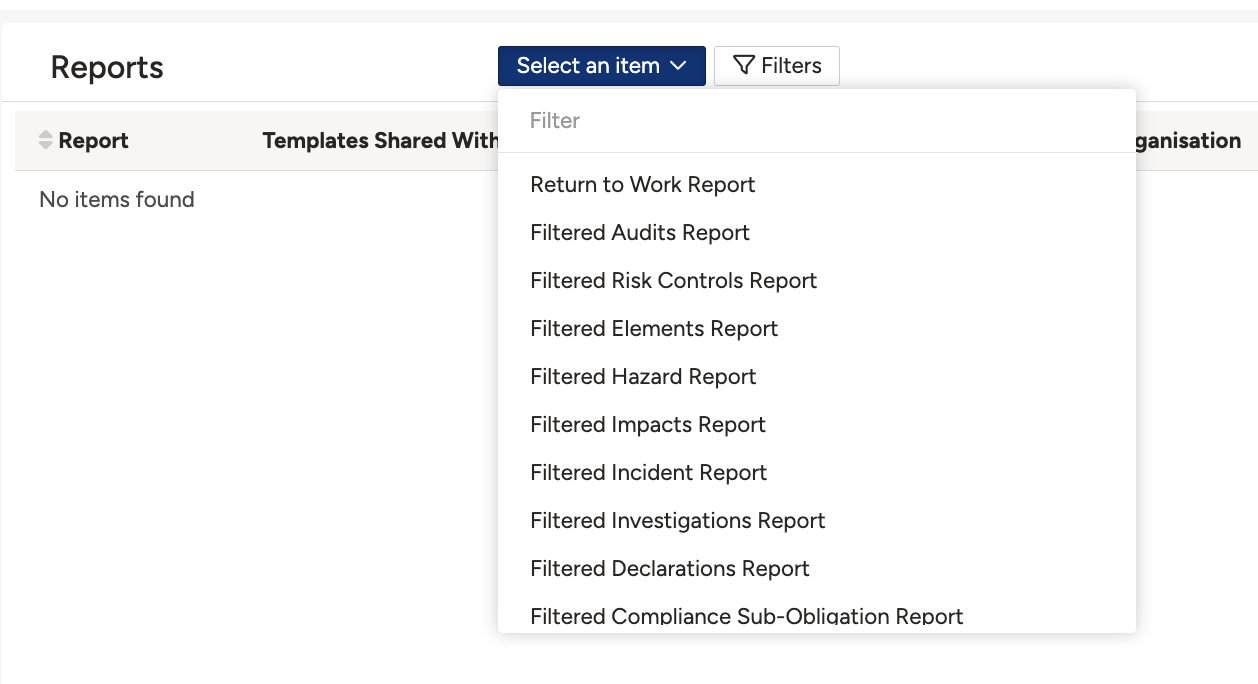
- On the landing page you see the available reports, a list of standard reports each summarising a module. A report with a star icon is a saved template (see below).
- Click the title of the report you want, then apply filters (for example Registers or Statuses) to adjust the data included.
- Click Run Report to generate the filtered report.
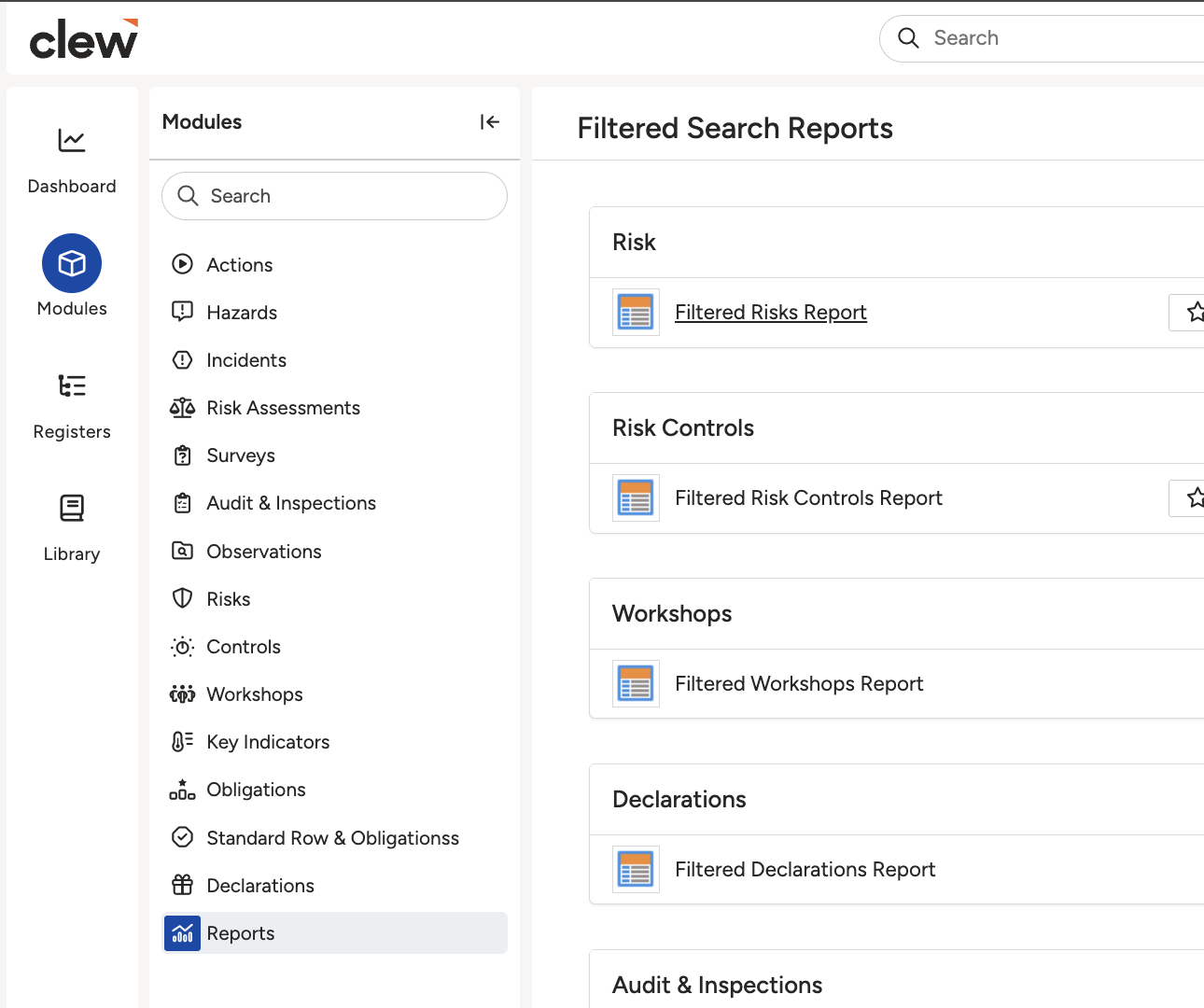
Filtered Search Reports in the report menu.
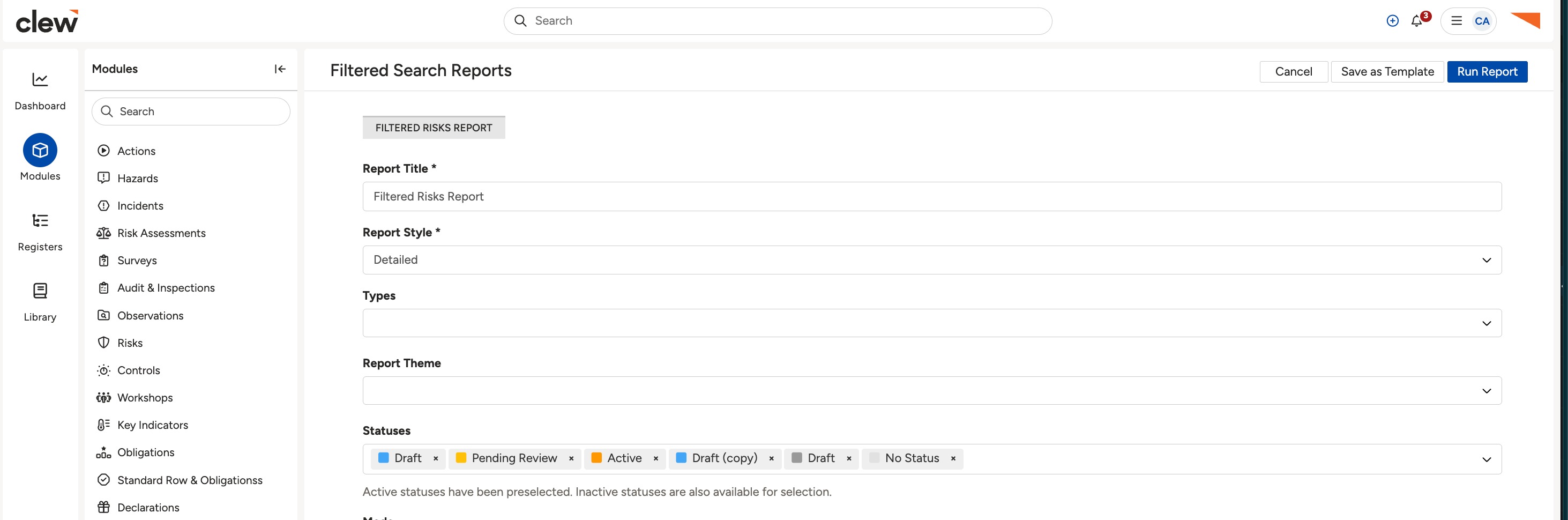
Apply filters, then Run Report.
Report options
Once a report is generated, you have several options:
- Email Report: send a copy to your email in CSV or PDF.
- Export: export the report directly in CSV or PDF.
- Manage: edit the filters, or perform a mass edit on the items in the report.
- Manage > Save as a template: save the report for reuse. As a system administrator you can also schedule the report for other users or share the template across the organisation, so each user can then generate their own copy, though not necessarily on a schedule.
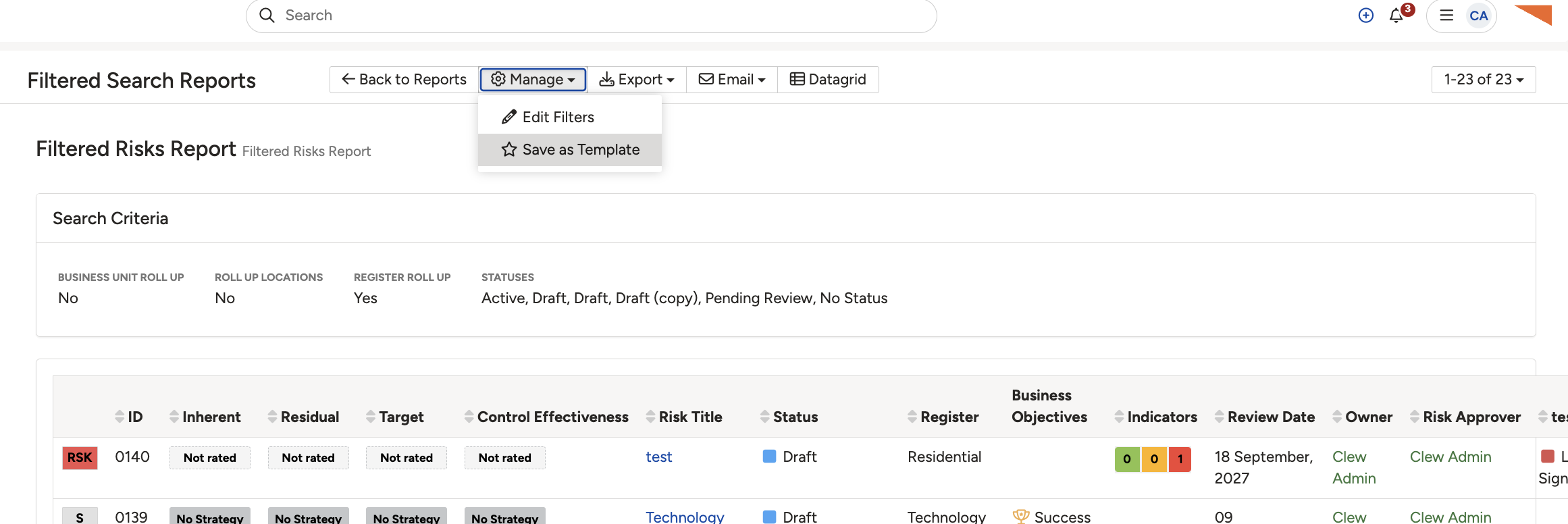
The report options: Email Report, Export, and Manage.
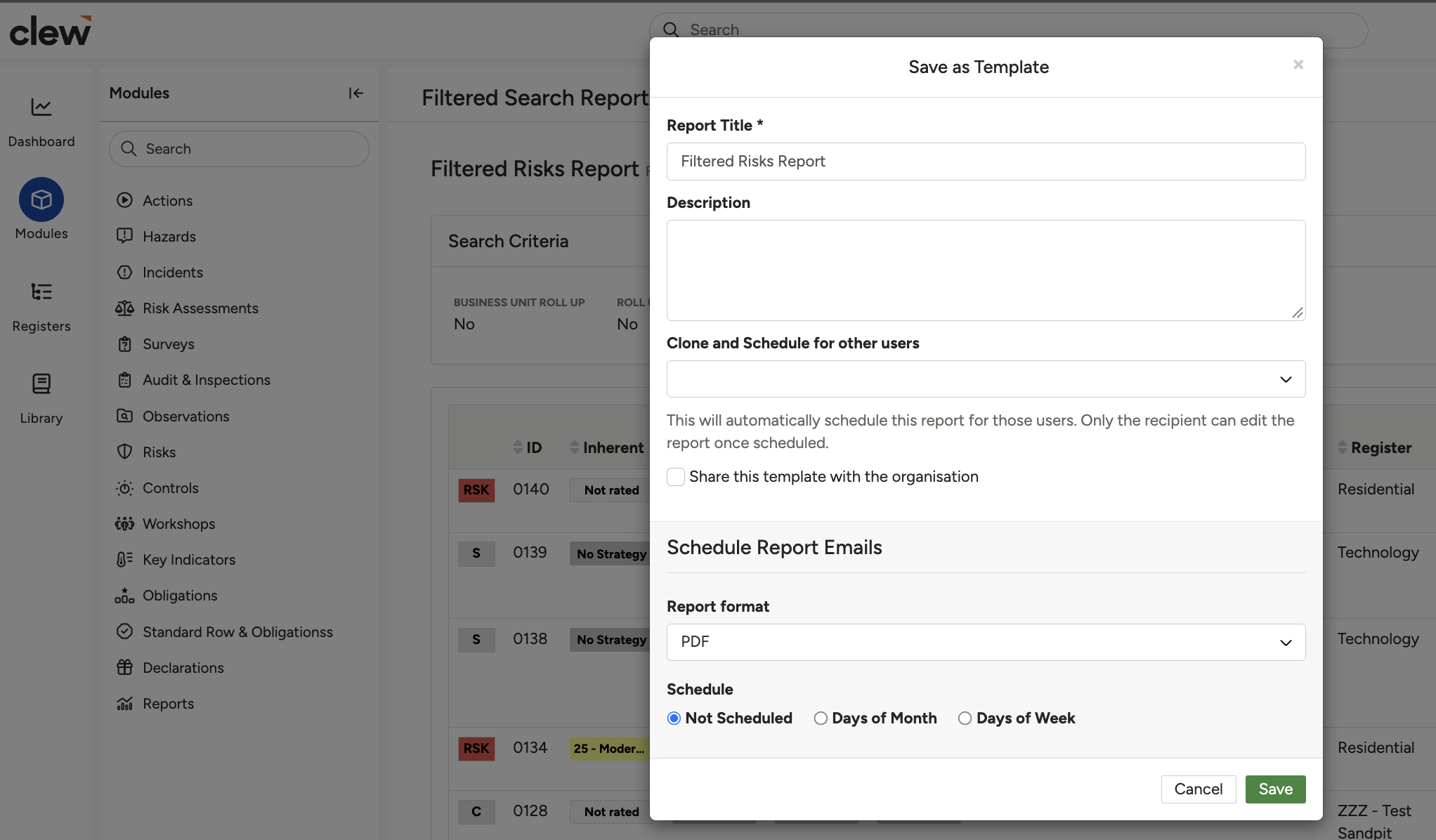
Saving as a template, with the admin scheduling and sharing options.
Create and use report templates
A report template saves a set of filters and settings so you can quickly generate the same report again.
- Create: after running a report with your filters, click Save as Template and give it a clear name and description.
- Identify: saved templates are marked with a star icon in the report list.
- Use: click a starred report to open it, then run it as it is or adjust the filters first.
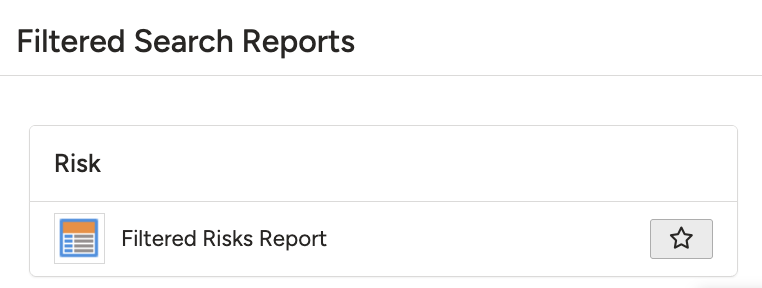
A starred report is a saved template.
Manage a template:
- Use the three-dots button to update, rename, or delete a template.
- Use the pencil icon to add a description and change the report's format or schedule.
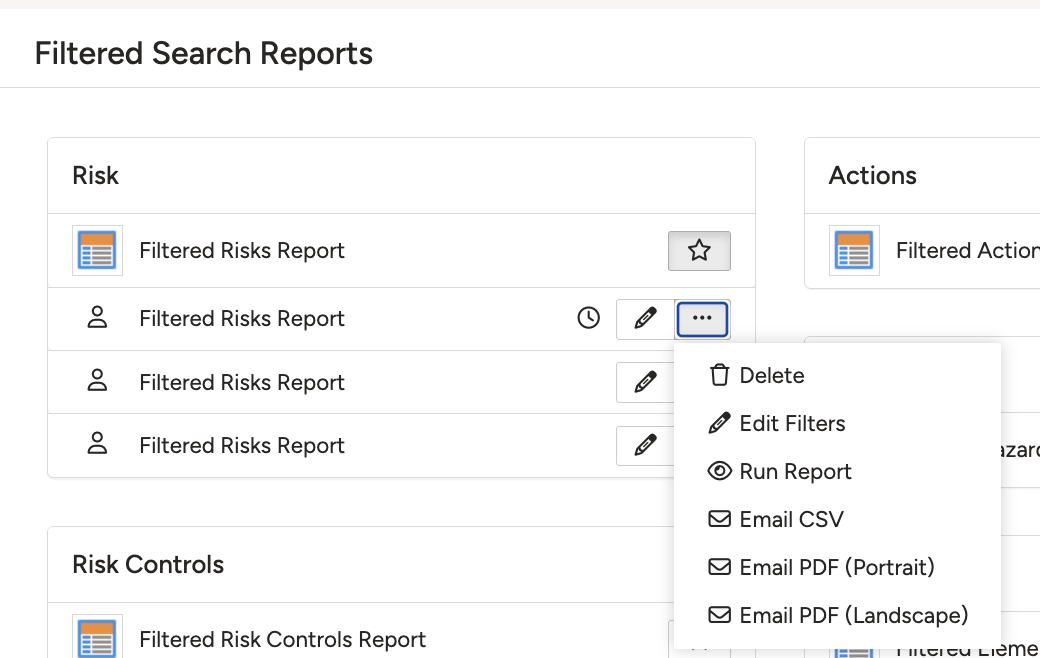
The three-dots menu: update, rename, or delete a template.
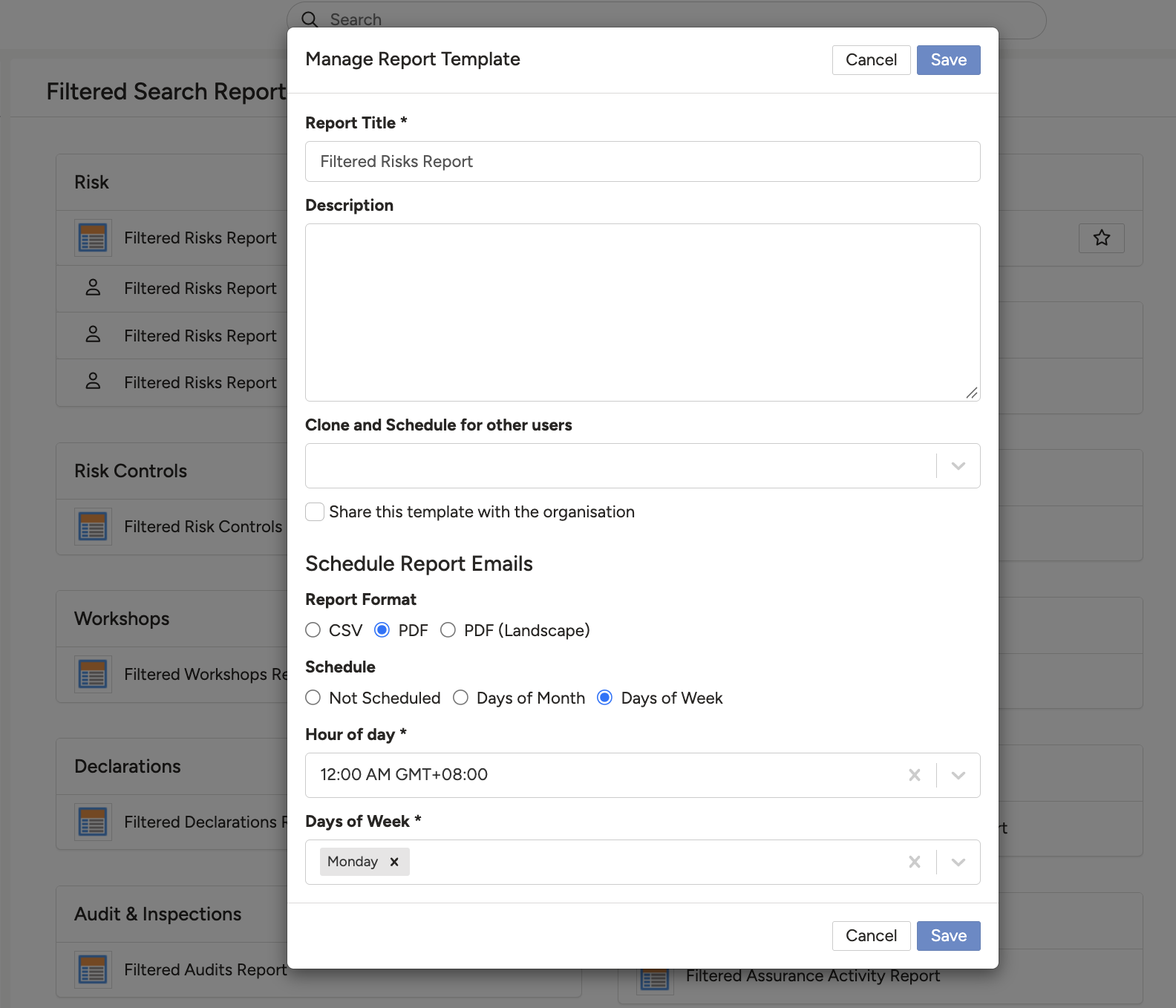
The pencil icon: description, format, and schedule.
Dashboard Templates
- Click the Dashboard Templates button to see an overview of all templates.
- Select a reports section to view all templates for that module.
- Once a module is selected, you see its saved templates and their details, such as who shared a template with you, its scheduled date, and who it is shared with.
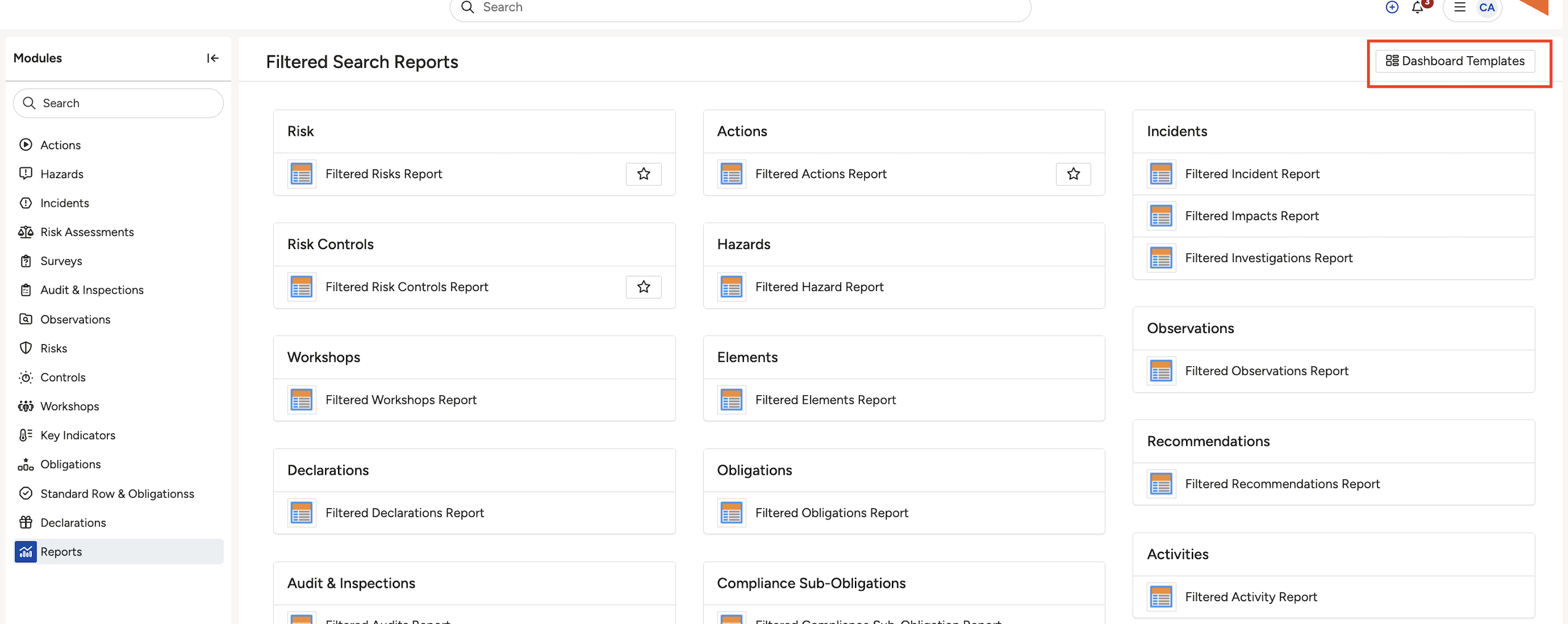
The Dashboard Templates overview.
Select a reports section to see its templates.

A module's templates, with sharing and schedule details.
5. Common Issues & Troubleshooting
| Issue | Likely Cause | Solution |
| An emailed report never arrives. | Emailing reports is disabled on the staging server. | Use Email Report on your live environment. On staging, use Export instead. |
| A report is missing records you expected. | A report only includes records you have at least read access to, and filters narrow it further. | Check your access to those records, and review the filters applied before running the report. |
| You cannot schedule a report for other users or share a template. | Scheduling for others and sharing across the organisation are system administrator actions. | Ask a system administrator, or schedule the report just for yourself. |
| A template cannot be found in the list. | Templates sit among the reports, marked with a star icon. | Look for the star icon, or open Dashboard Templates to see all templates grouped by module. |
Best practices:
- Use filters to get precise results rather than exporting a whole module.
- Save reports you run often as templates, with clear names, for quick access.
▾Dashboard Manager Open full article »
Related article
How to build and share dashboards and their widgets, the visual counterpart to the data you pull into a report.
Was this article helpful?
That’s Great!
Thank you for your feedback
Sorry! We couldn't be helpful
Thank you for your feedback
Feedback sent
We appreciate your effort and will try to fix the article