CSV Export Templates
How to create, configure, and use custom CSV export templates in the Clew Platform
Contents
- 1. Introduction & Context
- 2. Key Features & Functions
- 3. Requirements
- 4. Step-by-Step Guide
- 5. Common Issues & Troubleshooting
- 6. Related Articles
1. Introduction & Context
CSV Export Templates let system administrators define exactly which fields appear in a CSV export, so users across the organisation can download data in a consistent, pre-configured format without needing to configure it themselves each time.
Who is it for? System administrators create and manage templates. Once a template is marked as visible, all users with access to that module can use it to export data.
What does it impact? Templates control the format of an export, not data access. Users will only ever see data they already have permission to view, regardless of which template they use. CSV files do not store formatting or colours, so exported data is plain text only.
2. Key Features & Functions
- Custom column selection: Choose exactly which fields appear as columns in the exported CSV, including custom fields specific to your organisation's configuration.
- Multi-module exports: Combine data from related modules in a single file. For example, export obligations alongside their sub-obligations and associated actions all in one CSV.
- Visibility controls: Keep a template admin-only for internal use, or mark it as visible so all users can access it from the module's export flow.
- Steps and calculations: Apply filters, calculations (count, min, max, avg, sum), and operations (join, first/last, remove duplicates) to relationship fields for more advanced reporting.
- Auto-save and version history: The template builder saves changes automatically. A full version history lets you review every change made to a template, including changes made by other users.
- Live preview: Preview the output with real data before making a template available to users, so you can validate the format and column structure.
3. Requirements
- System administrator access: Required to create, edit, and manage templates. Regular users can only use templates that have been marked as visible.
- Platform version 4.22.31 or newer: CSV Export Templates are not available on earlier versions.
- Pre-existing widgets (for child templates): If you plan to reference data from related modules using child templates, create those child templates before building the parent.
- Saved filters (for filter steps): To apply a filter step inside a template, the filter must already exist as a saved filter in the relevant module. Create it there first.
4. Step-by-Step Guide
Finding an Existing Template
- Go to Admin > CSV Exporter Templates.
- Use the module dropdown in the top-right corner to filter templates by module, or select All Modules to view everything.
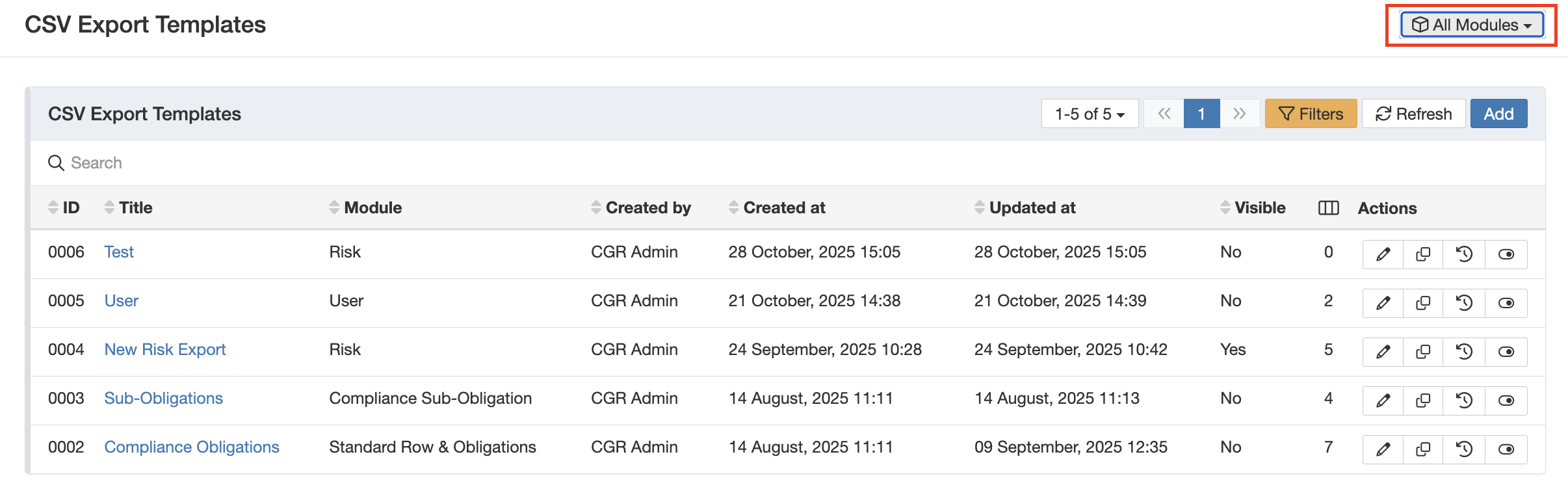
Use the module dropdown to filter templates by module.
- If you cannot find a template, tick the Inactive filter. Templates cannot be deleted, only deactivated. Inactive templates are hidden by default.
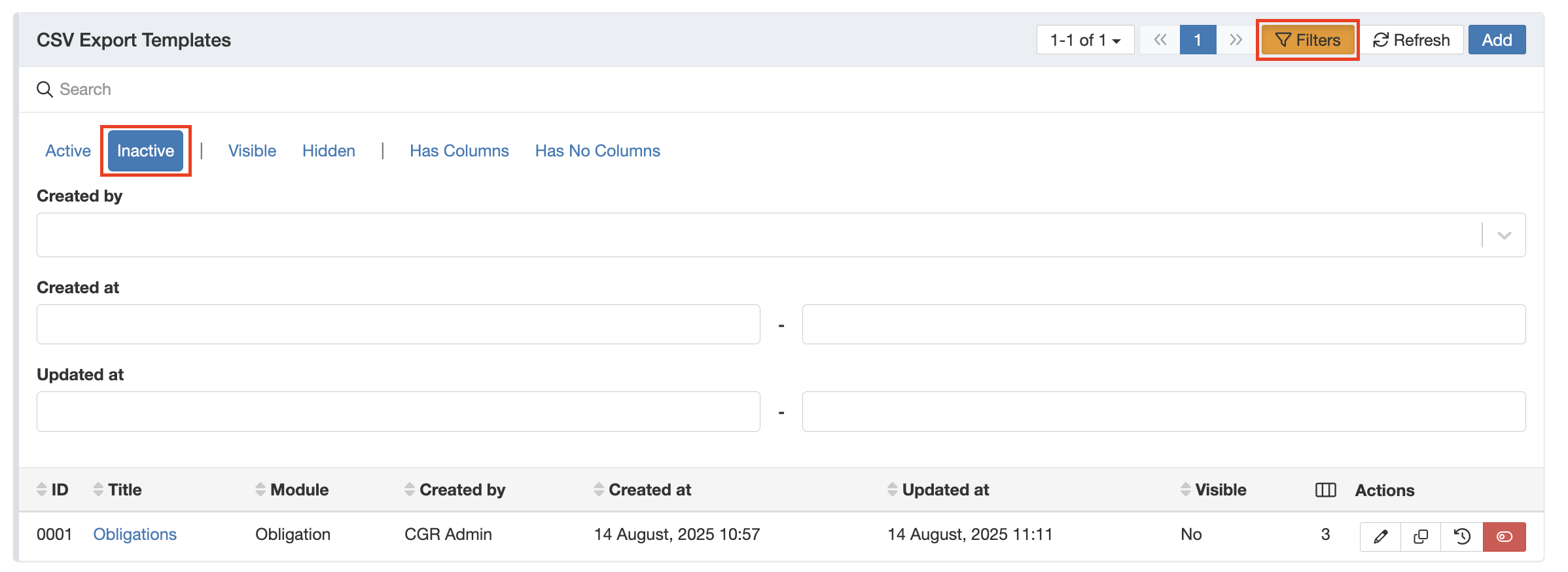
Tick the Inactive filter to reveal deactivated templates.
- To edit the columns of an existing template, click the hyperlinked title. To update the template settings (name, enabled, visible), click the pencil icon.
Creating a New Template
- Go to Admin > CSV Exporter Templates.
- Click Add to create a new template.
- Enter a distinct Title for the template and select the primary module it applies to.
- Configure the template settings:
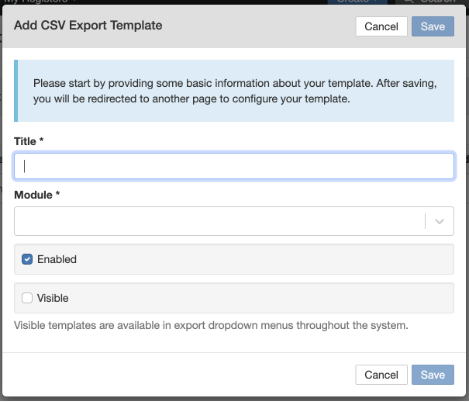
New template form showing the Enable and Visible settings.
| Setting | Default | Description |
| Enable | On | Template is active and usable. Turning this off deactivates the template without deleting it. |
| Visible | Off | When on, the template appears as an export option in the module for all users. This controls the template's visibility, not data access. You can change these settings at any time. |
- Click Save. You will be taken directly to the template builder.
Building Your Template
The template builder works like a spreadsheet. Columns are labelled A, B, C, and so on, and the total column count is shown at the top. The builder auto-saves as you work, so you do not need to manually save column changes.
Adding Columns
- Click the + button to add a new column.
- Enter a Header title. This is the column name that will appear in the exported CSV.
- Under Select field, choose the relevant field from the dropdown and click Save.
- Use the three dots button on a column to add a column to the left or right, clone it, or delete it.
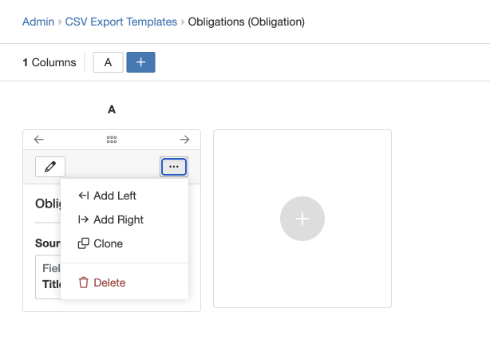
The three dots menu on each column gives options to add, clone, or delete.
Multiple Fields in One Column
You can select more than one field for a single column. Additional fields will appear below the first field in the same cell. This is useful when you want to condense information for readability, but stick to one field per column for structured reporting tools like Power BI.
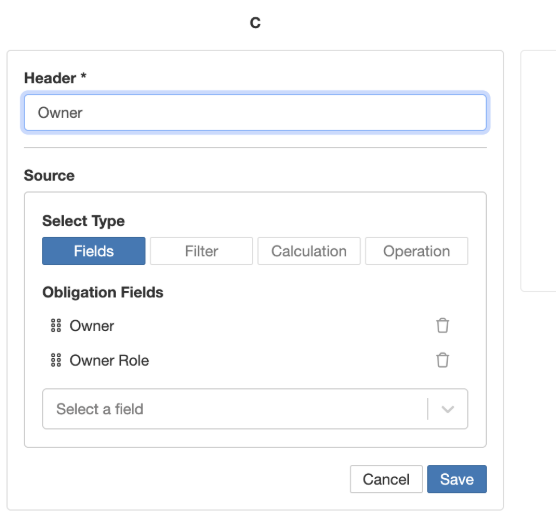
Multiple fields in one column stack in the same cell in the export.
Referencing Data from Other Modules
To include data from a related module, search for the module name in the field dropdown. Modules that have a relationship with the primary module will appear with Relationship shown underneath. You have two options:
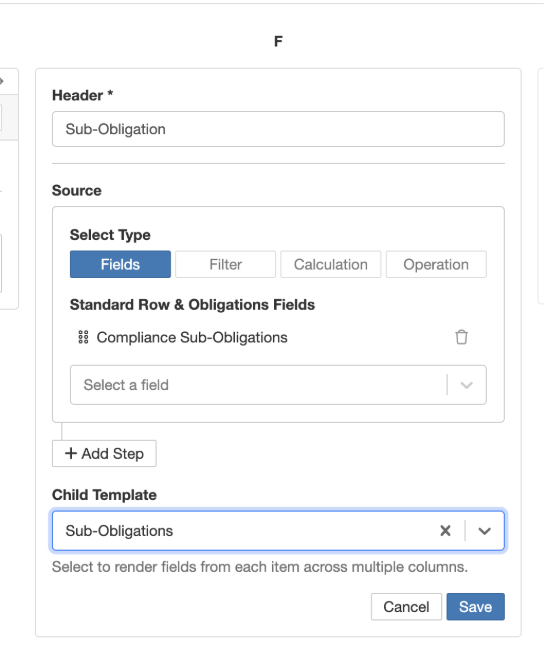
- Child Template dropdown: Select or create a child template for the related module. Best for structured reporting (e.g. Power BI) where each field needs its own column. The column heading will carry the child template title as a prefix.
- Add Step then Fields: Add the related module fields all within the same column. Better when the report is intended to be read directly by colleagues, as it reduces the number of columns. Only the parent column title is shown as the heading.
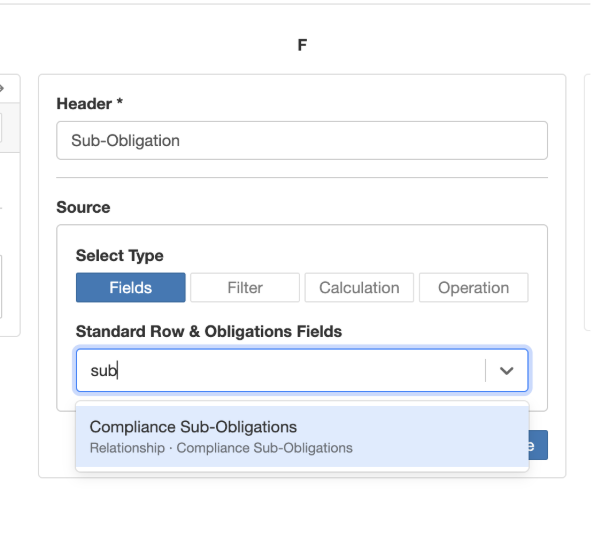
Selecting a relationship field unlocks the Add Step option for advanced configuration.
Steps and Advanced Options
After selecting a relationship field, you can click Add Step to apply filters, calculations, or operations to the data in that column:
| Step Type | Function |
| Fields | Select one or more fields from the related module to display in the column. |
| Filter | Apply one or more saved filters from the module to narrow the data shown. The filter must already be saved in the module before it appears here. |
| Calculation | Apply count, min, max, avg, or sum. Available options differ depending on whether the field is a number or date type. |
| Operation | Run actions such as First/Last, Remove Duplicates, or Join. Join combines multiple values into a single text string using a separator you define, which controls how multiple values are presented in a single cell. |
Example: Count of active actions column
- Add a column and select Actions as the field.
- Click Add Step, select Filter, then choose your active actions filter.
- Click Add Step again, select Calculation, then choose Count.
- Save. The column will now show the number of active actions for each record.
The steps panel showing a Filter followed by a Calculation step.
Adjusting Column Order
Once your columns are added, reorder them as needed:
- Use the arrow buttons on a column to move it left or right one position at a time.
- Or drag and drop columns using the middle drag handle for quicker reordering.
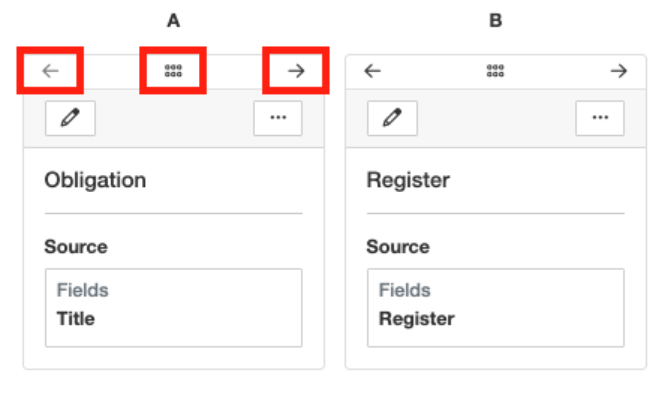
Use the arrows or drag handle to reorder columns.
Previewing and Exporting
Click Preview (top-right corner of the template builder) to see a live sample of the export with real data. This shows exactly how values will appear in the CSV, including how multiple values in a single cell are displayed, so you can validate the output before making the template available to users.
- By default, all records in the module are shown in the preview.
- Refine the preview using the search box, dropdowns, or filters to find specific records.
- Columns from child templates will display with the child template title as a prefix in the column heading.
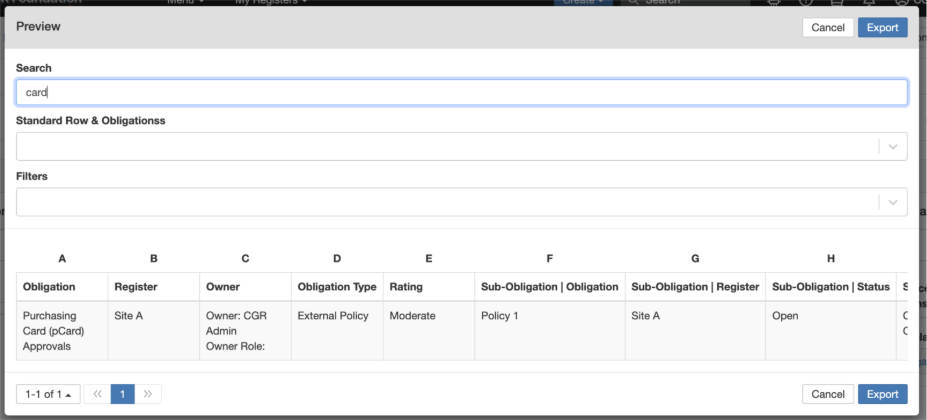
The preview page showing records with child template column prefixes.
From the preview page (admin only), you can also export directly:
- Search for a specific record and export it immediately.
- Select records from the list and export the selection.
- Apply a filter and export the filtered results.
Click Export to download the CSV directly to your device.
Using a Template as a Regular User
Once a template is saved and marked as Visible, it appears as an export option in the relevant module for all users. Here is an example using the Audits module:
- Go to Audits and switch to List View.
- Select the records you want to export.
- Click the Export button.
- Your custom template will appear alongside the standard export options. Select it.
- The CSV downloads in the template's format.
5. Common Issues & Troubleshooting
| Issue | Likely Cause | Solution |
| Template not visible in the list | The template has been deactivated | Tick the Inactive filter on the templates list. Templates cannot be deleted, only deactivated. |
| Template not appearing as an export option for users | The Visible flag is turned off | Open the template settings (pencil icon) and turn on Visible. Also confirm the Enable flag is on. |
| Filter or Calculation step options are not available | No relationship field has been selected yet | Filter and Calculation steps only appear after selecting a sub-module or relationship field. Select the relationship field first, then click Add Step. |
| Saved filter not appearing in the filter step dropdown | The filter does not exist as a saved filter in the module | Go to the relevant module, create the filter, and save it. Return to the template builder and the filter will now be available. |
| Child template columns have confusing prefixes in the export | The child template title is used as a prefix automatically | Rename the child template to a short, descriptive title. The prefix will update accordingly in all column headings. |
| Import is missing filters and permissions after copying from staging | Filters and permissions are not included in the JSON export | Reconfigure filters and user permissions manually after importing the template on the destination server. |
Best practices:
- Use one field per column for structured reporting tools like Power BI. Multiple fields in one cell work well for human-readable reports but can break data pipelines.
- Always preview the template before setting it to Visible. Check that multi-value cells display as expected.
- When adding a filtered calculation, always apply the Filter step before the Calculation step.
- Give templates clear, descriptive names so users can identify the right one from the export menu.
- Use the Versions tab in the template builder to track who made changes and when, particularly when managing templates across a team.
Was this article helpful?
That’s Great!
Thank you for your feedback
Sorry! We couldn't be helpful
Thank you for your feedback
Feedback sent
We appreciate your effort and will try to fix the article