Displaying a Custom Field in Lists as a Column
How to make a custom field appear as a column on a list, and what to consider before you do
Contents
- 1. Introduction & Context
- 2. Key Features & Functions
- 3. Requirements
- 4. Step-by-Step Guide
- 5. Common Issues & Troubleshooting
- 6. Related Articles
1. Introduction & Context
The Clew Platform lets you display your own custom fields as columns on a list, so the information your team relies on is visible without opening each record. Lists are the tables you reach through the menu dropdown, and each custom field carries a Visible on lists property that controls whether it appears as a column.
A worked example: your team has a custom field called Obligation Type on the Obligation module, and people keep opening records just to check it. You enable Visible on lists on that field, and from then on Obligation Type is a column on the Obligation list.
Who is it for? System administrators. The change affects the list for everyone who uses it, not just for you.
What does it impact? Every column you add takes horizontal space. The most common consequence of enabling too many fields is that the list starts scrolling sideways, which makes it harder to read rather than easier.
2. Key Features & Functions
- One property per field: Visible on lists sits in the field's Properties and is the single switch that adds or removes the column.
- Works both ways: the same switch hides a column you no longer want, so you can tidy a crowded list as easily as you extend one.
- Per module: the change applies to the module the field belongs to, for example Obligation, so other lists are unaffected.
- No data change: showing or hiding a column changes what the list displays. It does not add, remove or alter any record data.
3. Requirements
- System administrator access. Without it you will not see the Custom Fields area in Admin.
- The field must be a custom field. Core fields cannot be enabled or disabled by your administrators. At the time of writing, only Clew can change those, so raise a request with support.
- The name of the field you want to change, and the module it belongs to.
4. Step-by-Step Guide
- Navigate to Admin, then Custom Fields.
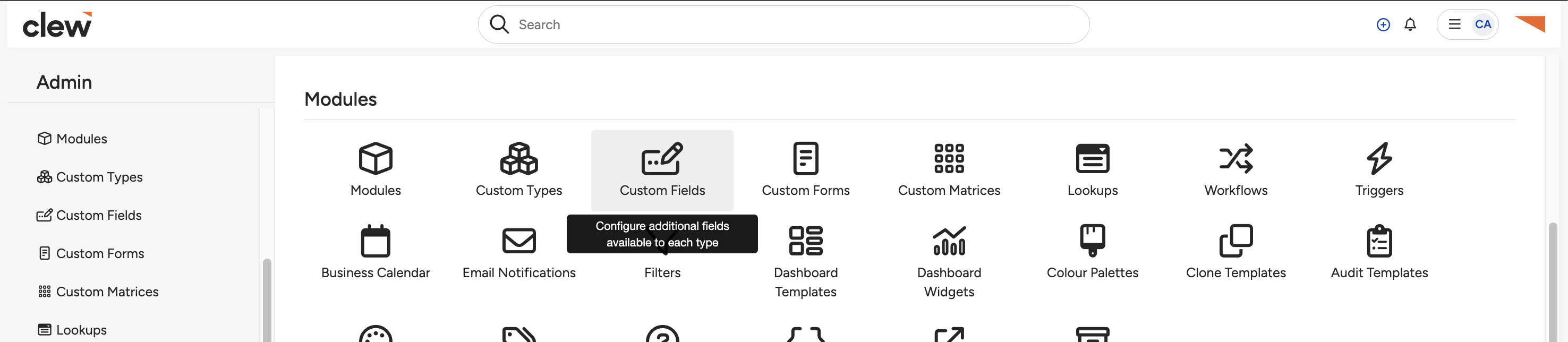
Admin, then Custom Fields.
- Find the field you want to show or hide on a list. In this example the change is to the Obligation module, field Obligation Type. Click the pencil (edit) icon for that field.
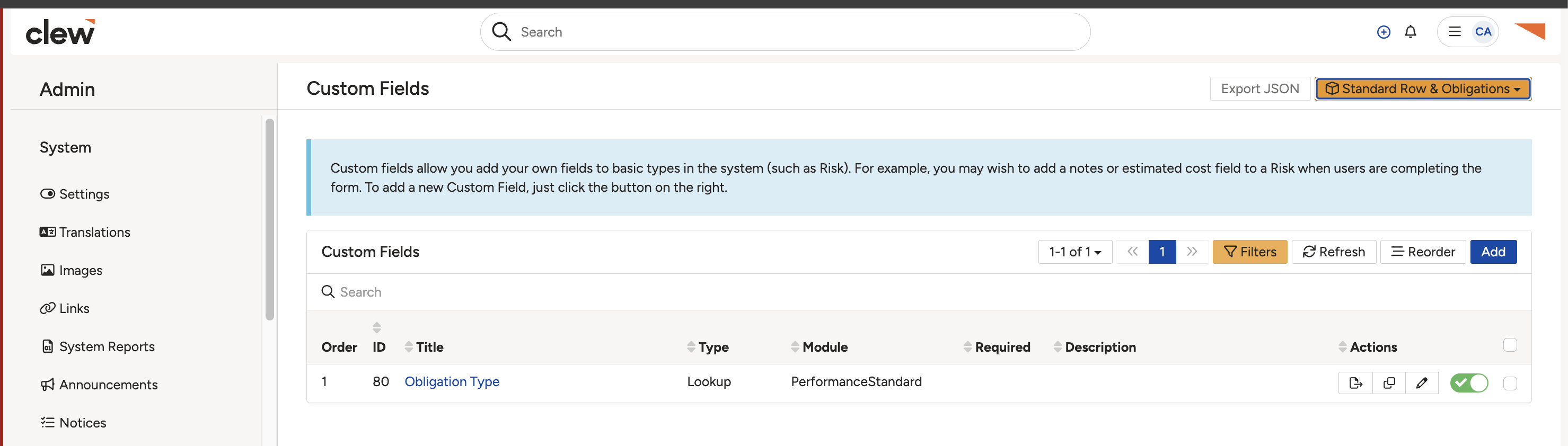
Click the pencil icon beside the field you want to change.
- Once the page loads, scroll down to Properties.
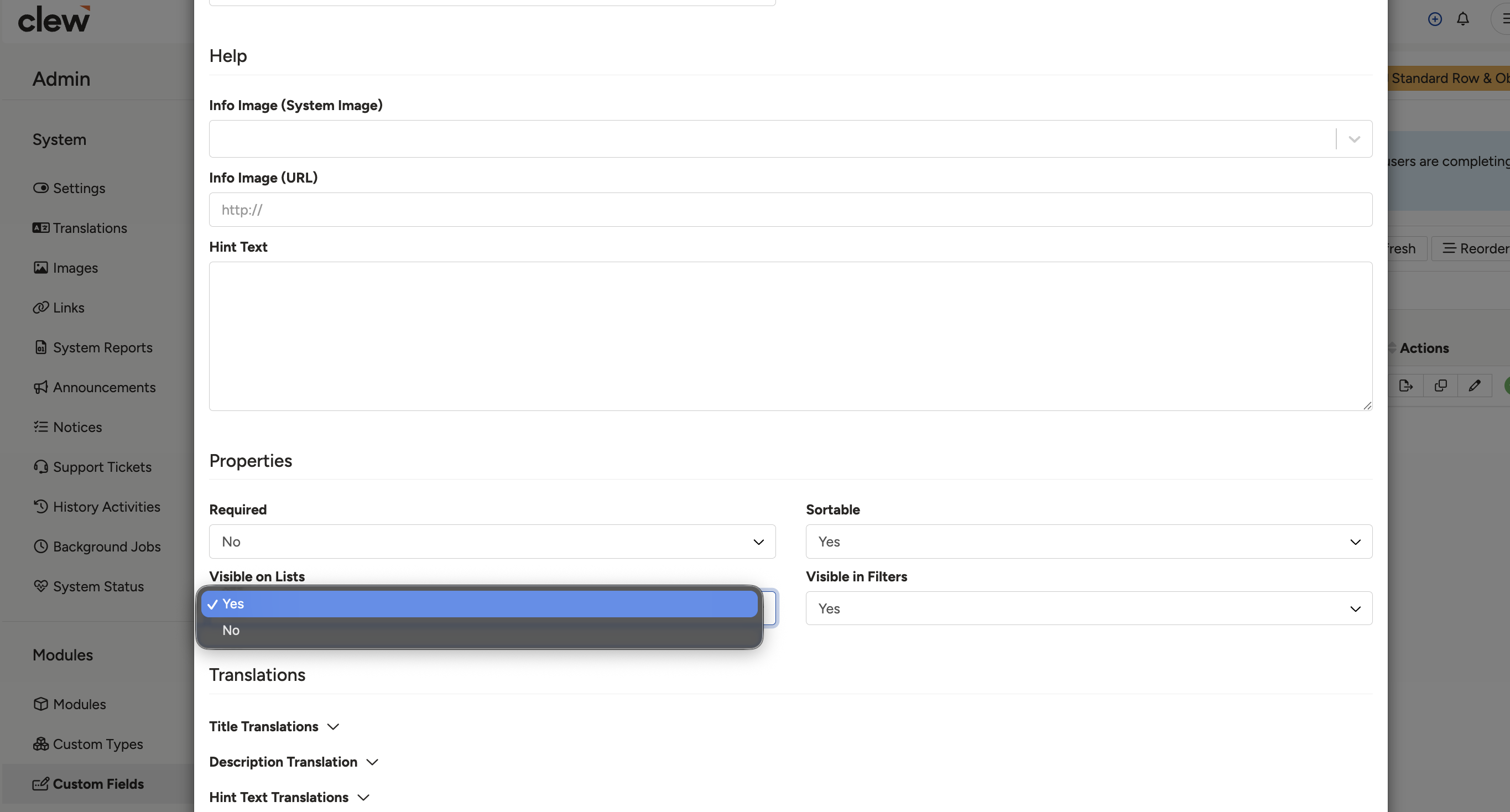
The Properties section of the field.
- Enable or disable Visible on lists, then click Save.
- Open the list for that module and confirm the column now appears, or has gone. Check the list still reads well without scrolling sideways.
[Screenshot: The Visible on lists setting under Properties, with the Save button]
5. Common Issues & Troubleshooting
| Issue | Likely Cause | Solution |
| The column still does not appear on the list | Visible on lists was toggled but the field was not saved | Reopen the field, confirm the setting under Properties, click Save, then refresh the list. |
| There is no Visible on lists option, or it cannot be changed | The field is a Core field rather than a custom field | Core fields can only be enabled or disabled by Clew. Raise a request with support stating the module and field. |
| The list now scrolls sideways and is hard to read | Too many fields are set to visible for the available screen width | Disable the columns your team does not use day to day. Keep the list to the fields people scan, not everything that exists. |
| The Custom Fields area is not visible in Admin | Your account does not hold system administrator permissions | Ask a system administrator in your organisation to make the change. |
| The column appears on the list but not on a dashboard widget | Lists and dashboard table widgets are configured separately | Configure the widget's own columns. See Dashboard Table Widgets in Related Articles. |
Best practices:
- Decide what question the list is meant to answer, then show only the columns that answer it.
- Add and remove in pairs. If you enable a column, look for one you can disable.
- Check the list on the screen size your team actually uses, not just your own.
- Tell the people who use the list when you change its columns, especially if they report from it.
Click a title to preview it here. Use the Open full article button to read the full version in a new tab.
▾Dashboard Table Widgets Open full article »
Related article
How to configure the columns shown on a dashboard table widget, which is set up separately from lists.
▾Custom Fields Open full article »
Related article
How to create a custom field against a module, and what each of its properties does.
Was this article helpful?
That’s Great!
Thank you for your feedback
Sorry! We couldn't be helpful
Thank you for your feedback
Feedback sent
We appreciate your effort and will try to fix the article