How do I add a custom field and enable it on a schema?
Creating a custom field, unhiding a core field, and making a field available on a schema
Contents
- 1. Introduction & Context
- 2. Key Features & Functions
- 3. Requirements
- 4. Step-by-Step Guide
- 5. Common Issues & Troubleshooting
- 6. Related Articles
1. Introduction & Context
If you are a system administrator, you can create new custom fields, unhide core fields, and make them available on a schema. In general, adding a new field and making it available involves two steps: first create the field, then enable it for the schema (form).
Who is it for? System administrators who configure fields and forms in Clew.
What does it impact? New and unhidden fields appear on the forms and schemas where you enable them. If a form uses a schema, you also need to sync and adjust the schema for the field to appear.
2. Key Features & Functions
- Custom fields: create new fields for a module under Admin, Custom Fields.
- Core fields: unhide existing core fields by removing them from the Hidden Fields section of a custom type.
- Schemas: some forms use a schema. Where they do, a field only appears after you sync and adjust the schema.
- Builder panel: on a schema, the Builder panel lets you reorder fields, show or hide fields, and add rules.
3. Requirements
- System Administrator access is required to create fields, unhide core fields, and edit schemas.
- The module and custom type you want to add the field to.
4. Step-by-Step Guide
Creating a new custom field
- Navigate to Admin > Custom Fields.
- Search for the module where you want to add the custom field and click Add.
- Fill out the form. The Title and Type fields are usually the most important. More detail is in the Custom Fields article (see Related Articles).
- Enable it for the locations where you want the field to appear, then click Save.
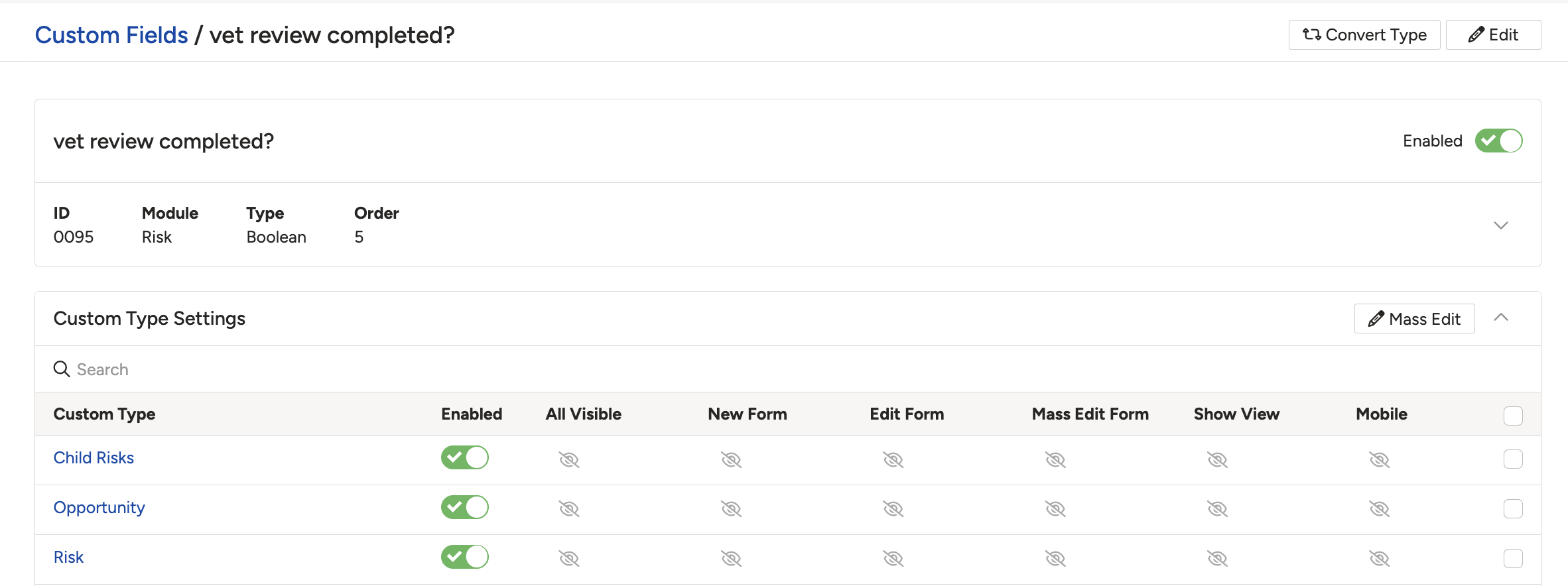
Adding a new custom field under Admin, Custom Fields.
Enabling a core field
- Navigate to Admin > Custom Type and find the custom type you want to adjust.
- Remove the core field from the Hidden Fields section, depending on where you want to display it. Adding a field to a section hides the core field. More detail on core fields is in the Custom Fields article (see Related Articles).
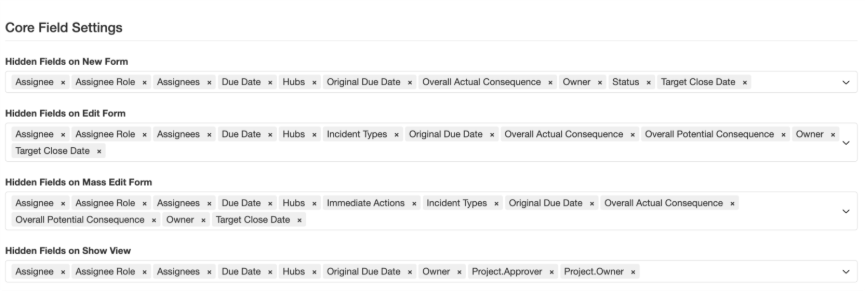
Removing a core field from the Hidden Fields section.
Enabling a field on the schema
- After creating a field and enabling it for a form (for example, New Form), go to Admin > Schemas. You only need the following steps if your form uses a schema. You can tell by the visual difference shown below, or by searching the Schemas page for the name of your form.
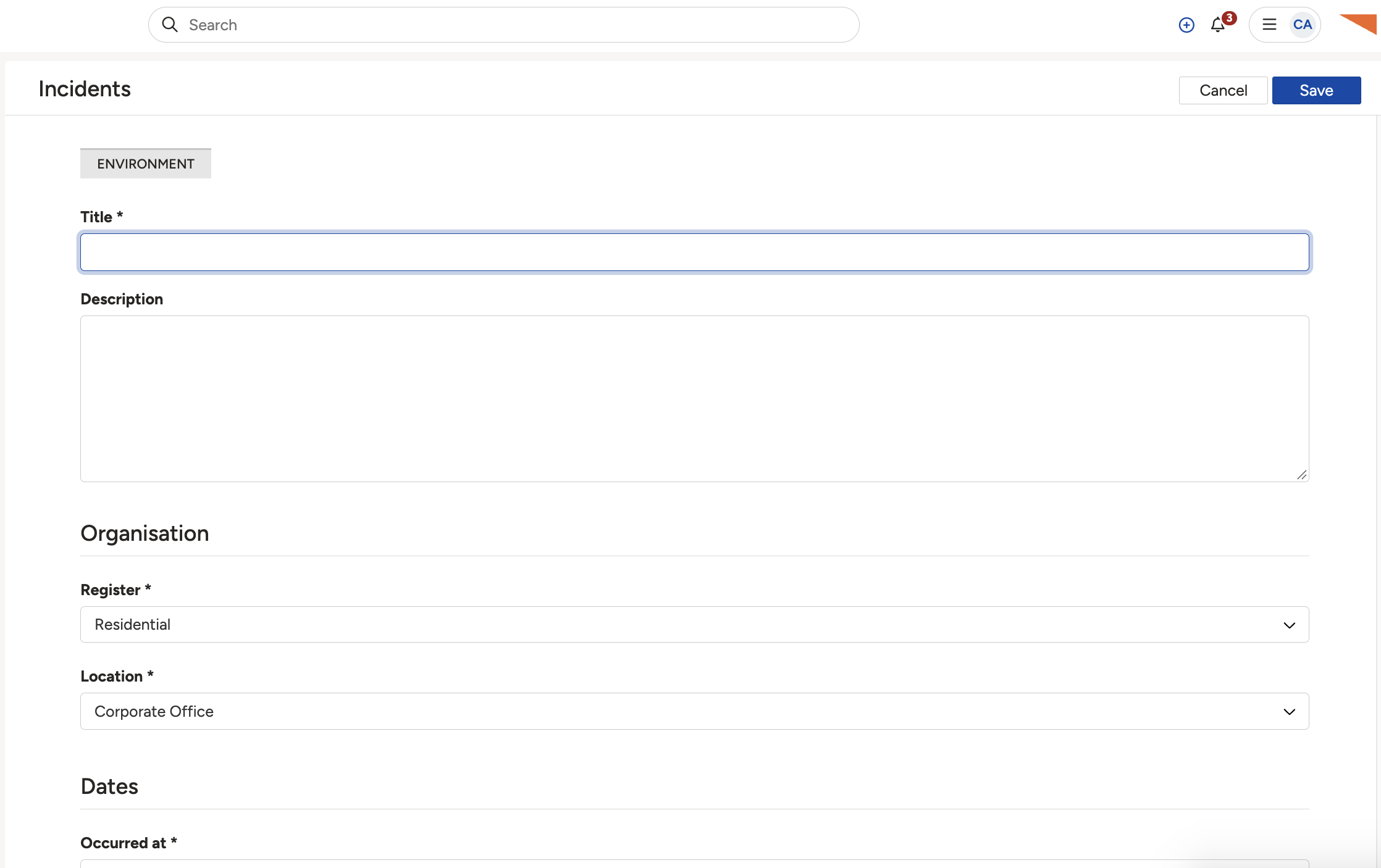
No schema: a form that does not use a schema.
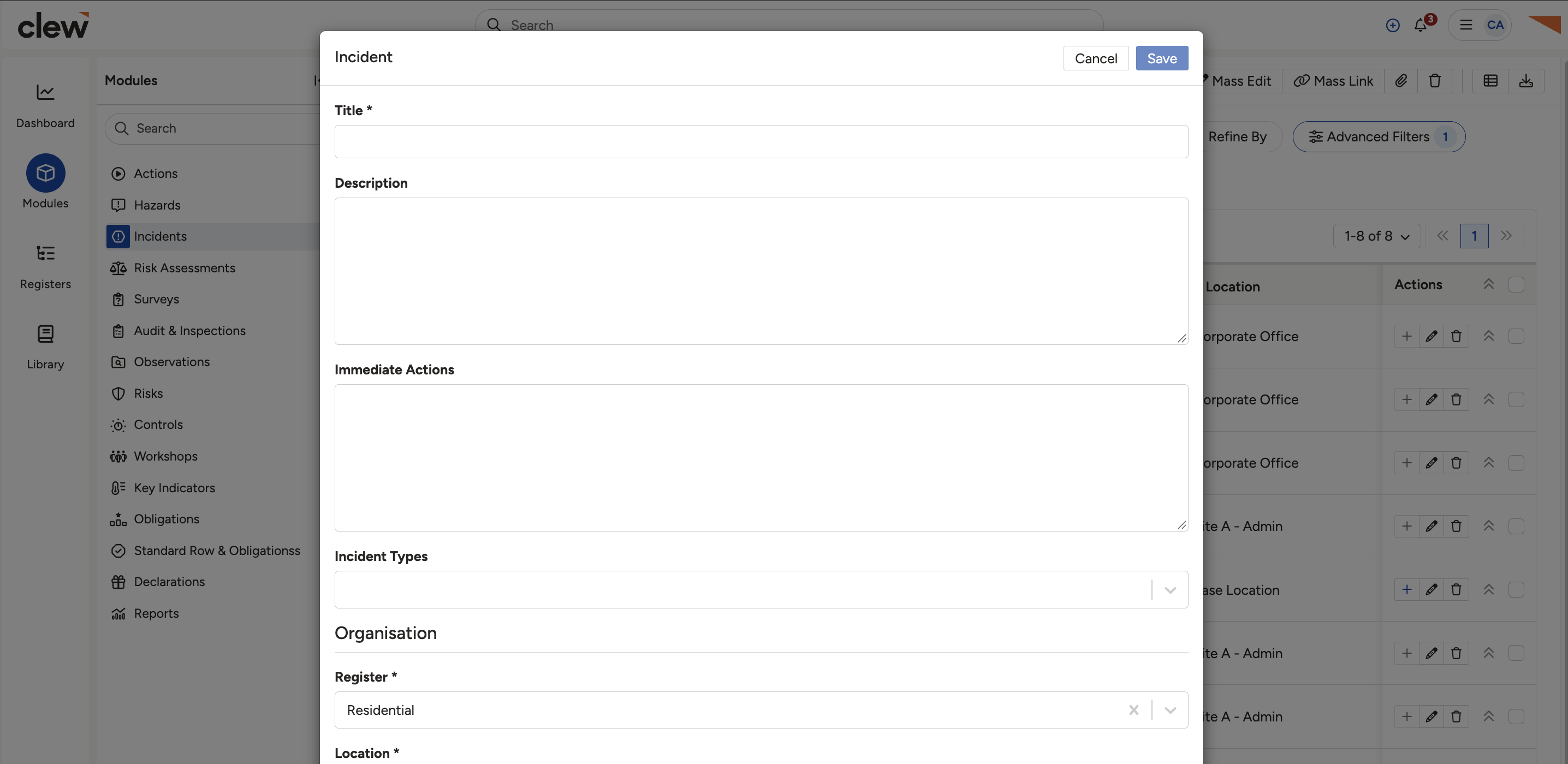
Schema: a form that uses a schema.
- If a field has been changed or a new field was created, a banner appears at the top of the Schemas page asking you to Sync Schemas.
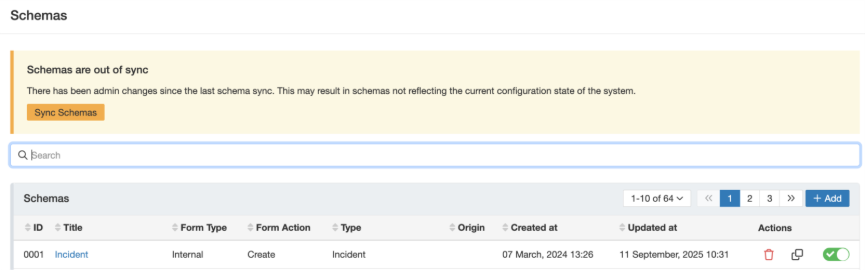
The Sync Schemas banner on the Schemas page.
- Navigate to the schema you want to adjust and open the Builderpanel to:
- Reorder fields.
- Show or hide fields.
- Add rules.
More detail on the Schemas page is in the Schemas article (see Related Articles).
5. Common Issues & Troubleshooting
| Issue | Likely Cause | Solution |
| The new field does not appear on the form | It was not enabled for that location, or the form uses a schema that has not been updated. | Enable the field for the location and save. If the form uses a schema, sync and adjust the schema. |
| A core field is still hidden | It is still in the Hidden Fields section of the custom type. | Remove the field from Hidden Fields and place it in the section where you want it shown. |
| The Sync Schemas banner keeps appearing | Field changes have not been synced to the schemas. | Click Sync Schemas, then adjust the schema in the Builder panel. |
| You are not sure whether a form uses a schema | Schema and non-schema forms look different. | Compare against the No Schema and Schema screenshots above, or search the Schemas page for your form name. |
Best practices:
- Set the Title and Type carefully when creating a field, as these are the most important settings.
- After changing fields, check whether the form uses a schema, and sync if the banner appears.
- Use the Builder panel to confirm the field order and visibility before relying on the form.
Click a title to preview it here. Use the Open full article button to read the full version in a new tab.
▾Custom Fields Open full article »
Related article
How to create and configure custom and core fields in detail.
▾Schemas Open full article »
Related article
How schemas work, including the Builder panel and syncing.
Was this article helpful?
That’s Great!
Thank you for your feedback
Sorry! We couldn't be helpful
Thank you for your feedback
Feedback sent
We appreciate your effort and will try to fix the article