How do I customise the Activity Stream?
How a system administrator adds or removes the fields shown in a module's Activity Stream
Contents
- 1. Introduction & Context
- 2. Key Features & Functions
- 3. Requirements
- 4. Step-by-Step Guide
- 5. Common Issues & Troubleshooting
- 6. Related Articles
1. Introduction & Context
The Activity Stream is a panel in Clew that displays updates and actions performed within a module. It helps users keep track of progress and important record changes. This guide explains how system administrators can customise the Activity Stream by adding or removing fields, so that only the most relevant information is displayed to users.
Who is it for? System administrators who manage what appears in a module's Activity Stream.
What does it impact? The fields you choose change what every user sees in that module's Activity Stream.
2. Key Features & Functions
- Driven by a trigger: the Activity Stream is controlled by the update progress trigger for the module.
- Configured on the Activities sub-panel: the fields shown are set on the Activities sub-panel of that trigger.
- Set per module: customise the Activity Stream separately for each module.
3. Requirements
- System Administrator access is required to customise the Activity Stream.
- The module whose Activity Stream you want to change.
4. Step-by-Step Guide
Adding or removing Activity Stream fields
- Navigate to the Admin area, then Triggers.
- Select the module where you want to add or remove Activity Stream fields.
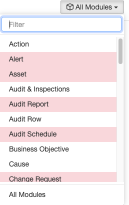
Selecting the module in the Triggers area.
- Use the search bar to find update progress, the trigger responsible for the Activity Stream.
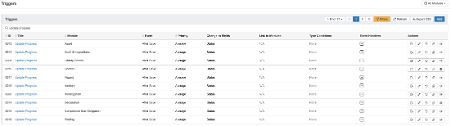
Finding the update progress trigger.
- Locate the Activities sub-panel and click the pencil icon to edit it.
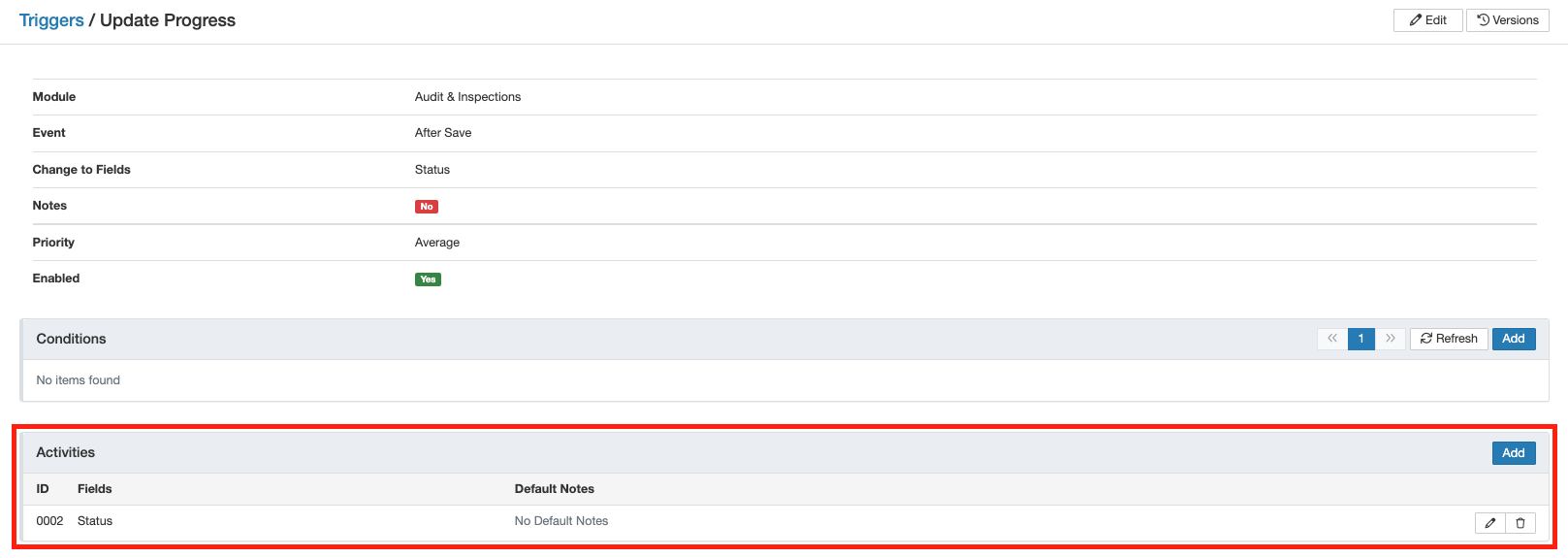
Editing the Activities sub-panel.
- In Fields, search the available module fields, select the ones you want displayed, and click Save.
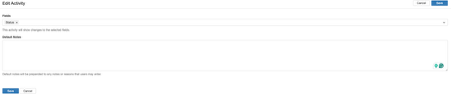
Choosing the fields to display in the Activity Stream.
5. Common Issues & Troubleshooting
| Issue | Likely Cause | Solution |
| You cannot find the update progress trigger | You are looking at the wrong module. | Confirm you selected the correct module in Triggers, then search again for update progress. |
| A field change did not appear | The change was not saved. | Reopen the Activities sub-panel, confirm the selected fields, and click Save. Refresh to check. |
| The Activity Stream panel is not visible at all | The Activity Stream configuration is disabled for the module. | This is a separate setting. See the related article on why the Activity Stream may not be visible. |
Click a title to preview it here. Use the Open full article button to read the full version in a new tab.
▾Why can't I see the activity stream for this module? Open full article »
Related article
What to do when the Activity Stream panel is not showing.
▾Trigger Configuration Open full article »
Related article
How triggers are set up, including the update progress trigger.
Was this article helpful?
That’s Great!
Thank you for your feedback
Sorry! We couldn't be helpful
Thank you for your feedback
Feedback sent
We appreciate your effort and will try to fix the article