Actions
How to create, track, and manage actions against a record in the Clew Platform
Contents
- 1. Introduction & Context
- 2. Key Features & Functions
- 3. Requirements
- 4. Step-by-Step Guide
- 5. Common Issues & Troubleshooting
- 6. Related Articles
1. Introduction & Context
An action is a task you raise and track against a record, such as a risk, control, audit, or incident, so that the follow-up work has a clear owner, a due date, a status, and a visible progress percentage.
Who is it for? Anyone who is assigned follow-up work in the Clew Platform, and the record owners who create actions and track them to completion.
What does it impact? An action carries an owner, a due date, a status, and a progress value. Every change is recorded in the action's history. As progress is updated, the status moves through your organisation's workflow.
2. Key Features & Functions
- Created against a record: raise an action from a risk, control, audit, or incident, and it stays linked to that record.
- Title, details, status and progress: capture what needs doing, the current status, and a progress percentage.
- People: assign the owner, assignees, and any sanctioner or authoriser roles your organisation uses.
- Due date: set a deadline. If you leave it blank, a default of two weeks is pre-populated.
- Update progress with notes: record progress as the work moves along, with a note each time.
- Workflow-driven statuses: the status changes as the action progresses, following your organisation's configured workflow.
- Full history: every change is logged in the Activity Stream.
- Linked records: the record the action was created from is shown as a primary link.
3. Requirements
- Permission to add and edit actions on the record you are working from. If you cannot open the record, you cannot add an action to it.
- A record (such as a risk) to create the action against, unless your setup allows standalone actions.
- An owner and, ideally, a due date.
- An understanding that statuses, people roles, extra fields, and workflow transitions are configured per organisation and may differ from the examples below.
4. Step-by-Step Guide
Creating an action
Actions are created from the record they relate to.
- Open the record, for example a risk, and scroll to the Actions section.
- Click Add.
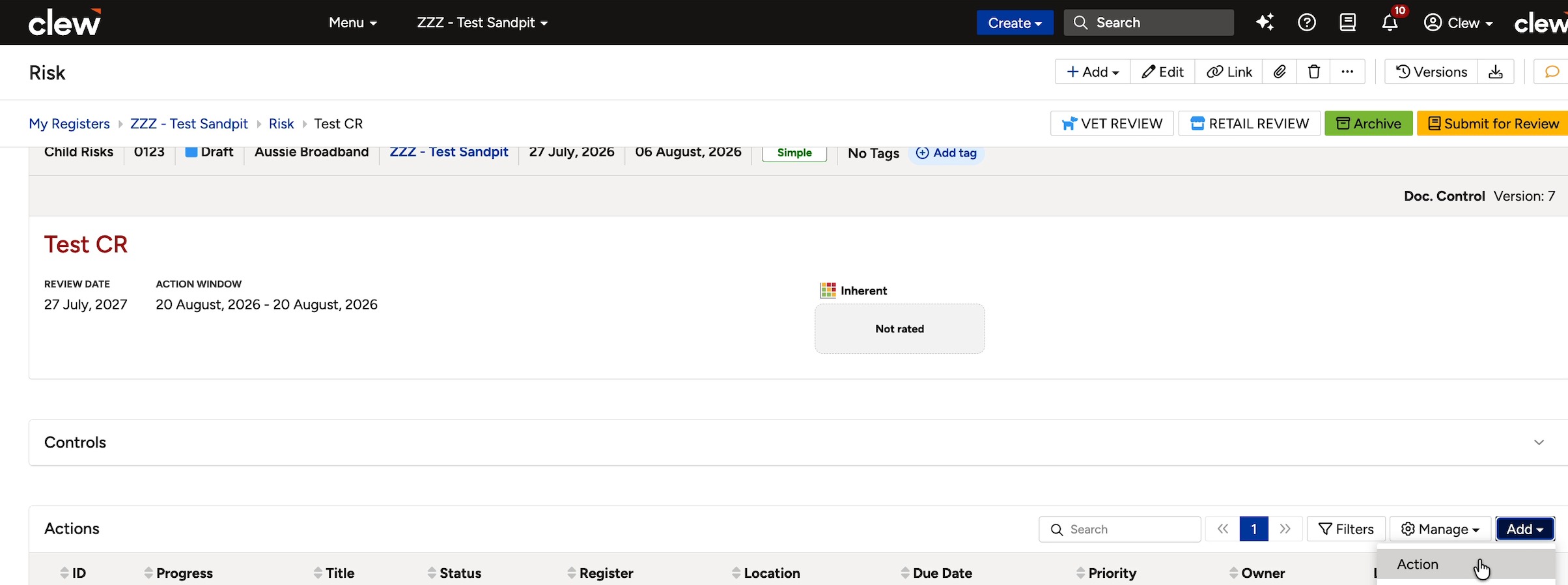
The Actions section on a record, with the Add button.
- In the Action form, enter a Title (required) and any Details. The Linked to panel at the top already shows the record you are creating the action from.
- Set the Status (this starts at the first status in your workflow, for example Draft) and the Progress (starts at 0%).
- Under People, set the Owner Role, Assignee Role, Assignees, and any Sanctioner Role or Authoriser Role your organisation uses.
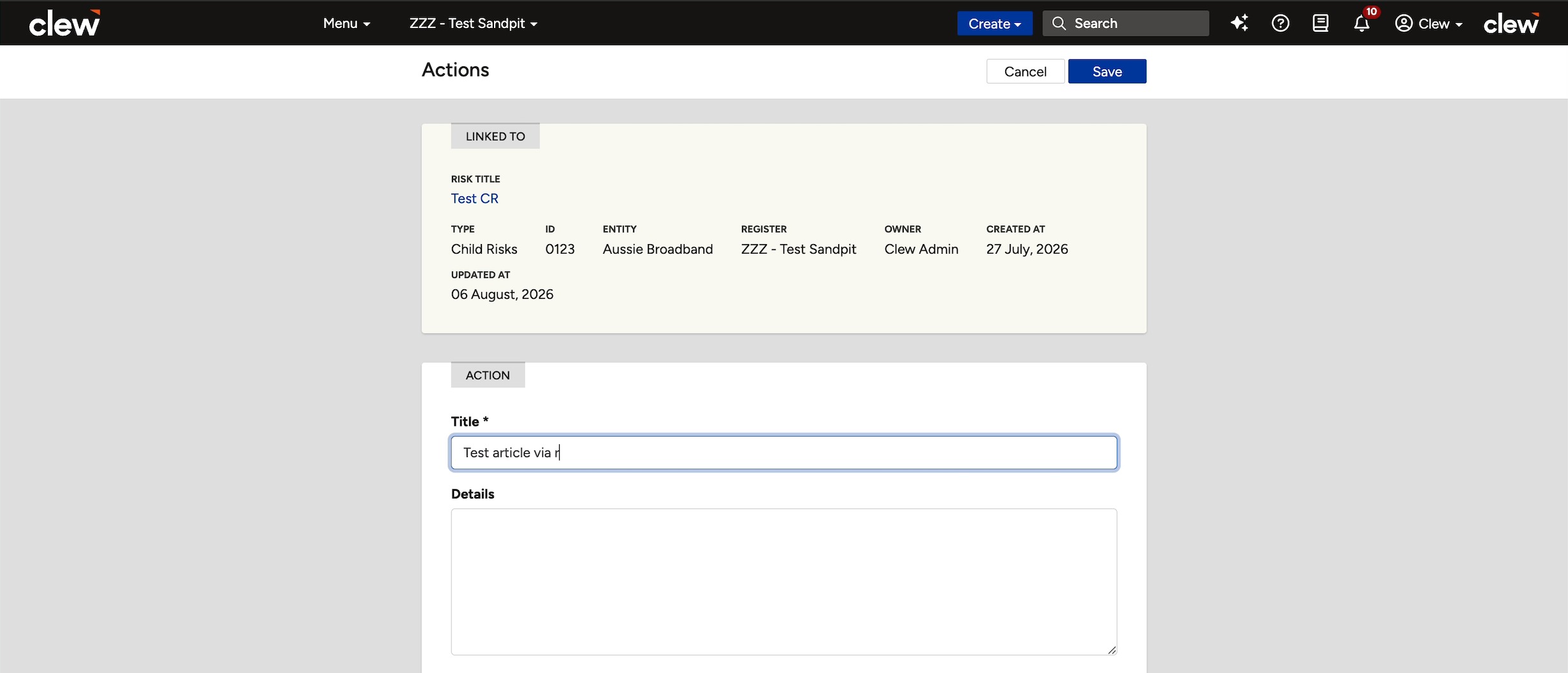
The Create Action form showing Title, Details, Status and Progress.
- Under Dates, set the Due Date. If you leave it blank, a default of two weeks from today is pre-populated.
- Complete any Extra Fields your organisation has configured.
- Click Save.

The Due Date field with the two-week default, and any Extra Fields.
A confirmation banner appears and the new action opens, showing its progress, dates, and a Linked to table with the source record marked as a Primary link.
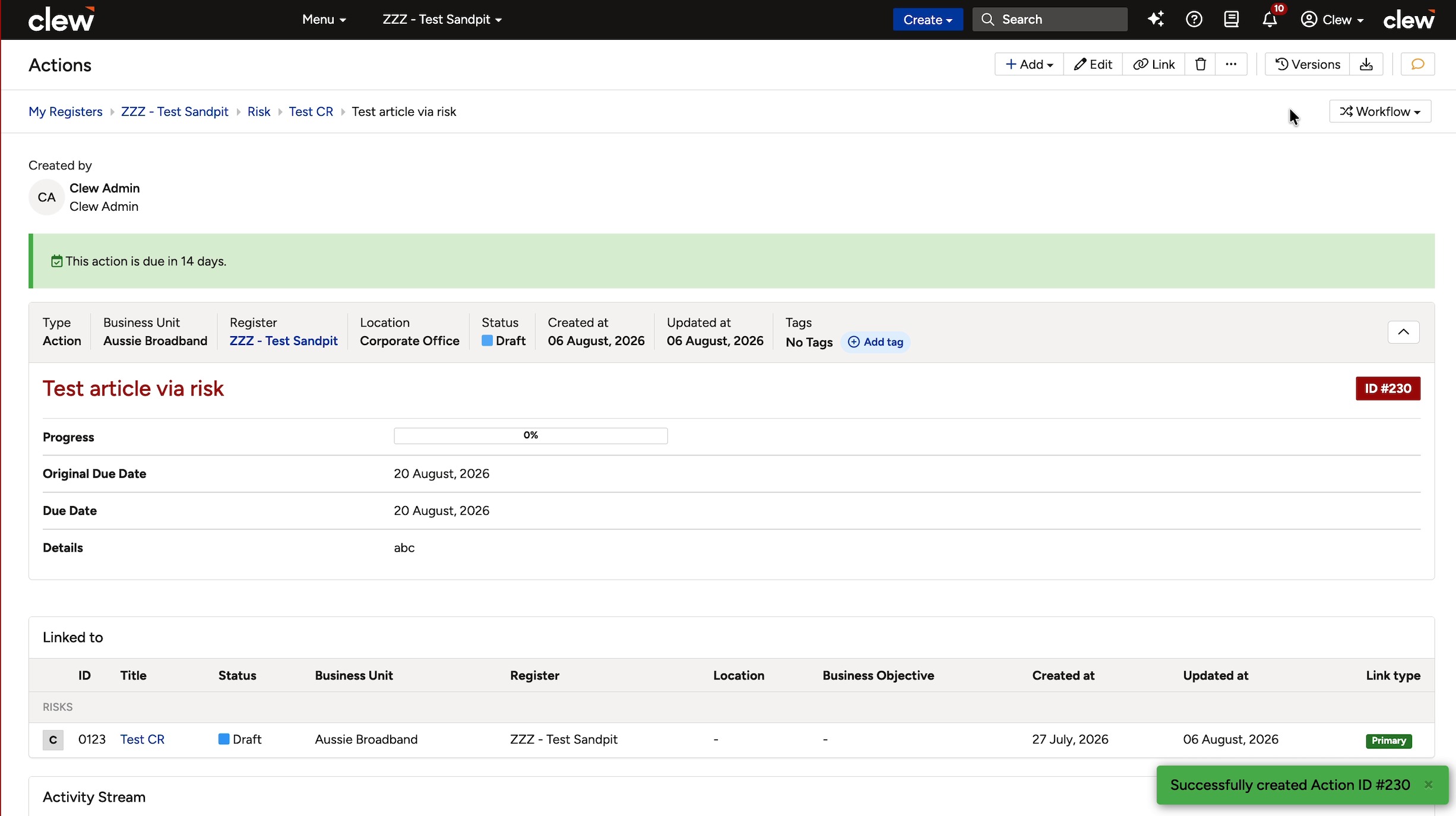
The created action, with the success banner and the Linked to table.
Tracking and updating progress
- Open the action.
- Click Update Progress at the top right.
- In the Update Progress window, set the new Progress percentage. If notes are enabled on the status, an Add note button (with an icon) appears at the top right so you can add a note.
- Click Confirm. The progress bar updates.
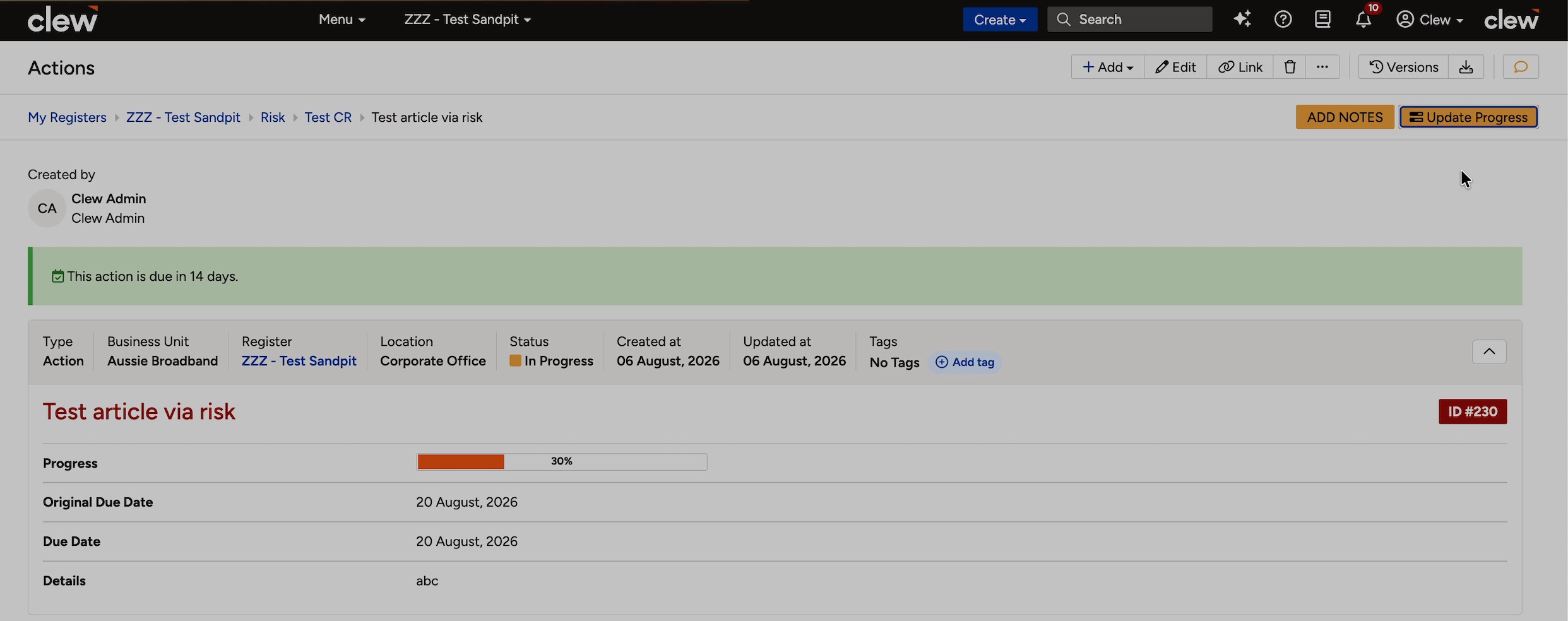
The action showing the Update Progress and Add Notes buttons.
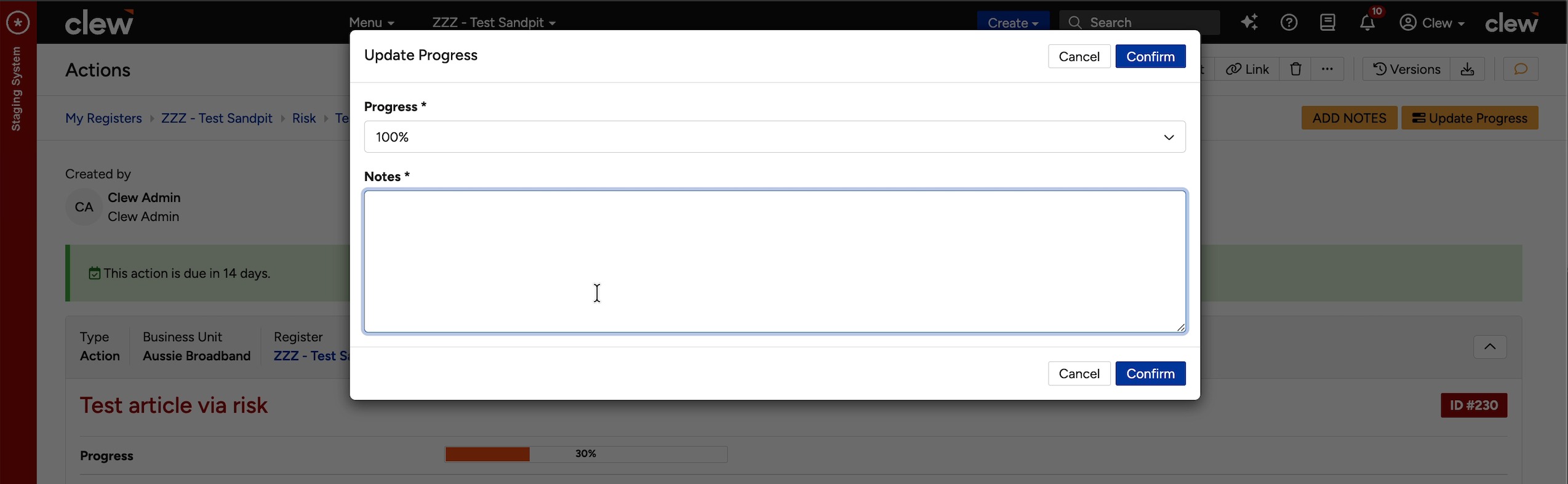
The Update Progress window, where you set the progress and add a note.
How statuses change
As you update progress, the action's status moves through your organisation's workflow automatically. In the example setup it runs from Draft to Not Started, In Progress, Pending Approval, and finally Closed. The exact statuses and the order they follow are configured per organisation, so yours may differ. Where your workflow offers manual transitions, they appear as buttons at the top right of the action.
Viewing the history
Every change is recorded in the Activity Stream at the bottom of the action, showing who made the change, when, any note they added, and exactly what changed, for example a progress or status change.
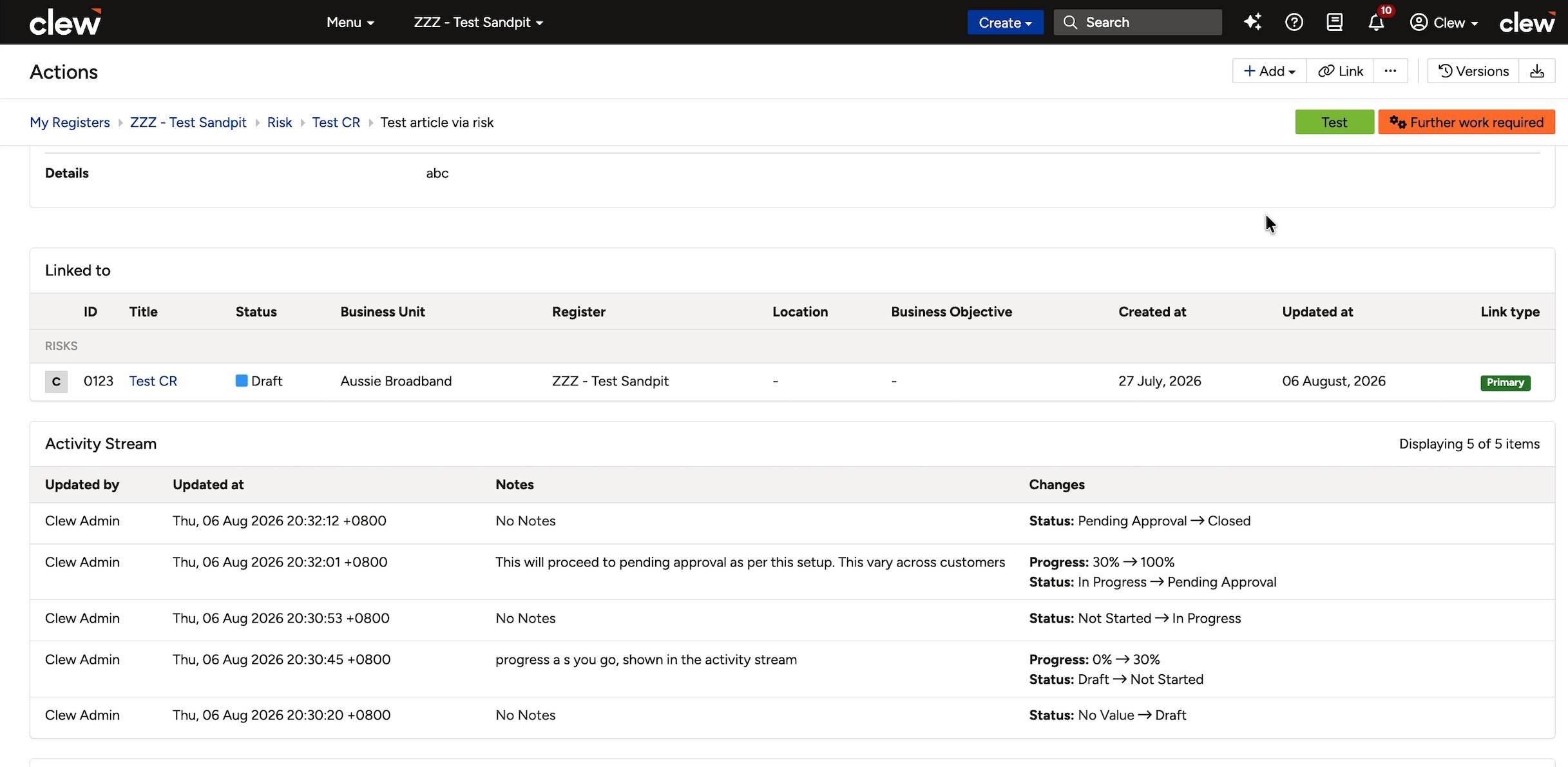
The Activity Stream listing each progress and status change.
5. Common Issues & Troubleshooting
| Issue | Likely Cause | Solution |
| The status did not change the way I expected | Status transitions follow your organisation's configured workflow, which differs between organisations. | Check your workflow, or ask your administrator how the statuses are set to progress for this record type. |
| There is no Update Progress button | You may not have permission to edit this action. | Ask your administrator to confirm your permissions on the record and its actions. |
| An action still shows as overdue after it was completed | The progress reached 100% but the status has not moved to a closed status. | Update the status through the workflow to its closed state, then check the Activity Stream to confirm. |
| No notification was sent for the action | In Clew, notifications are only sent if a trigger or an email notification has been set up. Nothing is sent automatically. | Ask your administrator whether a trigger or email notification is configured for actions. |
Best practices:
- Give every action a clear title, an owner, and a realistic due date.
- Update progress as the work happens and add a note each time, so the Activity Stream tells the full story.
- Let the workflow move the status rather than forcing it, so the history stays accurate.
Was this article helpful?
That’s Great!
Thank you for your feedback
Sorry! We couldn't be helpful
Thank you for your feedback
Feedback sent
We appreciate your effort and will try to fix the article