Notes & Activity Stream
Add notes to a record and see a quick summary of the most important activity on it
Contents
- 1. Introduction & Context
- 2. Key Features & Functions
- 3. Requirements
- 4. Step-by-Step Guide
- 5. Common Issues & Troubleshooting
- 6. Related Articles
1. Introduction & Context
Notes and the Activity Stream let you add comments directly to a record and see a running summary of the most important updates made to it, so your team has context on what has happened without leaving the record.
Who is it for? Any user with at least read access to a record can view its notes and Activity Stream. Adding a note is available to anyone with read access to the record, provided the feature has been enabled for that record's current workflow status.
What does it impact? Notes and the Activity Stream sit alongside a record, not inside its data. Adding a note does not change any field values on the record. The Activity Stream is a curated, quick-reference feed of notes and selected field changes, not a complete audit trail.
2. Key Features & Functions
- Add Note button: a speech bubble icon in the record toolbar opens a dialog where you can type a note and, if allowed, notify extra people by email about it.
- Available on every module: notes can be enabled on any record type, such as Risks, Controls, Actions, and Incidents, as long as it has been switched on for that record's workflow status.
- Email notifications: administrators can set default recipients (by role or by user) who are always emailed when a note is added, and can allow the person adding the note to select extra recipients on the spot.
- Activity Stream: a panel at the bottom of the record that combines added notes and selected field changes into one feed, showing who made the update, when, any note text, and what changed.
- Editable notes: you can edit your own notes after posting them. You cannot edit notes added by someone else.
- Configurable logging: administrators decide exactly which field changes appear in the Activity Stream, so it stays a genuinely quick overview rather than a full history.
3. Requirements
- You need at least read access to a record to view its notes and Activity Stream, and to add a note to it (where enabled).
- The Add Note button must be enabled for the record's current workflow status. An administrator turns this on under Admin > Workflows, the relevant module and workflow, a status, then the Enable Add Note Button for all states toggle.
- To have default recipients automatically emailed when a note is added, an administrator sets Recipients (Roles) and Recipients (Users) on that same status screen.
- To let users choose extra people to notify when they add a note, an administrator ticks Show Extra Email Recipients (Roles) and/or Show Extra Email Recipients (Users).
- The Activity Stream panel itself must be visible on the module. If it is not already showing, this needs to be switched on by the Clew team; it is not a setting administrators can change themselves.
- What appears in the Activity Stream is controlled through Triggers, where an administrator adds the specific fields that should be logged as Activities.
4. Step-by-Step Guide
Adding a Note to a Record
- Open the record you want to add a note to.
- Click the speech bubble icon in the toolbar at the top of the record. If you do not see this icon, notes have not been enabled for the record's current status. See Enabling Notes for a Workflow Status.
- In the Add Note dialog, type your note in the Notes field. This is required.
- If Email Recipients and Extra Email Recipients fields are shown, use them to notify specific people about this note, on top of any default recipients your administrator has already configured.
- Click Confirm to save the note.
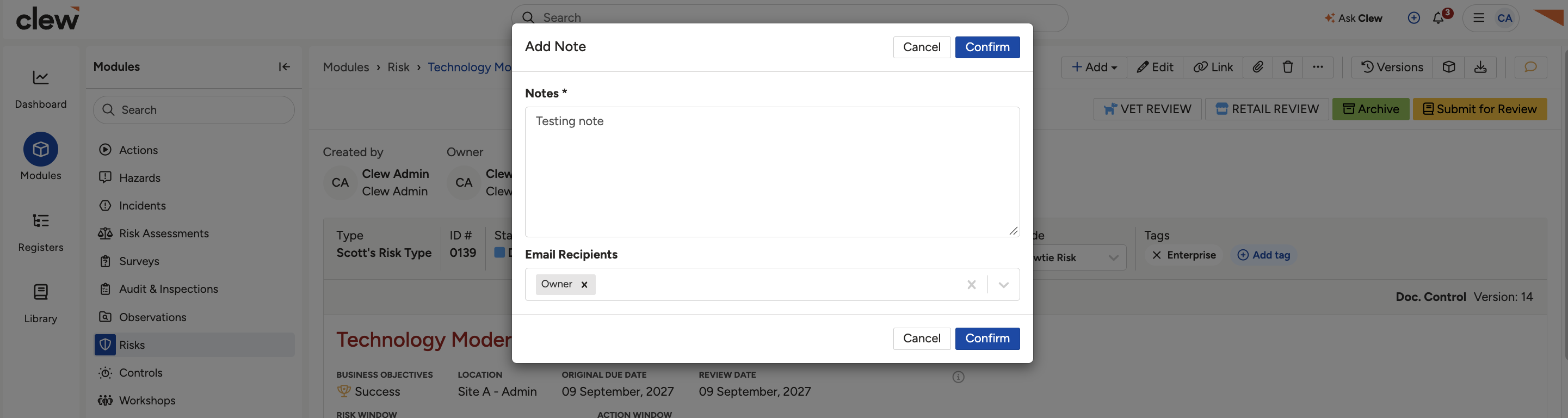
The Add Note icon in the record toolbar, and the Add Note dialog with its Notes, Email Recipients and Extra Email Recipients fields.
Viewing and Editing Activity in the Activity Stream
- Scroll to the bottom of the record. The Activity Stream panel lists recent activity in a table, with columns for Updated by, Updated at, Notes, and Changes.
- Each row shows either a note, a logged field change, or both. A row with no note shows No Notes, and a row with no logged change shows No Changes.
- To amend a note you added, click Edit next to it. You can only edit notes you created yourself.

The Activity Stream panel at the bottom of a record, with its Updated by, Updated at, Notes and Changes columns and an Edit link under each entry.
Enabling Notes for a Workflow Status (Administrators)
- Go to Admin > Workflows, then select the relevant module and workflow.
- Open the status you want to configure.
- Under Add Note, turn on Enable Add Note Button for all states.
- Optionally, set Recipients (Roles) and Recipients (Users) so those people are always emailed when a note is added to a record they can read.
- Optionally, tick Show Extra Email Recipients (Roles) and/or Show Extra Email Recipients (Users) to let the person adding the note choose additional recipients each time.
- Click Save.
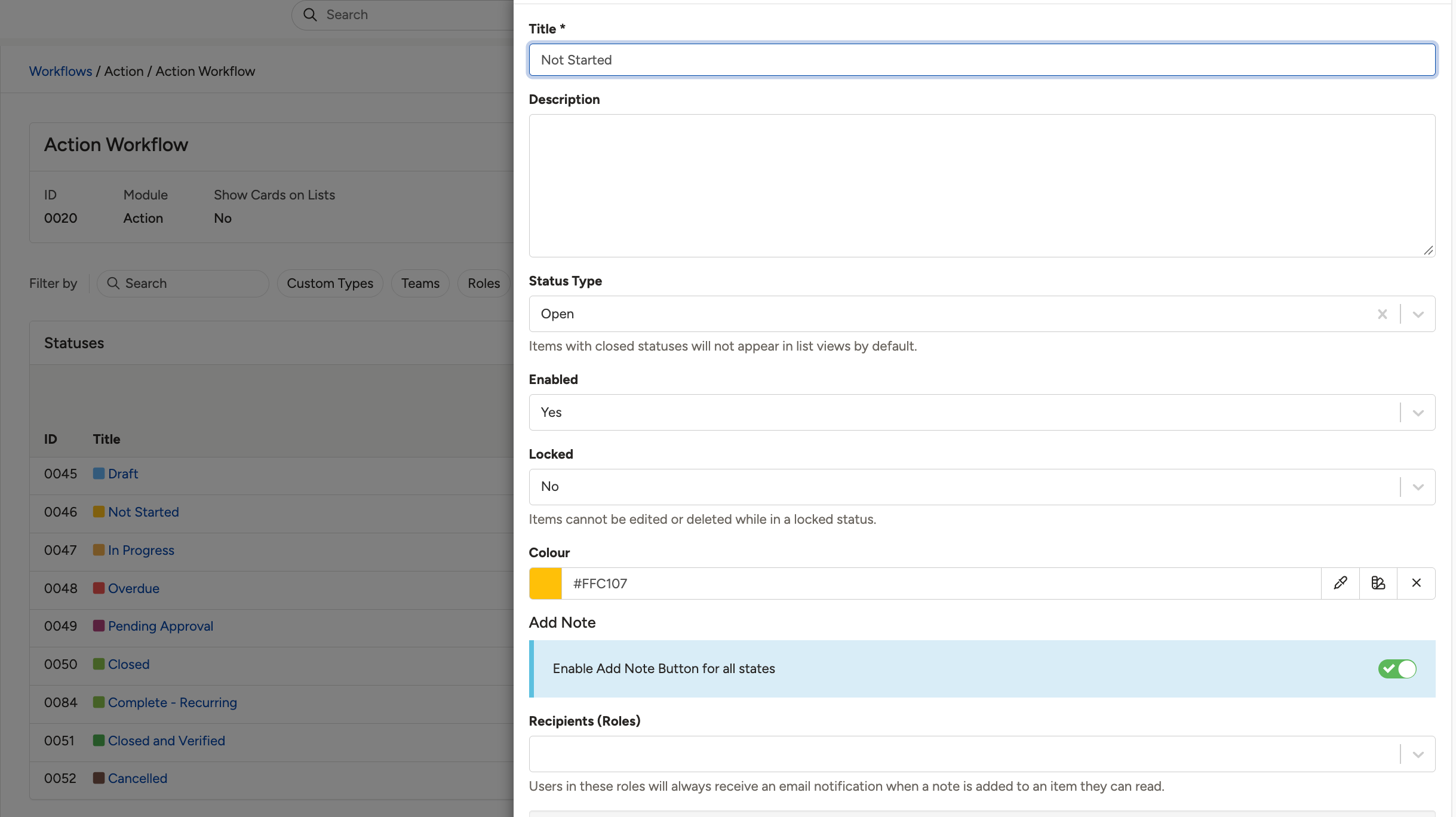
The workflow status settings, with the Enable Add Note Button toggle, Recipients fields, and the Show Extra Email Recipients options.
Choosing What Appears in the Activity Stream (Administrators)
- Go to Admin > Triggers and open the trigger for the module and event you want to review.
- In the Activities section, add the fields that should appear in the Activity Stream when they change, and optionally set default note text for that entry.
- Save your changes. Only the fields listed here will show up as logged changes in the Activity Stream.
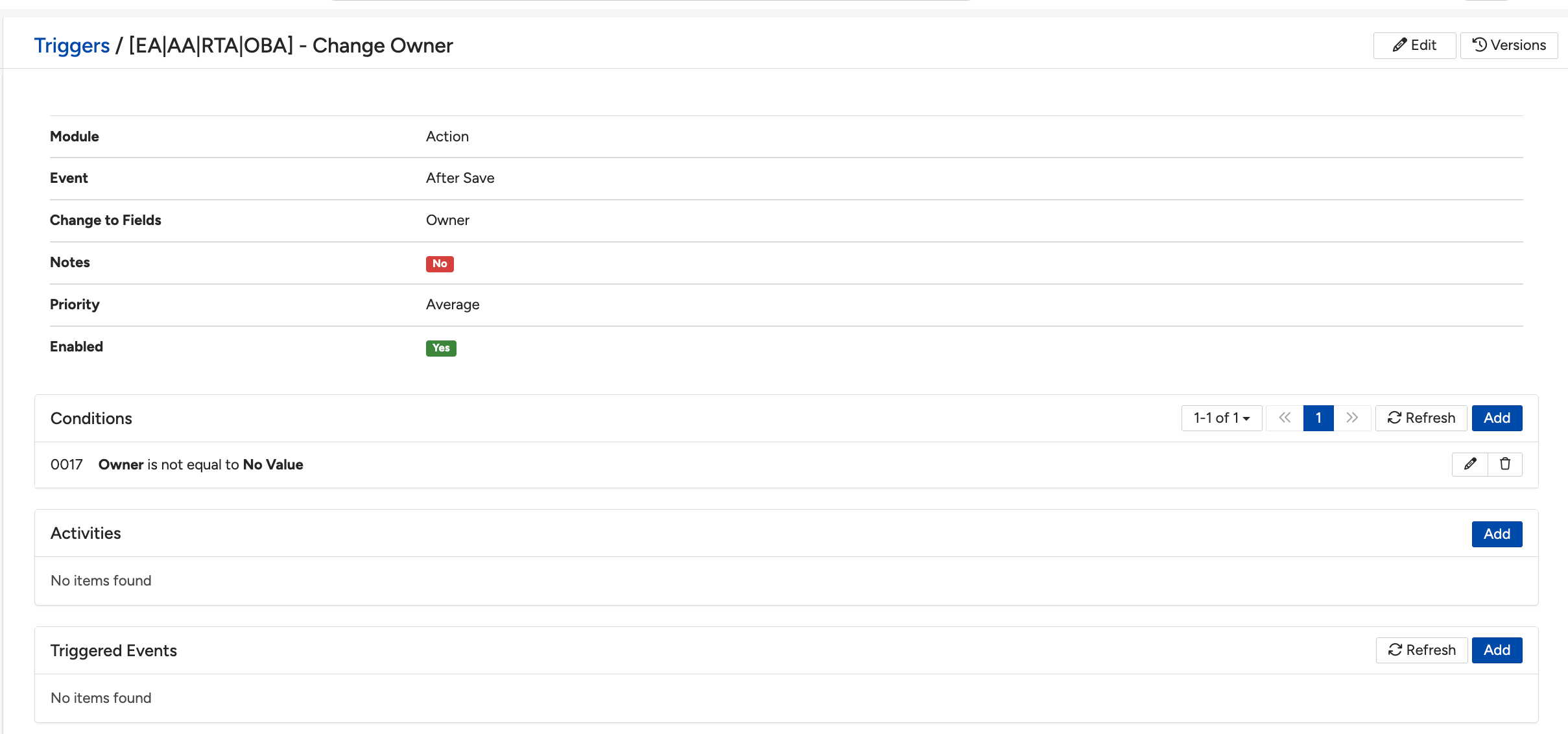
A trigger configuration page, with the Activities section listing the fields logged to the Activity Stream.
5. Common Issues & Troubleshooting
| Issue | Likely Cause | Solution |
| The Add Note icon does not appear on a record. | Notes has not been enabled for the record's current workflow status. | Ask an administrator to turn on Enable Add Note Button for all states under Admin, Workflows for that module and status. |
| No one is emailed when a note is added. | No default recipients have been configured, or the Extra Email Recipients option has not been switched on. | Ask an administrator to set Recipients (Roles) and Recipients (Users) on the status, and to enable Show Extra Email Recipients if ad hoc notifications are needed. |
| A note cannot be edited. | The Edit link only works on notes you created yourself. | Ask the original author to update the note, or add a new note with the correction instead. |
| A field change is missing from the Activity Stream. | That field has not been added under Activities in the relevant Trigger. | Ask an administrator to add the field under Admin, Triggers, Activities. For a full history of every change, check Versions instead. |
| The Activity Stream panel is not visible on a module at all. | The Activity Stream has not been switched on for that module. | Contact Clew support. Enabling Activity Stream visibility on a module is done by the Clew team, not by administrators. |
Best practices:
- Use notes for quick context and communication, not as a substitute for the full record history.
- Only add the fields your team actually needs to the Activity Stream, so it stays a genuinely quick overview rather than a wall of updates.
- If you need the complete history of every change made to a record, check Versions rather than the Activity Stream.
- Review who is set as a default recipient periodically, so notifications go to the right people as roles change.
Click a title to preview it here. Use the Open full article button to read the full version in a new tab.
▾Workflow Statuses: Overview & Functionalities Open full article »
Related article
How workflow statuses work, including where the Add Note button is switched on for a status.
▾Trigger Configuration Open full article »
Related article
How to configure triggers, including the Activities section that controls what is logged to the Activity Stream.
▾Viewing Record History with Versions Open full article »
Related article
How to see the complete history of every change made to a record, beyond what appears in the Activity Stream.
Was this article helpful?
That’s Great!
Thank you for your feedback
Sorry! We couldn't be helpful
Thank you for your feedback
Feedback sent
We appreciate your effort and will try to fix the article